Nhanganyaya
This manual provides instructions for the setup, operation, and maintenance of your OttLite Wake Up Light with White Noise Sound Machine. This device combines a sunrise simulation alarm clock, a white noise sound machine, and a versatile color-changing light to enhance your daily routine.
Safety Information
- Verenga mirairo yose usati washandisa.
- Ichi chigadzirwa chakagadzirirwa kushandiswa kwemukati chete.
- Shandisa chete adapta yemagetsi yakapihwa.
- Usaisa mudziyo kumvura kana kunyorova zvakanyanya.
- Chengetedza pasingasvikirwi nevana.
- Usaedze kuparadzanisa kana kugadzirisa unit iwe pachako. Bata nevashandi vanokwanisa.
Package Zviri mukati
- OttLite Wake Up Light with White Noise Sound Machine
- USB Simba Cable
- User Manual
Product Overview
Familiarize yourself with the components of your OttLite Wake Up Light.

Mufananidzo: Mberi view of the OttLite Wake Up Light, displaying the time and connected to a USB charging pad.

Mufananidzo: Side view of the OttLite Wake Up Light, showing the various control buttons and the USB port.
Key Controls:
- Nguva Ratidza: Digital wachi kuratidza.
- Light Panel: Provides white and color-changing illumination.
- Mabhatani ekudzora: Located on the side for setting time, alarms, light modes, and sounds.
- USB kuchaja Port: Yekuchaja midziyo yekunze.
Gadzirira
- Bvisa zvinhu: Nyatsobvisa zvese zvikamu kubva pakurongedza.
- Power Connection: Connect the provided USB power cable to the device and plug the adapter into a standard wall outlet. The device will power on and the time display will activate.
- Kuiswa: Place the Wake Up Light on a stable, flat surface, such as a bedside table, ensuring it is within reach of a power outlet.
Operating Instruction
1. Kugadzirisa Clock
- Press the 'Time Set' button (often indicated by a clock icon).
- Shandisa mabhatani e'+' uye '-' kugadzirisa awa neminiti.
- Press 'Time Set' again to confirm each setting.
- Toggle between 12-hour and 24-hour format using the dedicated button or by cycling through time settings.
2. Wake-Up Light & Alarm Function
The sunrise simulation gradually increases light intensity before your set alarm time.

Image: A user interacting with the Wake Up Light as it emits a warm, sunrise-like glow.
- Seta Alamu: Press the 'Alarm Set' button (bell icon). Use '+' and '-' to set the desired wake-up time.
- Simulation yekubuda kwezuva: The light will begin to brighten 30 minutes before the set alarm time, gradually increasing to full brightness.
- Wake-Up Sounds: Choose from 7 pre-set sounds (nature sounds, FM radio, traditional alarm) by pressing the 'Sound' button. Adjust volume with '+' and '-'.
- Snooze Basa: Press the 'Snooze' button (often a large button on top or front) to temporarily pause the alarm for a few minutes.
3. Sleep Aid & Sunset Simulation
Utilize the white noise and sunset simulation for a calming environment.
- White Noise: Activate the white noise sound machine by pressing the 'White Noise' button. Adjust volume as needed.
- Simulation yekunyura kwezuva: Set the light to gradually dim over 15, 30, or 60 minutes. Refer to the specific button for 'Sunset' or 'Sleep Timer' and cycle through options.
4. Lighting Functions
The device offers various lighting options for ambiance and utility.
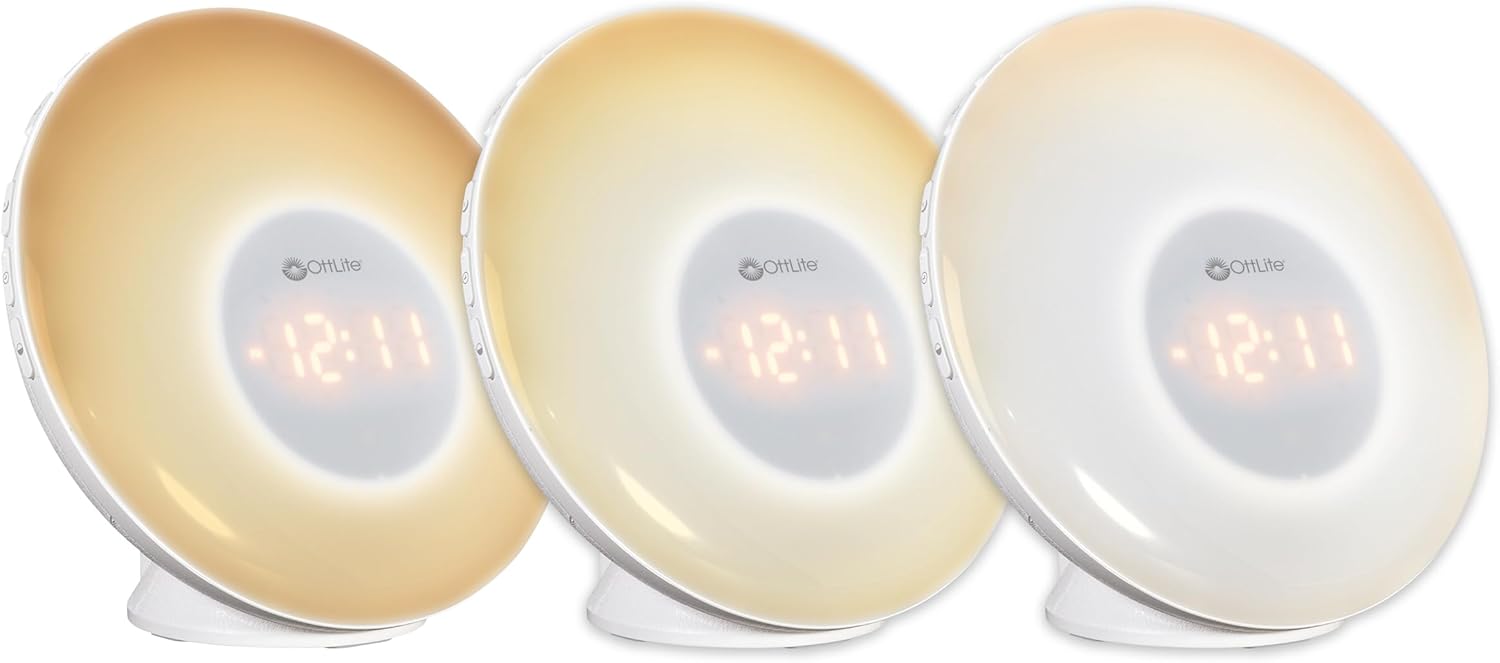
Image: Three units demonstrating the adjustable white light temperatures.

Image: Multiple units showcasing the range of color-changing options.
- Chiedza Chichena: Press the 'Light' button to activate soft white light. Adjust brightness using '+' and '-' buttons (three brightness levels available).
- Kuchinja Kwemavara Press the 'RGB' button to cycle through a spectrum of colors.
- Fixed Color: While in color-changing mode, press the 'RGB' button again to pause on your desired color.
5. USB Kuchaja Port
A convenient USB port is integrated for charging your devices.

Image: A smartphone being charged via the USB port on the Wake Up Light.
- Locate the USB port (5V, 1A output) on the side or back of the unit.
- Connect your device's USB charging cable to this port.
- Ensure the Wake Up Light is powered on for the USB port to function.
Maintenance
- Kuchenesa: Disconnect the power before cleaning. Wipe the device with a soft, dry cloth. Do not use abrasive cleaners or solvents.
- Kuchengeta: Kana usingashandiswi kwenguva yakareba, chengeta mudziyo wacho munzvimbo inotonhorera, yakaoma pasina zuva rakananga.
Kugadzirisa matambudziko
| Dambudziko | Zvinogona Kukonzera | Solution |
|---|---|---|
| Mudziyo haubatike. | Waya yemagetsi haina kubatana zvakanaka kana kuti nzira yekubuditsa magetsi haisi kushanda. | Ensure the power cable is securely connected to the device and the wall outlet. Test the outlet with another device. |
| Alarm does not sound or light does not activate. | Alarm haina kuiswa kana kuti vhoriyamu haina kuderera zvakanyanya. | Verify alarm settings and ensure the alarm is activated. Increase alarm volume. |
| High-pitched buzzing sound when light is on. | Potential internal component noise at certain brightness levels. | Try adjusting the brightness level. If the issue persists and is disruptive, contact customer support. |
| Difficulty setting the alarm or other functions. | Unfamiliarity with button layout or sequence. | Refer to the 'Operating Instructions' section carefully. Practice setting functions when not under time pressure. |
| USB charging port not working. | Device not powered on or cable issue. | Ensure the Wake Up Light is powered on. Try a different USB cable or device to rule out cable/device issues. |
Zvinotsanangurwa
| Feature | Detail |
|---|---|
| Model Number | WU300Z-SHPR |
| Product Dimensions | 4"D x 6.75"W x 6.7"H |
| Item Weight | 1.23 makirogiramu |
| Simba Source | Corded Electric (120 Volts AC) |
| Chiedza Chinyorwa Type | LED |
| Special Features | Color Changing, Dimmable, Sunrise Simulation, Sunset Simulation, White Noise, USB Charging Port |
| USB Output | 5V, 1A |
| Material | Plastiki |
| Indoor / Outdoor Kushandiswa | Indoor kushandiswa chete |
Warranty uye Support
OttLite products are designed for quality and durability. For warranty information or technical support, please refer to the warranty card included with your purchase or visit the official OttLite website. Chengeta risiti yako yekutenga yezvichemo zvewaranti.
For further assistance, please contact OttLite customer service.


