Nhanganyaya
This manual provides detailed instructions for the safe and efficient operation of your CAIWEI X99+ 4K Smart Projector. Please read this manual thoroughly before using the projector and retain it for future reference.
Safety Information
Kuti uve nechokwadi chekushanda kwakachengeteka uye kudzivirira kukuvadzwa, chengeta zvinotevera zvekudzivirira:
- Do not place the projector in boxes or cabinets with poor ventilation properties. Ensure adequate airflow around the device to prevent overheating.
- Avoid direct exposure of the projector lens to sunlight.
- Usavhare mazaru emhepo.
- Shandisa chete adapta yemagetsi inopihwa nepurojekita.
- Chengetedza purojekita kure nemvura kana zvimwe zvinwiwa.
- Usaedza kupatsanura kana kugadzirisa purojekita wega. Bata vashandi vane hunyanzvi kuti vakubatsire.
Package Zviri mukati
Tarisa uone kuti zvinhu zvese zviripo mupakeji:
- CAIWEI X99+ Smart Projector
- Remote Control
- HDMI Cable
- Power Cable (UK-plug)
- AV Cable
- Projector Bag
- Mushandisi Chinyorwa (gwaro iri)
Product Overview
The CAIWEI X99+ is a smart projector designed for versatile entertainment and presentation needs. It features a native 1080P resolution with 4K support, 800 ANSI lumens brightness, and an integrated Android 9.0 operating system.

Figure 1: CAIWEI X99+ Smart Projector front view, kuratidzaasing yayo compact dhizaini uye akakosha maficha.
Zvinokosha:
- Ratidza Tekinoroji: Native 1920x1080P resolution, 4K support, 800 ANSI lumens, 15500:1 contrast ratio.
- Smart OS: Android 9.0 with access to over 6000 authorized apps (Netflix, YouTube, Prime Video, etc.).
- Memory: 2GB RAM + 16GB ROM.
- Wireless Kubatana: Dual 2.4G/5G WiFi, Airplay/DLNA/Miracast support, Bluetooth 5.0.
- Audio: Integrated 10W high-power stereo speakers, Dolby Audio support, 3.5mm audio output.
- Kuvandudza Mufananidzo: HDR10 processing, MEMC technology for smoother motion.
- Kugadziridza: 4D and ±50° vertical/horizontal electronic keystone correction, 40% digital image zoom.
- Durability: Fully sealed optical engine for dust protection and extended lifespan.

Figure 2: Visual representation of the projector's color accuracy, brightness, and image quality in various lighting conditions.
Gadzirira
1. Kugadzwa
Position the projector on a stable, flat surface or mount it to the ceiling using the four screw holes. Ensure the projector is placed at an appropriate distance from the projection surface to achieve the desired screen size. Maintain adequate ventilation around the unit.
2. Simba Connection
- Batanidza tambo yemagetsi kuchiteshi chemagetsi chepurojekita.
- Batanidza imwe magumo etambo yemagetsi mune yakafanira magetsi.
- Dzvanya bhatani remagetsi papurojekita kana remote control kuti ubatidze mudziyo.
3. Initial Focus and Keystone Adjustment
Upon initial power-on, the projected image may appear blurry or distorted. Adjust these settings for optimal clarity:
- Tarisa: Tenderedza rin'i yekutarisa iri pagirazi reprojekita kusvika mufananidzo wanyatsojeka uye wakajeka.
- Keystone Kugadziriswa: Use the remote control to access the keystone correction settings. The projector supports 4D keystone correction and ±50° vertical/horizontal electronic correction to square the image if the projector is not perfectly perpendicular to the screen.
- Digital Zoom: Adjust the image size without moving the projector using the digital zoom function (40% zoom out/in).
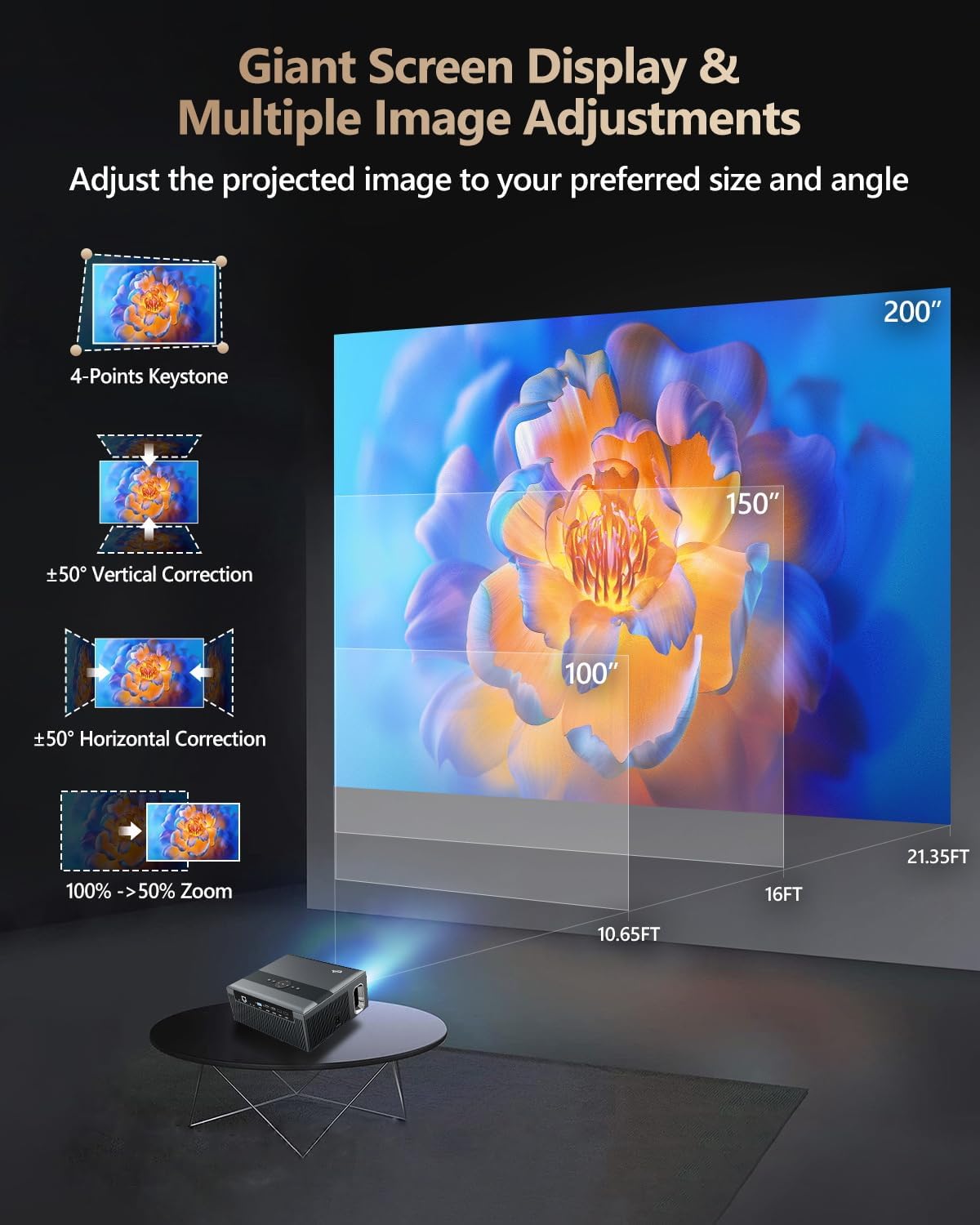
Figure 3: Image adjustment options including keystone correction and digital zoom.
4. Network Connection
Connect the projector to the internet for access to streaming apps and online content.
- Wi-Fi: Navigate to the network settings in the Android OS. Select your desired 2.4G or 5G Wi-Fi network and enter the password.
- LAN (Ethernet): Connect an Ethernet cable from your router to the RJ45 port on the projector for a wired internet connection.
5. Bluetooth Kubatanidza
Pair Bluetooth devices such as external speakers, headphones, mice, keyboards, or gamepads.
- Ita shuwa kuti mudziyo weBluetooth uri papairing mode.
- On the projector, go to Bluetooth settings within the Android OS.
- Select the desired device from the list and confirm pairing.

Figure 4: Wireless connectivity for streaming and audio.
Operating Instruction
1. Android TV OS Navigation
Use the remote control to navigate the Android 9.0 interface. The home screen provides access to installed applications, settings, and input sources.

Figure 5: Android TV 9.0 interface with pre-installed and accessible applications.
2. App Installation and Usage
The projector comes with pre-installed apps like Netflix, YouTube, and Prime Video. You can download additional authorized applications from the app store within the Android OS.
- Select an app icon from the home screen to launch it.
- Follow on-screen prompts for login or content selection.
3. Screen Mirroring (Airplay/DLNA/Miracast)
Synchronize your smartphone, tablet, or laptop screen wirelessly to the projector.
- Ensure your device and the projector are connected to the same Wi-Fi network.
- Select the appropriate mirroring function (Airplay for iOS, Miracast for Android/Windows, DLNA for compatible devices) on the projector's interface.
- Initiate screen mirroring from your source device.
4. Kubatanidza External Devices
The projector offers multiple ports for connecting various external devices.

Figure 6: Available input and output ports for external devices.
- HDMI: Connect Blu-ray/DVD players, TV sticks, game consoles (PS5), PCs, or laptops using an HDMI cable. Select the corresponding HDMI input from the projector's source menu.
- USB: Insert USB flash drives or hard drives into the USB ports to play media files zvakananga.
- VGA: Connect older PCs or laptops using a VGA cable.
- YE: Use the AV cable to connect devices with composite video and stereo audio outputs.
5. Kubuditsa Audio
The projector features built-in 10W stereo speakers. For alternative audio experiences:
- Bluetooth: Pair with external Bluetooth speakers or headphones as described in the Setup section.
- 3.5mm Audio Kunze: Connect wired headphones or external speakers using a 3.5mm audio cable.

Figure 7: Projector's integrated audio system.
Maintenance
1. Kuchenesa
- Lenzi: Shandisa jira rakapfava, risina lint rakagadzirirwa chaizvo malenzi ekuona. Usashandise abrasive cleaners.
- Kunze: Pukuta kunze kwepurojekita nejira rakapfava, rakaoma. Kana paine mavanga akaoma, pukuta zvishomaampen jira nemvura.
- Ventilation Openings: Periodically check and gently clean the ventilation openings to ensure unobstructed airflow.
2. Dust Protection
The CAIWEI X99+ features a fully sealed optical engine and an air purifier filter, which significantly reduces dust accumulation and light decay, contributing to a longer service life.

Figure 8: Dust-proof design of the CAIWEI X99+ projector.
3. Kuchengeta
When not in use for extended periods, store the projector in a cool, dry place, preferably in its original packaging or the provided projector bag, to protect it from dust and physical damage.
Kugadzirisa matambudziko
Kana ukasangana nematambudziko nepurojekita yako, tarisa kune anotevera akajairika matambudziko uye mhinduro:
| Dambudziko | Zvinogona Kukonzera | Solution |
|---|---|---|
| Hapana mufananidzo kana meseji yekuti "Hapana Chiratidzo" | Kwakasarurwa chinhu chisina kunaka; tambo yakabatana isina kugadzikana; mudziyo hauna kuvhurwa. |
|
| Mufananidzo usina kujeka | Focus not adjusted; keystone correction needed. |
|
| Hapana ruzha | Volume too low; incorrect audio output selected; external device audio issue. |
|
| Wi-Fi nyaya dzekubatanidza | Incorrect password; out of range; router issues. |
|
| Remote control haisi kushanda | Mabhatiri akafa; kuvharika; dambudziko rekuwiriranisa. |
|
Zvinotsanangurwa
| Brand | CAIWEI |
| Model | X99+ |
| Display Resolution | Native 1920 x 1080 (Supports 4K) |
| Kupenya | 800 ANSI Lumens (12000 LED Lumens) |
| Kusiyanisa Ratio | 15500:1 |
| Operating System | Android 9.0 |
| Memory | 2GB RAM + 16GB ROM |
| Kubatana Technology | Bluetooth 5.0, Dual-band Wi-Fi (2.4G/5G), USB, HDMI, VGA, AV, LAN (RJ45) |
| Special Features | Built-In Wi-Fi, Portable, Wireless, HDR10, MEMC, Dolby Audio, Sealed Optical Engine, 4D Keystone Correction, Digital Zoom |
| Vadivelu Comedy Audio | 10W High Power Stereo Speakers, 3.5mm Audio Output |
| Product Dimensions | 10.55 x 9.25 x 4.92 inches |
| Item Weight | 7.48 makirogiramu |
Warranty uye Support
For warranty information and technical support, please refer to the warranty card included with your product or visit the official CAIWEI webBata sevhisi yevatengi kuti uwane rubatsiro kana paine nyaya dzisiri mubhuku rino.
Mugadziri: CAIWEI
Websaiti: CAIWEI Official Store on Amazon


