1. Nhanganyaya
Thank you for choosing the MOFII Wired Retro Typewriter Keyboard. This manual provides essential information for the proper setup, operation, and maintenance of your new keyboard. Please read these instructions carefully before use and retain them for future reference.
2. Safety Information
- Usafumure iyo keyboard kune zvinwiwa kana kuwandisa mwando.
- Dzivisa kupisa kwakanyanya.
- Do not attempt to disassemble or repair the keyboard yourself. Contact qualified service personnel if needed.
- Chengetedza pasingasvikirwi nevana.
3. Package Zviri mukati
Ita shuwa kuti zvinhu zvese zviripo mupakeji yako:
- MOFII Wired Retro Typewriter Keyboard
- Kuchenesa Brush
4. Setup
4.1 Kubatanidza Kiyibhodhi
The MOFII Wired Keyboard features a simple plug-and-play design, requiring no additional drivers for most operating systems.
- Locate an available USB-A port on your computer (PC, Laptop, Desktop, Chromebook).
- Plug the USB-A cable from the keyboard into the USB-A port on your computer.
- The keyboard should be automatically recognized and ready for use within a few seconds.

Image: The keyboard connected to a laptop via its USB cable, demonstrating the plug-and-play functionality.
4.2 Kugadzirisa Angle yeKiibhodhi
For enhanced typing comfort, the keyboard includes foldable feet to adjust its tilt angle.
- To raise the keyboard, gently pull out the two foldable feet located on the underside of the keyboard.
- To return the keyboard to a flat position, fold the feet back into their recessed slots.

Mufananidzo: A divi view of the keyboard demonstrating the adjustable tilt angle provided by its foldable feet.
4.3 Kuenderana
The MOFII Wired Keyboard is compatible with a wide range of operating systems:
- Windows XP/Vista/7/8/10/11
- Mac OS (Note: Some multimedia functions may not be available with Mac OS)
5. Operating Instructions
5.1 Kunyora Kwepakutanga
The keyboard features a standard 104-key full-size layout with round, retro-style keycaps. Simply begin typing after connecting the keyboard to your computer.
5.2 Multimedia Mabasa
The keyboard includes 11 multimedia shortcut combinations accessible via the Fn key. Press and hold the Fn key, then press the corresponding F-key (F1-F12) to activate the desired function.
| Combination | Function |
|---|---|
| Fn + F1 | Vadivelu Comedy Media Player |
| Fn + F2 | Volume Down |
| Fn + F3 | Volume Up |
| Fn + F4 | Mute |
| Fn + F5 | Play / Suspend |
| Fn + F6 | Previous Track |
| Fn + F7 | Tamba / Imbomira |
| Fn + F8 | Next Track |
| Fn + F9 | |
| Fn + F10 | Web Kumba |
| Fn + F11 | Screen Lock |
| Fn + W | WASD and Arrow Key Swapping |
| Fn+Win | Lock/Unlock Windows Key and APP Key |

Image: Visual representation of the multimedia function keys and their corresponding actions.
5.3 Chiratidzo Mwenje
The keyboard features indicator lights for various statuses:
- Keypad Lock Indicator: Illuminates when the numeric keypad is active.
- Caps Lock Indicator: Illuminates when Caps Lock is active.
- Win Lock Indicator: Illuminates when the Windows key is locked.

Mufananidzo: Yakadzama view highlighting the three indicator lights on the keyboard.
6. Kuchengeta
6.1 Kuchenesa kiyibhodhi
To maintain optimal performance and appearance, regularly clean your keyboard.
- Use the included cleaning brush to remove dust, crumbs, and other debris from between the keycaps.
- For surface cleaning, gently wipe the keycaps and keyboard body with a soft, damp jira. Dzivisa makemikari ane hasha.

Image: The keyboard with a few keycaps detached, illustrating the removable keycap design and the cleaning brush for maintenance.
7. Kugadzirisa matambudziko
7.1 Kiyibhodhi Haisi Kupindura
- Iva nechokwadi chekuti tambo yeUSB yakabatana zvakanaka mukhibhodi nepachiteshi cheUSB chekombuta.
- Edza kubatanidza kiyibhodhi mune imwe USB port iri pakombuta yako.
- Tangazve komputa yako.
7.2 Multimedia Keys Not Functioning on Mac OS
As noted in the compatibility section, some multimedia functions may not be fully supported on Mac OS due to system differences. This is expected behavior.
7.3 Erratic Key Input
If you experience incorrect key input or keys getting stuck internally, especially after reconnecting the cable:
- Disconnect the keyboard's USB cable from the computer.
- Wait a few seconds, then reconnect the USB cable firmly. This often resolves temporary communication issues.
8. Zvinotsanangurwa
| Feature | Detail |
|---|---|
| Brand | MOFII |
| Model | Wired Keyboard (B0CDWQCVGG) |
| Kubatana Technology | USB-A |
| Keyboard Tsanangudzo | Multimedia, Full-Size with Numeric Keypad |
| Special Feature | Round Key, Retro Style |
| Color | Pink Colorful |
| Material | Silicone |
| Inowirirana Devices | PC, Laptop, Desktop, Chromebook |
| Item Weight | 1.85 makirogiramu |
| Package Dimensions | 17.95 x 6.38 x 1.81 inches |
| USB Cable Kureba | 65 inches (approx. 5.4 ft) |
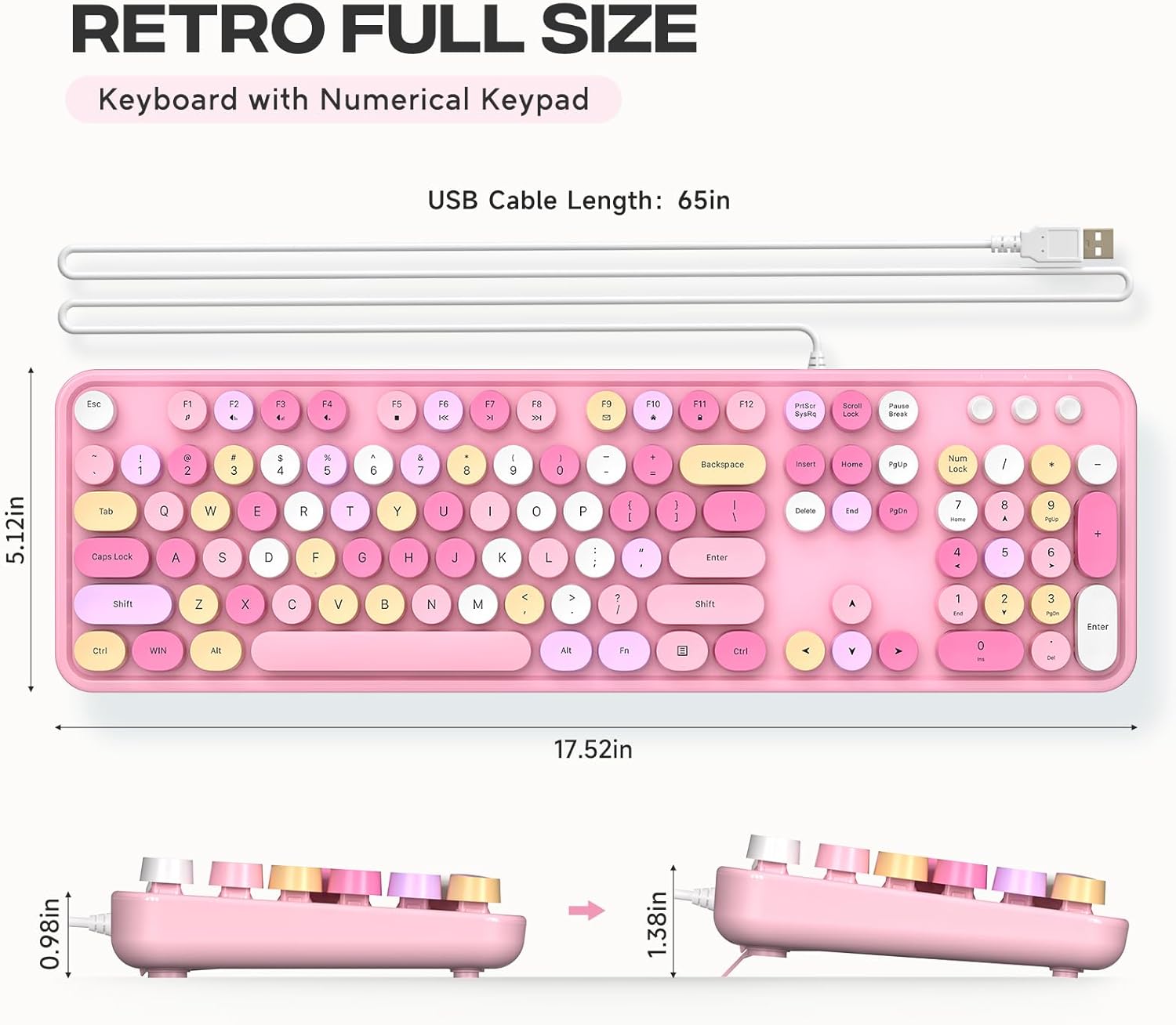
Image: Detailed measurements of the keyboard, including its length, width, and height in both flat and tilted positions.
9. Warranty uye Tsigiro
MOFII products are designed for reliability and performance. For specific warranty details and support inquiries, please refer to the product packaging or contact MOFII customer service directly through their official webnzvimbo kana mutengesi uko chigadzirwa chakatengwa.
Please have your product model (B0CDWQCVGG) and purchase information ready when contacting support.


