1. Nhanganyaya
Thank you for choosing the ONIKUMA CW908 Wired Gaming Mouse. This manual provides detailed instructions on how to set up, operate, maintain, and troubleshoot your new gaming mouse. Please read this manual carefully before use to ensure optimal performance and longevity of your device.
2. Chigadzirwa Pamusoroview
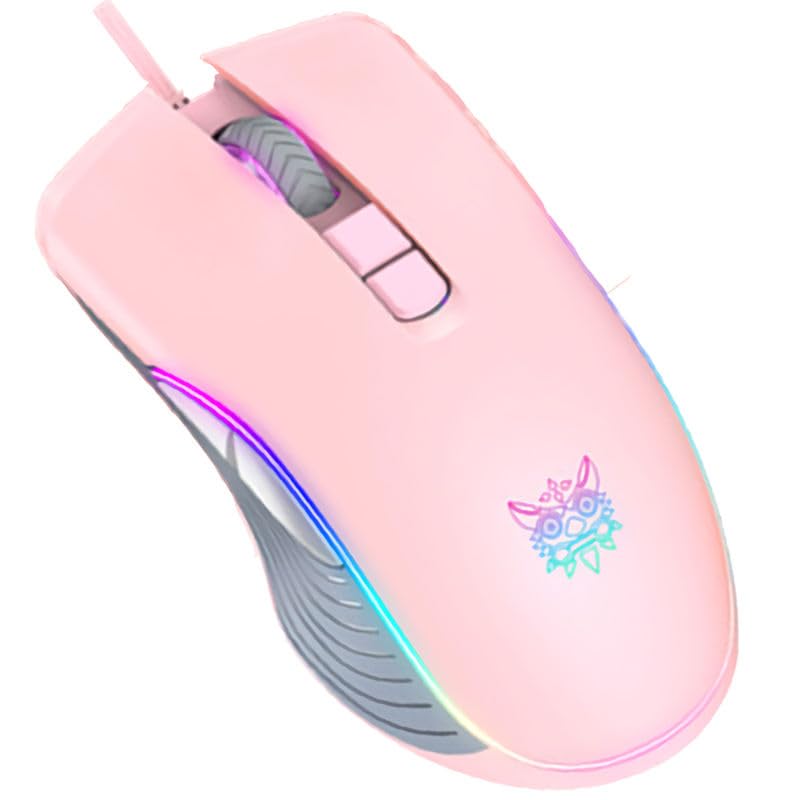
The ONIKUMA CW908 is a high-performance wired gaming mouse designed for comfort and precision. It features 7 programmable buttons, adjustable DPI up to 7200, and vibrant RGB lighting. Its ergonomic and lightweight design ensures comfortable use during extended gaming sessions.
2.1 Zvikamu zveMbeva
- Bhatani reKudzvanya Kuruboshwe: Basa rekushandisa pakudzvanya rekutanga.
- Bhatani rekudzvanya kurudyi: Basa rechipiri rekudzvanya.
- Mupumburu Wheel: Yebasa rekuskorora uye rekudzvanya pakati.
- DPI Kugadzirisa Bhatani: Inotenderera kuburikidza nemarongero eDPI.
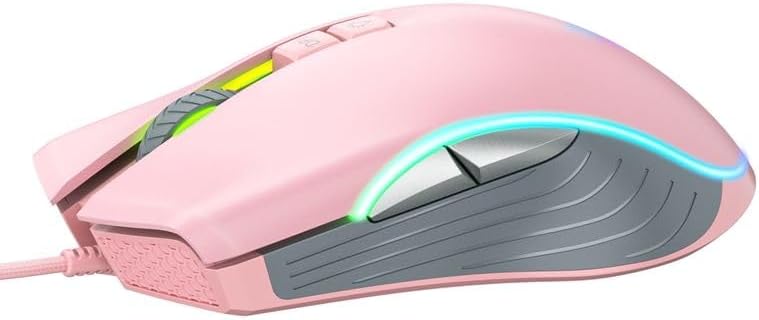
- Pamberi Bhatani: Inofamba ichienda mberi ichipinda web browsers or applications.
- Backward Button: Anofamba achidzokera kumashure web browsers or applications.
- RGB Lighting: Integrated LED lighting for aesthetic appeal.
- USB Connector: For wired connection to your computer.
2.2 Zvigadzirwa Zvifananidzo
3. Setup Instructions
Setting up your ONIKUMA CW908 mouse is a simple plug-and-play process.
- Unpack the Mouse: Bvisa mbeva nokungwarira kubva mupakeji yayo.
- Batanidza kuKombuta: Plug the USB connector of the mouse into an available USB port on your personal computer or laptop.
- Kuiswa kwemutyairi: Your operating system (Windows 7, Windows 98, Linux, or newer versions) should automatically detect and install the necessary drivers. This process may take a few moments.
- Yakagadzirira Kushandiswa: Once the drivers are installed, the mouse will be ready for immediate use. The RGB lighting will illuminate.
4. Operating Instructions
The ONIKUMA CW908 mouse offers intuitive controls for both general use and gaming.
4.1 Basic Operation
- Fambisa mbeva panzvimbo yakati sandara kuti udzore chirauro chiri pachidzitiro chako.
- Use the Left Click Button for primary actions (e.g., selecting items, opening files).
- Use the Right Click Button for secondary actions (e.g., opening context menus).
- Roll the Scroll Wheel up or down to navigate through documents or web pages. Press the Scroll Wheel for its middle-click function.
4.2 DPI Kugadziriswa
The mouse features an adjustable DPI (Dots Per Inch) setting, allowing you to change cursor sensitivity on the fly. The CW908 supports up to 7200 DPI.
- Press the DPI Shongedzo Bhatani (usually located behind the scroll wheel) to cycle through different DPI levels.
- Each press will switch to a predefined DPI setting, indicated by a change in the RGB lighting color or pattern (if applicable).
- Select the DPI level that best suits your task, whether it's precise aiming in games or fast navigation across multiple monitors.
4.3 Mativi Mabhatani
The Forward and Backward buttons on the side of the mouse provide quick navigation.
- The Pamberi Bhatani typically moves forward in web browsers kana file vaongorori.
- The Backward Button typically moves backward in web browsers kana file vaongorori.
5. Customizing Settings
While the ONIKUMA CW908 offers plug-and-play functionality, advanced customization for button remapping or more intricate RGB control may require dedicated software. Please check the official ONIKUMA website for any available software downloads specific to the CW908 model.
- DPI Settings: As mentioned, the DPI button cycles through preset levels. Software, if available, may allow for custom DPI steps.
- Bhatani Chirongwa: With compatible software, the 7 buttons can often be remapped to perform specific functions, macros, or keyboard shortcuts, enhancing your gaming and productivity.
- RGB Lighting: Software can provide more granular control over RGB effects, colors, and brightness, beyond the default cycling modes.
6. Kuchengeta
Kugadziriswa kwakakodzera kunovimbisa kugara kwenguva refu uye kushanda zvakanaka kwembeva yako yemitambo.
- Kuchenesa: Shandisa jira rakapfava, rakaoma kupukuta pamusoro pembeva. Kana iine tsvina yakaoma, pukuta zvishomaampsn jira rine mvura kana mushonga wakapfava wekuchenesa. Dzivisa makemikari ane hasha.
- Sensor Kuchenesa: Occasionally, dust or debris may accumulate around the optical sensor on the underside of the mouse. Use a cotton swab or compressed air to gently clean the sensor area.
- Cable Care: Avoid sharply bending or pulling the USB cable. Store the mouse in a way that prevents the cable from being crimped or damaged.
- Kuchengeta: Kana isiri kushandiswa, chengeta mbeva munzvimbo yakachena, yakaoma kure nekupisa kwakanyanya.
7. Kugadzirisa matambudziko
If you encounter issues with your ONIKUMA CW908 mouse, refer to the following common problems and solutions:
| Dambudziko | Zvinogona Kukonzera | Solution |
|---|---|---|
| Mbeva isingadaire | Yakasununguka USB yekubatanidza, yakanganisa USB port, mutyairi nyaya. | Ensure USB cable is securely plugged in. Try a different USB port. Restart your computer. Check Device Manager for driver status. |
| Mufambiro wecursor unorasika kana kusvetuka | Sensor yemaziso yakasviba, nzvimbo isina kukodzera yepedhi yembeva. | Clean the optical sensor on the underside of the mouse. Use a clean, uniform-colored mouse pad. |
| Bhatani reDPI harichinje kunzwisisika | Button malfunction, software conflict. | Ensure the mouse is properly connected. If using custom software, check its settings. Try on another computer to rule out system issues. |
| RGB mwenje haisi kushanda | Dambudziko remagetsi, kugadzika kwesoftware. | Ensure the mouse is receiving power via USB. If using custom software, check lighting settings. |
8. Zvinotsanangurwa
| Feature | Detail |
|---|---|
| Brand | ONIKUMA |
| Model | CW908 |
| Kubatana Technology | USB Wired |
| Kufambisa Kwekufamba | Optical |
| DPI (Dots per inch) | Up to 7200 (Adjustable) |
| Nhamba yeMabhatani | 7 |
| Special Features | LED Lighting (RGB), Comfortable Design, Lightweight |
| Yakakurudzirwa Kushandisa | Mutambo |
| Inowirirana Devices | Kombiyuta Yemunhu, Laptop |
| Operating System Kuenderana | Linux, Windows 7, Windows 98 (and newer Windows versions) |
| Style | Mazuvano |
| Color | Pink |
9. Warranty uye Tsigiro
ONIKUMA products are manufactured to high-quality standards. For specific warranty information, please refer to the warranty card included with your product or visit the official ONIKUMA website. If you require technical support or have questions not covered in this manual, please contact ONIKUMA customer service through their official channels.


