Nhanganyaya
Thank you for choosing the Twisted Minds 32 FHD 240Hz VA Gaming Monitor. This manual provides essential information for setting up, operating, maintaining, and troubleshooting your new monitor. Please read this manual thoroughly before use to ensure proper operation and to maximize your viewing experience.
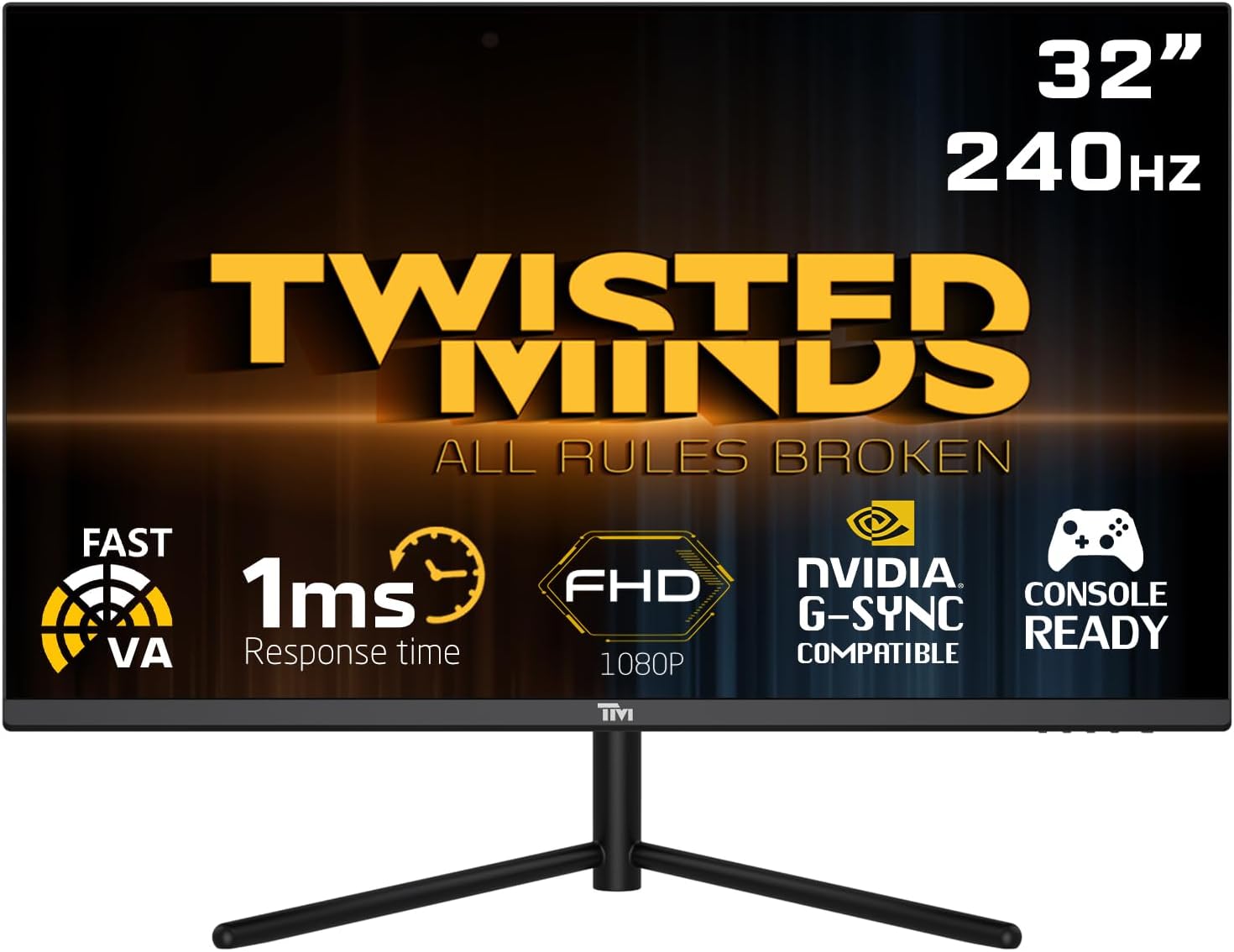
Mberi view of the Twisted Minds 32-inch Gaming Monitor, highlighting its 32-inch display, 240Hz refresh rate, 1ms MPRT response time, FHD 1080p resolution, NVIDIA G-SYNC compatibility, and console readiness.
Setup Guide
1. Unboxing uye Package Zviri mukati
Nyatsobvisa zvese zvikamu kubva pakurongedza. Ita shuwa kuti zvinhu zvese zvakanyorwa pazasi zviripo:
- Twisted Minds 32-inch Gaming Monitor
- Monitor Stand (Base and Neck)
- Power Adapter uye Cable
- HDMI Cable
- RatidzaPort Cable
- Mushandisi Chinyorwa (gwaro iri)
2. Kuunganidza Chigadziko
- Isa chekutarisa pasi panzvimbo yakapfava, yakachena kudzivirira mavanga.
- Batanidza mutsipa wekumira kumashure kwemonitor, uchigadzirisa maburi ekugadzika. Batanidza ne screws kana dziripo.
- Connect the stand base to the stand neck and tighten the thumb screw or screws from the bottom of the base.
3. Kubatanidza Monitor
The monitor supports multiple input options. Choose the appropriate cable for your device.

Rear view of the monitor displaying its various input/output ports, including DC power, HDMI 2.1 (x2), DisplayPort 1.4 (x2), and Audio Out, along with menu buttons and a quick release base.
- Power Connection: Connect the power adapter to the monitor's DC input port, then plug the power cable into a wall outlet.
- Vhidhiyo yekubatanidza:
- For PC: Connect one end of the DisplayPort cable to your computer's graphics card and the other end to a DisplayPort 1.4 input on the monitor.
- For PC/Console: Connect one end of the HDMI cable to your computer's graphics card or game console and the other end to an HDMI 2.1 input on the monitor.
- Audio Output: Kana uchida, batanidza vatauri vekunze kana mahedhifoni kuAudio Out port pamonitor.
4. Chekutanga Power On
After all connections are made, press the power button on the monitor. The power indicator light will illuminate, and the display will turn on. If no signal is detected, ensure your source device is powered on and correctly configured.
Operating Instruction
1. Basic Operation
- Batidza/Kudzima: Dzvanya bhatani remagetsi riri pamonitor kuti ibatike kana kudzima.
- Sarudzo yezvinopinza: Use the OSD (On-Screen Display) menu buttons to navigate and select the desired input source (HDMI 1, HDMI 2, DP 1, DP 2).
2. Pa-Screen Display (OSD) Menyu
The OSD menu allows you to adjust various display settings. Use the menu buttons (typically located on the back or bottom of the monitor) to navigate.
- Kupenya/Kusiyanisa: Gadzirisa kupenya kwese uye kusiyana kwechiratidziro.
- Rudzi Settings: Shandura tembiricha yeruvara, gamma, uye nhanho dzeRGB dzemunhu.
- Mufananidzo Mode: Select from preset modes (e.g., Standard, Game, Movie, Text) optimized for different content.
- Response Time/Overdrive: Adjust the pixel response time for reduced ghosting in fast-paced content. This monitor features a 1ms MPRT response time for smooth visuals.
- Refresh Rate: The monitor supports up to 240Hz refresh rate. Ensure your graphics card settings are configured to utilize this high refresh rate for optimal gaming performance.
- HDR (High Dynamic Range): Enable or disable HDR for enhanced contrast and color depth with compatible content.
- FreeSync/G-SYNC Compatibility: This monitor is compatible with adaptive sync technologies. Enable this feature in the OSD and your graphics card control panel for tear-free gaming.

Illustration demonstrating the 1ms quick response time of the monitor, showing a fast-paced gaming scene with reduced motion blur and low input lag.

Mufananidzo showcasing the monitor's frameless design, ideal for multi-monitor setups, with a wide 178-degree vieweng angle

A user engaged in gaming on the Twisted Minds monitor, emphasizing the immersive experience provided by the 1920x1080 resolution, 300 nits brightness, 4000:1 contrast ratio, and 240Hz refresh rate.
3. Ergonomic Adjustments
The monitor stand allows for tilt adjustment to optimize your viewing angle and reduce strain.

Diagram illustrating the ergonomic tilt adjustment range of the monitor stand (-5 to 15 degrees) for optimal viewing comfort, and highlighting VESA wall-mount compatibility (100x100mm).
- Tilt: Gently tilt the monitor screen forward or backward to find your preferred viewing angle. The tilt range is typically -5° to 15°.
- VESA Mount: For alternative mounting solutions, the monitor is VESA compatible (100x100mm). Remove the stand and attach a compatible VESA mount (sold separately).
Maintenance
Kuchengetedza uye kugadzirisa kwakakodzera kuchawedzera hupenyu hwemonitor yako.
- Kuchenesa Screen: pukuta skrini zvinyoro nyoro nemucheka wakapfava, usina lint. Nokuda kwemavara akasindimara, dampen the cloth slightly with water or a non-ammonia, non-alcohol based screen cleaner. Never spray liquid directly onto the screen.
- Kuchenesa iyo Casing: Shandisa jira rakapfava, rakaoma kupukuta monitor casing. Dzivisa kushandisa abrasive cleaners kana solvents.
- Kufefetedza Ita shuwa kuti kuvhurika kwemhepo pamonitor hakuna kuvharwa. Usaisa chekutarisa munzvimbo yakavharirwa pasina mhepo yakakwana.
- Kudzima Kana Kusiri Kushandiswa: Dzima cheki kana chisiri kushandiswa kwenguva yakareba kuchengetedza simba uye kurebesa hupenyu hwayo.
Kugadzirisa matambudziko
If you encounter issues with your monitor, refer to the following common problems and solutions.
| Dambudziko | Zvinogona Kukonzera | Solution |
|---|---|---|
| Hapana mufananidzo pachiratidziri | Monitor haina powered on; Yakasarudzwa isiriyo; Wakasununguka vhidhiyo tambo. | Ensure power cable is connected and monitor is on. Select correct input source. Check video cable connections. |
| Mufananidzo hauna kujeka kana kukanganiswa | Mhinduro isiriyo; Dambudziko remutyairi wemifananidzo. | Set display resolution to 1920x1080. Update graphics card drivers. |
| Hapana ruzha kubva kune vatauri / mahedhifoni | Audio cable not connected; Volume too low; Incorrect audio output selected on PC. | Ensure audio cable is connected to the monitor's audio out port. Adjust volume. Select monitor as audio output device in PC settings. |
| Screen flickering | Refresh rate kusawirirana; Yakatadza tambo. | Ensure refresh rate is set correctly (e.g., 240Hz). Try a different video cable. |
| Mabhatani haasi kudaira | OSD lock enabled. | Refer to OSD menu section for unlocking button functions (if applicable). Power cycle the monitor. |
Kana dambudziko rikaramba riripo mushure mekuyedza mhinduro idzi, ndapota taura nerutsigiro rwevatengi.
Zvinotsanangurwa
Detailed technical specifications for the Twisted Minds 32 FHD 240Hz VA Gaming Monitor.
| Feature | Tsanangudzo |
|---|---|
| Brand | Twisted Minds |
| Model Number | TM32 FHD 240Hz VA |
| Kukura Kwekuratidza | 32 inches |
| Screen Resolution | 1920 x 1080 (FHD 1080p) |
| Refresh Rate | 240Hz |
| Nguva Yekupindura | 1ms MPRT |
| Panel Type | VA |
| Aspect ratio | 16:9 |
| Kupenya | 300 nits |
| Kusiyanisa Ratio | 4000:1 |
| Color Gamut | 77.29% NTSC |
| Kubatana | 2 x HDMI 2.1, 2 x DisplayPort 1.4, Audio Out |
| VESA kuenderana | 100 x 100 mm |
| Product Dimensions | 10 x 63 x 44 cm |
| Item Weight | 8.8 makirogiramu |
| Color | Nhema |
Warranty uye Support
Warranty Information
Twisted Minds products are manufactured to the highest quality standards. This monitor comes with a standard manufacturer's warranty. Please refer to the warranty card included in your package or visit the official Twisted Minds websaiti kune yakadzama waranti mazwi uye mamiriro akanangana nedunhu rako.
Mutengi Support
If you require technical assistance or have questions regarding your monitor, please contact Twisted Minds customer support. Have your model number (TM32 FHD 240Hz VA) and purchase information ready when contacting support.
For the most up-to-date contact information, please visit the official Twisted Minds webwebhusaiti kana peji rekutsigira remutengesi kwawakatenga chigadzirwa chacho.


