Nhanganyaya
This manual provides comprehensive instructions for the MOBAPAD Hall Effect Drift-Proof Wireless Switch Controller. Designed for enhanced gaming, this controller features advanced contactless joystick technology, ensuring a longer lifespan, greater durability, and smoother operation compared to traditional designs. Its drift-proof performance guarantees precise and accurate control input. Experience enhanced gaming with realistic HD Rumble feedback, simulating various tactile sensations for deeper immersion.
Key Features
- Hall Electromagnetic Joysticks: Contactless technology for drift-proof, precise control and extended durability.
- HD Rumble: Generated by ALPS dual-axis linear motors for realistic vibrations and tactile feedback.
- Mechanical Face Buttons: Durable buttons with a 5 million click lifespan, offering shorter throw, faster rebound, and instant trigger response.
- 6-Axis Gyroscope: Supports motion sensing for compatible games.
- Local Macro Programming: Create and store macros directly on the controller without external software.
- Turbo Rinoshanda: Independent Turbo button with two auto-shooting setups for rapid input.
- NFC Reader: Super sensitive NFC reader for Amiibo compatibility.
- Interchangeable D-Pad: Customize your D-pad with included options.
- Remappable Back Paddles: Two programmable back paddles (M1, M2) for personalized control, which can also be disabled.
- Hupenyu Hurefu Hwebhatiri: Equipped with a 1000mAh rechargeable lithium battery, providing approximately 30 hours of usage.
- Multi-Platform Kuenderana: Connects wirelessly to Nintendo Switch (Pro/Lite/OLED), PC (via Bluetooth or wired), iOS (version 13 and above), and Android devices.
Package Zviri mukati
- 1 x MOBAPAD Hall Effect Wireless Switch Controller
- 1 x USB-C kuenda ku USB-A Kuchaja Cable
- 1 x Interchangeable Cross-shaped D-Pad
- 1 x User Manual / Startup Guide

Image: The MOBAPAD controller in its packaging, showing the main unit and included accessories.
Gadzirira
Connecting to Nintendo Switch
- PaNintendo Switch yako, enda kuHOME Menu.
- Select "Controllers" from the bottom menu.
- Choose "Change Grip/Order".
- On the MOBAPAD controller, press the small pairing button located on the back (next to the M1/M2 buttons) once. The "M" logo will light up, and the channel LED will flash.
- Once the controller is detected by the Switch, the channel LED will become solid, indicating a successful connection.

Image: The MOBAPAD controller connected and interacting with a Nintendo Switch console.
Connecting to PC (Windows) via Bluetooth
- Ensure the controller is powered off (no LED lights).
- Press and hold the Home button (M logo) until the middle channel LED flashes quickly.
- On your PC, go to Bluetooth settings and search for "MOBAPAD PRO-HD".
- Select the device to pair. Once connected, the LED will become solid.
Connecting to PC via Wired Connection
Connect the controller to your PC using the provided USB-C cable. The controller will automatically switch to wired mode. For Windows 10 and Steam games that support controller input, the mode is set to "Switch Pro mode".
Connecting to Apple Devices (iOS Version 13 or Above)
- Ensure the controller is powered off (no LED lights).
- Press and hold the Home button (M logo) until the middle channel LED flashes quickly.
- Go to your iOS device's Bluetooth settings and search for "Xbox Wireless Controller".
- Select the device to pair. Once connected, your phone will display "Connected" and the middle channel LED will become solid.
Connecting to Android Devices
- Ensure the controller is powered off (no LED lights).
- Press and hold the Home button (M logo) until the middle channel LED flashes quickly.
- Go to your Android device's Bluetooth settings and search for "MOBAPAD PRO-HD".
- Select the device to pair. Once connected, your phone will display "Connected" and the middle channel LED will become solid.
Operating Instruction
Controller Layout uye Mabasa
Mufananidzo: Mberi view of the MOBAPAD controller, highlighting buttons and joysticks.
- A/B/X/Y Mabhatani: Mechanical face buttons for crisp, responsive input.
- Hall Effect Joystick: Contactless joysticks for precise, drift-free movement.
- D-Pad: Interchangeable D-pad (comes with a circular and a cross-shaped option).
- Turbo Bhatani: Activates rapid-fire function.
- Macro Programming Button: Used to record and execute complex button sequences.
- Bhatani remufananidzo wepikicha: Captures in-game screenshots.
- Bhatani Repamba: Inodzokera kuchiratidziro chekumba.
- NFC nzvimbo: Located near the Home button, supports Amiibo scanning.
- USB-C Chiteshi: Located on the top, used for charging and wired connection.
- M1/M2 Back Paddles: Two remappable buttons on the underside for custom commands.
- Pairing Bhatani: Small button on the back for initiating Bluetooth pairing.
- Reset Hole: Small pinhole for resetting the controller if needed.
Inochinjika D-Pad
The controller comes with two D-pad options: a pre-installed circular D-pad and an additional cross-shaped D-pad. To change the D-pad, simply lift the current D-pad off the controller and align the new D-pad with the magnetic base, then gently press it into place.
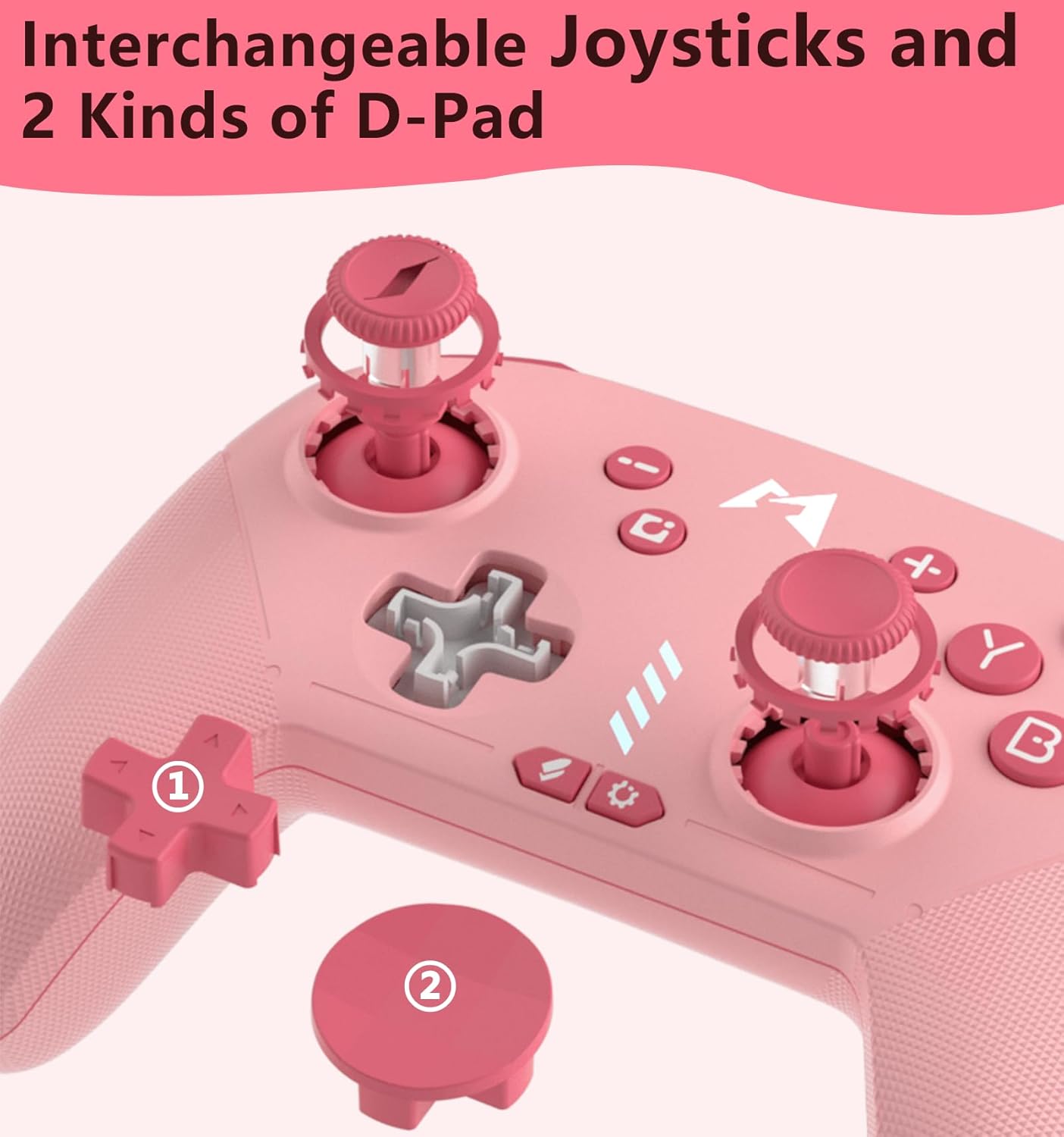
Mufananidzo: Pedyo-up view of the interchangeable D-pad mechanism and the two D-pad styles.
Macro Programming
The MOBAPAD controller supports local macro programming. Refer to the included startup guide for detailed steps on how to record and assign macros to the M1 and M2 back paddles.
Auto-Off Feature
The controller features an auto-off function to conserve battery. If connected to a Nintendo Switch, the controller will go to sleep when the Switch enters sleep mode. If not connected to any device, the controller will automatically power off after 15 minutes of inactivity.
Maintenance
- Chengeta chinodzora chemagetsi chakachena nekuchipukuta nejira rakapfava, rakaoma.
- Avoid exposing the controller to extreme temperatures, direct sunlight, or moisture.
- Store the controller in a safe place to prevent physical damage.
Kugadzirisa matambudziko
- Controller kwete pairing: Ensure the controller is fully charged. Try resetting the controller by inserting a thin object into the reset hole on the back. Re-initiate the pairing process on both the controller and your device.
- Input lag kana kudimbura: Ensure you are within the effective range of your device's Bluetooth. Minimize interference from other wireless devices.
- Mabhatani haasi kupindura: Check if the controller is charged. If the issue persists, try resetting the controller.
Zvinotsanangurwa
| Feature | Detail |
|---|---|
| Muenzaniso Nha. | PRO-HD |
| Mugadziri | Dongguan Heng xun Energy Technology CO., Ltd. |
| Battery Capacity | 1000mAh Lithium Bhatiri |
| Estimated Battery Hupenyu | ~ maawa maviri |
| Kuchaja Port | USB-C |
| Vadivelu Comedy Joystick Technology | ALPS Hall-Effect (Drift-Proof) |
| Rumble Feedback | HD Rumble (ALPS Dual-Axis Linear Motors) |
| Motion Control | 6-Axis Gyroscope |
| Bhatani Type | Mechanical Face Buttons |
| NFC Support | Yes (for Amiibo) |
Warranty uye Support
For warranty information and technical support, please refer to the documentation included with your product or visit the official MOBAPAD website. Chengeta risiti rako rekutenga seumboo hwekutenga.


