Rongta RLS1100C Barcode Scale User Manual
Model: RLS1100C
1. Nhanganyaya
This manual provides detailed instructions for the proper operation, maintenance, and troubleshooting of your Rongta RLS1100C Barcode Scale. Please read this manual thoroughly before using the device to ensure optimal performance and longevity.
Zvinokosha:
- Maximum weight capacity of 30 kg.
- High precision with 5-gram graduation.
- Fast printing speed of 80 mm/second.
- Equipped with Network and Serial RS232 ports for versatile connectivity.
- Large storage capacity for up to 10,000 items.
- User-friendly panel with 112*2 shortcuts.
- Features a clear, backlit LCD display.
- Supports full Arabic language for printing and display.
- Includes free software for item uploading and label design.
2. Setup
2.1 Kuburitsa uye Kuongorora
Carefully remove the scale from its packaging. Inspect all components for any signs of damage during transit. Ensure all accessories listed in the packing list are present.
2.2 Kuiswa
Place the scale on a stable, flat, and level surface. Avoid locations with excessive vibration, direct sunlight, or extreme temperature fluctuations. Ensure adequate space around the scale for operation and ventilation.
2.3 Simba Connection
Connect the power adapter to the scale's power input port and then plug it into a standard 100-240V, 50-60Hz electrical outlet. Ensure the power switch is in the OFF position before connecting.
2.4 Label Roll Installation
Open the label compartment. Insert the label roll, ensuring the labels feed correctly through the printer mechanism. The scale supports label widths from 30mm to 60mm and a maximum roll diameter of 10cm.

Mufananidzo: Mberi view of the Rongta RLS1100C Barcode Scale, showing the main display, weighing platter, and keypad for item entry and shortcuts.
3. Operating Instructions
3.1 Kubatidza/Kudzima
To power on the scale, flip the power switch located on the side or rear of the device to the 'ON' position. The display will light up and perform a self-test. To power off, flip the switch to 'OFF'.
3.2 Kuyera Kwepakutanga
- Ensure the scale displays '0.000 kg' before placing any item.
- Gently place the item to be weighed on the center of the weighing platter.
- Verenga uremu hunoratidzwa pachiratidziri.
3.3 Taring Function
To weigh an item in a container, first place the empty container on the platter. Press the TENDA button. The display will reset to '0.000 kg'. Now, place the item inside the container, and the scale will display only the net weight of the item.
3.4 Item Programming and Label Printing
The scale supports programming up to 10,000 items. Use the provided free software to upload item data (PLU - Price Look-Up) including item name, unit price, and other relevant information. Once programmed:
- Place the item on the weighing platter.
- Enter the PLU code using the numeric keypad or select from the 112*2 shortcut keys.
- The scale will calculate the total price based on weight and unit price.
- Press the PRINT button to generate a barcode label.
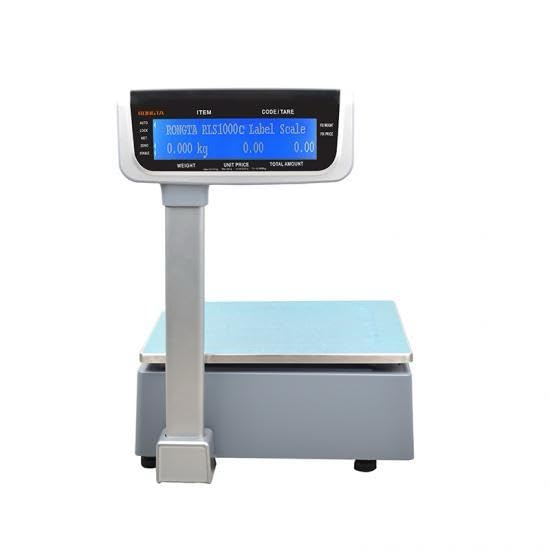
Mufananidzo: Rear view of the Rongta RLS1100C Barcode Scale, highlighting the backlit LCD display which shows weight, unit price, and total amount.
4. Kuchengeta
4.1 Kuchenesa
Gara uchichenesa chikero nechinyoro, damp cloth. Do not use abrasive cleaners, solvents, or immerse the scale in water. Ensure the weighing platter and display are free from dust and debris.
4.2 Calibration
While the scale is factory calibrated, periodic calibration may be required to maintain accuracy. Refer to the advanced settings menu or contact customer support for calibration procedures.
4.3 Label Printer Care
Keep the label printer mechanism clean. Remove any paper dust or adhesive residue from the print head and rollers using a soft brush or lint-free cloth. Replace label rolls promptly when empty.
5. Kugadzirisa matambudziko
| Dambudziko | Zvinogona Kukonzera | Solution |
|---|---|---|
| Chikero hachibatidzi. | No power supply; power cable loose; power switch off. | Check power connection; ensure power switch is ON; try a different outlet. |
| Kuverengwa kwehuremu kusina kururama. | Scale not level; debris under platter; needs calibration. | Ensure scale is on a level surface; clean under platter; perform calibration. |
| Printer not printing labels. | No label roll; label roll incorrectly installed; print head dirty. | Install new label roll; re-install label roll correctly; clean print head. |
| Cannot connect to network/PC. | Incorrect cable; network settings incorrect; software issue. | Verify cable type (Network/RS232); check network settings; reinstall software. |
Kana dambudziko rikaramba riripo mushure mekuyedza mhinduro idzi, ndapota taura nerutsigiro rwevatengi.
6. Zvinotsanangurwa
| Feature | Detail |
|---|---|
| Model Number | Rongta RLS1100C |
| Brand | Rongta |
| Maximum Weight Capacity | 30 kg |
| Graduation / Reading Accuracy | 5 magiramu |
| Kudhinda Speed | 80 mm/sekondi |
| Kubatana | Network, Serial RS232 |
| Item Storage Capacity | 10,000 zvinhu |
| Panel Shortcuts | 112 * 2 |
| Power Input | 100-240V / 50-60Hz |
| Inotsigirwa Label Width | 30mm kusvika 60mm |
| Max Label Roll Diameter | 10 cm |
| Display Type | Backlit LCD |
| Material | Simbi isina ngura |
| Color | Sirivha |
| Fomu Factor | Tabletop |
| Nyika Yekwakabva | China |
| Mabhatiri | 1 Lithium Ion bhatiri inodiwa |
7. Warranty uye Tsigiro
7.1 Ruzivo rweWaranti
The Rongta RLS1100C Barcode Scale comes with a makore maviri waranti covering manufacturing defects from the date of purchase. This warranty does not cover damage caused by misuse, accidents, unauthorized modifications, or normal wear and tear.
7.2 Mutengi Tsigiro
For technical assistance, troubleshooting, or warranty claims, please contact your local distributor or the manufacturer's customer support. Please have your model number and purchase date ready when contacting support.


