1. Chigadzirwa Pamusoroview
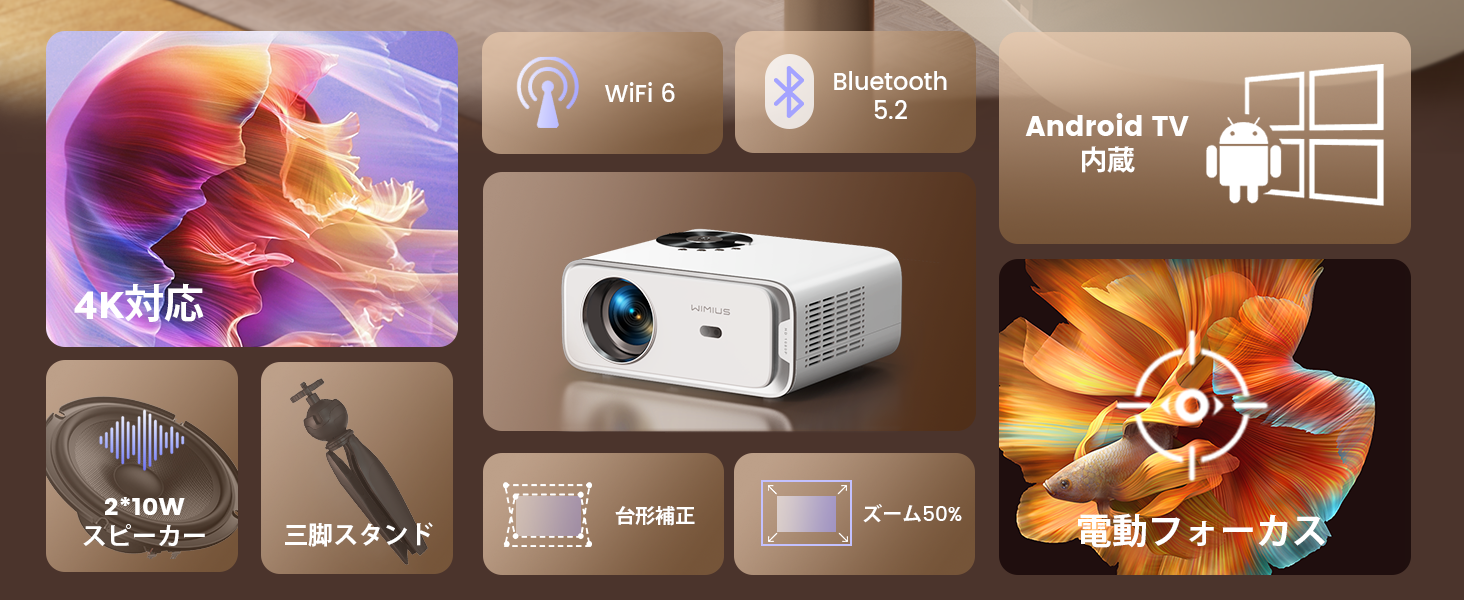
The WiMiUS P63 projector is a compact and versatile device designed for home entertainment and presentations. It integrates Android TV OS, providing access to a wide range of streaming applications directly from the projector. With native 1080P resolution, 4K support, and 750 ANSI lumens brightness, it delivers clear and vibrant images. Advanced features like electric focus, automatic keystone correction, and digital zoom enhance user convenience and picture quality.

Image 1.1: The WiMiUS P63 Projector, a compact and powerful device for home entertainment.

Image 1.2: The WiMiUS P63 Projector shown with its remote control and included tripod, highlighting its portability and ease of setup.
2. Setup Instructions
2.1 Unboxing uye Yekutanga Kuongorora
Carefully remove all components from the packaging. Verify that all accessories are present according to the packing list. Inspect the projector for any signs of damage.
Video 2.1: An unboxing demonstration for a similar projector model (GC357B), showing the contents of the package including the projector unit, power cable, AV cable, HDMI cable, dust removal tools, filter, and remote control. This video provides a general idea of what to expect when unboxing your WiMiUS P63 projector.
2.2 Simba Connection
Connect the power cable to the projector's power input port and then plug it into a power outlet. The projector will typically power on or enter standby mode.
2.3 Remote Kudzora Kubatanidza
To ensure full functionality, pair the remote control with the projector. Follow the on-screen instructions or the steps outlined in the video below.
Video 2.2: A demonstration of how to pair the remote control with the projector. This process typically involves pressing specific buttons on the remote simultaneously until a pairing confirmation appears on the screen.
2.4 Kuiswa Kwekutanga uye Kugadziriswa
Place the projector on a stable surface or mount it using a compatible tripod or ceiling mount. The WiMiUS P63 features automatic keystone correction and electric focus for quick image setup.
Video 2.3: A general setup video for a similar projector model (GC357B) showing installation in a car, demonstrating its compact size and ease of setup for various environments. This video illustrates the projector's versatility in different mounting scenarios.

Image 2.1: The projector shown mounted on a ceiling, illustrating flexible installation options for optimal viewing angles.
3. Operating Instructions
3.1 Navigating Android TV OS
The WiMiUS P63 comes with Android TV OS pre-installed, offering a user-friendly interface to access various applications. Use the remote control to navigate through menus, select apps, and adjust settings.

Image 3.1: The projector displaying the Android TV interface with various streaming apps like Netflix, YouTube, and Prime Video, ready for selection.
Mufananidzo 3.2: Yakadzama view of the Android TV interface, showcasing the wide array of applications available for streaming and entertainment.
3.2 Image Adjustment (Focus, Keystone, Zoom)
The projector features one-key electric focus and automatic keystone correction. You can also adjust the screen size from 50% to 100% using the zoom function without moving the projector.

Image 3.3: A visual representation of the automatic keystone correction and electric focus features, ensuring a perfectly rectangular and sharp image.

Image 3.4: This image highlights the one-key electric focus, automatic keystone correction, and zoom capabilities, allowing for flexible image adjustments.
3.3 Sarudzo dzekubatanidza
The P63 projector offers multiple connectivity options including HDMI, USB, AV, and 3.5mm audio. It also supports high-speed WIFI 6 and Bluetooth 5.2 for wireless connections.

Image 3.5: An illustration of the various input and output ports on the projector, including HDMI, USB, and audio jacks, for connecting external devices.
Video 3.1: A demonstration of connecting a mobile phone via Bluetooth to a similar projector model. This process allows the projector to act as a Bluetooth speaker or to stream audio from your phone.
4. Kuchengeta
4.1 Cleaning the Filter and Internal Lens
Regular cleaning of the air filter and internal lens is crucial for maintaining optimal performance and image quality. The filter should be cleaned monthly or as needed. The internal lens can be gently cleaned with a dry cotton swab or one moistened with alcohol.
Video 4.1: A guide on how to remove and clean the internal lens and dust filter of a similar projector model (P65). This maintenance step helps prevent dust accumulation and ensures clear projection.
5. Kugadzirisa matambudziko
If you encounter any issues with your WiMiUS P63 projector, please refer to the following common troubleshooting tips:
- Hapana Simba: Ensure the power cable is securely connected to both the projector and the power outlet. Try a different outlet.
- Hapana Mufananidzo: Check the input source. Make sure the correct HDMI or other input is selected. Verify that the lens cap is removed.
- Mufananidzo Wakasviba: Use the electric focus function on the remote control to adjust the image sharpness. Ensure the projector is placed at an appropriate distance from the screen.
- Image Distorted (Trapezoid Shape): The projector features automatic keystone correction. If the image is still distorted, manually adjust the keystone settings in the projector menu.
- Hapana Inzwi: Check the volume settings on both the projector and the connected device. Ensure that the audio output is correctly configured. If using Bluetooth, verify the connection.
- Matambudziko ekubatanidza Wi-Fi/Bluetooth: Ensure the projector is within range of your Wi-Fi router or Bluetooth device. Restart both the projector and the device you are trying to connect.
Kuti uwane rumwe ruzivo rwakadzama rwekugadzirisa kana nyaya dziripo, ndapota taura nerutsigiro rwevatengi.
6. Zvinotsanangurwa
| Feature | Tsanangudzo |
|---|---|
| Brand | WiMiUS |
| Model Number | P63 |
| Operating System | Android TV |
| Kupenya | 750 ANSI MaLumens |
| Native Resolution | 1280 x 800 |
| Max Display Resolution | 3840 x 2160 pixels (4K Supported) |
| Kubatana Technology | WIFI6, Bluetooth 5.2, HDMI, USB |
| HDMI Ports | 2 |
| Fomu Factor | Homwe |
| Product Dimensions | 24.5 x 20 x 11 cm |
| Product Weight | 2.76 makirogiramu |
| Special Features | Android TV, Tripod Included, Electric Focus, Auto Keystone, Zoom, Built-in 2*10W HiFi Speakers |
7. Warranty uye Tsigiro
WiMiUS provides dedicated customer service and technical support for the P63 projector. In the event of initial defects or natural failures, refunds or exchanges are available (free exchange/refund guarantee).
For support inquiries, please contact: support01@wimius.com