1. Nhanganyaya
The ORICO R40 External SSD is a high-performance portable storage device designed for rapid data transfer and reliable storage. It features compatibility with Thunderbolt 3, Thunderbolt 4, and USB4.0 interfaces, offering speeds up to 40Gbps. This manual provides instructions for the proper setup, operation, and maintenance of your ORICO R40 SSD.
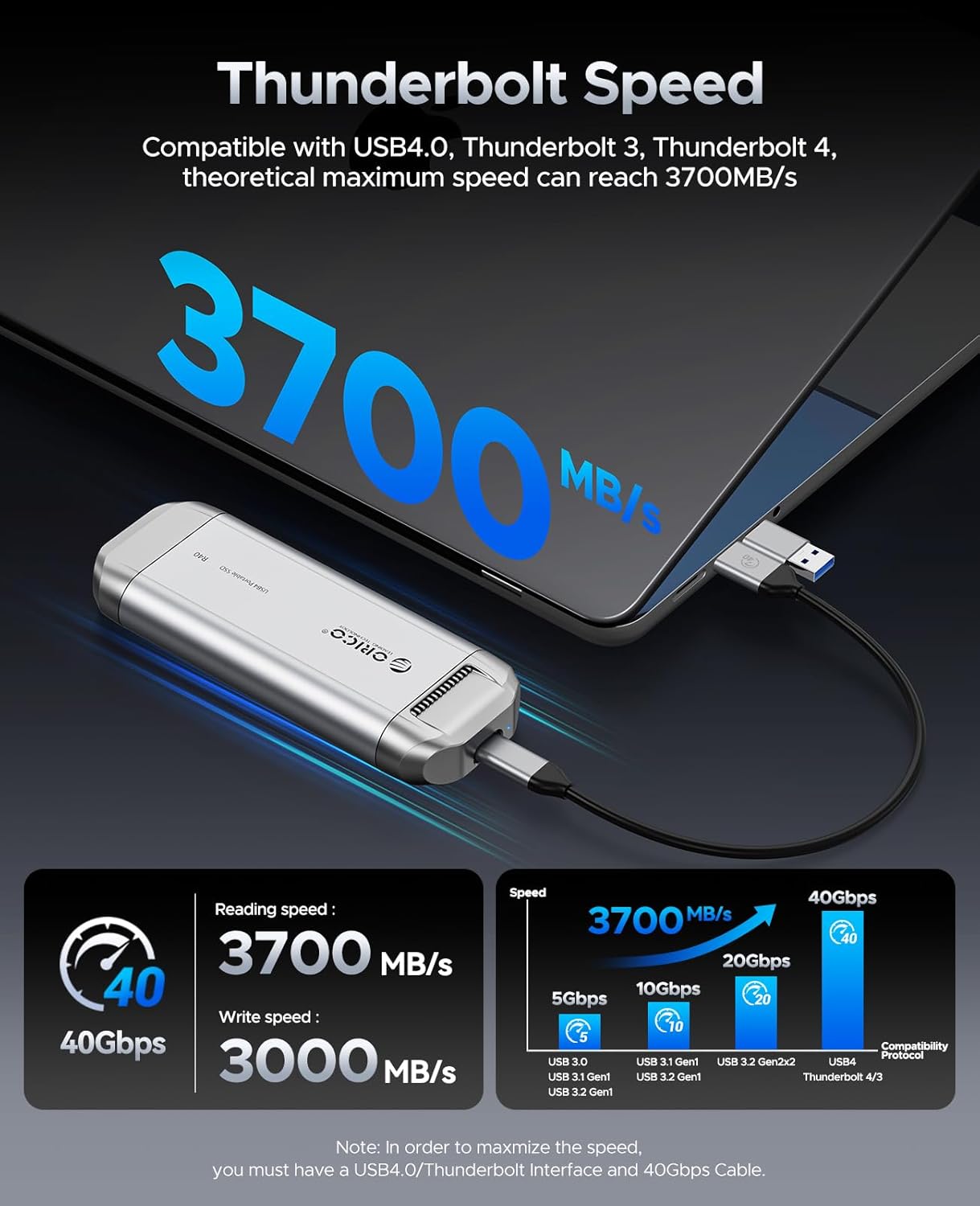
Image: The ORICO R40 External SSD, a compact and durable portable storage device.
2. Package Zviri mukati
Ndokumbira utarise kuti zvinhu zvese zviripo mupakeji:
- ORICO R40 External SSD (1TB, 2TB, or 4TB model)
- 2-in-1 USB-A and USB-C Cable
- Mushandisi Chinyorwa (gwaro iri)
3. Setup Instructions
3.1 Kubatanidza SSD
- Locate the 2-in-1 USB-A and USB-C cable provided with your ORICO R40 SSD.
- Connect the USB-C end of the cable to the USB-C port on the ORICO R40 SSD.
- Connect the other end of the cable (USB-C or USB-A, depending on your device) to an available port on your computer, smartphone, tablet, or other compatible device.
- Ensure the connection is secure. The SSD should be recognized by your operating system automatically.

Image: The ORICO R40 SSD connected to a laptop, illustrating its broad compatibility with USB-A and USB-C devices.
3.2 Initializing and Formatting (If Required)
For new SSDs, or if the SSD is not recognized, you may need to initialize and format it. This process varies by operating system:
- Windows: Open Disk Management (Right-click "This PC" > "Manage" > "Disk Management"). Locate the ORICO R40 SSD, initialize it (GPT recommended for larger drives), and then create a new simple volume, formatting it with NTFS or exFAT.
- macOS: Open Disk Utility (Applications > Utilities > Disk Utility). Select the ORICO R40 SSD, click "Erase," choose a name, format (APFS or Mac OS Extended (Journaled)), and scheme (GUID Partition Map).
- Linux: Shandisa maturusi ekutarisira disk akaita seGPart kana
fdisk/mkfsmirairo yekuparadzanisa uye kugadzira dhiraivha.
Note: Formatting an SSD will erase all data on it. Back up any important data before proceeding.
4. Operating Instructions
4.1 Kuendesa Data
Kuendesa files, simply drag and drop them to and from the ORICO R40 SSD, similar to any other external drive. For optimal performance, ensure your host device supports Thunderbolt 3/4 or USB4.0 and use the provided cable.

Image: A user editing video on a laptop, demonstrating the ORICO R40 SSD's capability for fast data transfer in professional workflows.
4.2 Speed and Performance
The ORICO R40 SSD is capable of theoretical maximum speeds of up to 3700MB/s (read) and 3000MB/s (write) when connected to a compatible Thunderbolt 3/4 or USB4.0 port with a 40Gbps cable. Actual speeds may vary based on your system configuration, file types, and operating environment.

Image: Illustration of the ORICO R40 SSD's Thunderbolt speed, showing up to 3700MB/s read and 3000MB/s write speeds.
4.3 Kubviswa Kwakachengeteka
Always safely eject the SSD from your operating system before physically disconnecting it to prevent data corruption. This is typically done by right-clicking the drive icon and selecting "Eject" (Windows) or dragging the drive icon to the Trash (macOS).
5. Kuchengeta
5.1 Kutonhodza System
The ORICO R40 SSD incorporates a built-in cooling fan and an aluminum alloy housing to maintain optimal operating temperatures during intensive use. Ensure that the ventilation openings are not obstructed to allow for proper airflow.

Mufananidzo: Mukati view of the ORICO R40 SSD highlighting the cooling fan and aluminum alloy shell for efficient heat dissipation.
5.2 Kutarisira Kwese
- Chengeta SSD yakachena uye isina guruva. Shandisa jira rakapfava, rakaoma pakuchenesa.
- Dzivisa kuisa SSD pakupisa kwakanyanya, zuva rakananga, kana hunyoro hwakawanda.
- While the device is designed to be durable, avoid dropping it or subjecting it to strong impacts.
6. Kugadzirisa matambudziko
6.1 SSD Not Recognized
- Tarisa Cable Connection: Ensure the 2-in-1 USB-C cable is securely connected to both the SSD and your device. Try a different port on your device.
- Edza Yakasiyana Cable: If available, test with another compatible USB4.0 or Thunderbolt cable to rule out a faulty cable.
- Check Disk Management (Windows) / Disk Utility (macOS): Verify if the drive appears there. If it does, it might need initialization and formatting (refer to Section 3.2).
- Tangazve Chishandiso: Dzimwe nguva kutangazve komputa yako kana mudziyo wako kunogona kugadzirisa matambudziko ekuzivikanwa.
- Kuenderana: Ensure your device's port supports the required bandwidth (Thunderbolt 3/4 or USB4.0 for optimal performance). Older USB standards may have limited compatibility or performance.
6.2 Kumhanya Kwekuchinjisa Kunonoka
- Simbisa Rudzi rwePort: For maximum speeds (up to 3700MB/s), your device must have a Thunderbolt 3, Thunderbolt 4, or USB4.0 port. Connecting to a standard USB 3.0/3.1/3.2 port will result in lower speeds.
- Shandisa Inopihwa Cable: Always use the original 2-in-1 USB-C cable or another certified 40Gbps cable. Lower quality or incompatible cables can limit speed.
- Mutoro weSisitimu: High CPU usage or other background processes on your computer can affect transfer speeds.
- File Type uye saizi: Kutamisa akawanda madiki files inowanzo kunonoka pane kutamisa mashoma makuru files.
- SSD Temperature: While the R40 has a cooling system, prolonged heavy use in a hot environment might lead to thermal throttling, reducing speeds. Ensure proper ventilation.
6.3 Overheating or Fan Noise
- Kufefetedza Ensure the SSD is placed on a hard, flat surface and that its ventilation grilles are not blocked.
- Normal Operation: The built-in fan operates to keep the SSD cool during high-performance tasks. Some fan noise is normal. If the noise is excessive or unusual, contact support.
- Bvisa Kana Isiri Kushandiswa: If the fan noise or warmth is bothersome when the drive is idle, disconnect it from your device.
7. Zvinotsanangurwa
| Feature | Detail |
|---|---|
| Model | R40 Series (R40-1TB, R40-2TB, R40-4TB) |
| Digital Storage Capacity | 1TB, 2TB, 4TB (depending on model) |
| Hard Disk Interface | Thunderbolt |
| Kubatana Technology | Thunderbolt, USB |
| Theoretical Max Read Speed | Kusvikira ku3700 MB/s |
| Theoretical Max Write Speed | Kusvikira ku3000 MB/s |
| Kugarisana | Thunderbolt 3, Thunderbolt 4, USB4.0, USB-C, USB-A (with included cable) |
| Material | Aluminium Alloy, ABS |
| Special Features | Portable, Built-in Cooling System |
| Item Weight | Anenge 3.17 ounces (90 gramu) |
| Dimensions | Anenge 7.28 x 4.25 x 1.26 inches (18.5 x 10.8 x 3.2 cm) |
8. Warranty uye Tsigiro
8.1 Ruzivo rweWaranti
ORICO products typically come with a limited manufacturer's warranty. Please refer to the warranty card included in your product packaging or visit the official ORICO website for detailed warranty terms and conditions specific to your region and product model. Keep your proof of purchase for warranty claims.
8.2 Mutengi Tsigiro
For technical assistance, troubleshooting, or product inquiries, please contact ORICO customer support through their official website. You can usually find contact information, FAQs, and driver downloads on the support section of the ORICO website.
Official ORICO Websaiti: www.oricotech.com