1. Nhanganyaya
This manual provides instructions for the Goobay 41074 USB-C Sync & Charge Cable. This cable is designed for high-speed data transfer, fast charging, and video/audio transmission between compatible USB-C enabled devices.

Image 1.1: The Goobay 41074 USB-C Sync & Charge Cable, featuring a USB-A connector on one end and a USB-C connector on the other. The image also highlights key specifications such as USB-C compatibility, 1-meter length, 60W power delivery, and 20x faster speed than USB 2.0.
2. Zvigadzirwa zveChigadzirwa
- Kuchaja nekukurumidza: Supports power delivery up to 60 W (20 V / 3 A) for rapid charging of compatible USB-C devices.
- SuperSpeed+ Data Transfer: Achieves data transfer rates up to 10 Gbit/s, which is 20 times faster than USB 2.0.
- USB 3.2 Gen 2 Standard: Utilizes the latest USB 3.2 Gen 2x2 standard for efficient data handling.
- Reversible USB-C Connector: The USB-C plug can be inserted in either orientation.
- Video & Audio Transmission: Capable of transmitting video and audio content to external displays with a USB-C input.
- Kushandiswa Kwakasiyana-siyana: Suitable for transferring movies, music, videos, and various files.

Mufananidzo 2.1: Yakadzama view of the Goobay USB-C cable, highlighting its USB-A and USB-C connectors and indicating its 1-meter length, 60W power delivery, and 10 Gbps data transfer speed.
3. Package Zviri mukati
Pakeji yacho ine chinhu chinotevera:
- 1x Goobay 41074 USB-C Sync & Charge Cable (1 meter)
4. Setup
To set up your Goobay 41074 USB-C cable, follow these general steps:
- Ziva Zviteshi: Locate the appropriate USB-A and USB-C ports on your devices (e.g., computer, charger, smartphone, monitor).
- Batanidza Midziyo: Insert the USB-A end of the cable into a compatible USB-A port on your host device (e.g., computer, wall charger).
- Connect USB-C Device: Insert the USB-C end of the cable into the USB-C port of your target device (e.g., smartphone, tablet, laptop, monitor). The USB-C connector is reversible, allowing for easy connection in either direction.
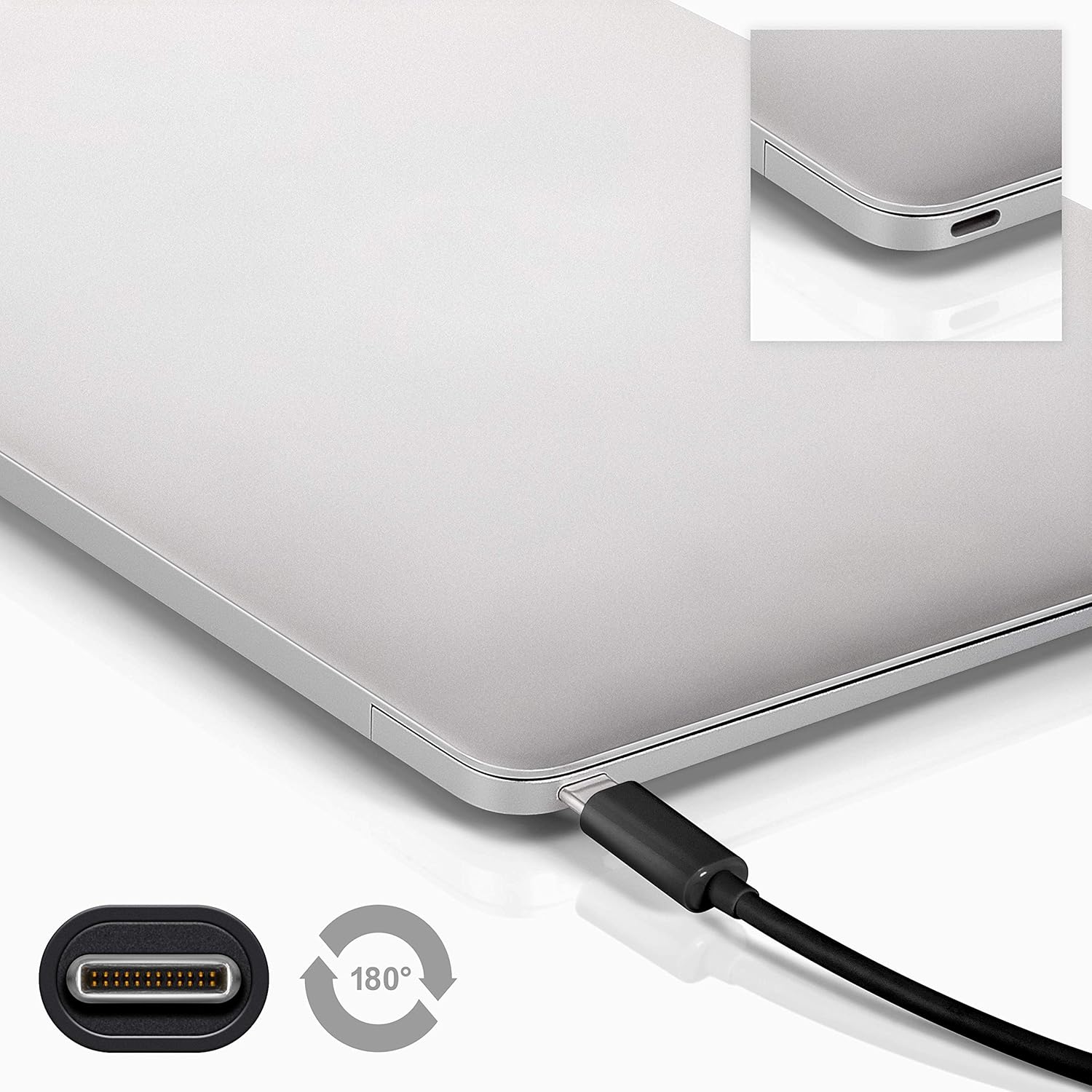
Image 4.1: A Goobay USB-C cable connected to a laptop, demonstrating the reversible nature of the USB-C connector and its ease of use. A close-up of the USB-C port is also shown.
5. Operating Instructions
5.1. Kuchaja Devices
To charge a USB-C enabled device:
- Connect the USB-A end of the cable to a compatible USB wall charger or power adapter.
- Connect the USB-C end of the cable to your USB-C device (e.g., smartphone, tablet, laptop).
- Ensure the power adapter is plugged into a working power outlet. Your device should begin charging.
5.2. Data Transfer
To transfer data between a computer and a USB-C device:
- Batanidza iyo USB-A kupera kwetambo kune inowanikwa USB-A port pakombuta yako.
- Batanidza iyo USB-C yekupedzisira yetambo kune yako USB-C mudziyo.
- Your computer should recognize the connected device. Follow the on-screen prompts on your computer and device to manage data transfer (e.g., select 'File Transfer' mode on your smartphone).

Image 5.1: A Goobay USB-C cable connecting a smartphone to a laptop, illustrating its use for data transfer between devices.
5.3. Video and Audio Output
To transmit video and audio to an external display:
- Connect the USB-A end of the cable to your source device (e.g., laptop with a USB-A port that supports video output via an adapter, or a docking station).
- Connect the USB-C end of the cable to a compatible monitor or television with a USB-C input that supports video.
- Ensure your source device and display are configured correctly for video output.
6. Kuchengeta
- Kuchengeta: Chengetedza tambo munzvimbo inotonhorera, yakaoma kure nechiedza chezuva uye tembiricha yakanyanyisa. Dzivisa kusungirira zvakasimba kana kukotama tambo pamakona akapinza kudzivirira kukanganisa mukati.
- Kuchenesa: Disconnect the cable from all devices and power sources before cleaning. Use a soft, dry, lint-free cloth to gently wipe the cable and connectors. Avoid using liquid cleaners or abrasive materials.
- Kubata: Always grasp the connector head when plugging or unplugging the cable. Avoid pulling on the cable itself, as this can damage the internal wires or the connector.
- Kuongorora: Periodically inspect the cable and connectors for any signs of wear, fraying, or damage. If damage is observed, discontinue use and replace the cable.
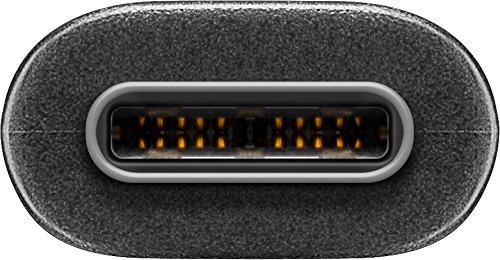
Mufananidzo 6.1: A pedyo-up view of the USB-C connector, showing its internal pins. Regular inspection of connectors helps ensure proper function and longevity.
7. Kugadzirisa matambudziko
7.1. Mudziyo Hauchaji
- Tarisa Makabatana: Ita shuwa kuti magumo ese etambo akadzivirirwa mumudziyo uye panobva magetsi.
- Verify Power Source: Confirm that the wall outlet or power adapter is functioning correctly. Try another power source if available.
- Kuenderana Nemudziyo: Ensure your device supports charging via USB-C and that the power adapter provides sufficient wattage.
- Try Another Cable/Port: If possible, test with a different USB-C cable or a different port on your power source/device to isolate the issue.
7.2. No Data Transfer
- Tarisa Makabatana: Ensure the cable is firmly connected to both the computer and the USB-C device.
- Device Settings: On your USB-C device (e.g., smartphone), check if it's set to 'File Transfer' or 'MTP' mode after connecting to the computer.
- Kuzivikanwa Kwekombiyuta: Verify that your computer's operating system recognizes the connected device. You may need to install specific drivers for your device.
- Port Functionality: Test the USB-A port on your computer with another known working device/cable.
7.3. No Video/Audio Output
- Kuenderana: Ensure both your source device (e.g., laptop) and the external display support video output over USB-C. Not all USB-C ports support this feature.
- Ratidza Input: Select the correct input source on your monitor or television.
- System Settings: Check your computer's display settings to ensure the external monitor is detected and configured correctly (e.g., extended display, duplicate display).
8. Zvinotsanangurwa
| Feature | Tsanangudzo |
|---|---|
| Brand | Goobay |
| Model Number | 41074 |
| Rudzi rwekubatanidza 1 | USB Type-A (Male) |
| Rudzi rwekubatanidza 2 | USB Type-C (Murume) |
| Cable Type | USB |
| USB Yakajairwa | USB 3.2 Gen 2 (SuperSpeed+) |
| Data Transfer Rate | Kusvika ku10 Gbit/s |
| Power Delivery | Up to 60 W (20 V / 3 A) |
| Cable Length | 1 Mamita |
| Color | Nhema |
| Inowirirana Devices | Monitors, Televisions, USB-C enabled devices |
| Special Feature | Fast Charging, Video & Audio Transmission |
9. Warranty uye Tsigiro
For warranty information and technical support, please refer to the documentation provided with your purchase or visit the official Goobay website. Chengetedza humbowo hwako hwekutenga kune warranty claim.


