1. Nhanganyaya
The Acer Nitro Gaming Mouse II (NMW120) is engineered for precision and customization, offering an enhanced gaming experience. This manual provides detailed instructions for setting up, operating, and maintaining your gaming mouse to ensure optimal performance.

Figure 1: Acer Nitro Gaming Mouse II (NMW120) - Front View
2. Key Features
- Sensor yePAW3325: Offers adjustable DPI levels for precise control.
- Adjustable DPI: Six adjustable DPI levels with alternating LED colors to indicate the current setting.
- 8 Mabhatani Anorongwa: Includes a dedicated burst fire button for rapid actions.
- Customizable Weight: Adapt the mouse's weight with up to 20g of additional weight (4 x 5g each).
- Chiyero chekuvhota che1,000Hz: Ensures responsive and synchronized movement.
- Wired USB Connectivity: Plug and play compatibility with Windows 7, 8, 8.1, 10, and 11.
- Ergonomic Dhizaini: Crafted for comfortable use during extended gaming sessions.
- Mwenje ye LED: Features LED lights on the mouse wheel, logo, and sides for visual feedback.
3. Setup Guide
3.1. Package Zviri mukati
Usati watanga, ita shuwa kuti zvinhu zvese zviripo mupakeji:
- Acer Nitro Gaming Mouse II (NMW120)
- Tambo yeUSB (yakabatanidzwa)
- Weight Cartridge with 4 x 5g weights (pre-installed or separate)
- Quick Start Guide (iri bhuku)
3.2. Kubatanidza Mouse
- Tsvaga inowanikwa USB port pakombuta yako.
- Plug the USB connector of the Acer Nitro Gaming Mouse II into the USB port.
- Your computer should automatically detect and install the necessary drivers. The mouse is plug-and-play compatible.
- The mouse's LED lighting will illuminate upon successful connection.
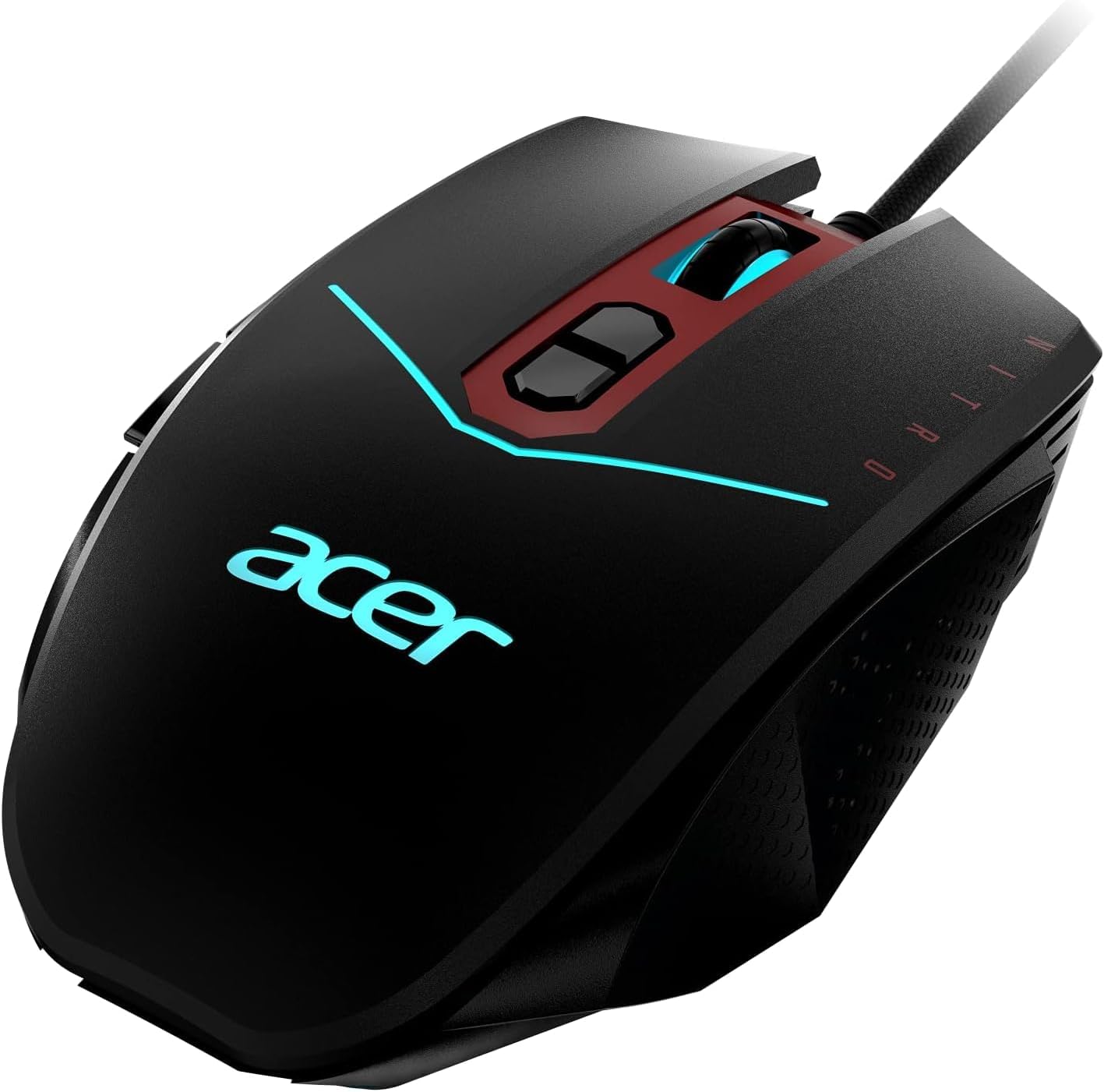
Figure 2: Connecting the Acer Nitro Gaming Mouse II via USB
4. Operating Instructions
4.1. Adjustable DPI Settings
The Acer Nitro Gaming Mouse II features a PAW3325 sensor with six adjustable DPI levels. You can cycle through these levels using the dedicated DPI buttons located on the top of the mouse, behind the scroll wheel.
- Press the DPI Kumusoro bhatani rekuwedzera kunzwa.
- Press the DPI Pasi bhatani rekuderedza kunzwa kwechinhu.
- Each DPI level is indicated by a different LED color, providing visual feedback on your current setting.

Figure 3: DPI Adjustment Buttons
4.2. Using the Burst Fire Button
The mouse includes a dedicated Burst Fire button, typically located on the side. Pressing this button allows you to execute quick, rapid-fire actions, such as shooting three times in quick succession with a single click, enhancing your in-game performance.
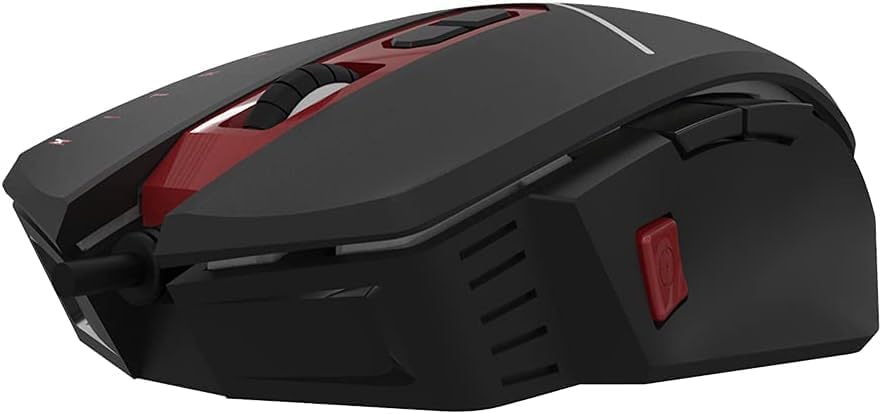
Figure 4: Burst Fire Button Location
4.3. Weight Customization
The Acer Nitro Gaming Mouse II allows you to adjust its weight for personalized comfort and control. The mouse comes with four 5g weights, totaling up to 20g of additional weight, located in a removable cartridge on the underside of the mouse.
- Carefully turn the mouse over.
- Locate the weight cartridge cover on the bottom.
- Remove the cover to access the weights.
- Add or remove 5g weights as desired to achieve your preferred mouse feel.
- Replace the cartridge cover securely.
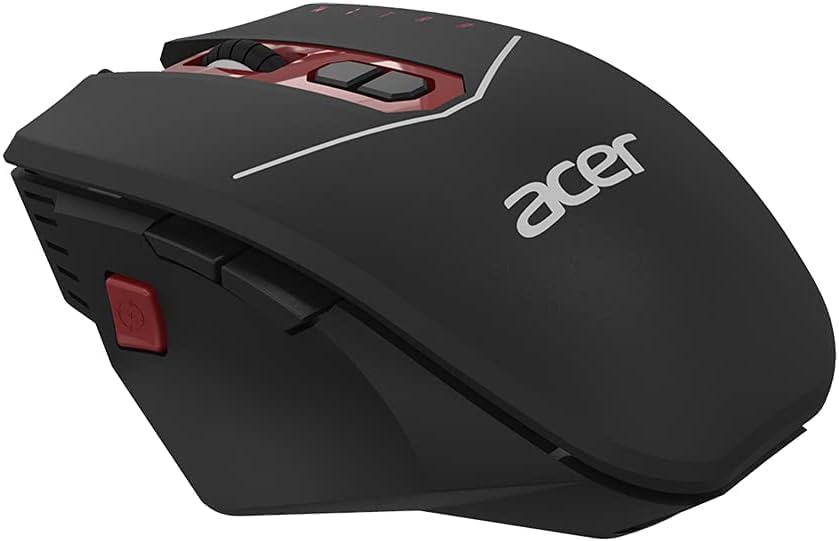
Figure 5: Weight Customization Compartment
5. Kuchengeta
- Kuchenesa: Shandisa jira rakapfava, rakaoma kuchenesa mbeva. Patsvina yakasindimara, zvishoma dampen jira nemvura. Dzivisa makemikari ane hasha kana abrasive zvinhu.
- Sensor Care: Chengetedza iyo optical sensor pazasi pegonzo yakachena uye isina guruva kana marara kuti uve nechokwadi chekutevera.
- Cable Management: Dzivisa kubhenda kwakapinza kana kudhonza zvakanyanya pa USB tambo kudzivirira kukuvara.
6. Kugadzirisa matambudziko
6.1. Mbeva Haisi Kupindura
- Iva nechokwadi chekuti tambo yeUSB yakabatanidzwa zvakanaka muchiteshi cheUSB chiri kushanda pakombuta yako.
- Edza kubaya mbeva mune imwe USB port yakasiyana.
- Tangazve komputa yako.
- Tarisa kana mbeva ichishanda pane imwe komputa kuti uone kana paine dambudziko rakanangana nesystem.
6.2. Inconsistent Tracking or Cursor Movement
- Clean the optical sensor on the bottom of the mouse with a soft, lint-free cloth.
- Ensure you are using the mouse on a suitable surface (e.g., a mouse pad) and not on reflective or uneven surfaces.
- Adjust the DPI settings to a lower or higher sensitivity to see if it resolves the issue.
6.3. LED Lights Not Working
- Verify the mouse is properly connected to your computer.
- If applicable, check any software settings for LED control (though the NMW120's DPI lights are hardware-controlled).
7. Zvinotsanangurwa
| Model Number | NMW120 |
| Brand | Acer |
| Kubatana Technology | USB Wired |
| Movement Detection Technology | Chinoonekwa (PAW3325 Sensor) |
| Inogadziriswa DPI | Up to 4200 DPI (6 levels) |
| Mabhatani | 8 (including Burst Fire) |
| Polling Rate | 1,000Hz (1ms response) |
| Weight Customization | Up to 20g (4 x 5g weights) |
| Special Features | Ergonomic Design, LED Lights |
| Color | Nhema |
| Item Weight | 6.4 ounces (without additional weights) |
| Package Dimensions | 7.5 x 4 x 2.5 inches |
| Kugarisana | Windows 11, Windows 10, Windows 8.1, Windows 8, Windows 7 |
8. Warranty uye Tsigiro
Kuti uwane ruzivo rwewarandi uye rutsigiro rwehunyanzvi, ndapota tarisai kuAcer yepamutemo website or contact Acer customer service. Keep your purchase receipt for warranty claims.
- Rutsigiro rwepamhepo: Visit www.acer.com/support
- Mabatiro evatengi: Refer to your regional Acer contact information provided with your product packaging.


