Nhanganyaya
This manual provides detailed instructions for the OWC Gemini Thunderbolt (USB-C) Docking Station and External RAID Storage Solution. It covers setup, operation, maintenance, troubleshooting, and technical specifications to ensure optimal performance and longevity of your device.
Safety Information
- Verenga mirairo yese zvakanaka usati washandisa mudziyo.
- Usaisa mudziyo kune unyoro kana kupisa kwakanyanya.
- Shandisa chete adapta yemagetsi inopihwa nemudziyo.
- Usaedze kuvhura kana kugadzirisa mudziyo wega. Tumira masevhisi ese kuvashandi vanokwanisa.
- Iva nechokwadi chekufefetedza kwakaringana kutenderedza mudziyo kudzivirira kupisa.
Package Zviri mukati
Ona kuti zvinhu zvese zviripo mupasuru yako:
- OWC Gemini Thunderbolt (USB-C) Docking Station
- Power Adapter
- Thunderbolt (USB-C) Cable
- Mushandisi Chinyorwa (gwaro iri)
- Drives (pre-installed for 32TB model)
Product Overview
The OWC Gemini is a versatile docking station and external storage solution designed for high-performance data management and expanded connectivity.

Mufananidzo: Mberi view of the OWC Gemini Thunderbolt Docking Station, showcasing its sleek black design and OWC branding.
Key Features
- Dual Drive Bays: Supports 2.5-inch and 3.5-inch SATA drives for flexible storage configurations.
- Hardware RAID: Offers RAID 0, RAID 1, SPAN, and JBOD modes for optimized performance or data redundancy.
- Thunderbolt (USB-C) Connectivity: Two Thunderbolt 3 (USB-C) ports for host connection, daisy-chaining, and power delivery (up to 27W).
- Kuwedzera Kubatana: Includes two USB 3.2 Gen 2 Type-A ports, one HDMI port, one 2.5 Gigabit Ethernet port, and one SD 4.0/UHS-II media slot.
- High-Resolution Display Support: HDMI 2.1 supports up to 8K @ 120Hz, and Thunderbolt 3 supports up to 8K @ 60Hz or 4K @ 120Hz.
Port Layout
The OWC Gemini provides a comprehensive set of ports for various connectivity needs.

Mufananidzo: Rear view of the OWC Gemini Docking Station, highlighting the 7 ports of connectivity including Thunderbolt, USB, HDMI, and Ethernet.
- Thunderbolt 3 (USB-C) Host Port: Connects to your computer.
- Thunderbolt 3 (USB-C) Downstream Port: For daisy-chaining, additional displays, or charging USB-C devices.
- Maports eUSB 3.2 Gen 2 Type-A (x2): Yekubatanidza USB peripherals.
- HDMI 2.1 Chiteshi: Yekubatanidza chiratidzo chekunze.
- 2.5 Gigabit Ethernet Port: For high-speed network connectivity.
- SD 4.0/UHS-II Media Slot: Located on the front panel for convenient access.
- DC 12V Simba Kupinza: Inobatanidza kune adapta yemagetsi.

Image: Close-up of the front panel of the OWC Gemini, showing the easily accessible SD card slot.
Gadzirira
1. Drive Installation (if applicable)
For models without pre-installed drives, follow these steps to install 2.5-inch or 3.5-inch SATA drives.

Image: The OWC Gemini unit illustrating its two flexible drive bays, compatible with both 2.5-inch and 3.5-inch drives.
- Ensure the device is powered off and disconnected from your computer.
- Open the drive bay door(s) according to the product's physical design.
- Insert your 2.5-inch or 3.5-inch SATA drives into the bays, ensuring they are securely seated.
- Close the drive bay door(s).
2. RAID Configuration
The OWC Gemini supports hardware RAID. Refer to the specific RAID configuration utility or physical switches on the device (if present) to set your desired RAID level (RAID 0, RAID 1, SPAN, or JBOD).
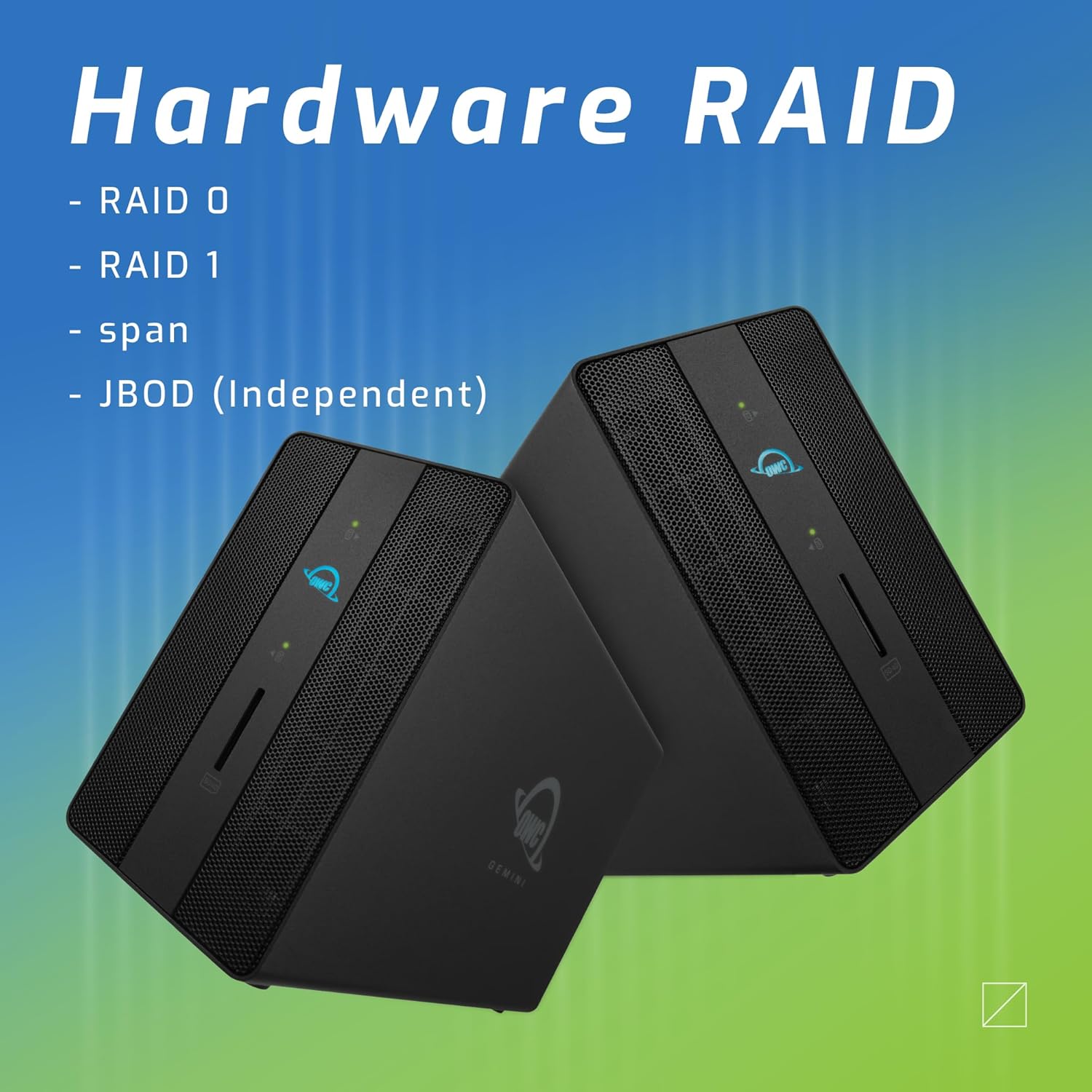
Image: Two OWC Gemini units, emphasizing the hardware RAID capabilities for configurations like RAID 0, RAID 1, SPAN, and JBOD.
RAID Levels Explained:
- RAID 0 (Kubvisa zvinhu): Combines drives for maximum speed and capacity, but offers no data redundancy.
- RAID 1 (Mirroring): Duplicates data across drives for redundancy, sacrificing half the total capacity for data protection.
- SPAN (Concatenation): Combines drives into a single large volume without striping or mirroring.
- JBOD (Just a Bunch Of Disks): Treats each drive as an independent volume.
3. Kubatanidza kuKombuta yako
- Connect the power adapter to the DC 12V power input on the OWC Gemini and then to a power outlet.
- Connect one end of the Thunderbolt (USB-C) cable to the host port on the OWC Gemini.
- Connect the other end of the Thunderbolt (USB-C) cable to a Thunderbolt (USB-C) port on your computer.
- The device should power on automatically.
4. Initializing Drives
After connecting, your operating system may prompt you to initialize and format the new drives. Follow the on-screen instructions. For macOS, use Disk Utility. For Windows, use Disk Management.
Operating Instruction
Data Transfer
Once the drives are initialized and formatted, they will appear as accessible volumes on your computer. You can drag and drop files to and from these volumes as you would with any other storage device.
Kushandisa USB Ports
Connect USB peripherals such as external drives, keyboards, or mice to the two USB 3.2 Gen 2 Type-A ports. These ports support data transfer speeds up to 10 Gb/s.
Kubatanidza Chiratidziro Chekunze
Use the HDMI 2.1 port to connect an external monitor. The Gemini supports resolutions up to 8K @ 120Hz via HDMI.
Network Kubatana
Connect an Ethernet cable from your network router or switch to the 2.5 Gigabit Ethernet port on the Gemini for high-speed wired network access.
Using the SD Card Slot
Insert an SD 4.0/UHS-II compatible SD card into the front-facing slot for quick data transfer from cameras or other devices.
Daisy-Chaining and Power Delivery

Image: A close-up of the OWC Gemini's Thunderbolt ports, illustrating their use for daisy-chaining, connecting additional displays, and charging USB-C devices.
The second Thunderbolt 3 (USB-C) port allows you to:
- Daisy-cheni additional Thunderbolt devices.
- Connect an additional display (up to 8K @ 60Hz or 4K @ 120Hz).
- Charge USB-C devices with up to 27 watts of power.
Maintenance
- Kuchenesa: Shandisa jira rakapfava, rakaoma kuchenesa kunze kwemudziyo. Usashandise mvura yekuchenesa kana aerosols.
- Kufefetedza Ensure that the ventilation grilles are not obstructed to prevent overheating.
- Firmware Dzokorora: Periodically check the OWC websaiti yekuvandudza firmware kuti ive nechokwadi chekuti inoshanda zvakanaka uye inoenderana.
- Safe Ejection: Always safely eject the OWC Gemini from your operating system before disconnecting it or powering it off to prevent data corruption.
Kugadzirisa matambudziko
Mudziyo Hauzivikanwi
- Ensure all cables are securely connected, especially the Thunderbolt cable to both the Gemini and your computer.
- Verify the power adapter is correctly connected and the device is receiving power.
- Try connecting the Gemini to a different Thunderbolt port on your computer.
- Tangazve komputa yako.
- Check your operating system's Disk Utility (macOS) or Disk Management (Windows) to see if the drives are detected but uninitialized or unformatted.
Slow Data Transfer Speeds
- Ensure you are using a Thunderbolt 3 compatible cable and port.
- Check the RAID configuration. RAID 1 (mirroring) will have slower write speeds than RAID 0 (striping).
- Close any unnecessary applications that might be consuming system resources.
- Ita shuwa kuti madhiraivha ekombuta yako ari kuenderana.
Ratidza Nyaya
- Verify the HDMI cable is securely connected to both the Gemini and your monitor.
- Check your display settings in your operating system.
- Ensure your monitor supports the resolution and refresh rate you are attempting to use.
- Edza tambo yeHDMI yakasiyana kana kutarisa kana iripo.
Network Connection Matambudziko
- Ensure the Ethernet cable is securely connected to both the Gemini and your network device.
- Tarisa masethingi etiweki ekombuta yako.
- Tangazve yako router / modem.
Zvinotsanangurwa
| Feature | Detail |
|---|---|
| Brand | OWC |
| Model Number | OWCTB3GM000H32 |
| Storage Capacity | 32.0TB (as configured) |
| Drive Bays | 2 (supports 2.5" and 3.5" SATA drives) |
| RAID Levels | SPAN, RAID 0, RAID 1, JBOD (Hardware RAID) |
| Host inowanikwa | Thunderbolt 3 (USB-C) |
| Data Transfer Rate | Up to 40 Gb/s (Thunderbolt 3), Up to 10 Gb/s (USB 3.2 Gen 2) |
| Ports | (1) Thunderbolt 3 (USB-C) Host, (1) Thunderbolt 3 (USB-C) Downstream, (2) USB 3.2 Gen 2 Type-A, (1) HDMI 2.1, (1) 2.5 Gigabit Ethernet, (1) SD 4.0/UHS-II |
| Ratidza Rutsigiro | HDMI 2.1: Up to 8K @ 120Hz; Thunderbolt 3: Up to 8K @ 60Hz or 4K @ 120Hz |
| Power Delivery | Up to 27W via Thunderbolt 3 |
| Inowirirana Devices | Desktop, Laptop, Tablet (with Thunderbolt/USB-C port) |
| Color | Nhema |
| Kurema | 9.35 lbs (approx.) |
| UPC | 810100983697 |
Warranty uye Support
Warranty Information
OWC products are covered by a limited warranty. Please refer to the official OWC website or your purchase documentation for specific warranty terms and conditions. Keep your proof of purchase for warranty claims.
Technical Support
For technical assistance, troubleshooting, or further inquiries, please visit the official OWC support websaiti kana kubata basa ravo revatengi.


