1. Nhanganyaya
Ndatenda nekutengaasing the WiMiUS S27 Pro Mini Projector. This manual provides detailed instructions for setting up, operating, and maintaining your projector to ensure optimal performance and longevity. The S27 Pro features 4K support, 1080P native resolution, 18000LM brightness, 270° rotation, automatic keystone correction, Wi-Fi 6, and Bluetooth 5.3 connectivity, offering a versatile and immersive viewing experience.
2. Safety Information
- Usatarise zvakananga muprojekita lens kana iyo lamp is on, as it may cause eye damage.
- Iva nechokwadi chekufefetedza kwakaringana kwakatenderedza purojekita kudzivirira kupisa. Usavhare kuvhurika kwemhepo.
- Shandisa chete adapta yemagetsi yakapihwa nepurojekita.
- Chengetedza purojekita kure nemvura, mwando, uye tembiricha yakanyanyisa.
- Usaedza kupatsanura kana kugadzirisa purojekita wega. Bata vashandi vane hunyanzvi kuti vakubatsire.
- Chengeta purojekita kure nevana.
3. Chigadzirwa Pamusoroview
3.1. Zvikamu uye Zviteshi
The WiMiUS S27 Pro Mini Projector is designed for portability and ease of use. It features a compact design with various ports for connectivity.

Mufananidzo: Rear view of the WiMiUS S27 Pro Projector, highlighting the HDMI, USB, and Audio ports for connecting various devices.
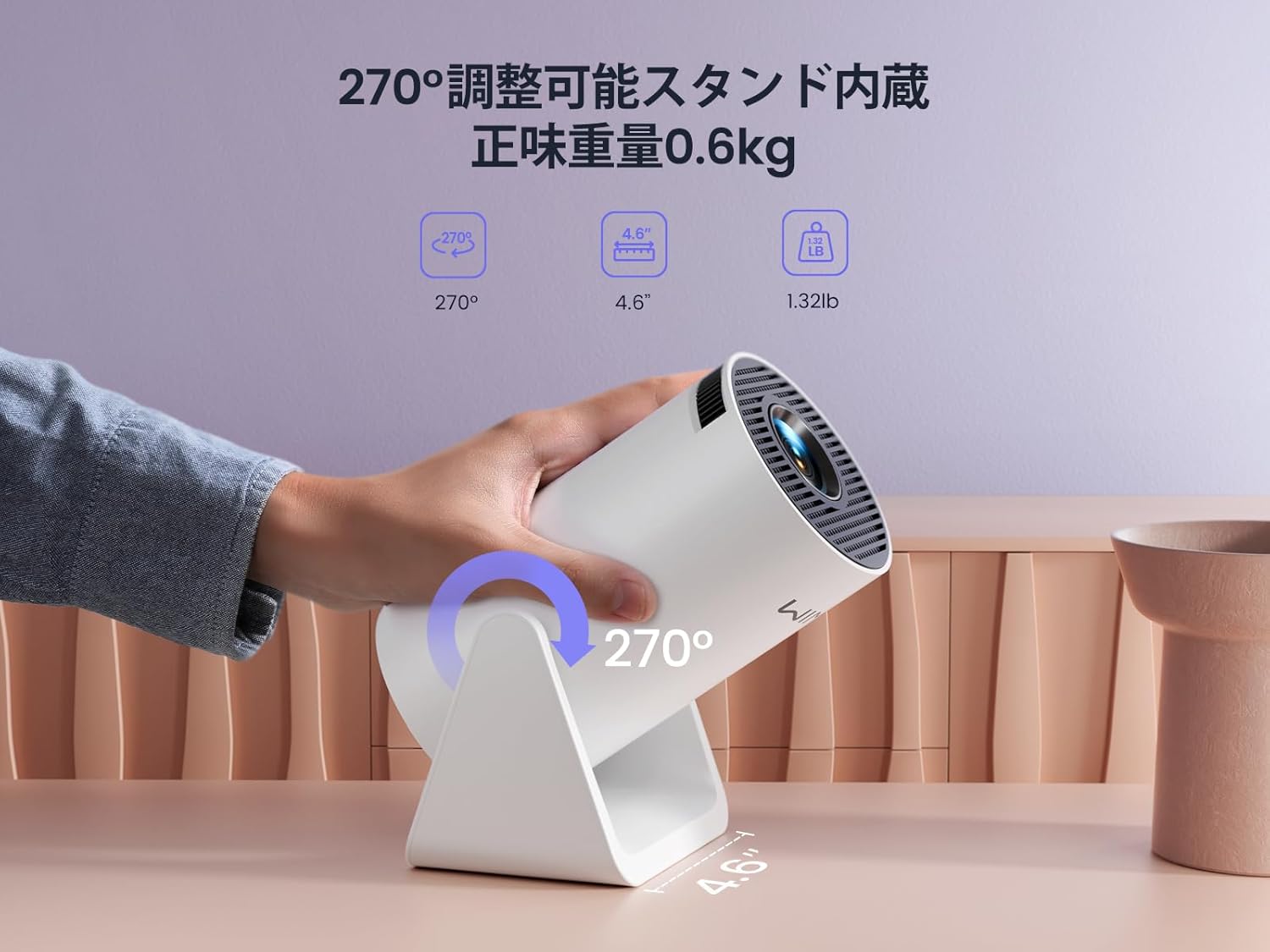
Image: The WiMiUS S27 Pro Projector on its integrated 270° adjustable stand, demonstrating its flexible projection angles and compact size (0.6kg).
4. Setup
4.1. Kugadzwa
The S27 Pro's 270° rotatable stand allows for flexible placement, including ceiling projection. Position the projector between 0.8 meters and 5 meters from the projection surface to achieve a screen size of 40 to 200 inches.

Image: The projector displaying an image on a wall, demonstrating its automatic vertical keystone correction feature for a perfectly rectangular picture.
4.2. Simba Connection
Connect the provided power adapter to the projector's DC input port and then plug it into a power outlet.
4.3. Chekutanga Power On
Press the power button on the projector or the remote control to turn on the device. The projector will display the main menu.
4.4. Focus uye Keystone Kururamisa
- Otomatiki Vertical Keystone Kururamisa: The projector automatically corrects vertical image distortion.
- Manual Focus: Gadzirisa mhete yekutarisa pane lenzi yepurojekita kusvika mufananidzo wanyatsojeka.
- Digital Zoom: Use the remote control to adjust the image size from 85% to 100% to fit your screen.

Image: A projected image demonstrating the 85% to 100% zoom function, allowing adjustment for various room sizes.
5. Operating Instructions
5.1. Navigation
Use the remote control to navigate through the projector's menu and select desired functions.
5.2. Kubatana kweWi-Fi
The S27 Pro supports ultra-fast Wi-Fi 6 (5G and 2.4G dual-band) for stable and quick streaming.
- From the homepage, select "Set" (Settings).
- Enter the "WiFi" menu and turn on the WiFi function.
- Wait for the projector to detect available WiFi networks.
- Select your home WiFi network and enter the password to connect.

Image: The projector's interface displaying options for Wi-Fi 6 and Bluetooth 5.3, indicating advanced wireless connectivity.
5.3. Kubatana kweBluetooth
The built-in Bluetooth 5.3 chip allows connection to headphones, speakers, and AirPods for enhanced audio.
- From the homepage, select "Set" (Settings).
- Enter the "BT Model" (Bluetooth) menu and turn on Bluetooth.
- Tsvaga available Bluetooth devices and select your device to pair.

Image: The WiMiUS S27 Pro Projector connected wirelessly to headphones and a smart speaker via Bluetooth 5.2, illustrating its audio connectivity options.
5.4. Screen Mirroring
Mirror your smartphone, tablet, or PC screen wirelessly to the projector.
- From the homepage, select "Mirroring".
- Choose "Wireless screen" for wireless mirroring.
- Zvemidziyo yeIOS: Connect your iPhone to the same Wi-Fi network as the projector. Open Control Center, tap "Screen Mirroring", and select the projector from the list (e.g., "VB6_3AF9_itv").
- Zvemidziyo yeAndroid: Connect your Android device to the same Wi-Fi network as the projector. Open the screen mirroring function (often called "Smart View", "Cast", "Wireless Display", etc.) and select the projector.

Image: A smartphone wirelessly mirroring its screen content to the WiMiUS S27 Pro Projector, demonstrating the seamless screen mirroring function.
Video: iPhone Screen Mirroring Method
Video: This video demonstrates the steps to connect your iPhone to the WiMiUS S27 Pro Projector using the screen mirroring function.
5.5. Kubatanidza External Devices
The projector supports various wired connections:
- HDMI: Connect devices like TV Sticks, PS5, Switch, iPad, or PCs.
- USB: Connect USB drives or smartphones for media playback.
- 3.5mm Audio Kunze: Connect external speakers, headphones, or earphones.
Video: Connecting with TV Stick
Video: This video illustrates how to connect a TV Stick to the WiMiUS S27 Pro Projector via the HDMI port for streaming content.
6. Kuchengeta
- Kuchenesa Lens: Use a soft, lint-free cloth and lens cleaning solution to gently wipe the lens. Avoid abrasive materials.
- Kufefetedza Regularly check and clean the ventilation openings to prevent dust buildup, which can affect performance and lead to overheating. The projector features a dustproof design to minimize internal dust accumulation.
- Zvigadziriso zveSoftware (OTA): The projector supports Online Over-The-Air (OTA) updates. Check for new firmware versions in the settings menu to ensure your device has the latest features and improvements.
7. Kugadzirisa matambudziko
- Mufananidzo hauna kujeka: Adjust the manual focus ring on the lens. Ensure the projector is within the recommended projection distance (0.8m-5m).
- Hapana chiratidzo: Check if the correct input source (HDMI, USB) is selected. Verify all cables are securely connected.
- Wi-Fi/Bluetooth connection issues: Ensure the projector and your device are connected to the same Wi-Fi network. Restart both devices and try reconnecting.
- Cannot play copyrighted content (Netflix, Prime Video, Hulu): Due to copyright restrictions, these apps cannot be mirrored directly from a smartphone. Use an external streaming device like a TV Stick or Roku connected via HDMI.
- Kupisa zvakanyanya: Ensure the projector has adequate ventilation and that the vents are not blocked. Allow the projector to cool down if it becomes excessively hot.
- Image distortion: The projector features automatic vertical keystone correction. If horizontal distortion occurs, adjust the projector's physical position.
8. Zvinotsanangurwa
| Brand | WiMiUS |
| Model | S27 Pro |
| Kukura Kwechigadzirwa | 9 x 11 x 17 cm |
| Kurema | 600 g |
| Native Resolution | 1920 x 1080 (Full HD) |
| Inotsigirwa Resolution | Kusvika ku3840 x 2160 (4K) |
| Kupenya | 18000LM (400 ANSI) |
| Kubatana | Wi-Fi 6 (5G/2.4G), Bluetooth 5.3, HDMI, USB, 3.5mm Audio Out |
| Projection Ratio | 1.26:1 (Kanda Kapfupi) |
| Projection Size | 40-200 inches |
| Kururamisa dombo rinokosha | Automatic Vertical |
| Zoom Rinoshanda | 50% Digital Zoom (85%-100%) |
| Kushandisa Simba | 59.99 W |
9. Warranty uye Tsigiro
The WiMiUS S27 Pro Mini Projector comes with a 3-makore waranti. If you encounter any issues or have questions regarding your product, please contact our customer support team. For technical assistance or warranty claims, refer to the contact information provided in your purchase documentation or visit the official WiMiUS website.


