1. Nhanganyaya
Ndatenda nekutengaasing the Edifier QR65 Active Monitor Speakers. This manual provides detailed instructions for setting up, operating, and maintaining your speakers. Please read this manual thoroughly before use to ensure proper function and to maximize your listening experience.
The Edifier QR65 speakers feature 70W RMS output, Hi-Res 24bit wireless audio, a subwoofer output, and integrated 65W GaN fast charging capabilities. They are designed to deliver high-quality sound for various applications.
Ruzivo Rwakakosha Chekuchengetedza: Always follow basic safety precautions when using this product to reduce the risk of fire, electric shock, and injury. Keep this manual for future reference.
2. Package Zviri mukati
Ndapota tarisa zviri mubhokisi kuti uve nechokwadi chekuti zvinhu zvese zviripo:
- Edifier QR65 Active Monitor Speakers (1 pair)
- Speaker stands (1 pair)
- Simba tambo
- Mutauriri wekubatanidza tambo
- USB-A kune USB-C tambo
- RCA kune RCA odhiyo tambo
- User Manual
3. Chigadzirwa Pamusoroview
The Edifier QR65 speakers are equipped with advanced audio components and user-friendly controls.
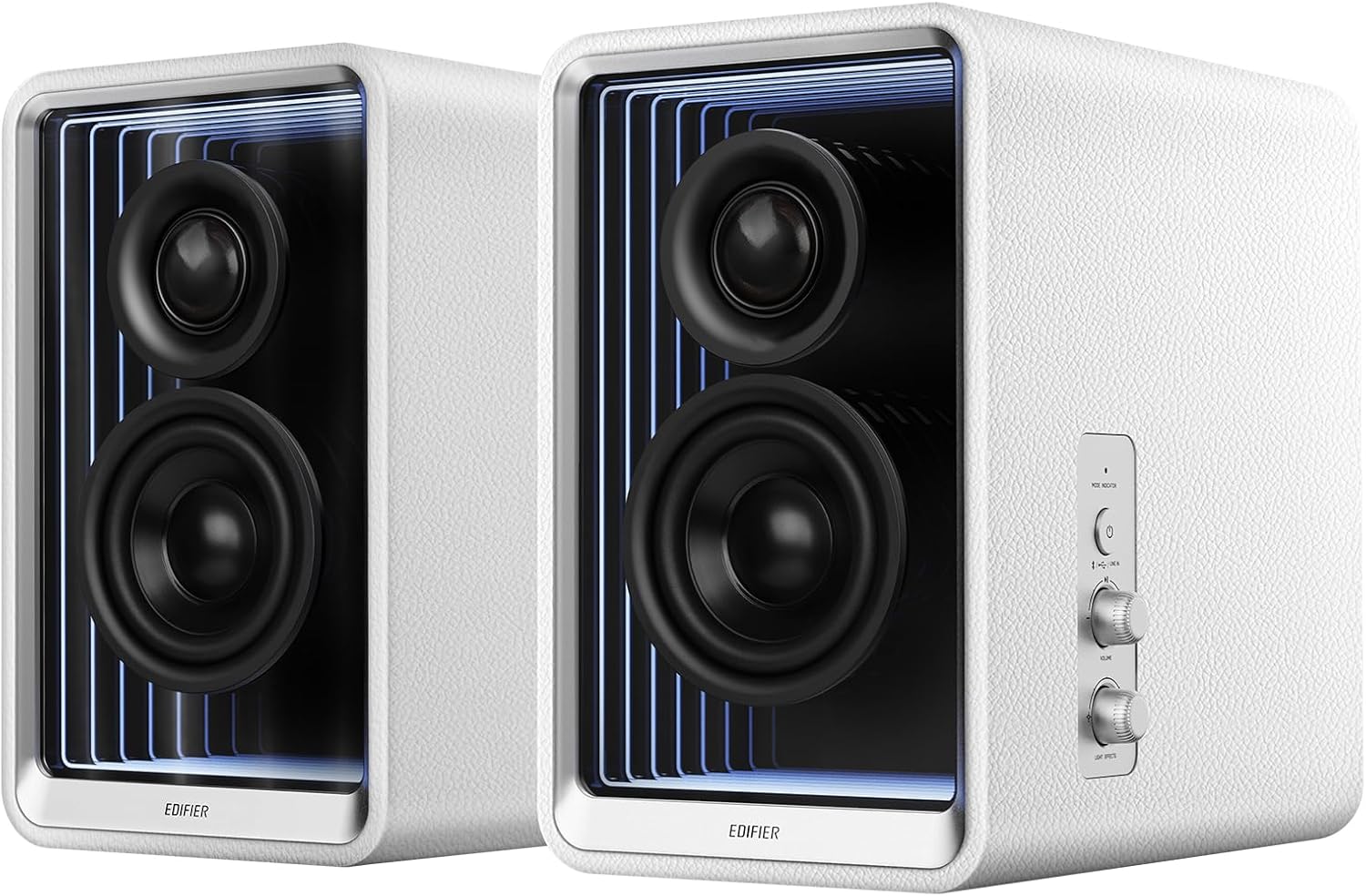
Mufananidzo 3.1: Mberi view of Edifier QR65 speakers, highlighting the drivers and side controls.
3.1 Front and Side Panel Controls
- Simba / Mode Bhatani: Press to power on/off. Short press to cycle through input modes (Bluetooth, USB, Line In).
- Vhoriyamu Knob: Rotate to adjust the master volume.
- Light Effects Button: Press to cycle through various lighting modes.
3.2 Rear Panel Connections

Figure 3.2: Rear panel connections of the Edifier QR65 speaker.
- LINE IN (RCA): Kubatanidza manzwi ekunze kuburikidza netambo dzeRCA.
- USB Inzwa Zvinotaurwa: For connecting to a computer for digital audio playback.
- SUB OUT: Output for connecting an external active subwoofer.
- SPEAKER OUT: Connects to the passive speaker.
- Simba Chinja: Kuchinja simba guru.
- Power Input: Connects to the AC power cable.
- USB-C 1, USB-C 2, USB-A: GaN fast charging ports.
4. Setup
4.1 Kuiswa kweMutauriri
Place the active speaker (with controls) and the passive speaker on a stable, flat surface. For optimal sound, position them at ear level and equidistant from your listening position. The included speaker stands are designed to angle the speakers at 10 degrees, which helps to reduce sound coloration and improve soundstage kururama.

Figure 4.1: Optimal speaker placement with included stands for improved soundstage.
4.2 Kubatanidza MaSpeaker
- Connect the speaker connection cable from the 'SPEAKER OUT' port on the active speaker to the corresponding input on the passive speaker. Ensure a secure connection.
4.3 Simba Connection
- Connect the power cable to the 'Power Input' port on the active speaker.
- Batanidza imwe magumo etambo yemagetsi mudura repamadziro.
- Toggle the 'Power Switch' to the ON position.
5. Operating Instructions
5.1 Kubatidza/Kudzima
To power on the speakers, ensure the rear power switch is ON, then press the 'Power/Mode' button on the side panel. Press and hold the 'Power/Mode' button to power off.
5.2 Sarudzo yekupinda
Short press the 'Power/Mode' button to cycle through available input modes: Bluetooth, USB, and Line In. The indicator light will change color to indicate the selected mode.
5.3 Bluetooth Pairing
- Select Bluetooth mode using the 'Power/Mode' button. The indicator light will flash rapidly.
- On your device (smartphone, tablet, computer), enable Bluetooth and search for 'EDIFIER QR65'.
- Select 'EDIFIER QR65' to pair. Once connected, the indicator light will glow steadily.
- The QR65 supports Bluetooth V5.3 with LDAC for high-resolution wireless audio streaming.
5.4 USB Audio Playback
Connect the active speaker to your computer using a USB cable. Select USB input mode on the speakers. Your computer should recognize the speakers as an audio output device. The USB input supports 24bit/96kHz resolution signals.
5.5 Line In Connection
Connect your audio source (e.g., CD player, TV) to the 'LINE IN' (RCA) ports on the rear panel using an RCA audio cable. Select Line In mode on the speakers. The Line In input also supports 24bit/96kHz resolution signals.
5.6 Subwoofer Kubuda
To enhance bass performance, connect an external active subwoofer to the 'SUB OUT' port on the rear panel. The speakers will automatically adjust their frequency response when a subwoofer is detected.
5.7 Light Effects (TempoAbyss)
The QR65 speakers feature customizable light effects. Press the 'Light Effects' button on the side panel to cycle through various preset lighting modes. For advanced customization and access to over 16 million colors, use the Edifier ConneX App.

Figure 5.1: Edifier QR65 light effects and app control.
5.8 Edifier ConneX App
Download the Edifier ConneX App from your device's app store or by scanning the QR code below. The app allows for seamless customization of sound effects, light effects, and playback control.

Figure 5.2: Edifier ConneX App interface for customization.
Download the Edifier ConneX App: https://foreign-app.edifier.com/index.php/edifier_provider/public/appDownload.html?appTag=EdifierConneX
6. GaN Fast Charging Function
The Edifier QR65 speakers integrate TurboGaN fast charging technology, providing convenient power delivery for your devices.

Figure 6.1: GaN fast charging ports and power distribution.
- USB Type-C Ports (USB-C 1 & USB-C 2): Offer up to 65W charging power individually.
- USB Type-A Port: Offers up to 60W charging power.
- Supports various fast charging protocols.
- Total combined output for multiple devices will be distributed across the ports. Refer to the diagram on the speaker's rear panel for specific power distribution scenarios.
7. Kuchengeta uye Kuchengetedza
- Kuchenesa: Use a soft, dry cloth to clean the speaker surfaces. Do not use abrasive cleaners, waxes, or solvents.
- Environment: Avoid placing the speakers in direct sunlight, near heat sources, or in areas with high humidity or dust.
- Kubata: Handle the speakers with care. Do not drop them or expose them to strong impacts.
- Simba: Disconnect the power cable from the wall outlet if the speakers will not be used for an extended period.
8. Kugadzirisa matambudziko
If you encounter any issues with your Edifier QR65 speakers, please refer to the following table for common problems and solutions:
| Dambudziko | Zvinogona Kukonzera | Solution |
|---|---|---|
| Hapana simba | Power cable not connected; Rear power switch off; Wall outlet not working. | Ensure power cable is securely connected. Turn on the rear power switch. Test the wall outlet with another device. |
| Hapana ruzha | Incorrect input mode selected; Volume too low; Audio cable not connected; Device not playing audio. | Press 'Power/Mode' to select correct input. Increase volume. Check audio cable connections. Ensure source device is playing audio. |
| Bluetooth pairing yakundikana | Speakers not in pairing mode; Device too far; Interference. | Ensure speakers are in Bluetooth pairing mode (flashing indicator). Move device closer. Restart speakers and device. |
| Light effects not working or flickering | Incorrect setting; Speaker connection cable issue. | Check light effect settings via the side button or Edifier ConneX App. Ensure the speaker connection cable between active and passive speakers is fully inserted and undamaged. |
| GaN charging not working | Cable issue; Device not compatible; Overload. | Try a different charging cable. Ensure your device supports fast charging. Disconnect other devices if multiple are charging. |
9. Zvinyorwa zveUnyanzvi
Below are the key technical specifications for the Edifier QR65 Active Monitor Speakers:
| Feature | Tsanangudzo |
|---|---|
| Mutauri Rudzi | Active Monitor / Bookshelf |
| Total Output Power | 70W RMS |
| Tweeter | 1.25 inch Silk Dome |
| Mid-low Driver | 2.75 inch Aluminum Diaphragm |
| Kubatana | Bluetooth V5.3 (LDAC), USB, LINE IN (RCA) |
| Kugadziriswa kweOdhiyo yeUSB | Kusvikira ku24bit/96kHz |
| Bluetooth Range | 10 metres (33 tsoka) |
| GaN Fast Charging | USB-C (up to 65W), USB-A (up to 60W) |
| Zviyero zvechigadzirwa (mutauri wega wega) | 14"D x 10.5"W x 11.3"H (inenge) |
| Item Weight | 11.68 pounds (inenge) |
| Simba Source | Corded Electric (AC 1.2E+2 Volts) |
| Inosanganisirwa Zvikamu | Mutauri akamira |
10. Warranty uye Tsigiro
10.1 Ruzivo rweWaranti
Edifier products are manufactured with high-quality standards. This product comes with a limited warranty. Please refer to the warranty card included in your package or visit the official Edifier websaiti kune yakadzama waranti mazwi uye mamiriro akanangana nedunhu rako.
10.2 Mutengi Tsigiro
For technical assistance, product inquiries, or warranty claims, please contact Edifier customer support through their official website or the contact information provided in your product documentation. Please have your product model (QR65) and serial number ready when contacting support.


