1. Nhanganyaya
The Logitech MK950 Signature Slim Wireless Keyboard and Mouse Combo provides a versatile and efficient input solution for multiple devices. Designed for quiet operation and extended battery life, this combo enhances productivity across various operating systems.
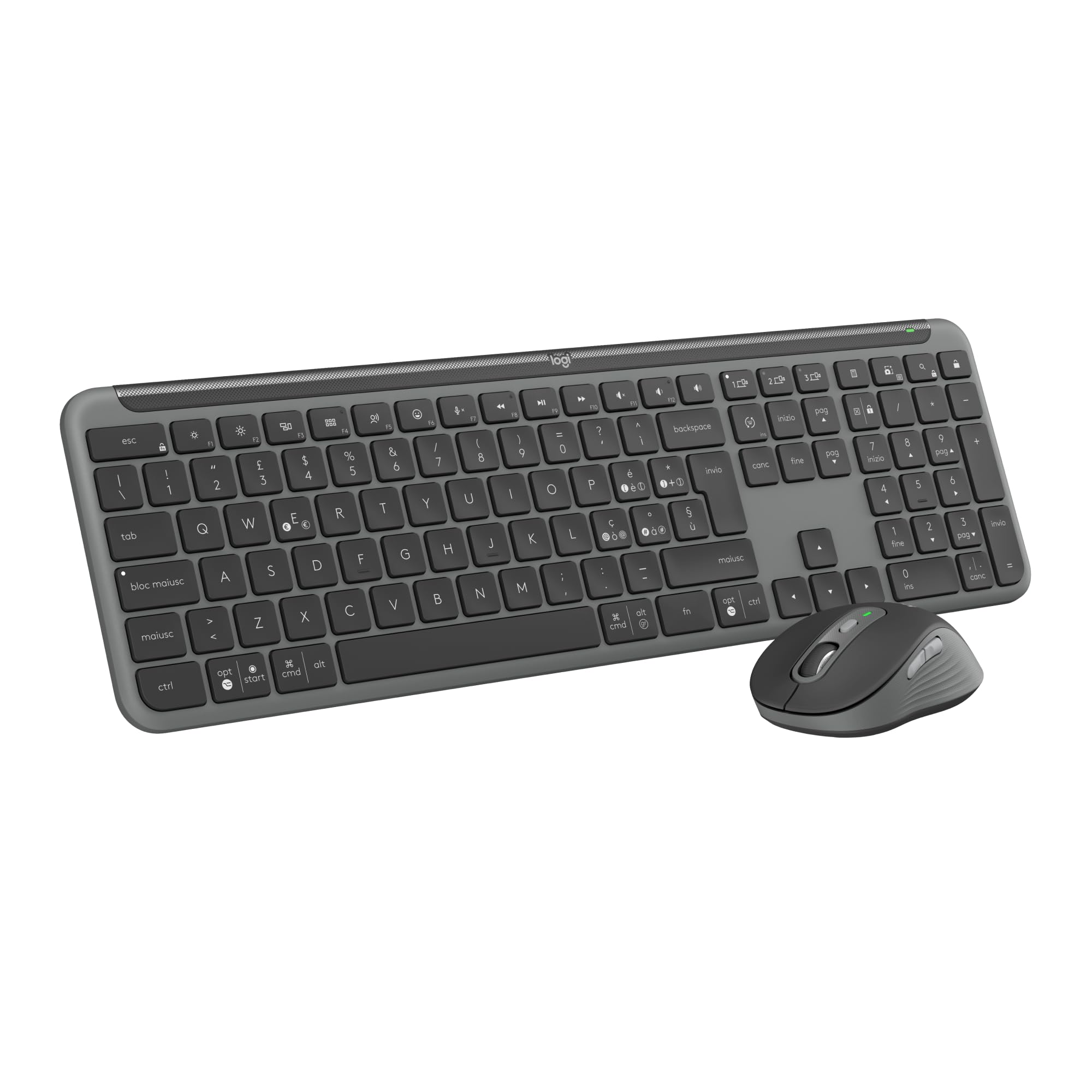
Image: The Logitech MK950 Signature Slim Wireless Keyboard and Mouse Combo, showcasing both the keyboard and mouse in Graphite Grey.
2. Setup
2.1 Unpacking and Initial Power-Up
Upon unboxing, ensure all components are present: the wireless keyboard, wireless mouse, and Logi Bolt USB receiver. The keyboard and mouse come with pre-installed AAA batteries. Remove any protective tabs from the battery compartments to activate them.
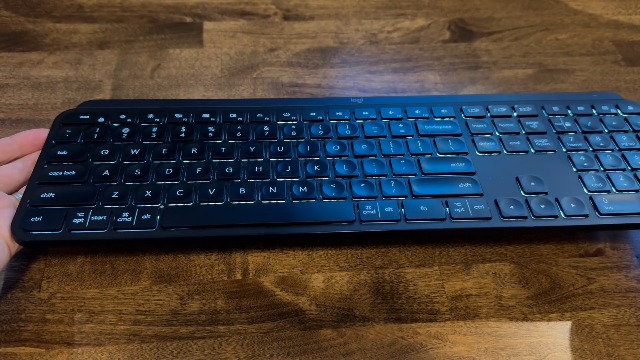
Image: A hand opening the battery compartment of the Logitech MK950 keyboard, revealing the pre-installed batteries and a storage slot for the Logi Bolt USB receiver.
2.2 Sarudzo dzekubatanidza
The MK950 combo offers two primary connection methods:
- Logi Bolt USB Receiver: Plug the Logi Bolt USB receiver into an available USB port on your computer. The keyboard and mouse are pre-paired with the receiver for immediate use.
- Bluetooth: For devices without a USB port or to free up a port, connect via Bluetooth. Activate Bluetooth on your device and follow the pairing instructions in your device's settings. The keyboard and mouse feature Easy-Switch buttons to manage connections across up to three devices.
3. Operating Instructions
3.1 Kushanda kweKiibhodhi
The K950 Signature Slim keyboard provides a familiar typing experience similar to a laptop. It includes a full numeric keypad and dedicated media keys for convenience.
3.2 Mouse Kushanda
The M750 Signature Plus wireless mouse features SilentTouch technology, reducing click sounds by 90% for a quieter work environment. The SmartWheel allows for precise line-by-line scrolling or fast scrolling through long documents and web mapeji.
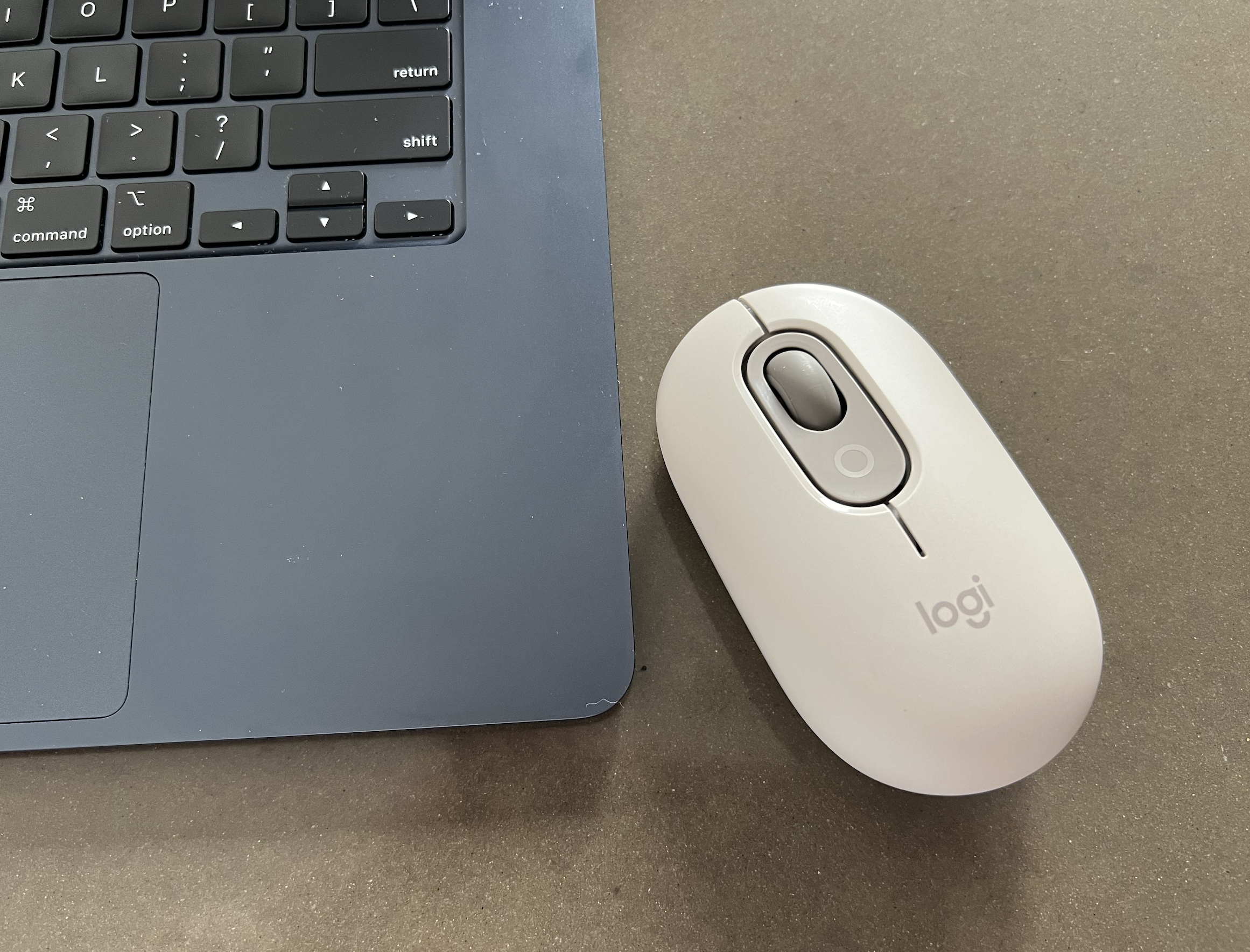
Image: The Logitech M750 Signature Plus wireless mouse, highlighting its ergonomic design and scroll wheel.
3.3 Multi-Chishandiso Chinja
Both the keyboard and mouse are equipped with Easy-Switch buttons, allowing you to seamlessly switch between up to three connected devices (e.g., laptop, tablet, smartphone) with a single tap.
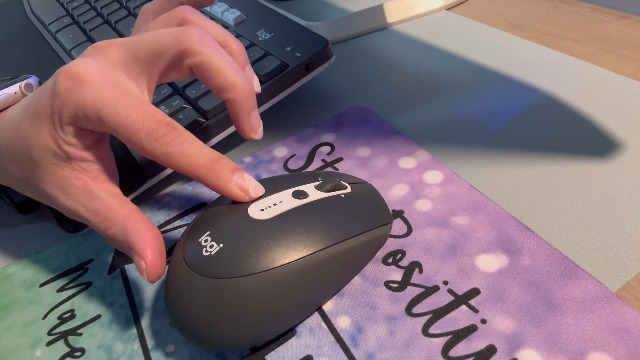
Image: A hand demonstrating the multi-device switching function on the Logitech MK950 keyboard, with numbered keys indicating different device connections.
4. Kugadzirisa
Enhance your workflow by customizing keys, buttons, and shortcuts using the Logi Options+ App. This application is available for Windows and macOS, providing extended possibilities for personalized control over your wireless mouse and keyboard.
5. Battery Life and Maintenance
The keyboard offers up to 36 months of battery life, while the mouse provides up to 24 months, ensuring long periods of uninterrupted use. Both devices use standard AAA alkaline batteries. Replace batteries when the low battery indicator illuminates.
5.1 Kutsiva Mabhatiri
To replace batteries, open the designated battery compartment on the underside of the device. Insert new AAA batteries, ensuring correct polarity, and close the compartment securely.
5.2 Kuchenesa
To clean the keyboard and mouse, use a soft, damp cloth. Avoid harsh chemicals or abrasive materials that could damage the surfaces.
6. Kugarisana
The Logitech MK950 Signature Slim combo is compatible with a wide range of operating systems, including:
- Windows 10, 11 kana gare gare
- macOS 11 kana gare gare
- Chrome OS
- Linux
- iPadOS and iOS 14 or later
- Android 9.0 kana kuti gare gare
7. Zvinotsanangurwa
| Feature | Detail |
|---|---|
| Brand | Logitech |
| Model Number | 920-012488 |
| Kubatana Technology | Bluetooth, Logi Bolt USB Receiver |
| Keyboard Tsanangudzo | Membrane |
| Movement Detection Technology | Optical |
| Hand Orientation | Ambidextrous |
| Special Features | Connect up to three devices, Noiseless Clicks, Programmable Buttons, Shortcuts & Media Buttons, Smartwheel |
| Power Source Type | Battery Powered (2 AAA mabhatiri anosanganisirwa) |
| Material | Plastic parts include certified recycled consumer plastic (minimum 48% for keyboard, 25% for mouse) |
8. Kugadzirisa matambudziko
8.1 Nyaya dzekubatanidza
- Iva nechokwadi cheSimba: Check that the keyboard and mouse are powered on and have sufficient battery life.
- Receiver Check: If using the Logi Bolt receiver, ensure it is securely plugged into a working USB port. Try a different USB port if necessary.
- Bluetooth Pairing: For Bluetooth connections, verify that Bluetooth is enabled on your device and the keyboard/mouse are in pairing mode. Re-initiate the pairing process if connection is lost.
- Chinja Chiri Nyore: Confirm that the correct Easy-Switch channel (1, 2, or 3) is selected on both the keyboard and mouse for the device you intend to use.
8.2 Unresponsive Keys/Clicks
- Kutsiva Bhatiri: Replace batteries in both devices, even if the indicator light is not yet active.
- Kupindira: Move the devices closer to the receiver or Bluetooth-enabled computer to minimize potential wireless interference.
- Software Update: Ensure the Logi Options+ App and your operating system are up to date.
9. Warranty uye Tsigiro
Kuti uwane ruzivo rwakadzama waranti uye rutsigiro rwehunyanzvi, ndapota tarisa kune iyo official Logitech websaiti kana kubata Logitech vatengi sevhisi. Kunyoreswa kwechigadzirwa kunogona kudikanwa kuti uvhure waranti yako.


