Bhuku rekushandisa reBlitzWolf BW-VT2 Mini Projector
Your comprehensive guide to setting up, operating, and maintaining your BlitzWolf BW-VT2 Mini Projector.
1. Chigadzirwa Pamusoroview
1.1 Package Zviri mukati
Ndokumbira utarise kuti zvinhu zvese zvirimo mupasuru yako:
- BlitzWolf BW-VT2 Mini Projector
- Remote Control
- Power Adapter
- HDMI Cable
- Mushandisi Chinyorwa (gwaro iri)
1.2 Dhizaini Dhizaini
Familiarize yourself with the various parts and ports of your projector.
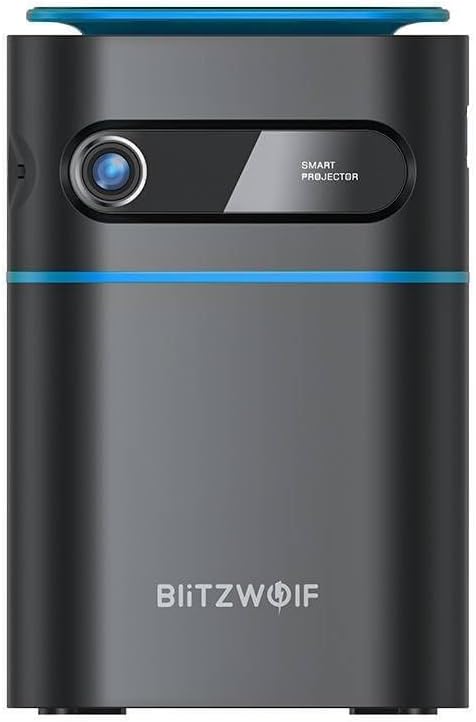
Mufananidzo 1.1: Mberi View. This image displays the front of the BlitzWolf BW-VT2 Mini Projector, highlighting the projection lens and the 'SMART PROJECTOR' branding.

Figure 1.2: Projector with Remote Control. This image shows the BlitzWolf BW-VT2 Mini Projector alongside its dedicated remote control, illustrating the compact size of both devices.
Mufananidzo 1.3: Kumashure View. The rear of the projector is shown, featuring ventilation grilles and various input/output ports.

Mufananidzo 1.4: Rutivi View. This image highlights the side of the projector where additional connectivity options such as USB and HDMI ports are located.

Mufananidzo 1.5: Pamusoro View. The top surface of the projector is visible, featuring the integrated touch control panel for direct interaction.
1.3 Machiteshi uye Zvekudzora
- HDMI Port: Connect to laptops, game consoles, Blu-ray players, etc.
- USB Port: Batanidza madhiraivha eUSB flash kuti utarise media.
- Audio Out (3.5mm) Port: Batanidza vatauri vekunze kana mahedhifoni.
- DC IN Port: Batanidza adapta yemagetsi.
- Bhatani reSimba: Inobatidza/kudzima purojekita.
- Focus Wheel: Inogadzirisa kujeka kwemufananidzo.
- Bata Control Panel: Navigate menus and control playback directly on the device.
2. Setup Guide
2.1 Kubatidza
- Batanidza adapta yemagetsi kuchiteshi cheDC IN chiri papurojekita.
- Batanidza adapta yemagetsi mudura repamadziro.
- Press and hold the Power Button on the projector or the remote control until the device powers on.
2.2 Kutanga Kuiswa
For optimal viewing experience, consider the following:
- Isa purojekita panzvimbo yakatsiga, yakati sandara.
- Ensure there is adequate ventilation around the projector to prevent overheating.
- Position the projector perpendicular to the projection surface (wall or screen) for a rectangular image.
- Adjust the distance to achieve your desired screen size.
2.3 Focus Adjustment
After powering on, adjust the focus to ensure a clear image:
- Tenderedza vhiri rekutarisa riri padhuze nelenzi kudzamara mufananidzo wakarongwa waonekwa wakapinza uye wakajeka.
2.4 Remote Kudzora Setup
Insert batteries into the remote control before first use:
- Vhura chivharo chebhatiri kuseri kweremote control.
- Isa mabhatiri maviri eAAA (haasanganisirwe), zvichiita kuti pave ne polarity yakakwana (+/-).
- Vhara chivharo chebhatiri.
3. Operating Instructions
3.1 Navigation
You can navigate the projector's interface using either the remote control or the touch control panel on top of the device.
- Remote Control: Use the directional buttons (up, down, left, right) to move through menus and the 'OK' button to select.
- Bata Control Panel: Swipe and tap on the touch-sensitive surface to navigate.
3.2 Kubatanidza Zvishandiso
The BW-VT2 supports various input sources:
- HDMI Inzwa Zvinotaurwa: Connect your laptop, game console, or other HDMI-enabled devices using an HDMI cable. Select the HDMI input source from the projector's menu.
- USB Inzwa Zvinotaurwa: Insert a USB flash drive into the USB port. The projector's media player will typically detect the drive automatically, allowing you to browse and play supported media files (videos, photos, music).
- Wi-Fi Kubatana: Navigate to the 'Settings' menu, then 'Network' or 'Wi-Fi'. Select your Wi-Fi network and enter the password to connect the projector to the internet. This enables access to online streaming apps and updates.
3.3 Android OS Features
As an Android-powered projector, the BW-VT2 offers smart functionalities:
- App Access: Download and install various streaming apps (e.g., Netflix, YouTube) directly from the pre-installed app store or by sideloading APKs.
- Settings: Customize display settings, audio output, network configurations, and system preferences through the Android settings menu.
- Screen Mirroring: Utilize built-in screen mirroring features (e.g., Miracast, AirPlay compatible apps) to project content from your smartphone or tablet wirelessly.
3.4 Audio Output
The projector has built-in speakers, but you can also connect external audio devices:
- 3.5mm Audio Kunze: Connect headphones or external speakers via the 3.5mm audio jack for enhanced sound.
4. Kuchengeta
Kugadzirisa kwakaringana kunovimbisa hupenyu hurefu uye kuita kwakakwana kweprojekita yako.
4.1 Kuchenesa Lens
To maintain clear image quality, clean the projector lens regularly:
- Shandisa jira rakapfava, risina ruvara rakagadzirirwa magirazi ekuona.
- Gently wipe the lens in a circular motion.
- Avoid using abrasive cleaners or excessive force, which can scratch the lens.
4.2 Kufefetedza mhepo
Ensure proper airflow to prevent overheating:
- Do not block the ventilation vents on the projector.
- Shandisa purojekita munzvimbo ine mhepo inofefetera zvakanaka.
- Periodically clean dust from the vents using a soft brush or compressed air.
4.3 Kuchengeta
When not in use, store your projector properly:
- Store the projector in a cool, dry place, away from direct sunlight and extreme temperatures.
- Use the original packaging or a protective case to prevent dust accumulation and physical damage.
5. Kugadzirisa matambudziko
Tarisa kuchikamu chino kune zvinowanzoitika uye mhinduro dzadzo.
| Dambudziko | Zvinogona Kukonzera | Solution |
|---|---|---|
| Projector does not power on. | Hapana kubatana kwemagetsi; adapta yemagetsi isina kushanda zvakanaka. | Ensure power adapter is securely connected to both projector and outlet. Try a different outlet. |
| No image projected. | Incorrect input source selected; loose HDMI/USB cable. | Verify the correct input source is selected in the menu. Check cable connections. |
| Mufananidzo hauna kujeka. | Kutarisa hakuna kugadziriswa; purojekita iri pedyo/kure zvakanyanya. | Rotate the focus wheel until the image is clear. Adjust projection distance if necessary. |
| Hapana ruzha. | Volume too low; external audio device not connected properly. | Increase volume. Check connections to external speakers/headphones. Ensure audio output is set correctly in settings. |
| Wi-Fi nyaya dzekubatanidza. | Password isiriyo; matambudziko erouter; kukanganisa masaini. | Re-enter Wi-Fi password. Restart router. Move projector closer to router. |
| Remote control haisi kushanda. | Mabhatiri akafa; kuvharika; remote haina kusanganiswa. | Replace batteries. Ensure no obstruction between remote and projector. |
6. Zvinyorwa zveUnyanzvi
Key specifications of the BlitzWolf BW-VT2 Mini Projector:
| Feature | Tsanangudzo |
|---|---|
| Brand | BlitzWolf |
| Model Number | BW-VT2EU |
| Color | Nhema |
| Kubatana Technology | HDMI, USB, VGA, Wi-Fi |
| Display Resolution | 1920 x 1080 (Full HD) |
| Display Type | LCD, LED |
| Fomu Factor | Portable |
| Special Features | Portable, Android OS, Wi-Fi, HDMI, USB, VGA |
| Inowirirana Devices | Laptops, Smartphones, Game Consoles, Blu-ray Players, Media Players, Wi-Fi enabled devices |
| Inokurudzirwa Zvishandiso | Home Cinema |
7. Warranty uye Tsigiro
7.1 Warranty yemugadziri
The BlitzWolf BW-VT2 Mini Projector comes with a 2-year mugadziri waranti. Iyi waranti inovhara kukanganisa mune zvigadzirwa uye magadzirirwo pasi pekushandiswa kwakajairwa. Ndapota chengetedza humbowo hwako hwekutenga kwezvichemo zvewaranti.
7.2 Mutengi Tsigiro
If you encounter issues not covered in the troubleshooting section or require further assistance, please contact BlitzWolf customer support. Refer to the product packaging or the official BlitzWolf websaiti yeruzivo rwazvino rwekusangana.


