1. Nhanganyaya
This manual provides detailed instructions for the setup, operation, maintenance, and troubleshooting of your Gloryang PD-A4 Portable Thermal Printer. Please read this manual thoroughly before using the printer to ensure proper function and longevity of the device.
The Gloryang PD-A4 is a compact, ink-free thermal printer designed for portability and convenience. It supports both USB and wireless connectivity, making it suitable for various printing needs from computers and mobile devices.

Image 1.1: Gloryang PD-A4 Portable Thermal Printer with three paper rolls, 200 sheets of fan-fold paper, and a carry case.
Zvinokosha:
- Thermal Printing Technology: Eliminates the need for ink cartridges, reducing operational costs and maintenance.
- Portable Design: Yakareruka uye diki kuti ive nyore kutakura.
- Kubatana kwakasiyana-siyana: Supports USB connection for Windows and Mac computers, and wireless (Bluetooth) connection for iOS and Android mobile devices.
- Rechargeable Battery: Bhatiri rakavakirwa mukati kuti rishande pasina tambo.
- Wide Paper Compatibility: Supports both roll paper and fan-fold thermal paper up to 8.5x11 inches.

Image 1.2: Comparison highlighting the advantages of thermal printing, including inkless operation, rechargeability, lightweight design, wireless capability, and cost-effectiveness.
2. Package Zviri mukati
Kana wabvisa zvinhu mubhokisi, ndapota iva nechokwadi chekuti zvinhu zvese zvakanyorwa pazasi zviripo:
- Gloryang PD-A4 Portable Thermal Printer
- 3 Rolls of Thermal Paper
- 200 Sheets of Fan-Fold Thermal Paper (8.5"x11")
- Carry Case
- USB Type-C Yekuchaja Cable
- Mushandisi Chinyorwa (gwaro iri)
3. Setup
3.1 Kuchaja Printer
- Connect the provided USB Type-C cable to the charging port on the printer.
- Batanidza imwe magumo e USB tambo kune ino enderana USB magetsi adapta (isina kuisirwa) kana komputa USB port.
- The charging indicator light will illuminate. Allow the printer to fully charge before initial use.

Image 3.1: The Gloryang PD-A4 printer being charged via a Type-C cable.
3.2 Kuisa Mapepa
The PD-A4 printer supports both thermal roll paper and fan-fold thermal paper.
3.2.1 Loading Roll Paper
- Vhura chivharo chechikamu chepepa.
- Insert the thermal paper roll, ensuring the printing side faces the print head.
- Pull a small amount of paper out beyond the print head.
- Vhara chifukidziro chepepa rakavharwa zvakanaka.
3.2.2 Loading Fan-Fold Paper
- Vhura chivharo chechikamu chepepa.
- Place the stack of fan-fold thermal paper into the compartment, ensuring the printing side faces the print head.
- Align the paper edges with the guides.
- Pull the first sheet out beyond the print head.
- Vhara chifukidziro chepepa rakavharwa zvakanaka.
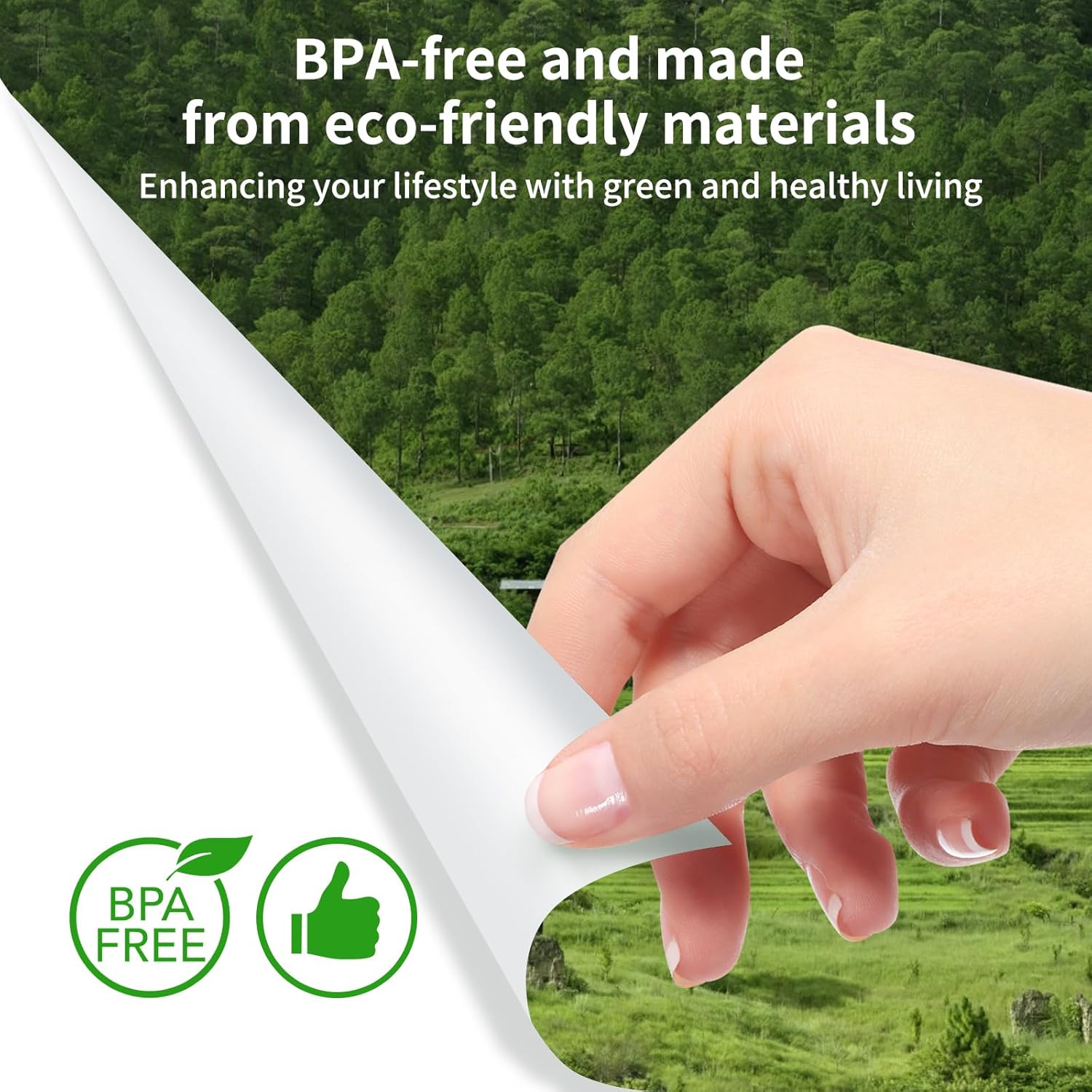
Image 3.2: Fan-folded thermal paper, 8.5"x11" (216x279mm), weighing 1.98 lbs and containing 200 sheets.

Image 3.3: The image illustrates that the fan-fold paper is compatible with the Gloryang PD-A4 printer model, distinguishing it from other printer types.
4. Kushandisa Printer
4.1 Kubatidza/Kudzima
- Kubatidza: Dzvanya wobata bhatani rekudzima kusvika rambi rechiratidzo ravheneka.
- Kudzima: Dzvanya wobata bhatani rekudzima kusvika rambi rechiratidzo radzima.
4.2 Sarudzo dzekubatanidza
4.2.1 USB Connection (Windows/Mac)
- Ita shuwa kuti printer yakabatidzwa.
- Connect the printer to your computer using the provided USB Type-C cable.
- Install the necessary printer drivers. Drivers can typically be found on the Gloryang official website or included with the printer software.
- Once drivers are installed, the printer will appear in your computer's list of available printers.
4.2.2 Wireless Connection (iOS/Android)
- Iva nechokwadi chekuti printer yakabatidzwa uye iri pedyo nefoni yako.
- Download and install the "Jadens Printer" application from your device's app store (Apple App Store for iOS, Google Play Store for Android).
- Open the "Jadens Printer" app and follow the on-screen instructions to search for and connect to your PD-A4 printer via Bluetooth.
- Once connected, you can print documents directly from the application.

Image 4.1: The Gloryang PD-A4 printer demonstrating both USB cable connection to computers (Mac, Windows) and wireless connection to smartphones (iOS, Android) via the Jadens Printer app.
4.3 Printing a Document
- Prepare the document you wish to print on your computer or mobile device.
- Select the print option within your application or operating system.
- Choose the "Gloryang PD-A4" printer from the list of available printers.
- Adjust print settings (e.g., paper size, orientation, density) as needed.
- Initiate the print job. The printer will feed the paper and print the document.

Image 4.2: The Gloryang PD-A4 printer in operation, producing a printed document.
5. Kuchengeta
5.1 Kuchenesa Printer
- Ensure the printer is powered off and disconnected from any power source before cleaning.
- Use a soft, dry, lint-free cloth to wipe the exterior of the printer.
- Pamusoro wekudhinda, shandisa swab yedonje zvishoma dampyakaputirwa ne isopropyl alcohol. Pukuta zvinyoro nyoro pamusoro pemusoro wekudhinda. Rega iome zvachose usati washandisa.
- Bvisa guruva repepa kana marara kubva munzira yepepa nguva nenguva.
5.2 Paper Handling and Storage
- Always use high-quality thermal paper to ensure optimal print quality and to prevent damage to the print head.
- Store thermal paper in a cool, dry place away from direct sunlight and heat sources to preserve its printability.
- Avoid touching the thermal paper's surface excessively, as oils from skin can affect print quality.
5.3 Kuchengeta Battery
- Kurebesa bhatiri, dzivisa kuburitsa bhatiri zvakazara nguva zhinji.
- If storing the printer for an extended period, charge the battery to approximately 50% and store in a cool, dry place. Recharge every few months to prevent deep discharge.
- Use only the provided USB Type-C cable for charging.
6. Kugadzirisa matambudziko
If you encounter issues with your Gloryang PD-A4 printer, refer to the following common problems and solutions:
| Dambudziko | Zvinogona Kukonzera | Solution |
|---|---|---|
| Printer haibatidzi. | Bhatiri rakaderera kana pasina simba. | Charge the printer using the USB Type-C cable. |
| No print output or blank pages. | Paper loaded incorrectly (non-printing side up) or out of paper. | Ensure thermal paper is loaded with the printing side facing the print head. Reload paper if empty. |
| Poor print quality (faint, streaky). | Dirty print head or low-quality thermal paper. | Clean the print head as described in Section 5.1. Use recommended thermal paper. |
| Cannot connect via USB. | Missing or incorrect drivers. Faulty USB cable or port. | Install the correct drivers. Try a different USB cable or port. |
| Cannot connect wirelessly (Bluetooth). | Bluetooth not enabled on device, printer not in pairing mode, or app issue. | Ensure Bluetooth is enabled. Restart printer and mobile device. Re-pair through the "Jadens Printer" app. |
| Pepa jam. | Kutakura mapepa zvisina kunaka kana chinhu chekunze. | Power off the printer. Carefully open the paper cover and remove any jammed paper or obstructions. Reload paper correctly. |
7. Zvinotsanangurwa
The following table outlines the technical specifications for the Gloryang PD-A4 Portable Thermal Printer:
| Feature | Tsanangudzo |
|---|---|
| Brand | Gloryang |
| Model Name | PD-A4 |
| Printing Technology | Thermal |
| Kubatana Technology | USB, Bluetooth (Wireless) |
| Special Feature | Portable |
| Color | Chena |
| Printer Output | Monochrome |
| Maximum Media Size | 8.5 x 11 inches |
| Print Media | Thermal Paper (Roll and Fan-Fold) |
| Scanner Type | Portable (Note: This device functions as a printer, not a scanner.) |
| Kurema | Anenge 0.68 kg (1.5 lbs) |
| Dimensions (L x W x H) | Zvinenge 10.4 x 2.9 x 1.7 inches |

Image 7.1: The Gloryang PD-A4 printer's dimensions (10.4 in x 2.9 in x 1.7 in) and weight (0.68 kg), highlighting its portability.
8. Safety Information
- Do not expose the printer to water or excessive moisture.
- Dzivisa kudonhedza printa kana kuiisa pasi pesimba rakasimba.
- Keep the printer away from extreme temperatures and direct sunlight.
- Do not attempt to disassemble or repair the printer yourself. Contact customer support for assistance.
- Shandisa zvishandiso zvinotenderwa uye maadapta emagetsi chete.
- This product is made from BPA-free and eco-friendly materials.

Image 8.1: Certification indicating the product is BPA-free and made from eco-friendly materials.
9. Warranty uye Tsigiro
For warranty information and customer support, please refer to the documentation included with your purchase or visit the official Gloryang website. If you require technical assistance or have questions regarding your PD-A4 printer, please contact Gloryang customer service.


