Nhanganyaya
The Dayton Audio M6 6-1/2" Powered Desktop Speakers are designed to deliver high-fidelity audio for various applications, including desktop use, music playback, and home audio systems. Featuring Bluetooth 5.0 with Qualcomm AptX, a built-in USB DAC, and multiple input options, these speakers offer versatile connectivity and rich stereo sound. This manual provides essential information for the proper setup, operation, and maintenance of your M6 speakers.
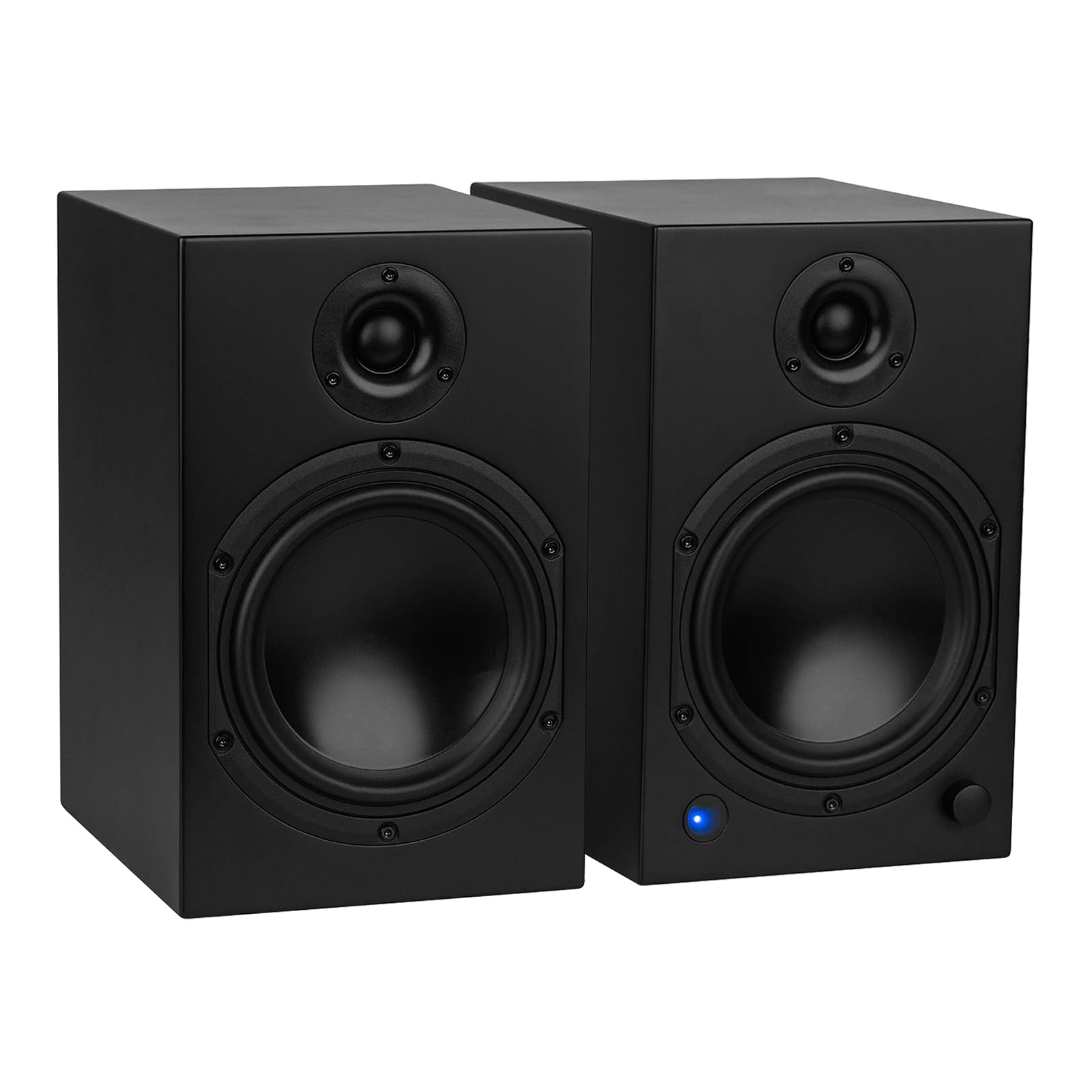
Chii chiri muBhokisi
Carefully unpack your Dayton Audio M6 speakers and ensure all components are present:
- Dayton Audio M6 Powered Desktop Speakers (Pair)
- Power Cable
- USB-C Cable
- Speaker Cable (for connecting passive speaker)
- 3.5mm AUX kuRCA Cable
- Remote Control
- Rubber Tsoka

Setup Instructions
1. Kuiswa kweMutauriri
Position your M6 speakers on a stable, flat surface. The sealed cabinet design allows for flexible placement, including closer to walls, without significant changes in sound. For optimal stereo imaging, place the speakers equidistant from your listening position.
2. Kubatanidza Vatauri
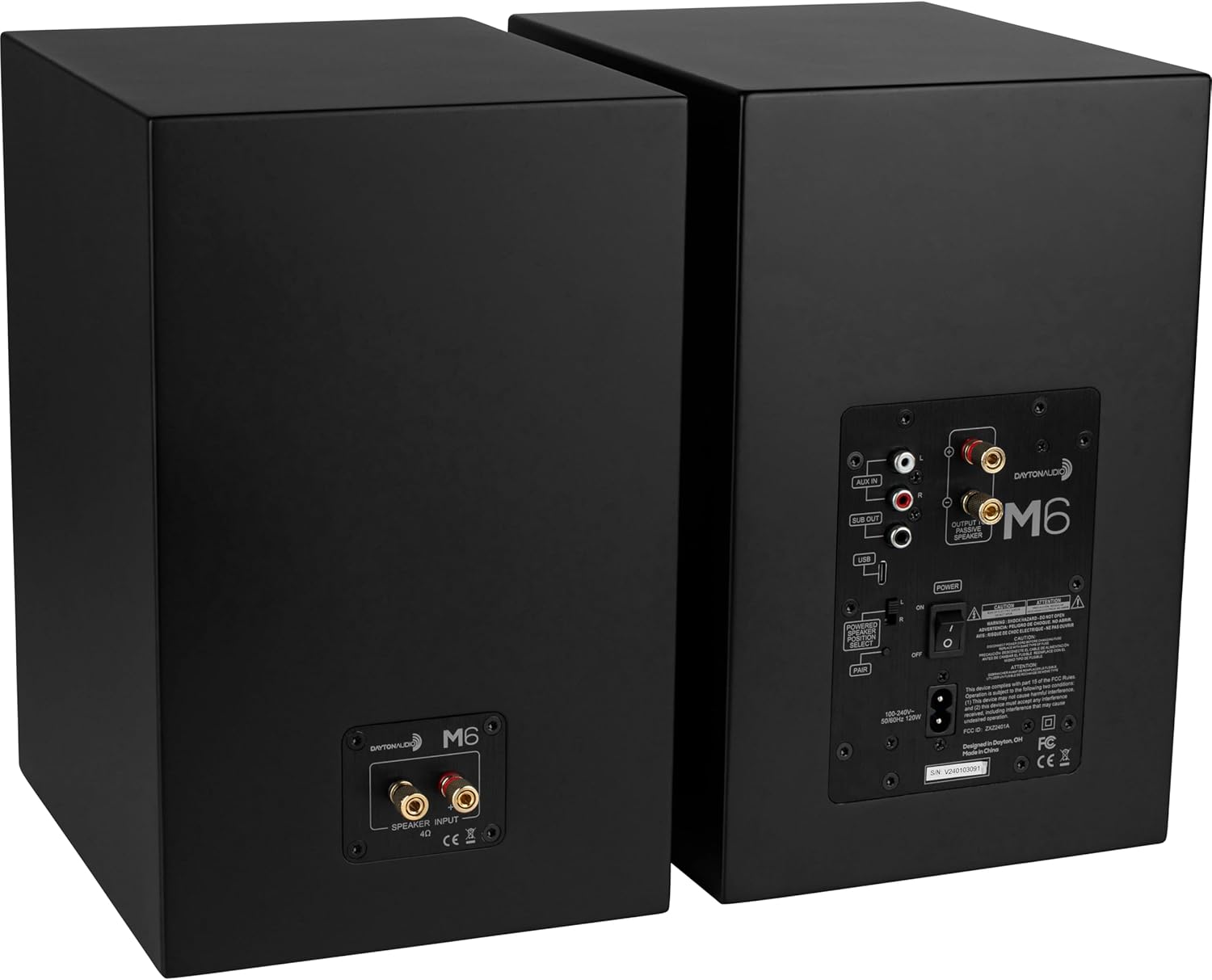
- Identify Active and Passive Speakers: One speaker is active (contains the amplifier and controls) and the other is passive.
- Connect Passive Speaker: Use the included speaker cable to connect the active speaker's "OUTPUT TO PASSIVE SPEAKER" terminals to the passive speaker's input terminals. Ensure correct polarity (red to red, black to black).
- Set Powered Speaker Position: On the rear of the active speaker, use the L/R switch to designate whether the active speaker will be on the left or right side of your setup.
3. Audio Source Connections
The M6 speakers offer multiple input options:
- USB DAC: Connect the included USB-C cable from your computer to the USB input on the active speaker for high-resolution audio playback (up to 192 kHz/32 Bit).
- AUX IN: Use the included 3.5mm AUX to RCA cable to connect devices with a 3.5mm output (e.g., smartphones, tablets) to the RCA "AUX IN" ports.
- Bluetooth: For wireless audio streaming, pair your device via Bluetooth 5.0 with Qualcomm AptX.
- Subwoofer Kuburitsa: An RCA "SUB OUT" port is available for connecting an optional powered subwoofer.

4. Simba Connection
Connect the power cable to the active speaker's power input and then to a wall outlet. Ensure the power switch on the rear panel is in the OFF position before connecting to power.
Operating Instruction
1. Simba On / Off
Use the main power switch on the rear panel of the active speaker to turn the unit ON or OFF. The speakers will retain the last selected input and volume setting when powered off and on via this switch.
2. Input Selection
The multi-function knob on the front of the active speaker or the remote control can be used to cycle through inputs (Bluetooth, USB, Line In). The LED indicator on the front will change color to indicate the active input:
- Bhuruu: Bluetooth
- Girinhi: AUX In (Line)
- Orenji: Mira ne

3. Volume Control
Rotate the multi-function knob on the front of the active speaker to adjust the volume. Alternatively, use the VOL+ and VOL- buttons on the remote control.
4. Bluetooth Kubatanidza
- Select the Bluetooth input using the multi-function knob or the Bluetooth button on the remote. The LED will flash blue, indicating pairing mode.
- On your device (smartphone, tablet), search for Bluetooth devices and select "Dayton Audio M6".
- Once connected, the LED will glow solid blue.
5. Bass Boost Feature
To activate the bass boost, press the BASS BOOST button on the included remote. The indicator LED on the front of the speaker will flash twice to confirm bass boost is active. Press the BASS BOOST button again to return to the normal EQ setting; the LED will flash once to indicate bass boost is inactive. This setting will remain enabled after the speaker returns from standby.
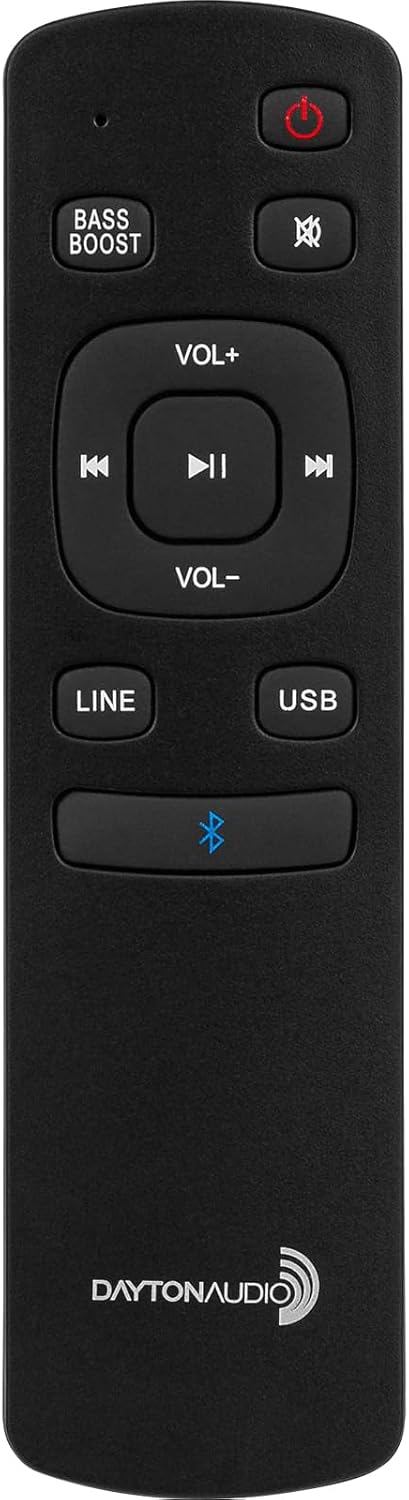
6. Remote Control Mabasa
Iyo inosanganisirwa remote control inopa nyore kuwana kune akasiyana mabasa:
- Simba Pa / Kumira
- Mute
- Volume Up/Down
- Track Skip (Previous/Next)
- Tamba/Misa
- Input Selection (LINE, USB, Bluetooth)
- Bass Boost On / Off
7. Sleep/Standby
The speakers will automatically enter standby mode after 1 hour of inactivity. To manually put the speakers into standby, press the power button on the remote control. To wake from standby, press the power button on the remote or select an input.
Maintenance
To ensure the longevity and optimal performance of your Dayton Audio M6 speakers, follow these maintenance guidelines:
- Kuchenesa: Use a soft, dry cloth to wipe the speaker cabinets. Avoid abrasive cleaners or solvents.
- Guruva: Gara uchipukuta magrilles espika nepamusoro pechinhu kuti usaungane.
- Environment: Keep speakers away from direct sunlight, excessive heat, moisture, and extreme temperatures.
- Kudzivirira Diaphragm: The speaker diaphragms are exposed. Exercise caution to prevent physical damage, especially in environments with small children or pets.
- Cable Connections: Nguva nenguva tarisa zvese zvakabatana netambo kuti uve nechokwadi chekuti zvakachengeteka.
Kugadzirisa matambudziko
If you encounter issues with your M6 speakers, refer to the following common problems and solutions:
| Dambudziko | Zvinogona Kukonzera | Solution |
|---|---|---|
| Hapana ruzha kubva kumatauri | Power off; incorrect input; loose cables; low volume. | Ensure power switch is ON. Select correct input. Check all audio and speaker cables. Increase volume on speakers and source device. |
| Bluetooth haina kubatana | Kwete mu pairing mode; mudziyo wakanyanya kure; kupindira. | Ensure speakers are in Bluetooth pairing mode (flashing blue LED). Move device closer. Disconnect other Bluetooth devices. Try re-pairing. |
| Yakakanganiswa kana kuti yakashata kunaka kwenzwi | Poor source quality; damaged cables; incorrect settings. | Test with a different audio source. Replace damaged cables. Ensure source volume is not too high, causing clipping. |
| Speakers unresponsive (DSP freeze) | Temporary software issue. | Turn off the active speaker using the physical power switch on the rear panel, wait a few seconds, then turn it back on. |
| No dedicated light for Bass Boost | Misunderstanding of indicator. | The front LED indicator flashes twice for ON and once for OFF when the Bass Boost button is pressed on the remote. |
Zvinotsanangurwa
| Feature | Tsanangudzo |
|---|---|
| Model Name | M6 |
| Mutauri Rudzi | Bookshelf, Powered |
| Mutauri Mukuru | 6.5 inches |
| Woofer Diameter | 6 inches |
| Mutauri Mukuru Wekubuda Simba | 150 Watts (Peak) |
| Frequency Response | 40 - 20,000 Hz |
| Kubatana Technology | Bluetooth 5.0 with Qualcomm AptX, RCA, USB-C DAC |
| USB-C DAC Support | Up to 192 kHz/32 Bit |
| Audio Output Mode | Stereo (2.0) |
| Kudzora Nzira | Remote, Multi-function Knob |
| Zviyero zvechigadzirwa (mutauri wega wega) | 7.5"D x 11.75"W x 9"H |
| Kurema kwechinhu (Peya) | 35 makirogiramu |
| Material | Metal, Plastiki |
Official Product Videos
For visual guidance on setup and features, please refer to the following official product videos:
Video 1: Dayton Audio M6 Product Overview (2:28)
Vhidhiyo iyi inopa general overview of the Dayton Audio M6 Powered Desktop Speakers, highlighting key features and design elements.
Video 2: M6 Connectivity and Features (1:46)
This video demonstrates the various connectivity options and operational features of the M6 speakers, including Bluetooth pairing and input selection.
Warranty Information
The Dayton Audio M6 Powered Desktop Speakers come with a 5-makore waranti covering parts and labor. Please retain your proof of purchase for warranty claims. For detailed warranty terms and conditions, refer to the documentation included with your product or visit the official Dayton Audio website.
Support
For further assistance, technical support, or service inquiries regarding your Dayton Audio M6 speakers, please visit the official Dayton Audio support websaiti kana kubata dhipatimendi ravo rebasa revatengi. Ruzivo rwekutaurirana runogona kuwanikwa pane yemugadziri websaiti kana mune chigadzirwa kurongedza.


