Nhanganyaya
This manual provides essential instructions for setting up, operating, maintaining, and troubleshooting your C idea CM776 Tablet. Please read this manual thoroughly before using your device to ensure proper function and longevity.

Image: The C idea CM776 Tablet, featuring a vibrant display and icons representing its core specifications.
Gadzirira
1. Kuchaja Tablet
Before first use, fully charge the tablet using the provided USB cable and power adapter. The battery indicator on the screen will show charging status.
2. Powering On / Off
- Kubatidza: Dhinda uye ubatisise bhatani reMasimba kusvikira iyo skrini yasimuka.
- Kudzima: Dzvanya uye bata bhatani reMasimba, wobva wasarudza "Simba" kubva pane zvingasarudzwa pachiratidziri.
- Kuti utangezve: Dzvanya wobata bhatani rePower, wobva wasarudza "Tangazve" kubva pane zvasarudzo zviri pachiratidziro.
3. Kutanga Setup
Pamusoro pekutanga simba-pa, tevera pa-screen kukurudzira ku:
- Sarudza mutauro waunoda.
- Batanidza kune network yeWi-Fi.
- Pinda neakaundi yako yeGoogle kana gadzira itsva.
- Gadzirisa kukiya skrini nezvimwe zvinhu zvekuchengetedza.
4. Kubatanidza mahedhifoni
Connect standard 3.5mm headphones to the audio jack for private listening.
Kushanda
1. Basic Navigation
The tablet uses a touch-sensitive screen. Use the following gestures:
- Top: Kusarudza chinhu kana kuvhura app.
- Rova zvakasimba: Kufamba-famba mumapeji kana mazita.
- Nzwara: Kuswededza mukati kana kunze pamifananidzo uye web mapeji.
- Yakareba Press: Kuti uwane mamenyu emamiriro ezvinhu kana kutamisa zviratidzo zvemaapp.
2. Kubatana kweWi-Fi
Kuti ubatanidze kuWi-Fi:
- Enda ku Settings > Network & Internet > Wi-Fi.
- Batidza Wi-Fi.
- Sarudza network yaunoda kubva pane rondedzero uye isa password kana zvichidikanwa.
3. Parental Control Mode
The tablet features a Parental Control Mode to manage content, limit screen time, and restrict app access for children. This mode helps create a safe digital environment.

Image: The tablet demonstrating its Parental Control Mode features, ensuring a safe experience for young users.
4. Media Playback
The tablet supports various media formats for videos and music. You can stream content or play files yakachengetwa pachigadzirwa.

Mufananidzo: The tablet showcasing its ability to play videos and display a range of entertainment content.
5. Educational and Learning Features
The tablet is designed to support learning through play, offering access to educational applications and content.
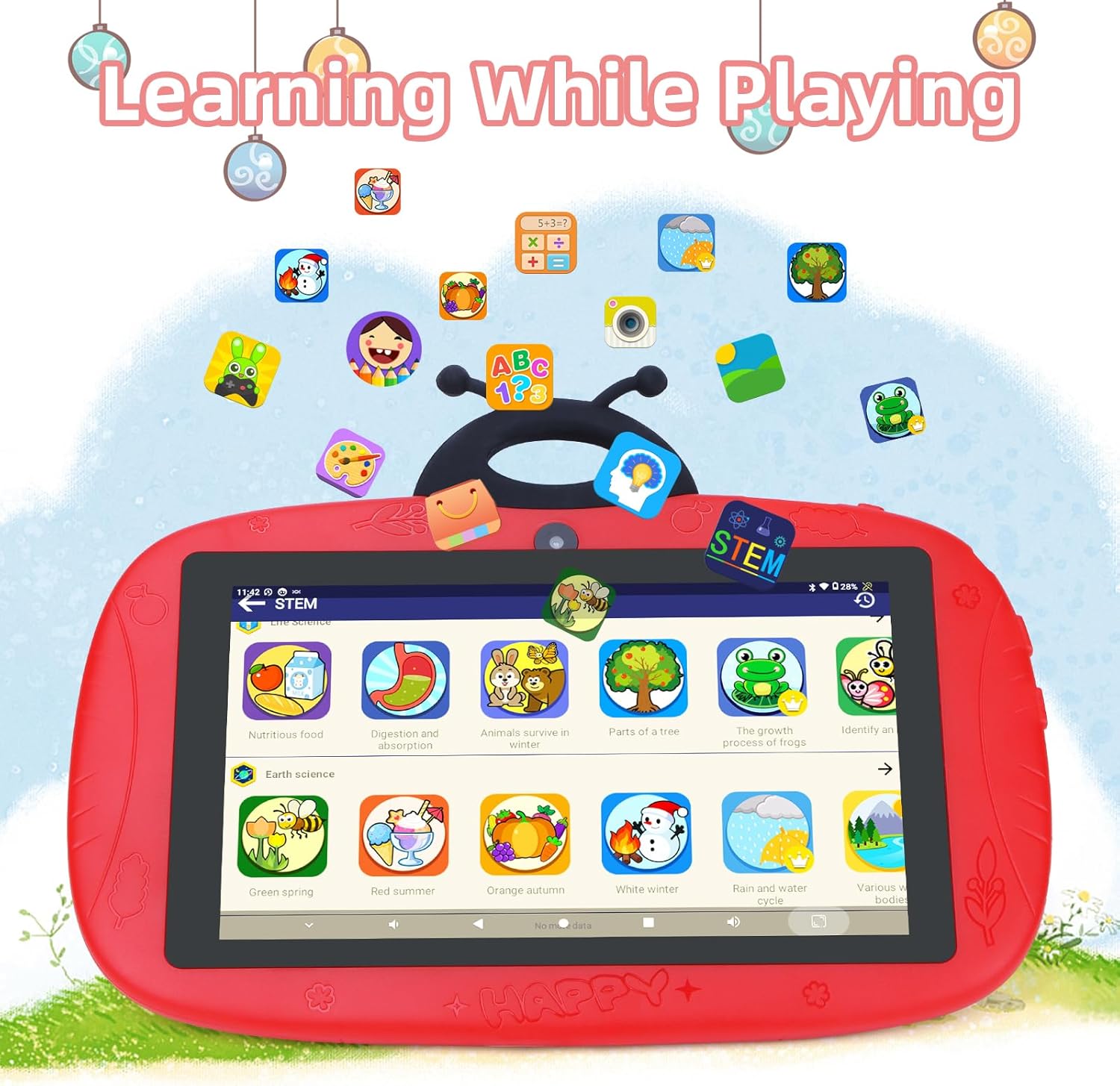
Image: The tablet interface showing educational applications, promoting learning through interactive content.
6. Kushandisa Makamera
The tablet is equipped with dual cameras (2MP front, 5MP rear) for capturing photos and videos.
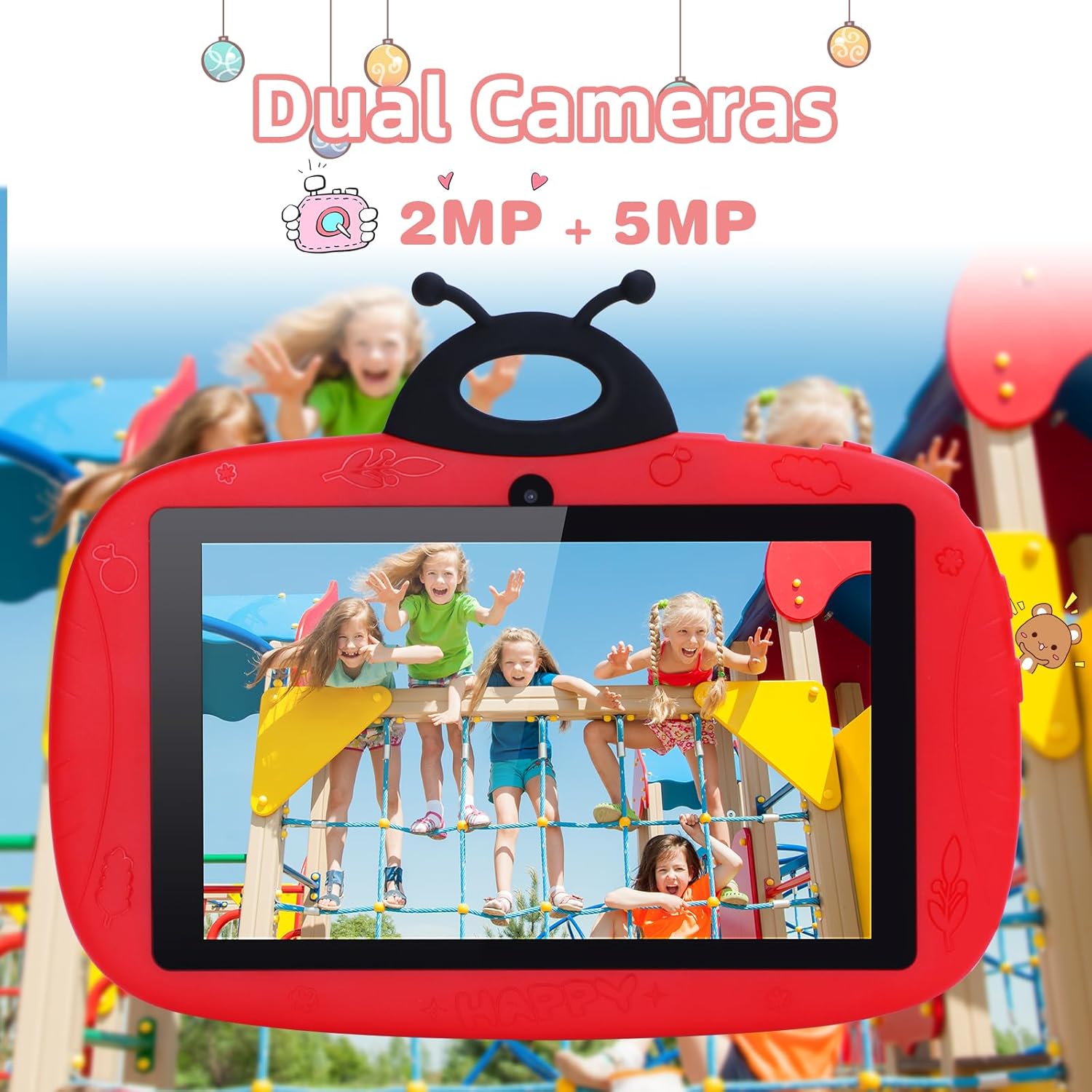
Image: The tablet's camera functionality demonstrated by a picture of children, highlighting its dual camera setup.
Maintenance
1. Kuchenesa Tablet
Shandisa jira rakapfava, risina lint kuchenesa skrini uye muviri wehwendefa. Dzivisa kushandisa makemikari ane hasha kana abrasive zvinhu.
2. Battery Care
- Dzivisa kupisa kwakanyanya.
- Usabvumira bhatiri kuti ribude zvizere nguva zhinji.
- Shandisa chete charger yepakutanga kana certified inofambirana nechaja.
3. Software Updates
Gara uchitarisa uye kuisa zvigadziriso zvesoftware kuti uve nechokwadi chekushanda kwakanaka uye kuchengetedzeka. Enda ku Settings > System > System update.
4. Kuchengetedza Kuchengetedza
To free up storage space, regularly delete unnecessary files, uninstall unused apps, and clear app caches. You can check storage usage in Settings > Storage.
Kugadzirisa matambudziko
Tablet Haisi Kubatidzwa
- Ita shuwa kuti bhatiri rachajwa. Batanidza charger womira maminetsi mashoma usati waedza kubatidza.
- Try holding the Power button for 10-15 seconds to force a restart.
Wi-Fi Connection Matambudziko
- Check if Wi-Fi is enabled in Settings.
- Tangazve yako Wi-Fi router uye piritsi.
- Kanganwa network uye batanidza zvakare nekuisa zvakare password.
Slow Performance / Apps Crashing
- Vhara mapurogiramu ekumashure asina kushandiswa.
- Clear app caches (Settings > Apps > sarudza app > Kuchengetedza & cache > Bvisa cache).
- Iva nechokwadi chekuchengetera nzvimbo yemahara.
- Tangazve tablet.
Kugadziriswazve Kwefekitori (Nzvimbo Yekupedzisira Yekuzorora)
If issues persist, a factory reset can resolve many software problems. Yambiro: Izvi zvichadzima data rese riri patablet yako. Chengetedza data yakakosha usati waenderera.
- Enda ku Settings > System > Reset options.
- Sarudza Dzima data rese (setazve mufekitari).
- Simbisa sarudzo yako.
Zvinotsanangurwa
| Feature | Detail |
|---|---|
| Brand | C pfungwa |
| Model Name | CM776 |
| Operating System | Android |
| Screen Size | 7 inches |
| Max Display Resolution | 600x1024 Pixels |
| RAM Saizi | 4 GB |
| Storage Capacity | 32 GB |
| Kubatana | Wi-Fi |
| Total USB Ports | 1 |
| Inowirirana Devices | Mahedhifoni |
| Kuumbwa kwebhatiri | Lithium-polymer |
| Hardware inowanikwa | 3.5 mm Audio |
| Model Year | 2024 |
Warranty Information
The C idea CM776 Tablet comes with a 1-year mugadziri waranti from the date of purchase. This warranty covers defects in materials and workmanship under normal use. It does not cover damage caused by misuse, accidents, unauthorized modifications, or external causes.
Ndapota chengetedza humbowo hwako hwekutenga kwezvichemo zvewaranti.
Support
For further assistance, technical support, or warranty claims, please contact C idea customer service. Refer to the packaging or the official C idea websaiti kuti uwane ruzivo.
When contacting support, please have your tablet's model number (CM776) and proof of purchase readily available.