1. Nhanganyaya
Welcome to the user manual for your new Xiaomi X Pro QLED Series Smart Google TV L55MA-SIN. This guide provides essential information for setting up, operating, maintaining, and troubleshooting your television. Please read this manual thoroughly before using your TV to ensure optimal performance and safety.
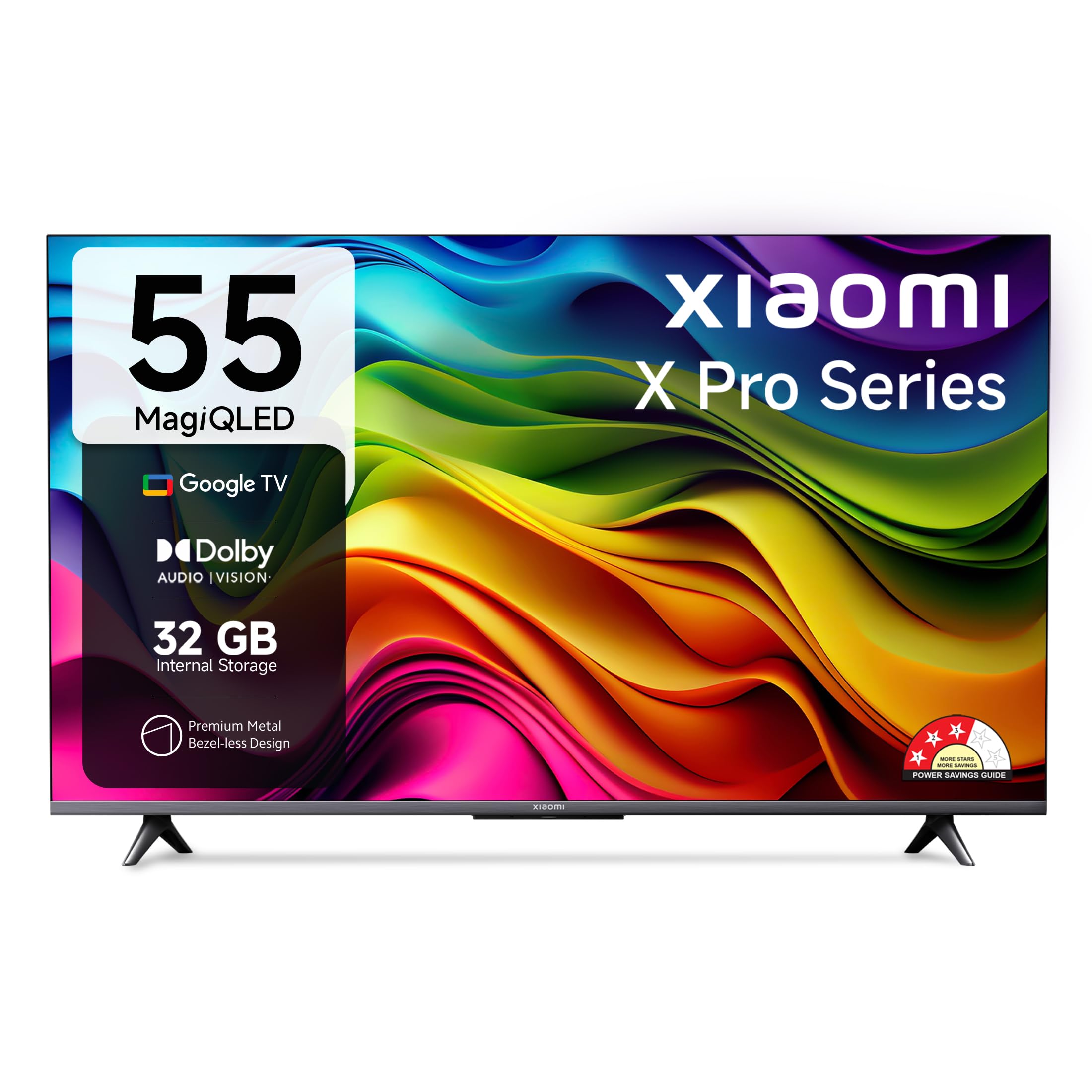
Figure 1: Xiaomi X Pro QLED Series Smart Google TV
2. Safety Information
Gara uchitevera chenjedzo dzekuchengetedza paunenge uchishandisa chigadzirwa ichi kuderedza njodzi yemoto, kuvhunduka kwemagetsi, uye kukuvara.
- Usafumure TV kunaya kana kunyorova.
- Usavhura TV casing; endesa masevhisi ese kuvashandi vanokwanisa.
- Iva nechokwadi chekufefetera kwakaringana paTV.
- Shandisa tambo yemagetsi chete inopihwa neTV.
- Chengeta TV kure nekupisa uye zuva rakananga.
3. Chii chiri muBhokisi
Kana wabvisa zvinhu mubhokisi, simbisa kuti zvikamu zvese zviripo:
- Chiteshi cheTV che LED chimwe chete
- Zvigadziko zviviri zveTafura
- 1 Remote Kudzora
- 1 AC Power Cord
- 2 AAA mabhatiri
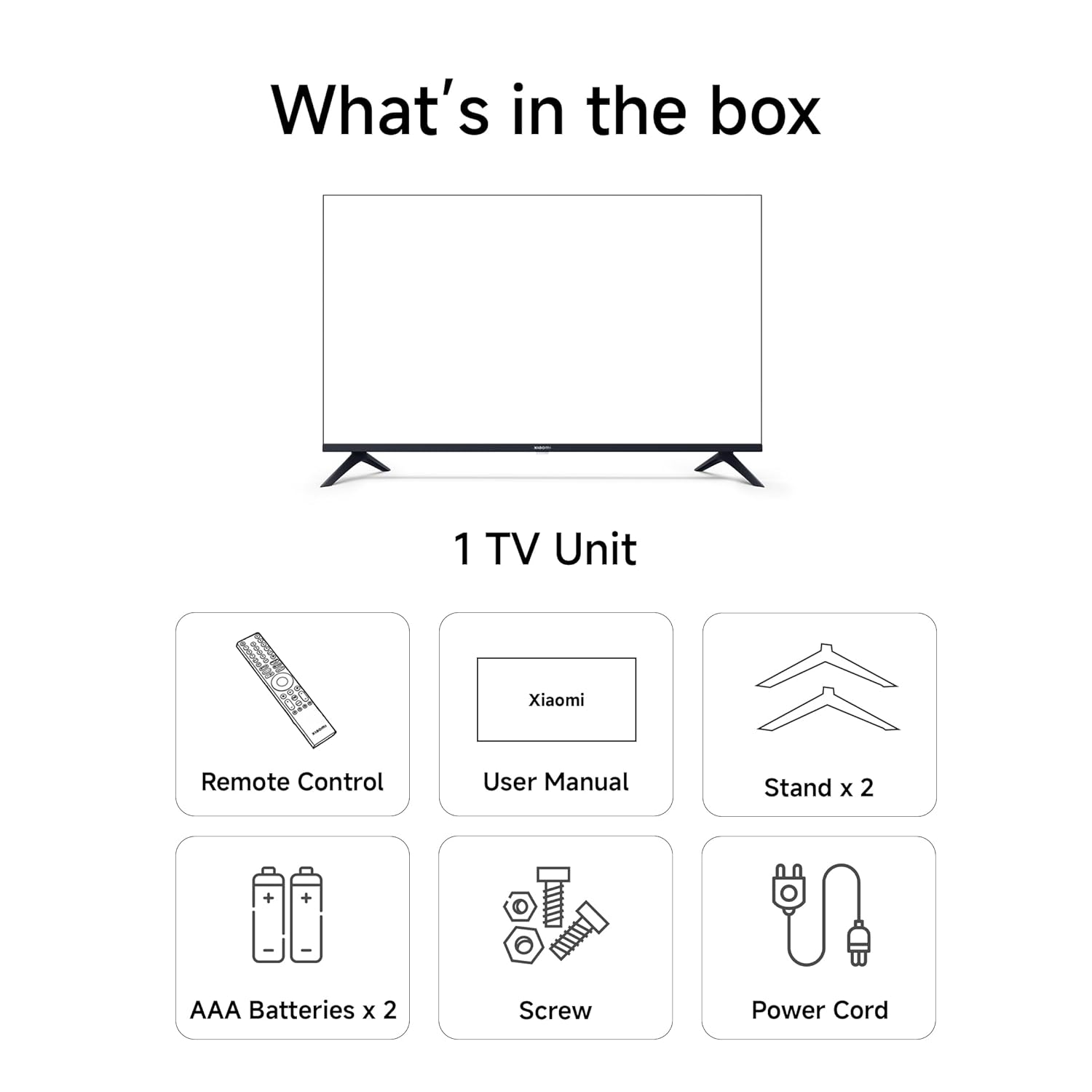
Figure 2: Included accessories with your Xiaomi TV
4. Setup
4.1 Kuiswa Kwenyama
Your Xiaomi TV can be installed on a tabletop using the provided stands or wall-mounted (wall mount kit sold separately).
Kuisa Tabletop:
- Isa skrini yeTV pasi zvinyoro nyoro panzvimbo yakapfava, yakati sandara.
- Attach the two table stand bases to the bottom of the TV using the screws provided.
- Ensure the stands are securely fastened.
- Place the TV on a stable, level surface, ensuring adequate ventilation.
Kuiswa kweWall Mount:
For wall mounting, consult a professional installer and use a compatible VESA wall mount kit. Refer to the TV's specifications for VESA mounting pattern details.

Figure 3: TV dimensions for planning installation
4.2 Yekutanga Simba Pa uye Network Connection
- Connect the AC power cord to the TV and a power outlet.
- Press the power button on the TV or remote control to turn it on.
- Follow the on-screen instructions to complete the initial setup, including language selection, region, and network connection.
- Batanidza kunetiweki yako yeWi-Fi kana shandisa tambo yeEthernet yekubatanidza newaya.
- Sign in with your Google account to access Google TV features.
5. Kushandisa TV Yako
5.1 Remote Kudzora
The included remote control allows you to navigate your Smart Google TV. Insert the two AAA batteries into the remote control before use.
- Bhatani reSimba: Batidza/kudzima TV.
- Bhatani reMubatsiri weGoogle: Inomutsa mirairo yezwi.
- Navigation Pad: Kuti uwane nzira yekufamba pamenyu.
- Vhoriyamu +/-: Inogadzirisa vhoriyamu.
- Channel +/-: Anochinja machannel.
- Yakatsaurirwa mabhatani eApp: Quick access to Netflix, Prime Video, Disney+ Hotstar, YouTube, SonyLIV.

Figure 4: Xiaomi Smart TV Remote Control
5.2 Smart TV Features (Google TV & PatchWall)
Your TV runs on Google TV, offering a personalized content experience, and also features Xiaomi's PatchWall for curated content.
- Google TV: Organizes movies, shows, live TV, and more from your apps and subscriptions. Features include Content First UI, Recommendations, Google Assistant, Chromecast Built-in, Watchlist, Ambient Mode, Kids Profile, and Personal Profiles.
- Google Assistant: Use voice commands to find content, stream apps, play music, control smart home devices, and get answers. Press the Google Assistant button on your remote to activate.
- PatchWall: A content-first user interface that curates content from various streaming services, providing a seamless viewing experience.
- Chromecast Yakavakwa-mukati: Easily cast movies, shows, photos, and more from your phone or tablet directly to your TV.

Figure 5: Google TV and PatchWall interface
5.3 Kubatana
The TV offers multiple connectivity options for your devices.
- HDMI Zviteshi (3): Connect gaming consoles, set-top boxes, Blu-ray players. Supports ALLM and eARC.
- Zviteshi zve USB (2): Connect hard drives and other USB devices.
- Wi-Fi yemabhandi maviri: Kune internet isina waya.
- Makaralı 5.0: Zvekubatanidza zvinhu zvisina waya zvakaita semahedhifoni kana masipika.
- Optical: Kuti mubudise odhiyo yedhijitari.
- Ethernet Kuti uve newaya yeinternet.

Figure 6: Connectivity features of the TV
5.4 Ratidza uye Odhiyo
Experience stunning visuals and immersive audio with your Xiaomi QLED TV.
- 4K Ultra HD (3840 x 2160): Delivers crystal clear clarity and exquisite detail.
- Kuratidzwa kweQLED: Features quantum dot technology for a vast spectrum of colors, incredible contrast, and enhanced brightness.
- Dolby Vision, HDR10, HLG: Supports multiple HDR formats for dynamic and vibrant picture quality.
- MEMC yeKuyerera Kwechokwadi: Ensures blur-free visuals and smoother transitions in fast-paced action scenes.
- 30 Watts Output Speakers: Powerful audio output for clear, room-filling sound.
- Dolby Audio, DTS-X, DTS Virtual:X: Provides immersive sound experiences with exceptional depth and clarity.

Figure 7: MagiQLED Display Technology

Figure 8: High-resolution 4K display clarity

Figure 9: Billion Colour Display for true-to-life visuals

Figure 10: Cinematic Audio experience
5.5 Internal Storage and Processor
The TV is equipped with ample storage and a powerful processor for smooth performance.
- 32GB Yekuchengetera Mukati: Install your favorite apps, stream movies, and play games without storage concerns.
- Quad-core Processor (A55): Delivers efficient processing power for a responsive user experience.

Mufananidzo 11: Ample 32GB internal storage
Figure 12: Quad-core A55 processor
6. Kuchengeta
6.1 Kuchenesa TV yako
- Gara uchisunungura TV usati wachenesa.
- Shandisa jira rakapfava, rakaoma kupukuta skrini uye kabati.
- Pazvibodzwa zvakasindimara, zvishoma damppukuta jira nemvura kana muchina wekuchenesa sikirini usina kunyorova.
- Never spray cleaner directly onto the screen.
6.2 Zvigadziriso zveSoftware
Your TV may receive software updates periodically to improve performance and add new features. Ensure your TV is connected to the internet to receive these updates. You can usually check for updates in the TV's settings menu.
7. Kugadzirisa matambudziko
Kana ukasangana nematambudziko neTV yako, tarisa kune anotevera akajairika mhinduro:
| Dambudziko | Solution |
|---|---|
| Hapana Simba | Tarisa kana tambo yemagetsi yakabatanidzwa zvakanaka paTV nepaburi remagetsi. Edza imwe soketi yakasiyana. |
| Hapana Mufananidzo, asi Ruzha rwuripo | Check the input source. Ensure all cables are connected correctly. Try restarting the TV. |
| Hapana Ruzha, asi Mufananidzo Uripo | Check the volume level and mute settings. Verify audio cables are connected properly. Check external audio device settings if applicable. |
| Remote Control Haisi Kushanda | Tsiva mabhatiri. Iva nechokwadi chekuti hapana zvipingamupinyi pakati peremote neTV. Batanidza zvakare remote yeBluetooth kana zvichidikanwa. |
| Network Connection Matambudziko | Restart your router and modem. Check Wi-Fi password. Try a wired Ethernet connection. |
8. Zvinotsanangurwa
| Feature | Detail |
|---|---|
| Brand | XIAOMI |
| Model | L55MA-SIN |
| Screen Size | 55 inches (138 cm) |
| Display Technology | QLED |
| Resolution | 4K Ultra HD (3840 x 2160) |
| Refresh Rate | 60 Hz |
| Operating System | Google TV |
| processor | Mali G52 MC1 (Graphics Coprocessor) |
| RAM | 2 GB |
| Kuchengeta Kwemukati | 32 GB |
| Kubatana | 3 HDMI ports, 2 USB ports, Dual Band Wi-Fi, Bluetooth 5.0, Optical, Ethernet |
| Audio Output | 30 Watts, Dolby Audio, DTS-X, DTS Virtual:X |
| HDR Tsigiro | Dolby Vision, HDR10, HLG |
| Viewing Angle | 178 madhigirii |
| Zviyero zveChigadzirwa (LxWxH) | 8.17 x 122.6 x 71.5 cm |
| Item Weight | 10.3 kg |
9. Warranty uye Tsigiro
Your Xiaomi TV comes with a 1 Year Comprehensive Warranty. To avail warranty services, please retain your Amazon invoice.
For any assistance, reach out to Xiaomi Care, which provides reliable after-sales service. You can contact their dedicated helpline at 1800 103 6286, available from 9 AM to 9 PM.

Figure 13: Xiaomi Care Support Information
10. Product Videos
10.1 Xiaomi X Pro QLED Series Showcase
Video 1: A visual showcase of the Xiaomi X Pro QLED Series, highlighting its display and audio capabilities.
10.2 Google TV Interface Overview
Vhidhiyo 2: Kuperaview of the Google TV interface on the Xiaomi Smart TV, demonstrating app navigation and content display.