Nhanganyaya
This manual provides detailed instructions for the AOCHUAN 3-Axis Gimbal Stabilizer, including the Smart S2, Smart XE, and Smart XPro Kits. It covers setup, operation, maintenance, and troubleshooting to help you achieve optimal performance and capture stable, professional-grade footage with your smartphone.
The AOCHUAN gimbal features advanced 3-axis stabilization, intelligent AI tracking, an integrated fill light, and wide compatibility with various smartphones, enhancing your mobile videography and photography experience.
1. Setup Guide
1.1 Unboxing uye Yekutanga Kuongorora
Carefully remove all components from the packaging. Verify that all items listed in the product packaging are present and undamaged. If any items are missing or damaged, contact customer support.
1.2 Kuchaja Gimbal
Before first use, fully charge the gimbal. Connect the provided USB-C cable to the charging port on the gimbal and to a suitable USB power adapter (not included). The OLED display will indicate the charging status and battery level.

Mufananidzo 1.2.1: The gimbal features a wireless charging clip to ensure uninterrupted shooting by charging your smartphone.
1.3 Kuisa Smartphone Yako
Wedzera foniamp and securely place your smartphone in the center. Ensure the phone is firmly seated and balanced. The gimbal is compatible with smartphones under 7 inches in size, weighing up to 0.62 pounds, and within dimensions of 6.3 inches length, 3.5 inches width, and 0.4 inches thickness.
1.4 Kuenzanisa Gimbal
Proper balancing is crucial for optimal performance and battery life. Adjust the phone's position within the clamp and slide the horizontal arm until the phone remains level when the gimbal is powered off. This minimizes strain on the motors.
1.5 Kuiswa kweApp uye Kubatanidza
Download the official "AOCHUAN" app from your smartphone's app store (Apple App Store or Google Play Store). Power on the gimbal, enable Bluetooth on your smartphone, and open the AOCHUAN app to connect. The OLED display will show Bluetooth connectivity status.

Mufananidzo 1.5.1: The AOCHUAN app provides various photography and videography modes to enhance your creative options.
2. Operating Instructions
2.1 Simba On/Kudzima
Press and hold the power button for a few seconds to turn the gimbal on or off. The gimbal will perform a self-check upon startup.
2.2 Mode Sarudzo
The OLED display shows the current shooting mode. Use the mode button to cycle through available modes:
- PF (Pan Follow): The pan axis follows your movement, while the tilt and roll axes remain locked.
- L (Lock Mode): Matemo ese matatu akakiyiwa, zvichiita kuti kamera irambe yakanongedzera kwayakananga.
- F (Full Follow): All three axes follow your movement smoothly.
- POV (Nzvimbo ye View): All three axes follow your movement, providing a first-person perspective.
2.3 Stabilization Features
The gimbal utilizes an enhanced 7.0 stabilization algorithm for exceptionally smooth footage, even during dynamic movements or at extreme angles.
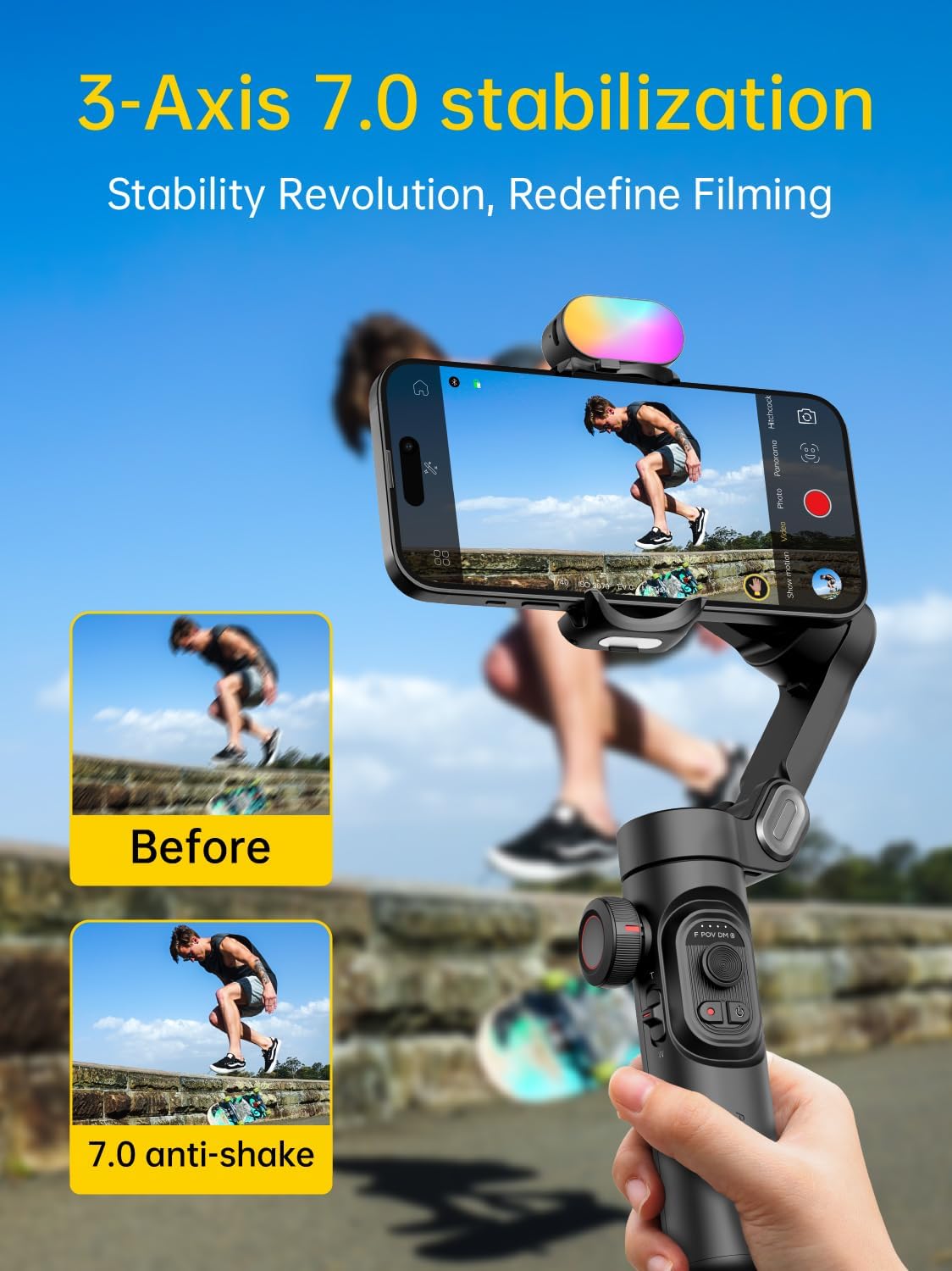
Mufananidzo 2.3.1: The 7.0 anti-shake system significantly reduces camera shake for smooth video.

Mufananidzo 2.3.2: Unparalleled three-axis stabilization performance ensures steady shots in various scenarios.
2.4 Kutevera AI uye Kudzora Masaini
The 6.0 Intelligent AI Tracking system, accessible via the AOCHUAN app, offers various tracking modes:
- Kutsvaga Kuso Automatically follows a detected face.
- Body Tracking: Tracks a person's body movements.
- Kutsvaga chinhu: Allows selection of any object to track.
- Third-Party Live Tracking: Integrates with other live streaming applications.

Mufananidzo 2.4.1: Smart AI Tracking 7.0 provides versatile tracking capabilities for dynamic content creation.
The gimbal also supports gesture control for hands-free operation:
- Fist Gesture: Toggle between video and photo modes.
- Palm Gestures: Initiate a 3-second countdown for recording.
- OK Gesture: Start or stop face tracking.
- Thumbs Up (both hands): Switch between portrait and landscape orientation.
- L-shaped Gesture: Start or stop gesture recognition.

Mufananidzo 2.4.2: Gesture controls simplify operation, allowing for dynamic footage without manual adjustments.
2.5 Integrated Fill Light
The gimbal features an integrated fill light with up to 6000lux brightness, 3 adjustable brightness levels, and a color temperature of up to 5500k CCT. This light helps illuminate your subjects in low-light conditions. Additional magnetic lights are available separately.
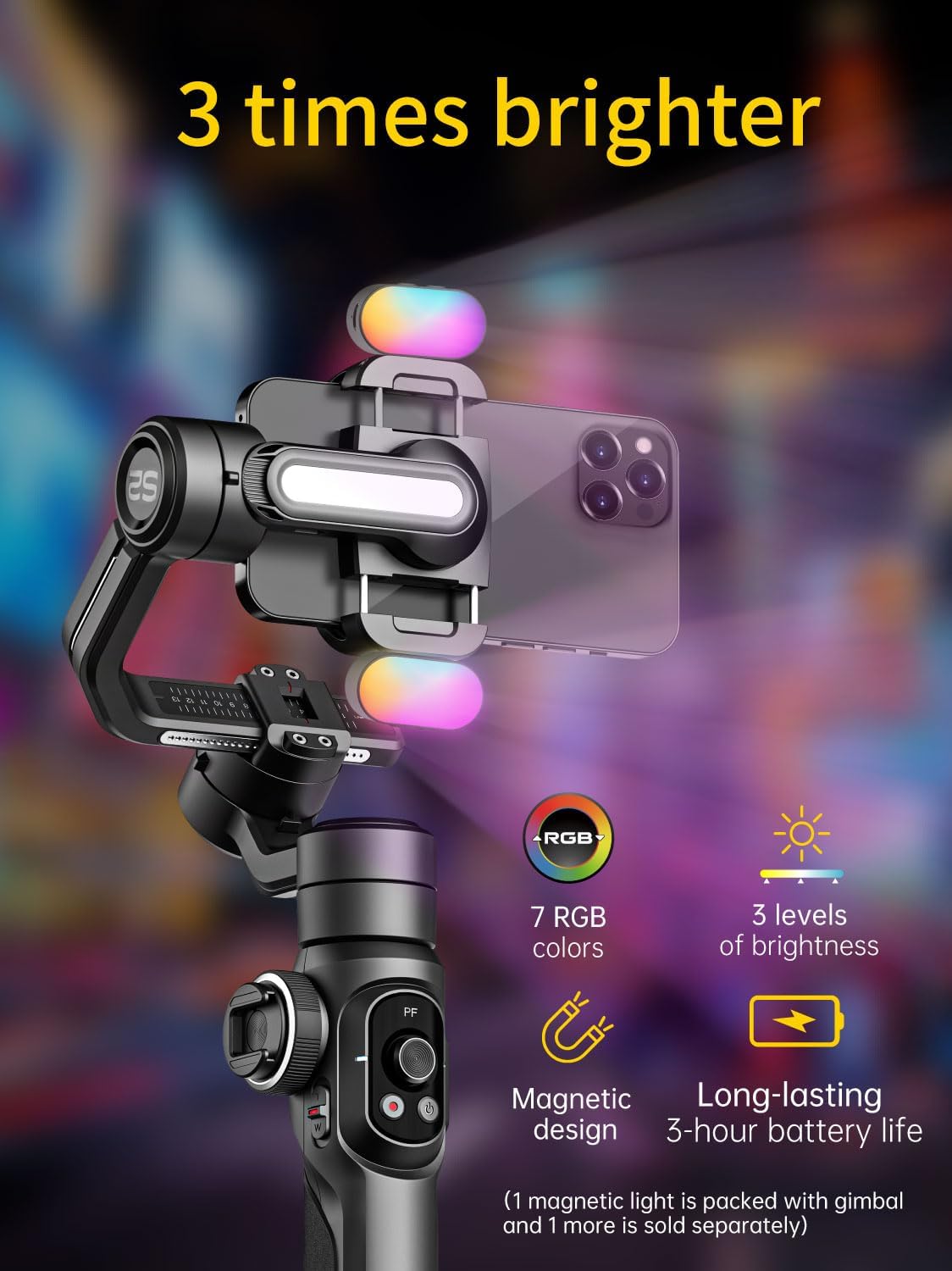
Mufananidzo 2.5.1: The integrated fill light provides adjustable illumination for improved video quality.
2.6 Zoom Wheel and Focus Slider
Use the focus wheel and zoom slider on the gimbal handle to make real-time adjustments to framing, allowing for precise control over your shots.
2.7 360° Infinite Rotation and Extension Rod
The gimbal supports seamless 360° rotation for panoramic shots and creative camera movements. Additionally, the handle includes a built-in extension rod, offering up to 19cm of extended reach for unique angles and expansive shots.
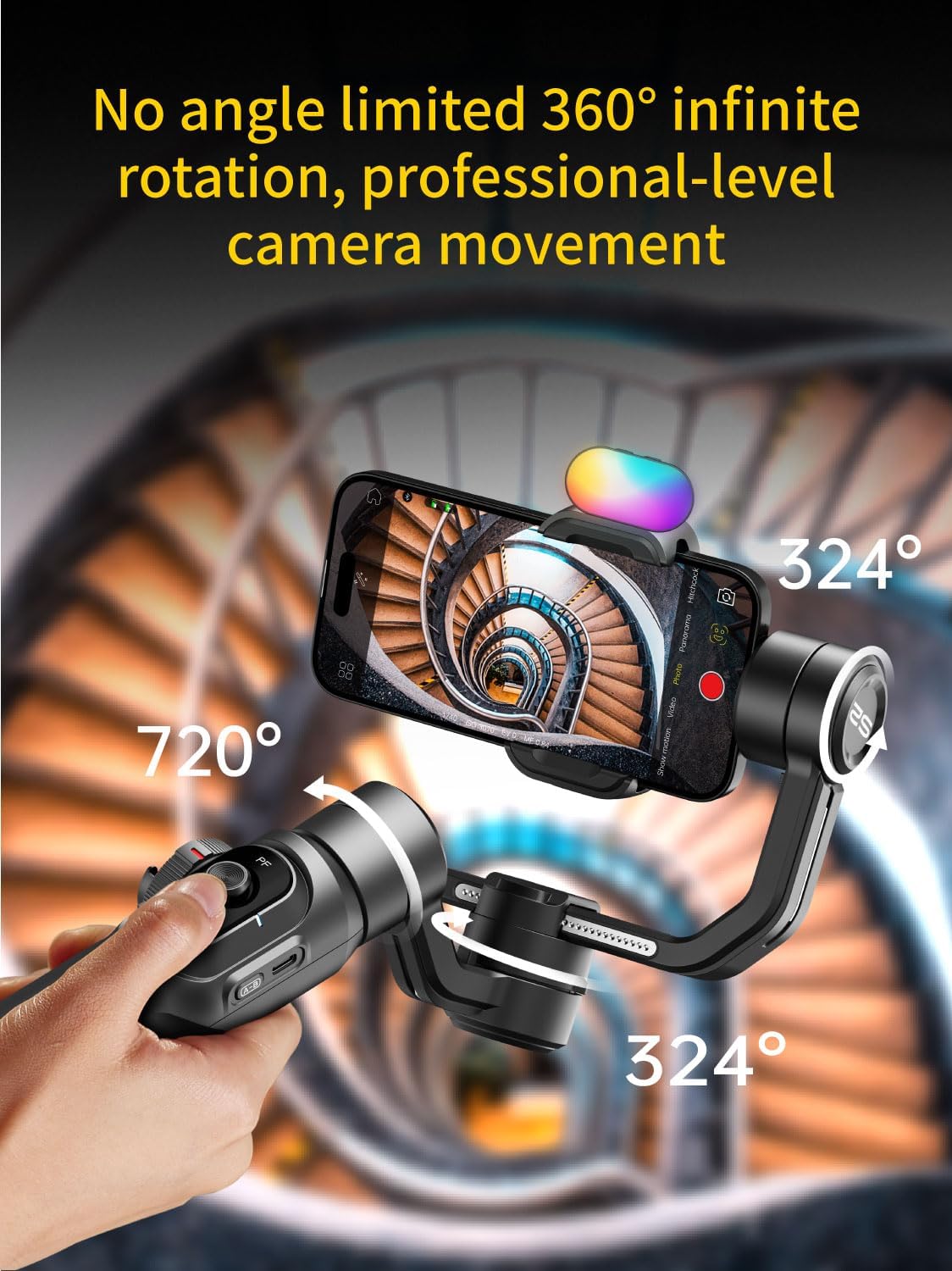
Mufananidzo 2.7.1: The gimbal's 360° rotation capability allows for professional-level camera movement and panoramic captures.
3. Kuchengeta
3.1 Kuchenesa
Wipe the gimbal with a soft, dry cloth. Do not use liquid cleaners or solvents, as they may damage the device. Keep the charging ports and buttons free from dust and debris.
3.2 Kuchengeta
Store the gimbal in a cool, dry place away from direct sunlight and extreme temperatures. If storing for an extended period, ensure the battery is charged to approximately 50-60% to prolong its lifespan.
3.3 Kuchengeta Battery
Avoid fully discharging the battery frequently. Recharge the gimbal regularly, even if not in use, to maintain battery health. Do not expose the battery to high temperatures or puncture it.
4. Kugadzirisa matambudziko
4.1 Gimbal Not Powering On
- Ensure the battery is sufficiently charged. Connect the gimbal to a charger and wait for a few minutes before attempting to power on again.
- Press and hold the power button firmly for at least 3 seconds.
4.2 Unstable Footage / Gimbal Vibrating
- Verify that your smartphone is properly balanced on the gimbal before powering it on.
- Ensure the phone is securely mounted and not loose in the clamp.
- Check for any obstructions preventing the gimbal motors from moving freely.
- Calibrate the gimbal through the AOCHUAN app if the issue persists.
4.3 Matambudziko eBluetooth
- Ita shuwa kuti Bluetooth yakagoneswa pane yako smartphone.
- Tangazve gimbal nefoni yako.
- Forget the device in your phone's Bluetooth settings and attempt to reconnect through the AOCHUAN app.
- Ensure the AOCHUAN app has the necessary permissions (e.g., location, Bluetooth).
4.4 App Haisi Kupindura
- Close and reopen the AOCHUAN app.
- Check for app updates in your smartphone's app store.
- Iva nechokwadi chekuti system yekushandisa yefoni yako yakagadziridzwa.
5. Zvigadzirwa zveChigadzirwa
| Brand | AOCHUAN |
| Model | Smart S2 Kit, Smart XE Kit, Smart XPro Kit |
| Item Weight | 0.62 Pounds (inenge 9.9 ounces) |
| Inowirirana Devices | Smartphones under 7 inches, max 0.62 lbs, max 6.3" L x 3.5" W x 0.4" T |
| Color | Nhema |
| ASIN | B0DD3WHJCJ |
| Kutanga Kuwanikwa Zuva | Nyamavhuvhu 14, 2024 |
| Kudzikamisa | 3-Axis, Enhanced 7.0 Stabilization Algorithm |
| Kutenderera | Kutenderera Kusingaperi kwe360° |
| Display | High-Definition OLED Panel |
| Zadzai Chiedza | Integrated, up to 6000lux, 3 brightness levels, 5500k CCT |
| AI Tracking | 6.0 Intelligent AI Tracking (Face, Body, Object, Third-party live) |
| Extension Rod | Built-in, up to 19cm extended reach |
| Kuchaja | Wireless charging clip for smartphone |
6. Ruzivo rweWaranti
AOCHUAN products are covered by a limited warranty from the date of purchase. Please refer to the warranty card included in your product packaging or visit the official AOCHUAN website for detailed warranty terms and conditions. This warranty typically covers manufacturing defects but does not cover damage caused by misuse, accidents, unauthorized modifications, or normal wear and tear.
7. Mutengi Tsigiro
For technical assistance, troubleshooting, or warranty claims, please contact AOCHUAN customer support through the following channels:
- Official Websaiti: Visit the AOCHUAN Store on Amazon kuti uwane ruzivo nezvechigadzirwa uye zviwanikwa zvekutsigira.
- Email Support: Tarisa kune chako chigadzirwa kurongedza kana mukuru webwebhusaiti yekero yeemail yebasa revatengi.
- Rutsigiro rweMukati meApp: The AOCHUAN app may offer direct support options.
When contacting support, please have your product model and purchase information ready.


