1. Nhanganyaya
This manual provides detailed instructions for setting up, operating, maintaining, and troubleshooting your Beelink EQI12 Mini PC. Please read this manual thoroughly before using the device to ensure optimal performance and longevity.
The Beelink EQI12 Mini PC is a compact and powerful computing solution, featuring an Intel Core i3-1220P processor, 24GB LPDDR5 RAM, and a 500GB M.2 PCIe 4.0 SSD. It supports dual 4K displays, WiFi 6, Bluetooth 5.2, and dual Gigabit Ethernet for versatile connectivity.

Image: The Beelink EQI12 Mini PC, featuring the Intel Core i3-1220P processor, is a compact and powerful computing solution.
2. Setup
2.1. Unboxing uye Zvikamu
Bvisa zvese zviri mupakeji nokungwarira. Bhokisi rinofanira kunge riine:
- Beelink EQI12 Mini PC
- Power Adapter
- HDMI Cable
- Mushandisi Chinyorwa (gwaro iri)
2.2. Kubatanidza Peripherals
Follow these steps to connect your mini PC:
- Power Connection: Connect the power adapter to the power input port on the rear of the mini PC. The device features a built-in 85W power supply unit, requiring only one cable for power.
- Ratidza Connection: Connect your monitor(s) to the HDMI ports on the rear of the mini PC using HDMI cables. The EQI12 supports dual 4K display output.
- USB Zvishandiso: Connect your keyboard, mouse, and other USB peripherals to the available USB ports on the front or rear of the mini PC.
- Network Connection: For a wired connection, connect an Ethernet cable to one of the dual Gigabit Ethernet ports on the rear. For wireless, the device supports WiFi 6.

Image: Connect the provided power cable to the power input port on the rear of the mini PC. The device utilizes a built-in 85W power supply unit.
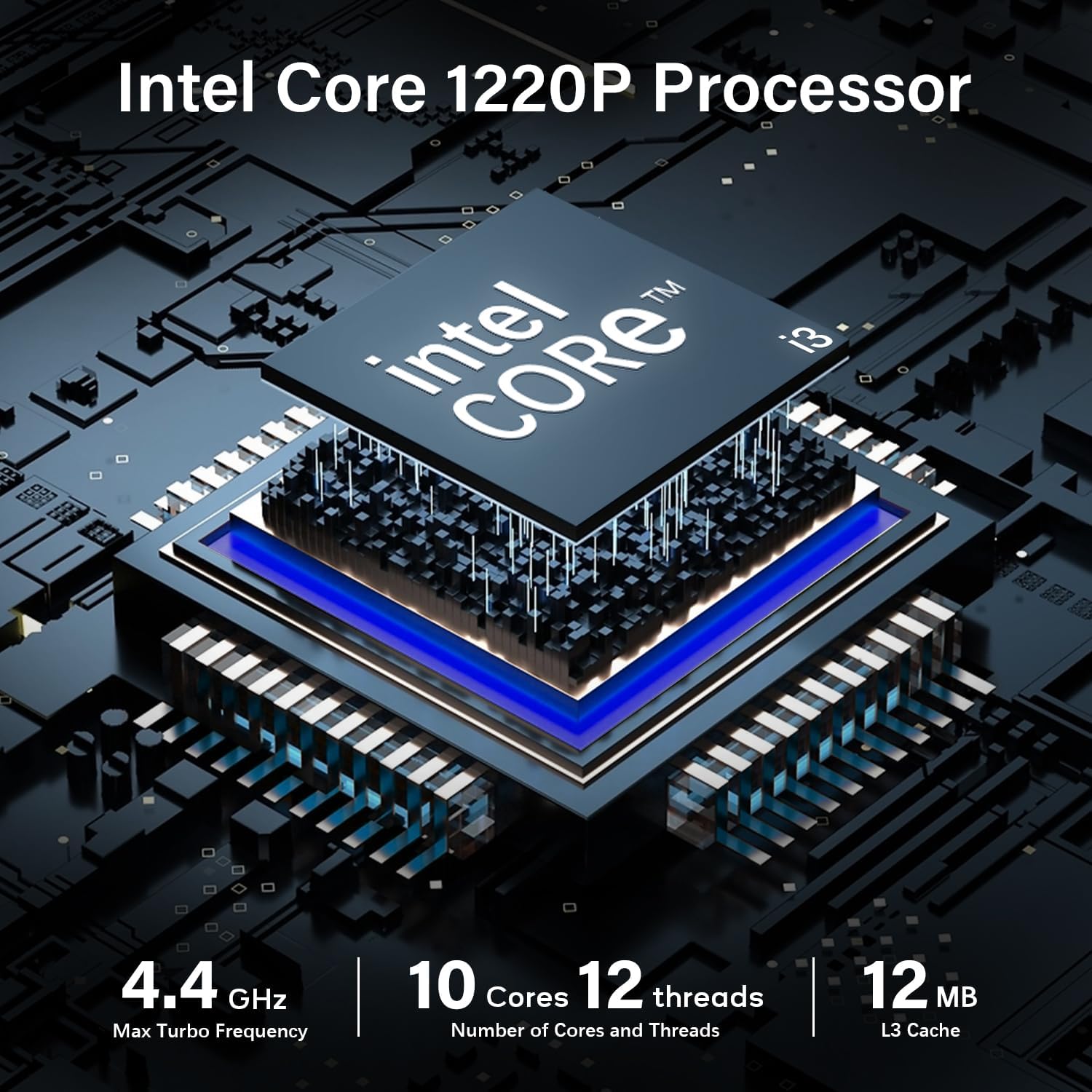
Image: The front panel of the Beelink EQI12 Mini PC provides convenient access to a USB port, a USB-C port for data transfer, a 3.5mm audio jack, and the power button.

Image: The rear panel features multiple USB ports, two HDMI ports for dual display setup, dual Gigabit Ethernet ports for network connectivity, and the power input.

Image: The mini PC is equipped with dual Gigabit Ethernet ports, allowing for robust and secure wired network connections.

Image: Integrated WiFi 6 provides faster wireless speeds and improved network stability, while Bluetooth 5.2 enables seamless connection with wireless peripherals.
2.3. Chekutanga Power On
Once all peripherals are connected, press the power button located on the front of the mini PC to turn it on. The white light indicator will illuminate when the power is on.
3. Operating Instructions
3.1. Basic Operation
To power on the device, press the power button. To shut down, use the operating system's shutdown procedure. A short press of the power button can also initiate sleep mode.
3.2. Ratidza Configuration
The Beelink EQI12 supports connecting up to two 4K displays simultaneously. After connecting your monitors via HDMI, you can configure display settings (e.g., extended desktop, duplicate displays) through your operating system's display settings menu.

Image: The Beelink EQI12 supports dual 4K display output via its HDMI ports, enhancing productivity for multi-tasking.
3.3. Network Kubatana
Utilize the dual Gigabit Ethernet ports for stable wired network access or connect to a wireless network using the integrated WiFi 6 module. Access network settings through your operating system.
3.4. Bluetooth Devices
The integrated Bluetooth 5.2 allows you to connect various wireless peripherals such as keyboards, mice, and headphones. Pair devices through your operating system's Bluetooth settings.
3.5. Kuchengetedza Kuchengetedza
The mini PC comes with a 500GB M.2 PCIe 4.0 2280 SSD. Additional storage can be added via the available M.2 SSD interfaces, supporting up to 4TB of fast storage.

Image: The system includes 24GB of LPDDR5 RAM and a 500GB M.2 PCIe 4.0 2280 SSD, offering high-speed memory and storage.
4. Kuchengeta
4.1. Kutonhora System
The Beelink EQI12 features an MSC2.0 cooling system designed for efficient airflow and stable operation. Ensure the air intake vents on the bottom and exhaust vents on the sides are not obstructed to maintain optimal cooling performance.

Image: The MSC2.0 cooling system ensures efficient heat dissipation and stable operation, drawing air from the bottom for optimal airflow.
4.2. Kuchenesa
To clean the exterior of the mini PC, use a soft, dry cloth. Avoid using liquid cleaners or abrasive materials. Periodically check and gently clean the ventilation openings to prevent dust buildup.
4.3. Kushanda kwakanyarara
The EQI12 is designed for quiet operation, with noise levels around 32dB, making it suitable for office environments without distraction.

Image: The mini PC operates at a low noise level of approximately 32dB, providing a quiet working environment.
5. Kugadzirisa matambudziko
If you encounter any issues with your Beelink EQI12 Mini PC, please refer to the following common solutions or contact customer support.

Image: The Beelink EQI12 Mini PC is suitable for various applications, including business office tasks.
5.1. Common Issues uye Solutions
- Hapana Simba: Ensure the power adapter is securely connected to both the mini PC and a working power outlet.
- Hapana Chiratidziro: Verify that the HDMI cables are properly connected to both the mini PC and the monitor(s). Try a different HDMI port or cable if necessary.
- Matambudziko eNetiweki Yekubatanidza: For wired connections, check Ethernet cable integrity. For wireless, ensure WiFi is enabled and connected to the correct network.
5.2. Mibvunzo Inowanzo bvunzwa (FAQs)
- Q: What should I do if there are problems with my mini computer during use?
- A: Please contact our customer service team first, and we will provide you with relevant solutions.
- Q: What if I want to set the auto power on function?
- A: Please contact our customer service and provide a picture of the barcode on the bottom of the machine for a setup guide for the automatic power on function.
- Q: What if the system or key is lost?
- A: Please contact our customer service and provide a barcode image at the bottom of the machine for obtaining system files and reinstallation instructions.

Image: For technical assistance or repair inquiries, please contact customer service.
6. Zvinotsanangurwa
| Feature | Detail |
|---|---|
| processor | Intel Core i3-1220P (10C/12T, up to 4.4GHz) |
| Graphics | Intel UHD Graphics |
| RAM | 24 GB LPDDR5 |
| Storage | 500 GB M.2 PCIe 4.0 2280 SSD |
| Ratidza Output | 2x HDMI (supports dual 4K display) |
| Network | Dual Gigabit Ethernet, WiFi 6 |
| Wireless | Bluetooth 5.2 |
| USB Ports | 3x USB 3.0, 1x USB 2.0, 1x USB-C (data transfer) |
| Vadivelu Comedy Audio | 3.5mm Audio Jack |
| Kutonhodza System | MSC2.0 Cooling System |
| Magetsi | Built-in 85W Power Supply Unit |
| Dimensions (LxWxH) | 4.96 x 4.96 x 1.77 inches |
| Kurema | 2.03 makirogiramu |
7. Warranty uye Tsigiro
Beelink offers comprehensive support for your EQI12 Mini PC:
- Hupenyu hwese Tsigiro yehunyanzvi: We provide 7 Days/24 Hours serving and lifetime technical assistance.
- Basa reWaranti yemakore maviri: Your product is covered by a 1-year warranty from the date of purchase.
For any pre-sales or after-sales support, please email our customer service team. Our technical experts are available to assist you with any issues or questions.
8. Chigadzirwa Vhidhiyo Pamusoroview
Watch this detailed video for a visual introduction to the Beelink EQI12 Mini PC and its features.
Video: An official video providing a detailed overview of the Beelink EQI12 Mini PC, highlighting its features and components.


