1. Nhanganyaya
The AOCHUAN Smart X2 Gimbal Stabilizer is designed to provide stable and smooth footage for smartphone users. Featuring a 3-axis design and an upgraded anti-shake algorithm, it ensures professional-looking videos in various environments. Its compact and lightweight design, along with an integrated extension rod, makes it ideal for on-the-go filmmaking.
Key features include smart AI tracking (face, body, object, and third-party live tracking), 280° panoramic shooting, and wide device compatibility for phones under 7 inches. The gimbal also boasts a high-capacity lithium-ion battery, offering 8-10 hours of uninterrupted shooting and the ability to charge your smartphone while filming.
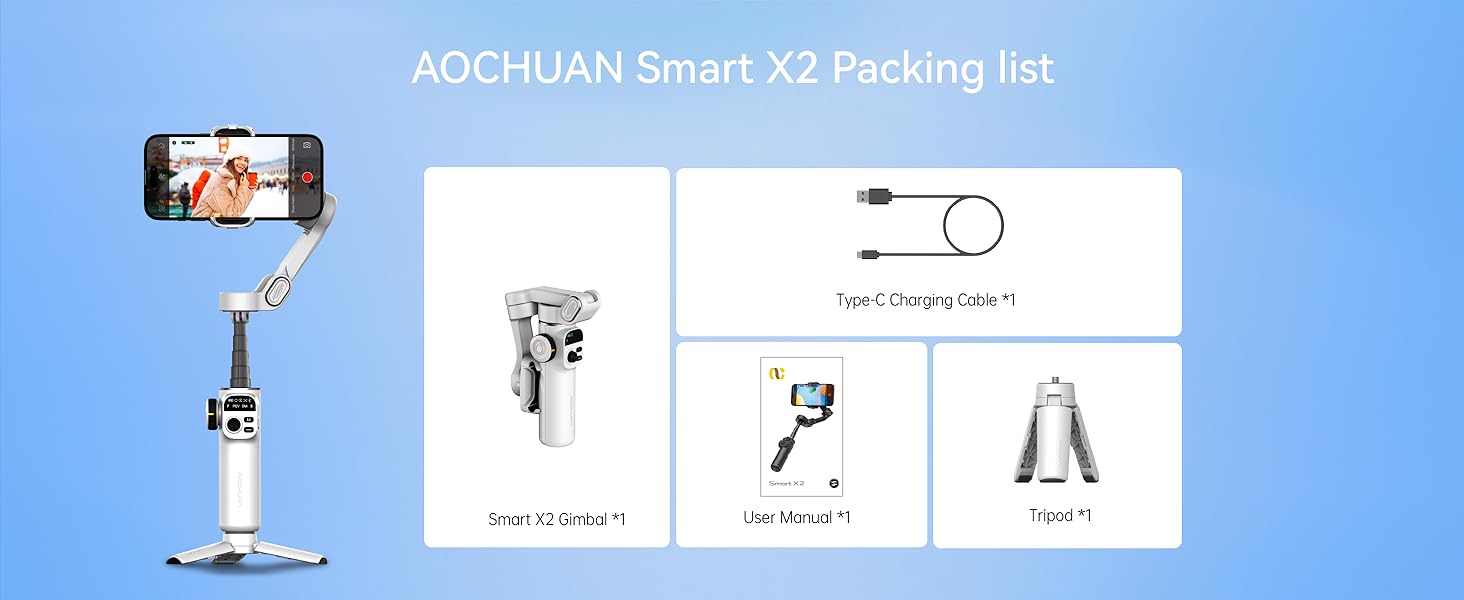
2. Chii chiri muBhokisi
- Smart X2 Gimbal ×1
- Type-C yekuchaja Cable ×1
- User Manual ×1
- Tripod ×1
3. Setup
3.1 Kubatanidza Tripod
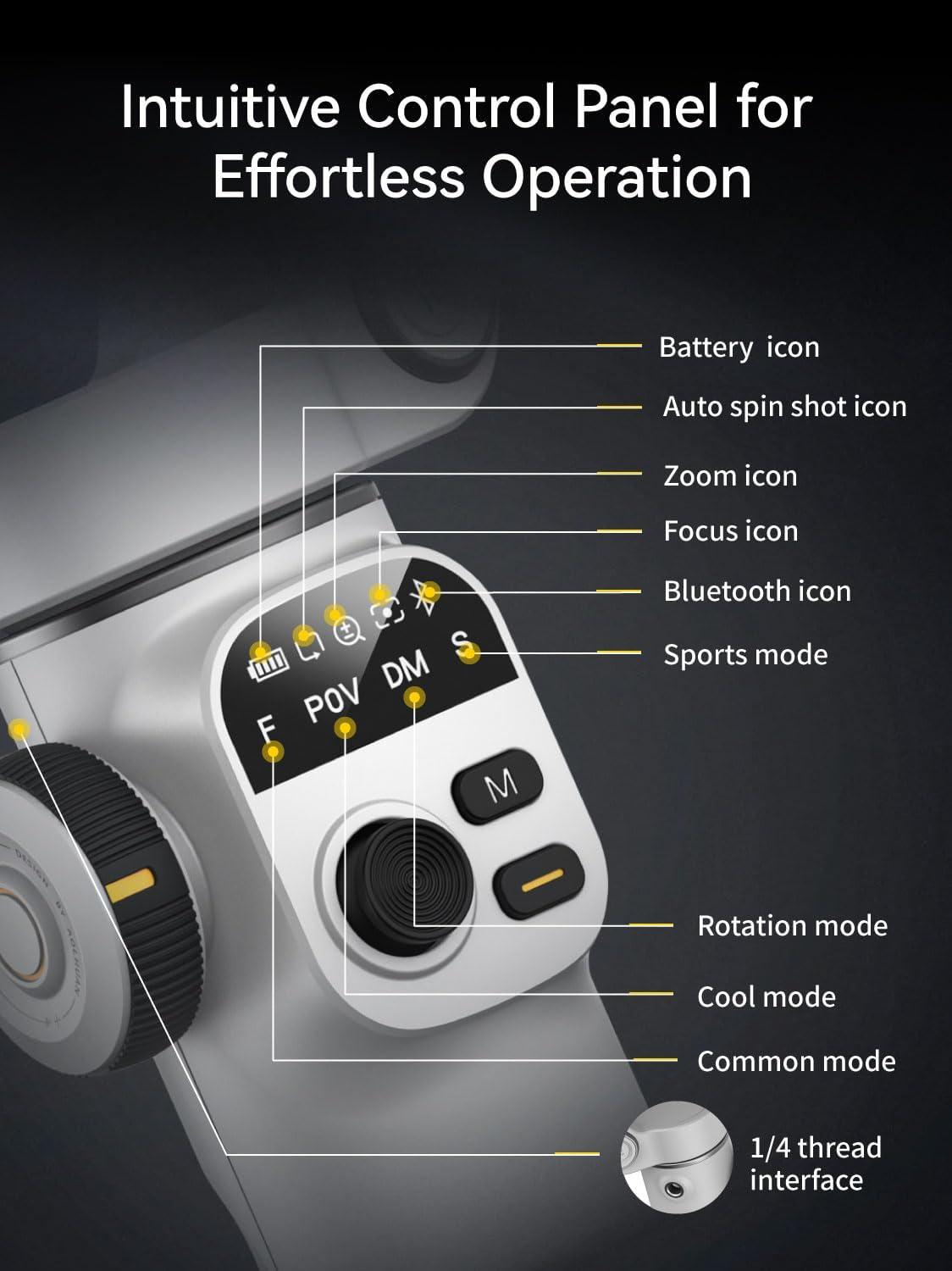
The included mini tripod can be screwed into the 1/4-inch thread interface at the bottom of the gimbal handle. This allows the gimbal to stand independently for stable shots or hands-free operation.
3.2 Kuvhura Gimbal
Hold the device with both hands and unfold the folding arm upwards until it forms a '7' shape, ensuring the phone holder's clip is facing up.
3.3 Kuisa Smartphone Yako
Pull open the phone holder and securely place your smartphone in the center. If your phone's camera is large or heavy, adjust the phone slightly left or right within the holder to achieve optimal balance. The phone holder accommodates all iPhone and Android phones under 7 inches, weighing up to 0.62 pounds, and measuring up to 6.3 inches in length, 3.5 inches in width, and 0.4 inches in thickness.

3.4 Kubatidza
After mounting your phone, press and hold the power button on the right side of the gimbal for three seconds to turn it on. The gimbal will automatically stabilize.
3.5 Extension Rod
The gimbal features a built-in 7.8-inch aluminum alloy extension rod. Pull it up to extend the reach for high-angle shots or wider perspectives. Bend it to the desired angle for shooting.

3.6 Connecting to the App (AOCHUAN APP)
For full functionality, download the "AOCHUAN" app from your smartphone's app store. Turn on your phone's Bluetooth, open the app, and it will automatically search for the gimbal. Select "SMART_X2" from the list and confirm the connection. The Bluetooth indicator light on the gimbal handle will turn on, signifying a successful connection.
4. Maitiro Okushandisa
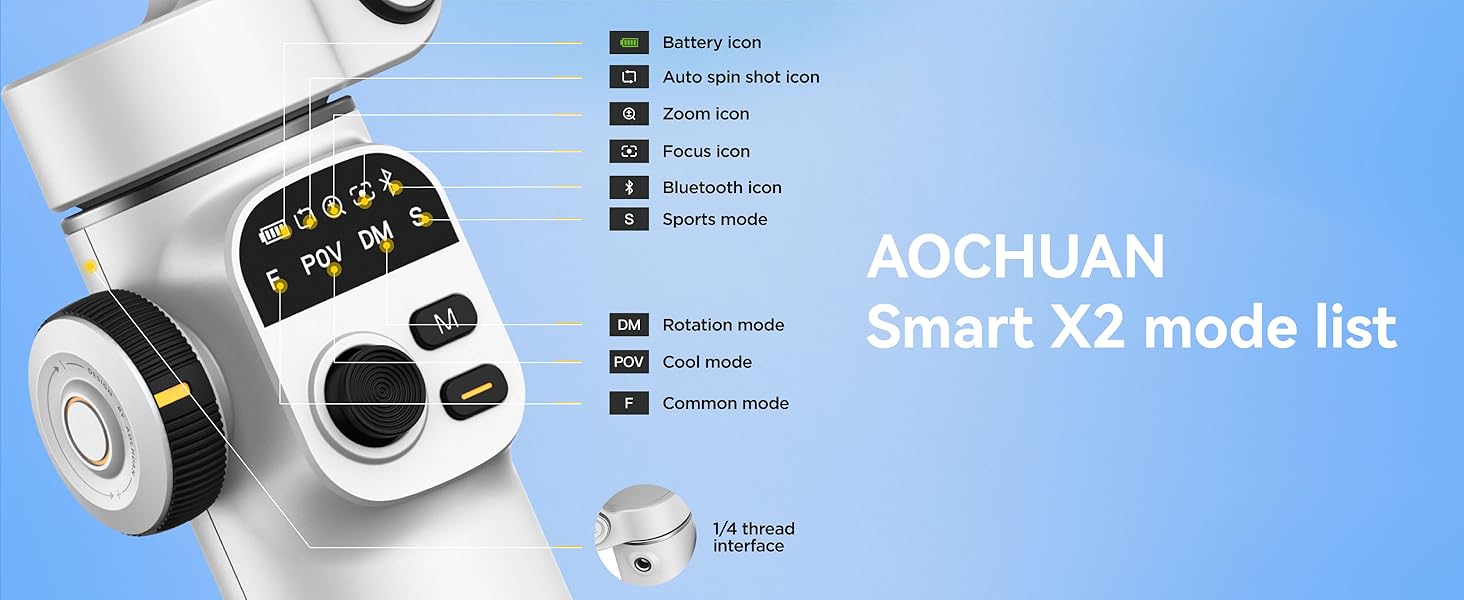
The Smart X2 Gimbal offers four distinct operating modes, indicated by the handle lights, to suit various shooting scenarios:
- F (Common Mode): The phone follows left/right and up/down movements of the handle, suitable for horizontal or vertical panning shots.
- POV (Cool Mode): Allows for 360° follow, enabling tilt shots and shooting from any angle.
- DM (Rotation Mode): The phone automatically rotates 180°, ideal for dynamic, rotating shots.
- S (Sport Mode): Similar to F mode but with stronger motor power for quick left/right and up/down follow, ideal for fast transitions and action shots.
5. Zvinodzora uye Zvimiro
5.1 Control Panel
The gimbal features an intuitive control panel with an OLED display for real-time monitoring of device status, including battery icon, auto spin shot icon, zoom icon, focus icon, Bluetooth icon, and sports mode indicator.
5.2 Bhatani Bhatani
- Tinya kamwe chete: Takes a photo or starts/stops video recording.
- Tinya kaviri: Switches between horizontal and vertical shooting modes.
- Triple-click (with app): Switches between front and rear cameras.
- Long-press (with app): Enables or disables smart tracking.
5.3 M Bhatani
- Tinya kamwe chete: Switches between F (Common) mode and POV (Cool) mode.
- Tinya kaviri: Recenter the phone's position.
- Katatu-tinya: Activates DM (Rotation) mode.
- Bata: Enters S (Sport) mode.
5.4 Joystick
Move the joystick up, down, left, or right to manually adjust the phone's shooting direction.
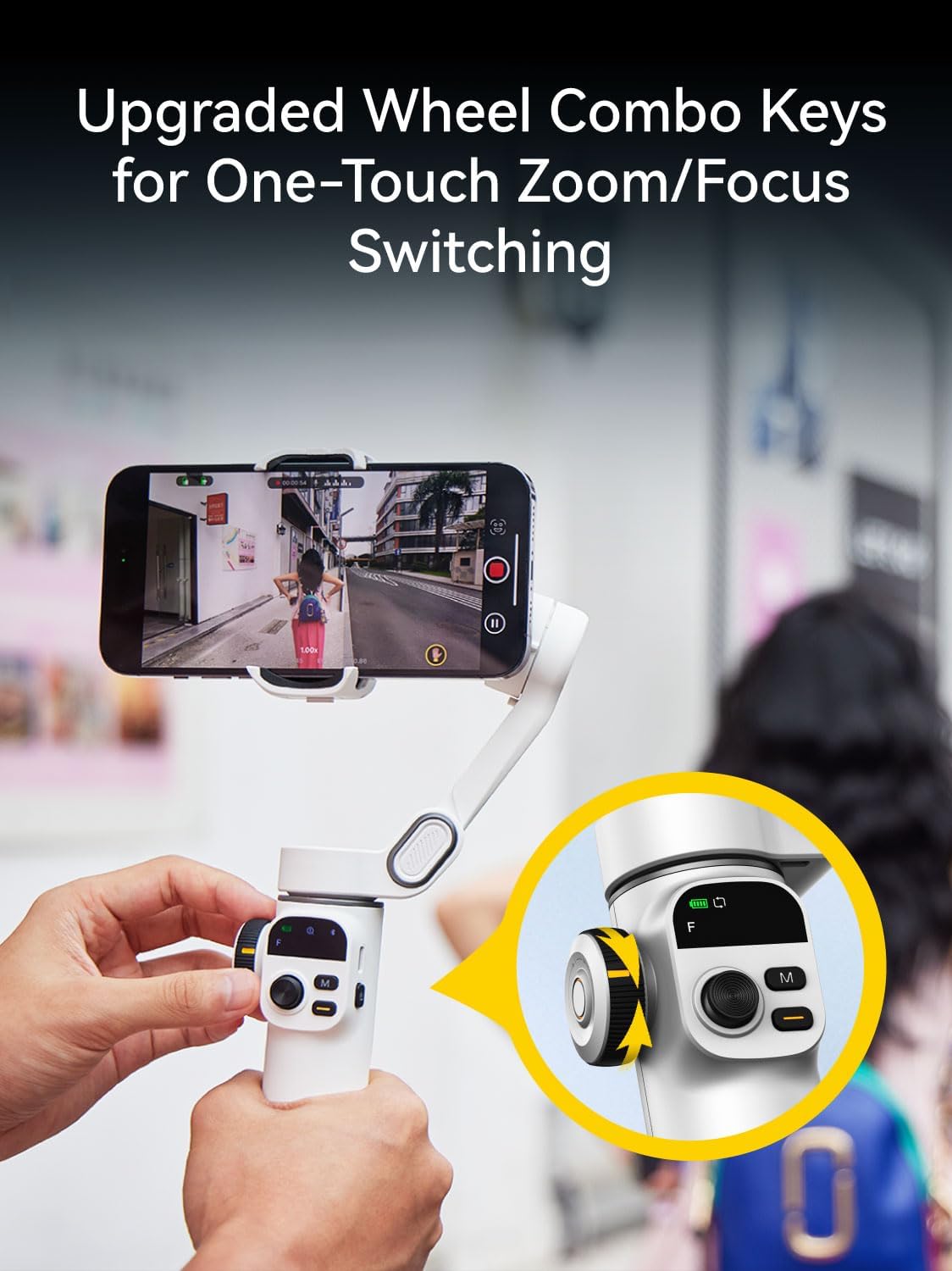
5.5 Wheel Combination Key
- Tinya kamwe chete: Switches between Zoom and Focus control.
- Zoom (default): Rotate the wheel clockwise to zoom in, counter-clockwise to zoom out (requires app).
- Tarisa: Rotate the wheel to switch between sharp and blurred focus (requires app).
- Tinya kaviri: Activates 280° Auto Panorama shooting mode.
5.6 Smart AI Tracking
The gimbal features innovative smart tracking technology, accessible via the AOCHUAN APP. It offers four tracking modes:
- Kutsvaga Kuso Automatically tracks a detected face, keeping it in focus.
- Body Tracking: Follows a person's body, suitable for long-distance tracking.
- Kutsvaga chinhu: Draw a box around any subject on the screen to initiate tracking.
- Third-Party Live Tracking: Enables tracking within other live streaming or video apps.

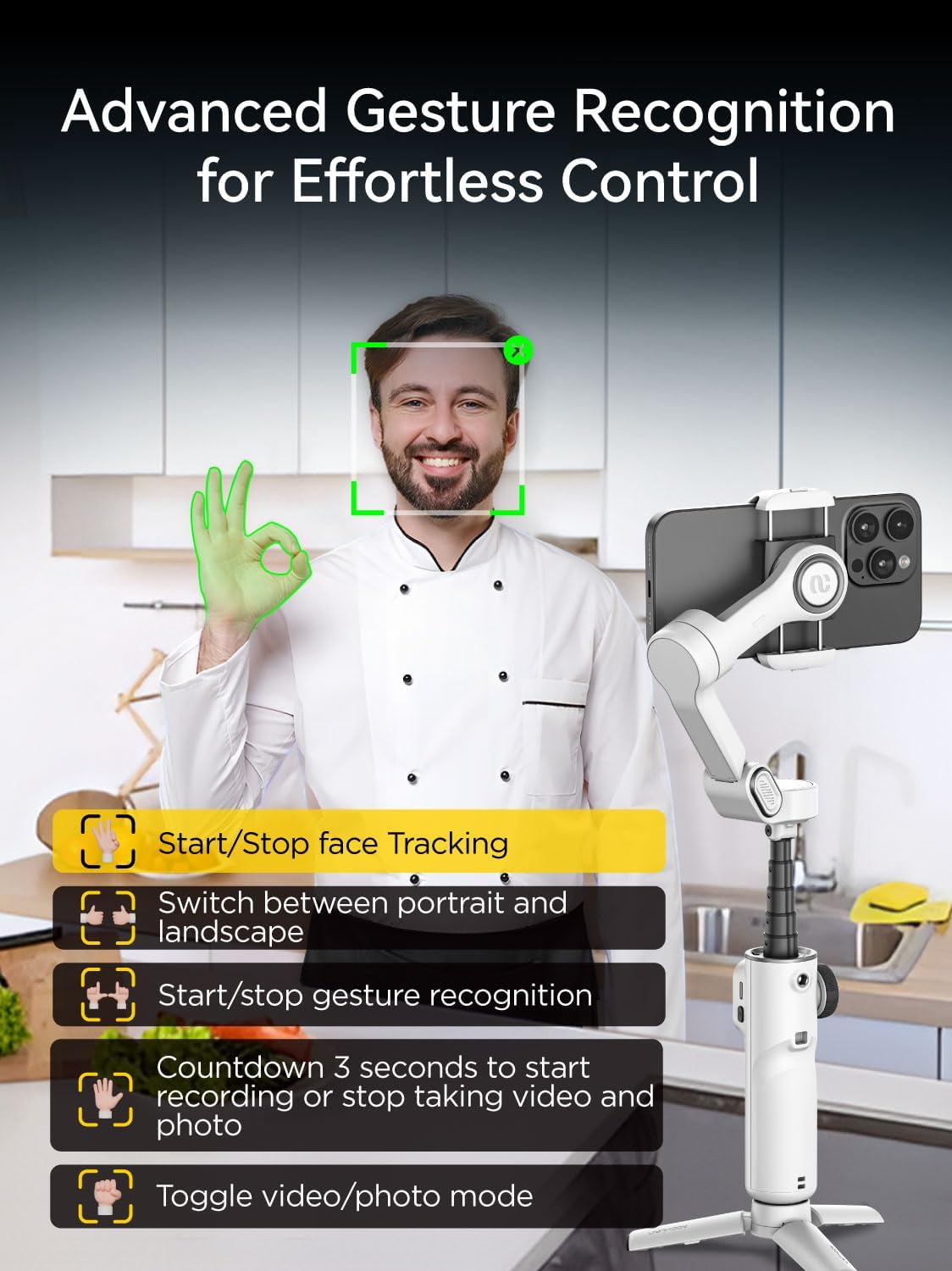
5.7 Gesture Control
The AOCHUAN app supports gesture control for hands-free operation:
- OK Gesture: Enable/Disable face tracking.
- Palm Gesture: Initiates a 3-second countdown for photo or video capture.
- Double Thumbs Up Gesture: Switches between horizontal and vertical modes.
- Fist Gesture: Switches between photo and video modes.
- Double L Gesture: Pauses/restarts gesture recognition.
6. Kubatanidzwa kweApp
The AOCHUAN app unlocks a variety of creative shooting modes and features:
- Panorama: Capture stunning wide-angle shots with 180°, 330°, 3x3, or 3x5 panoramas.
- Dolly Zoom: Achieve cinematic visual effects.
- Kutanga: Create rotating, dream-like footage.
- Nguva-yapera: Condense long events into short, dynamic videos.
- Auto 180° Spin Shot: Capture dynamic scenes with smooth, professional-quality rotation.

7. Kuchengeta
- Chengeta gimbal yakachena uye isina guruva kana marara. Shandisa jira rakapfava, rakaoma pakuchenesa.
- Dzivisa kuisa gimbal munzvimbo dzinopisa zvakanyanya kana kuti pahunyoro.
- When not in use, fold the gimbal into its compact form and store it in a protective case to prevent damage.
- Chaja bhatiri nguva dzose, kunyangwe risingashandiswi nguva dzose, kuti bhatiri rirambe richishanda zvakanaka.
8. Kugadzirisa matambudziko
- Gimbal haisi kushanda: Iva nechokwadi chekuti bhatiri rachajwa. Batanidza tambo yekuchaja yeType-C woedza zvakare.
- Phone not balancing: Adjust the phone's position within the holder, especially if it has a large or heavy camera module.
- Bluetooth nyaya dzekubatanidza: Ensure Bluetooth is enabled on your phone and the gimbal. Restart both devices and try reconnecting via the AOCHUAN app.
- Kudzora kusingapinduri: Check the battery level. If issues persist, try restarting the gimbal.
9. Zvinotsanangurwa
| Feature | Detail |
|---|---|
| Product Dimensions | 11.3 x 2.76 x 5 inches (Expanded) |
| Item Weight | 12.8 ounces (0.8 pounds) |
| Item Model Number | Smart X2 |
| Mabhatiri | 2 Lithium Ion mabhatiri anodiwa (akabatanidzwa) |
| Mugadziri | AOCHUAN |
| Inowirirana Devices | iPhone 16 15 14 13 12 Pro Max, Samsung Galaxy S21/S21 Ultra S23 Ultra, Huawei p30 pro/p30/p20 pro/p10/p10 plus (under 7 inches, max 0.62 lbs, 6.3"L x 3.5"W x 0.4"T) |
| Yakapetwa Size | 6.2 x 4.3 x 2 inches (16.5 x 11 x 5.3 cm) |
| Kureba kweTsvimbo yekuwedzera | 7.8 inches (Built-in) |
| Hupenyu hwebhatiri | 8-10 Maawa |
| Kuchaja Nguva | 2 Maawa |
| Thread Interface | 1/4 inch |
10. Warranty uye Tsigiro
For warranty information and customer support, please refer to the official AOCHUAN websaiti kana kubata basa ravo revatengi zvakananga. Chengetedza risiti yako yekutenga kune chero vimbiso yewaranti.


