1. Nhanganyaya
This manual provides detailed instructions for the safe and effective use of your ScopeAround SA200S Digital Otoscope. This device is designed for visual inspection of the ear canal and eardrum, featuring an integrated 1.85-inch IPS screen, a 720p HD camera, and adjustable LED lighting. It also supports photo and video capture for documentation.
Ndapota verenga bhuku rino rekushandisa usati washandisa mudziyo uye chengeta kuti uzoshandisa mune ramangwana.
2. Safety Information
- Do not insert the otoscope too deeply into the ear canal to avoid injury.
- Always use the provided specula to prevent direct contact with the ear canal.
- Clean the lens and accessories thoroughly before and after each use to prevent cross-contamination. Refer to the "Maintenance and Cleaning" section.
- Keep the device out of reach of children. Adult supervision is required if used on children.
- Do not use the device if you experience pain or discomfort. Consult a medical professional.
- Rega kuisa mudziyo kune tembiricha yakanyanyisa, zuva rakananga, kana unyoro.
- Usaedze kudimbura kana kugadzirisa mudziyo wega. Bata rutsigiro rwevatengi kuti ubatsirwe.
- The built-in battery pack is non-removable.

Figure 2.1: Safe and Dangerous Ear Canal Insertion
3. Package Zviri mukati
Tarisa uone kuti zvinhu zvese zviripo mupakeji:
- SA200S Digital Otoscope with Screen
- Ear Picks (x4)
- Specula (x5)
- Doro Mapedhi
- Q-matipi
- 8GB Memory Kadhi
- USB Cable (Rudzi-C)
- User Manual

Mufananidzo 3.1: Package Zviri mukati
4. Chigadzirwa Pamusoroview
The ScopeAround SA200S Digital Otoscope is an all-in-one device designed for convenient ear examination. It features a high-resolution camera and an integrated display for direct viewing.

Figure 4.1: ScopeAround SA200S Digital Otoscope
4.1 Device Components

Figure 4.2: Labeled Components of the Otoscope
- Navigation Buttons UP: Used to navigate menus or adjust settings.
- Navigation Buttons Down: Used to navigate menus or adjust settings.
- Memory Card Slot: For inserting the 8GB memory card (included).
- Bhatani reMufananidzo / Vhidhiyo: Press to capture photos or start/stop video recording.
- Power Button / LED Light Adjustment: Long press to power on/off. Short press to cycle through LED brightness levels.
- 1.85" IPS LCD Screen: Integrated display for real-time viewing.
- Zvirongwa Bhatani: Svika zvigadziriso zvemudziyo.
- Bhatani RAKANAKA: Simbisa sarudzo dziri mumamenyu.
- Otoscope Camera: The camera probe for ear canal inspection.
- Type-C Port: Yekuchaja uye kutumira data.
5. Setup
5.1 Kuchaja Chishandiso
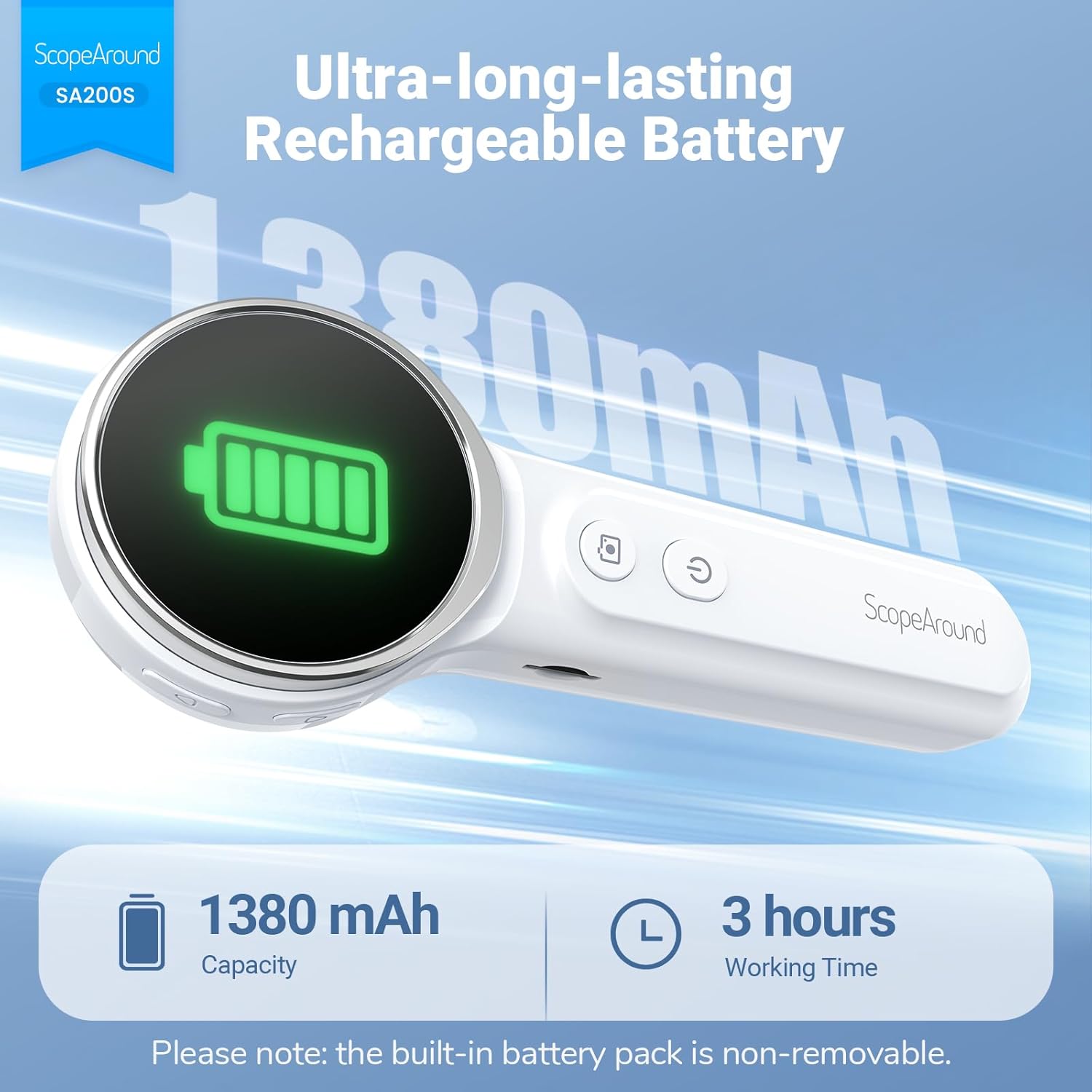
Before first use, fully charge the otoscope. Connect the provided USB Type-C cable to the device's Type-C port and a compatible USB power adapter (not included). The charging indicator will show the charging status. A full charge provides approximately 3 hours of working time.
Mufananidzo 5.1: Kuchaja uye Bhatiri Hupenyu
5.2 Kubatanidza Zvishandiso
Select an appropriate speculum and ear pick. Gently attach the chosen speculum to the tip of the otoscope camera. If using an ear pick, ensure it is securely fitted over the camera tip, inside the speculum, before insertion into the ear.
5.3 Kubatidza/Kudzima
- To power on: Long press the Bhatani reSimba (5) until the screen illuminates.
- Kudzima: Kureba dzvanya iyo Bhatani reSimba (5) again until the screen turns off.
5.4 Connecting to the App (Optional)
For additional features and a larger viewing experience, you can connect the otoscope to your smartphone or tablet via Wi-Fi.
- Dhaunirodha App: Scan the QR code provided in the manual or on the device packaging, or search for "Smart Otoscope" in the Apple App Store or Google Play Store. You can also visit gto.so/smart-otoscope.
- Power On Otoscope: Long press the power button on the otoscope to turn it on.
- Batanidza Wi-Fi: On your smartphone or tablet, go to Wi-Fi settings and connect to the network named "Smart Otoscope_XXX". The default password is 55556666.
- Tanga App: Open the "Smart Otoscope" app. The live view from the otoscope camera should appear.

Figure 5.2: Wi-Fi Connection Steps
Note: Once connected to the app, you can operate the device and view the feed on your phone.
6. Operating Instructions
6.1 Basic Ear Examination
- Ensure a clean speculum is attached to the otoscope camera.
- Gently pull the outer ear up and back to straighten the ear canal.
- Carefully insert the speculum tip into the ear canal while observing the integrated 1.85-inch IPS screen. Do not force the device.
- Adjust the angle and depth slowly to get a clear view of the ear canal and eardrum.

Figure 6.1: Self-Examination with Integrated Screen
6.2 Adjusting LED Lights and Brightness
The otoscope features 6 adjustable LED lights with 3 brightness settings for optimal visibility.
- Short Press the Bhatani reSimba (5) to cycle through the 3 brightness levels.

Figure 6.2: Camera Specifications and Brightness Settings
6.3 Magnification Levels
The device supports 3 levels of magnification (1.0x, 1.3x, 1.5x) for detailed viewing. Use the Navigation Buttons UP/DOWN (1, 2) to adjust magnification.

Figure 6.3: Adjustable Magnification and Image Rotation
6.4 Kutora Mifananidzo neMavhidhiyo
The otoscope allows you to capture images and record videos directly to the included 8GB memory card.
- To take a photo: Press the Bhatani remufananidzo / Vhidhiyo (4) kamwe.
- To record a video: Long press the Bhatani remufananidzo / Vhidhiyo (4) to start recording. Long press again to stop recording.
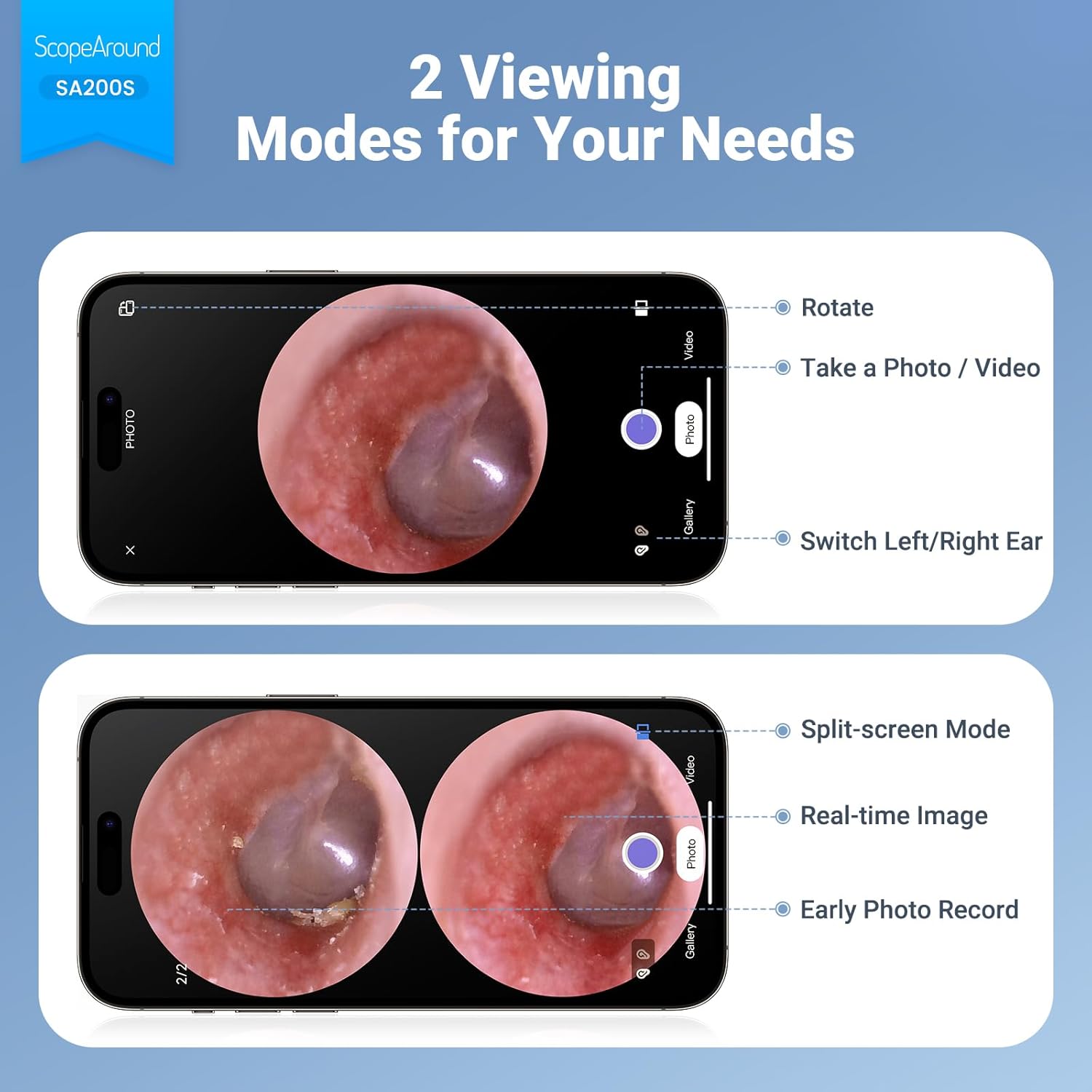
Figure 6.4: Photo and Video Capture Interface (App View)
6.5 Kuendesa Files
To transfer captured photos and videos to a computer:
- Connect the otoscope to your computer using the provided USB Type-C cable.
- The device should appear as a removable storage device. You can then access the files on the 8GB memory card.
- Alternatively, remove the 8GB memory card from the slot (3) and insert it into a compatible card reader connected to your computer.

Mufananidzo 6.5: File Transfer for Sharing Insights
7. Kuchengetedza uye Kuchenesa
Proper maintenance ensures the longevity and hygiene of your otoscope.
- Kuchenesa Lens: Use the provided Q-tips and alcohol pads to gently clean the camera lens before and after each use. Ensure no residue remains.
- Zvishandiso zvekuchenesa: Wash the reusable ear picks and specula with soap and water, then sterilize them with alcohol pads. Allow them to dry completely before storage or reuse.
- Muviri Wemudziyo: Wipe the main body of the otoscope with a soft, dry cloth. Do not immerse the device in water.
- Kuchengeta: Chengetedza mudziyo munzvimbo inotonhorera, yakaoma, kure nechiedza chezuva uye tembiricha yakanyanyisa.

Figure 7.1: Cleaning the Otoscope Lens
8. Kugadzirisa matambudziko
| Dambudziko | Zvinogona Kukonzera | Solution |
|---|---|---|
| Mudziyo haubatike. | Bhatiri rakaderera. | Chaja mudziyo zvizere uchishandisa yakapihwa USB tambo. |
| Hapana mufananidzo pascreen. | Device not powered on; Camera lens obstructed. | Ensure device is powered on. Check and clean the camera lens. |
| Mufananidzo hauna kujeka kana kujeka. | Dirty lens; Incorrect focal distance; Magnification setting. | Clean the camera lens. Adjust the distance from the ear canal. Adjust magnification using navigation buttons. |
| Haikwanisi kubatana neWi-Fi. | Incorrect Wi-Fi password; Device not in pairing mode; App issue. | Ensure the otoscope is powered on. Verify the Wi-Fi password (55556666). Restart the otoscope and your phone/tablet. Reinstall the app if necessary. |
| Haikwanise kuchengetedza mifananidzo/mavhidhiyo. | Memory card full or faulty; Memory card not inserted. | Check if the 8GB memory card is correctly inserted. Ensure there is sufficient space. Try formatting the card (if data is backed up) or using a different card. |
9. Zvinotsanangurwa
| Feature | Detail |
|---|---|
| Model Name | SA200S |
| Screen Size | 1.85-inch IPS LCD |
| Kamera Resolution | 720p HD |
| Lens Diameter | 3.9mm Ultra-thin Lens |
| Light Source | 6 LED Lights (3 brightness settings) |
| Focal Distance | 0.39 - 1.18 inches |
| Real angle ye View | 78 madhigirii |
| Kukudza | Up to 1.5x (1.0x, 1.3x, 1.5x) |
| Battery Capacity | 1380mAh Lithium Polymer |
| Nguva Yekushanda | Anenge maawa maviri |
| Kubatana | Wi-Fi (for app connection) |
| Storage | 8GB Memory Card (included) |
| Kuchaja Port | Type-C |
| Inowirirana Devices | Android/iPhone smartphones and tablets (Not compatible with Macbook & Windows PC) |
| Item Weight | 12 ounces |
| Dimensions | 7.52 x 4.61 x 2.68 inches (Package) |
| Material | Plastiki |
| Color | Chena |
10. Warranty uye Tsigiro
ScopeAround is committed to providing high-quality products and customer satisfaction. For any questions, technical support, or warranty inquiries, please contact our US-based after-sales support team.
Contact information can typically be found on the product packaging, the official ScopeAround webwebhusaiti, kana kuburikidza nepuratifomu yako yekutenga.


