1. Nhanganyaya
This manual provides comprehensive instructions for the setup, operation, maintenance, and troubleshooting of your AOC 24G4/P Gaming Monitor. Please read this manual thoroughly before using the product to ensure proper functionality and to maximize your gaming experience.

Mufananidzo 1.1: Mberi view of the AOC 24G4/P Gaming Monitor, showcasing its sleek design and immersive display.
2. Setup
2.1 Unboxing uye Package Zviri mukati
Nyatsobvisa zvese zvikamu kubva pakurongedza. Ita shuwa kuti zvinhu zvese zvakanyorwa pazasi zviripo:
- AOC 24G4/P Gaming Monitor
- Monitor Stand (Base and Neck)
- Power Cable
- RatidzaPort Cable
- HDMI Cable (inogona kusiyana nenzvimbo)
- Mushandisi Manual uye Warranty Card
2.2 Tarisa Gungano
- Isa cheni chekutarisa chakatarisana pasi panzvimbo yakapfava, yakachena kudzivirira mavanga.
- Batanidza mutsipa wechigadziko kumashure kwepaneru yekutarisa. Iva nechokwadi chekuti chakanyatsobatidzwa panzvimbo yacho kana kuti chakasungirirwa nescrews kana zviripo.
- Attach the stand base to the bottom of the stand neck. Tighten the thumb screw or screws to secure the base.

Mufananidzo 2.1: Side profile of the monitor, illustrating the attached stand and its ergonomic design.
2.3 Kubatanidza Monitor
Batanidza tambo dzinodiwa kune cheki uye komputa yako:
- Power Connection: Batanidza tambo yemagetsi kune yekuisa simba remonitor uye ipapo kune chinobuda magetsi.
- Vhidhiyo yekubatanidza: For optimal performance, use the DisplayPort cable to connect the monitor to your computer's graphics card. Alternatively, use an HDMI cable.
- Kubatanidza Kuteerera (Zvichida): If using external speakers or headphones, connect them to the monitor's audio output jack.

Mufananidzo 2.2: Kumashure view of the monitor, highlighting the various input ports including DisplayPort and HDMI.
3. Kushandisa Monitor
3.1 Kubatidza/Kudzima
Dzvanya bhatani rekudzima magetsi riri pasi kurudyi rwemonitor kuti uribatidze kana kudzima. Power LED inoratidza mamiriro emonitor.
3.2 Pa-Screen Display (OSD) Menu Navigation
The OSD menu allows you to adjust various monitor settings. Use the joystick button located on the back of the monitor (typically near the power button) to navigate the menu:
- Dzvanya Joystick: Opens the OSD menu or selects an option.
- Fambisa Joystick Kumusoro/Kudzika: Anofamba nemamenu sarudzo.
- Fambisa Joystick Kuruboshwe/Kurudyi: Inogadzirisa kukosha kana kufamba pakati pemamenyu madiki.
3.3 Makiyi Zvimiro uye Kugadziridza
Your AOC 24G4/P monitor is equipped with several features to enhance your viewmutambo uye ruzivo rwemitambo:
- NVIDIA G-Sync Compatibility: This technology synchronizes the monitor's refresh rate with your GPU's frame rate, eliminating screen tearing and stuttering for a smoother gaming experience. Ensure your graphics card drivers are up to date and G-Sync is enabled in your NVIDIA control panel.
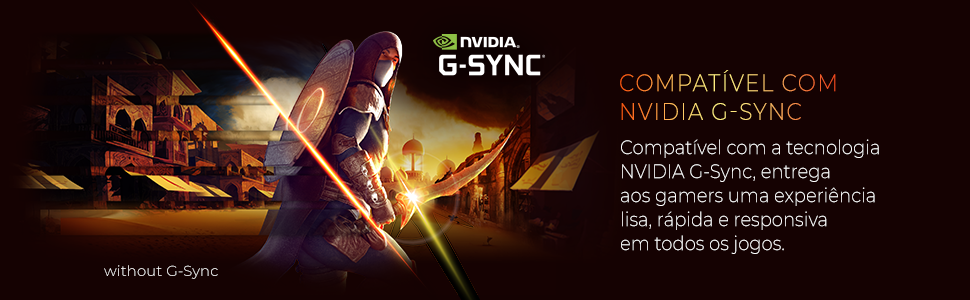
Figure 3.1: Visual representation of NVIDIA G-Sync compatibility, ensuring smooth gameplay.
- 180Hz Refresh Rate: Provides ultra-smooth motion and reduced input lag, crucial for fast-paced games. This high refresh rate allows for more frames per second, making gameplay feel more fluid.
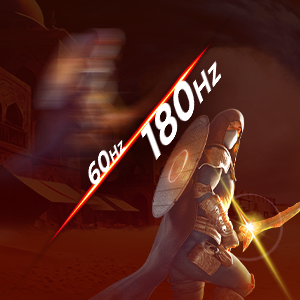
Figure 3.2: Illustration of the difference between 60Hz and 180Hz refresh rates, highlighting enhanced motion clarity.
- 0.5ms MPRT Nguva Yekupindura: Minimizes motion blur and ghosting, ensuring sharp images even during rapid movements. This ultra-fast response time is ideal for competitive gaming.

Figure 3.3: Comparison demonstrating the benefit of 0.5ms MPRT response time in reducing motion blur.
- IPS Panel: Inopa yakakura viewing angles and accurate color reproduction, providing consistent image quality from various perspectives. This is beneficial for both gaming and general use.
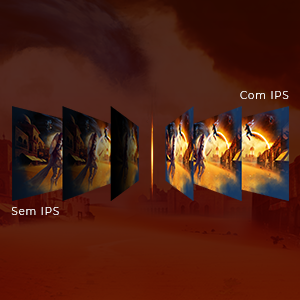
Figure 3.4: Diagram illustrating the superior viewing angles and color consistency of an IPS panel.
- HDR (High Dynamic Range): Enhances contrast and color depth, making bright areas brighter and dark areas darker for a more immersive visual experience. Enable HDR in your operating system display settings.

Figure 3.5: Visual comparison between SDR and HDR, demonstrating the expanded contrast and color of HDR.
- Ergonomic Adjustments: The monitor stand allows for height, tilt, swivel, and pivot adjustments to ensure optimal viewing comfort during long sessions.
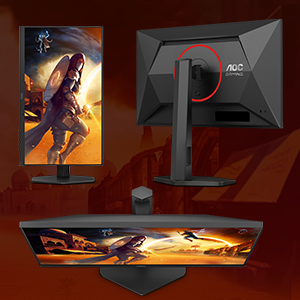
Figure 3.6: Illustration of the monitor's versatile ergonomic adjustments for personalized comfort.
- Low Blue Light Mode: Reduces harmful blue light emissions to minimize eye strain during extended use. This mode can be activated through the OSD menu.
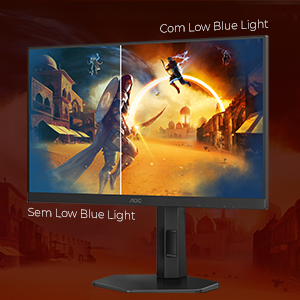
Figure 3.7: Comparison showing the visual difference with Low Blue Light mode enabled, reducing eye strain.
- Flicker-Yemahara Tekinoroji: Eliminates screen flickering, which can cause eye fatigue and discomfort, by using a smooth DC (Direct Current) backlight system.
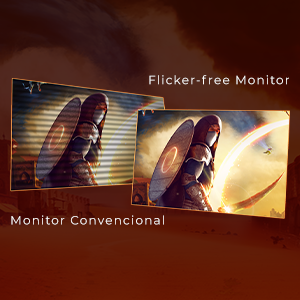
Figure 3.8: Visual demonstrating the absence of flickering on a Flicker-Free monitor compared to a conventional one.
- Shadow Control: Adjusts the gamma levels in dark areas of the screen without affecting the bright areas, allowing you to see details in shadows more clearly. This feature is particularly useful in games with dark environments.

Figure 3.9: Illustration of Shadow Control enhancing visibility in dark game scenes.
4. Kuchengeta
Kugadzirisa kwakaringana kunovimbisa hupenyu hurefu uye kuita kwakakwana kwemonitor yako.
4.1 Kuchenesa Monitor
- Gara uchibvisa cheki kubva pamagetsi usati wachenesa.
- Shandisa jira rakapfava, risina lint zvishoma dampyakavharirwa nemvura kana isina-abrasive screen cleaner.
- Do not spray liquid directly onto the screen or monitor casing.
- Dzivisa kushandisa benzene, mishonga yekuchenesa yakatetepa, ine ammonia, kana mishonga yekuchenesa inogumbura.
4.2 Kutarisira Kwese
- Dzivisa kuisa monitor muzuva rakananga kana pedyo nenzvimbo dzinopisa.
- Ita shuwa kuti pave nemhepo yakakwana yakatenderedza monitor.
- Usavhare mazaru emhepo.
- Dzivisa kuisa zvinhu zvinorema pamonitor kana tambo dzayo.
5. Kugadzirisa matambudziko
If you encounter issues with your monitor, refer to the following table for common problems and solutions.
| Dambudziko | Zvinogona Kukonzera | Solution |
|---|---|---|
| Hapana mufananidzo pachiratidziri | Power cable not connected; Video cable not connected; Incorrect input selected. | Ensure power and video cables are securely connected. Press the OSD joystick to select the correct input source (HDMI/DisplayPort). |
| Mufananidzo hauna kujeka kana kukanganiswa | Chisarudzo chisina kururama; Graphics card driver nyaya. | Set the display resolution to 1920x1080. Update your graphics card drivers. |
| Mavara anoita seasina kururama | Zvirongwa zvemavara muOSD; Zvirongwa zvemakadhi emifananidzo. | Adjust color settings in the OSD menu. Calibrate colors through your operating system or graphics card control panel. |
| Chinotaridza chiri kupenya | Kusawirirana kwemutengo wekuvandudza; Hunhu hwetambo. | Ensure the refresh rate is set to 180Hz in your display settings. Try a different, higher-quality DisplayPort or HDMI cable. |
| Hapana ruzha kubva kumonita (kana zvichibvira) | Volume too low; Incorrect audio output selected. | Increase volume via OSD or computer. Ensure monitor is selected as the default audio output device in your operating system. |
6. Zvinotsanangurwa
Key technical specifications for the AOC 24G4/P Gaming Monitor:
| Feature | Tsanangudzo |
|---|---|
| Brand | AOC |
| Model Number | 24G4/P |
| Screen Size | 23.8 inches |
| Panel Type | IPS |
| Resolution | 1920 x 1080 (FHD 1080p) |
| Refresh Rate | 180Hz |
| Nguva Yekupindura | 0.5ms MPRT |
| Aspect ratio | 16:9 |
| Kubatana | DisplayPort, HDMI |
| Ergonomics | Kugadziriswa Kwehurefu, Kurereka, Kutenderera, Pivot |
| Zviyero zveChigadzirwa (LxWxH) | 20.76 x 54 x 49.36 cm |
| Product Weight | 6.9 makirogiramu |
7. Warranty uye Tsigiro
For detailed warranty information, please refer to the warranty card included with your product or visit the official AOC website. Standard manufacturer warranties typically cover defects in materials and workmanship for a specified period.
Extended warranty options may be available for purchase, such as:
- Waranti yemwedzi gumi nemiviri yakawedzerwa inodzivirira kutadza kana zvikanganiso.
- Waranti yemwedzi gumi nemiviri yakawedzerwa inodzivirira kutadza kana zvikanganiso.
7.1 Mutengi Tsigiro
If you require technical assistance or have questions not covered in this manual, please contact AOC customer support through their official website or the contact information provided in your product documentation. When contacting support, please have your monitor's model number (24G4/P) and serial number ready.


