Nhanganyaya
This manual provides detailed instructions for the safe and effective use of your Ourlife 5K30FPS WiFi Action Camera. Please read this manual thoroughly before operating the device to ensure optimal performance and longevity.
Iye Ourlife M40TR is a versatile action camera designed to capture high-quality video and photos in various environments, including underwater, thanks to its robust waterproof casing. It features 5K 30fps video recording, a dual-screen display, a 170-degree wide-angle lens, and Wi-Fi connectivity.
Chii chiri muBhokisi
Kana wabvisa zvinhu mubhokisi, ndapota iva nechokwadi chekuti zvikamu zvese zviripo:
- Ourlife M40TR Action Camera
- Waterproof Nyaya
- Mounting Accessories
- USB Kuchaja Cable
- Mushandisi Chinyorwa (gwaro iri)
- Remote Control (if included with specific package)

Image: The Ourlife M40TR Action Camera shown with its waterproof housing and a small remote control. This image illustrates the primary components included with the camera.
Product Overview
Familiarize yourself with the camera's main components and interfaces.
- Sikirini Yekumberi: 1.3-inch display for quick status checks.
- Rear Screen: 2.0-inch IPS touch screen for menu navigation and playback.
- Lenzi: 170-degree wide-angle lens.
- Simba / Mode Bhatani: Used to power on/off and switch between modes.
- Bhatani reShutter/OK: Used to start/stop recording or take photos, and confirm selections.
- Maikorofoni Port: Yekubatanidza maikorofoni yekunze.
- USB Port: Yekuchaja uye kutumira data.
- MicroSD Kadhi Slot: Yekuisa kadhi rekurangarira.
- Battery Compartment: For battery insertion.

Mufananidzo: Kuvhara view yeOurlife Action Camera highlighting its 2-inch responsive touch screen. This screen is used for controlling camera functions and reviewi footage.
Gadzirira
1. Kuchaja Bhatiri
Before first use, fully charge the camera battery. Connect the camera to a USB power source (e.g., computer, wall adapter) using the provided USB cable. The charging indicator light will illuminate during charging and turn off when complete.
2. Kuisa MicroSD Card
A MicroSD card (not included) is required for recording. Use a Class 10 or higher MicroSD card, up to 128GB. Insert the card into the MicroSD card slot with the contacts facing the correct direction until it clicks into place.
Cherechedza: For optimal performance, format the MicroSD card within the camera before first use and periodically thereafter.
3. Kubatanidza Kesi Isingapindi Mvura
The camera comes with a waterproof case for underwater use and protection against impacts. Ensure the camera is securely placed inside the case and the latch is firmly closed before submerging or exposing to harsh conditions.
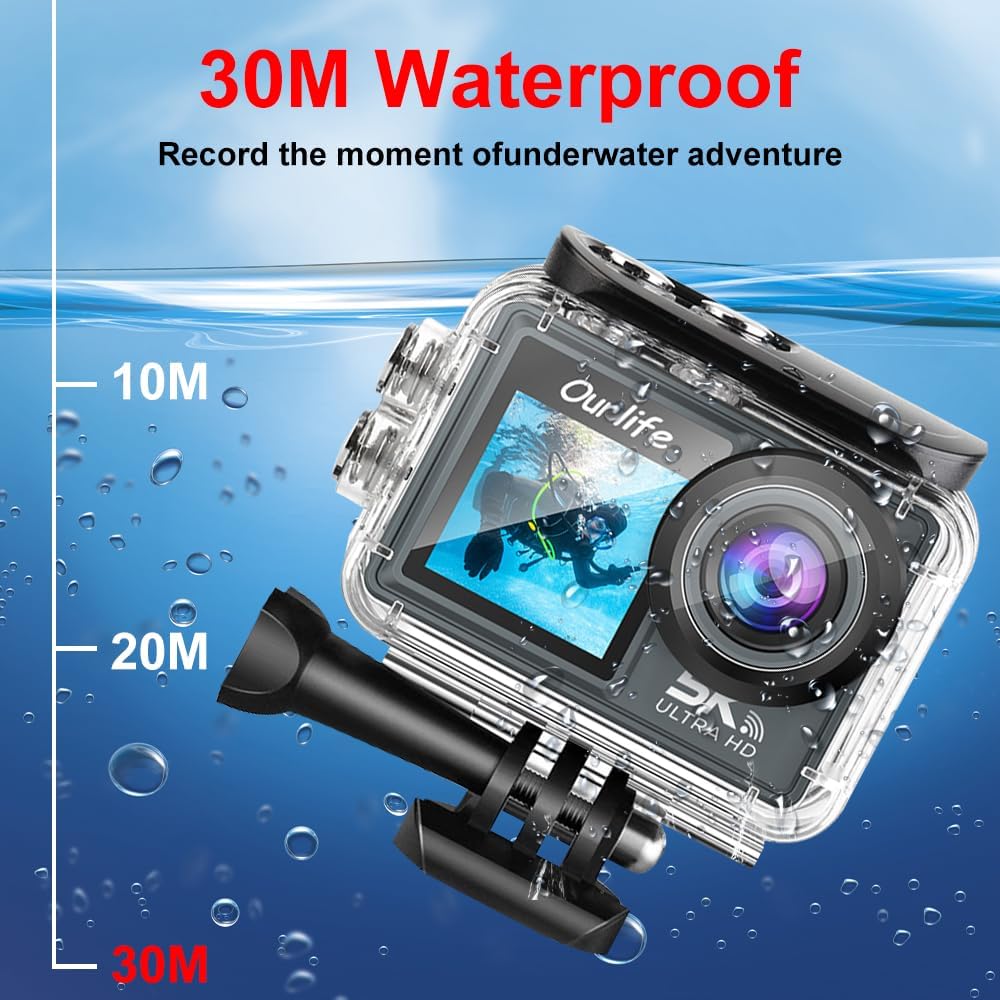
Image: The Ourlife Action Camera enclosed in its waterproof case, depicted underwater with depth markers indicating its 30-meter waterproof capability. This highlights the camera's suitability for aquatic activities.
4. Powering On / Off
To power on, press and hold the Power/Mode button for a few seconds. To power off, press and hold the Power/Mode button again until the screen turns off.
Kushandisa Kamera
1. Basic Controls and Navigation
Use the Power/Mode button to cycle through different shooting modes (Video, Photo, Playback, Settings). Use the touch screen for menu navigation and selecting options. The Shutter/OK button initiates recording or takes a photo in the respective modes.
2. Vhidhiyo Kurekodha
In Video mode, press the Shutter/OK button to start recording. Press it again to stop. The camera supports resolutions up to 5K at 30 frames per second (fps), as well as 4K, 2.7K, 1080P, and 720P options. Adjust resolution in the settings menu.
3. Kutora Mufananidzo
In Photo mode, press the Shutter/OK button to take a single photo. The camera offers various photo modes including single shot, automatic shooting, burst mode, and timed photography.
4. Kubatana kweWi-Fi neApp
Enable Wi-Fi in the camera's settings. Download the official Ourlife app on your smartphone or tablet. Connect your device to the camera's Wi-Fi network. The app allows for remote control, live preview, playback, and sharing of your footage.
5. Rutsigiro rweMaikorofoni Yekunze
For enhanced audio quality, connect a compatible external microphone to the camera's microphone port. Ensure the microphone is securely connected before recording.
6. Enhanced Image Stabilization (EIS)
The camera features Electronic Image Stabilization (EIS) to reduce blur and shake in your videos, especially during action-packed activities. This feature can be toggled On or Off in the camera settings.

Image: A side-by-side comparison demonstrating the effect of Enhanced Image Stabilization (EIS). The left image shows a clear, stable shot with EIS enabled, while the right image shows a blurred shot with EIS disabled, illustrating the benefit of the feature.
7. Wide-Angle Lens
The 170-degree wide-angle lens captures a broad field of view, ideal for landscapes, group shots, and immersive action footage. Be aware that wide-angle lenses may exhibit some distortion at the edges of the frame.

Mufananidzo: Mufananidzo showcasing the 170-degree ultra wide-angle capability of the Ourlife Action Camera, demonstrating how it captures a significantly broader scene compared to narrower angles, ideal for expansive views.
Maintenance
- Kuchenesa: Use a soft, lint-free cloth to clean the camera lens and screens. For the waterproof case, rinse with fresh water after saltwater use and allow to air dry.
- Kuchengeta: Chengeta kamera munzvimbo inotonhorera, yakaoma kure nezuva rakananga uye tembiricha yakanyanya. Bvisa bhatiri kana ukachengeta kwenguva yakareba.
- Battery Care: Avoid fully discharging the battery frequently. Charge the battery regularly, even if not in use, to maintain its lifespan.
Kugadzirisa matambudziko
| Dambudziko | Possible Solution |
|---|---|
| Kamera haibatike. | Ensure the battery is charged. Reinsert the battery. |
| Haikwanise kurekodha vhidhiyo/kutora mafoto. | Check if a MicroSD card is inserted and formatted. Ensure sufficient storage space. |
| Hunhu hwemavhidhiyo/mifananidzo husina kunaka. | Clean the lens. Check resolution settings. Ensure adequate lighting. |
| Wi-Fi nyaya dzekubatanidza. | Ensure Wi-Fi is enabled on the camera and your device. Restart both devices. Check app permissions. |
| Kamera inodzima kana kusadaira. | Bvisa woisazve bhatiri kuti uisezve patsva. |
Zvinotsanangurwa
| Feature | Detail |
|---|---|
| Model Number | M40TR |
| Vhidhiyo Resolution | Kusvika ku5K 30fps (zvakare 4K, 2.7K, 1080P, 720P) |
| Kudzika Kwemvura | Kusvika pamamita makumi matatu (nebhokisi risingapindi mvura) |
| Saizi Yechinongedzo Chikuru | 2.0-inch IPS |
| Secondary Screen Size | 1.3-inch |
| Lens Angle | 170-degree Wide-Angle |
| Kubatana | Wi-Fi, USB |
| Storage | MicroSD Card (Class 10 or higher, up to 128GB) |
| External Microphone Support | Ehe |
| Mufananidzo Kudzikamiswa | Electronic Image Stabilization (EIS) |
| Color | Nhema |
Warranty uye Support
For warranty information and technical support, please refer to the official Ourlife websaiti kana kubata basa ravo revatengi zvakananga. Chengetedza risiti yako yekutenga sehumbowo hwekutenga kwezvichemo zvewaranti.
Official Ourlife Store: Visit the Ourlife Store on Amazon


