Nhanganyaya
This manual provides detailed instructions for setting up, operating, and maintaining your PXN P5 Wireless Gaming Controller. The PXN P5 is a versatile controller designed for a wide range of gaming platforms, including PC, Nintendo Switch, Android, and iOS devices, offering multiple connection modes and advanced features for an enhanced gaming experience.
Product Overview
The PXN P5 controller incorporates several advanced technologies to deliver precision and responsiveness. Key features include:
- Hall Effect Joystick: Provides precise, drift-free control with enhanced durability.
- Hall Effect Zvinokonzera: Offers smooth and accurate linear input for racing and precise actions.
- POM Rings: Ensures smooth joystick movement and reduces wear.
- 2-Stage Trigger Travel Control: Allows switching between short travel for quick response (FPS) and long travel for linear precision (racing).
- 4 Mabhatani Ekumashure Anogona Kurongwa: Customizable M1, M2, M3, M4 buttons for macro functions.
- Dual Vibrators: Provides immersive haptic feedback.
- Triple Mode Connection: Supports 2.4G wireless, Bluetooth, and wired connections.
- PXN Nexus App: For advanced customization of button mapping, macros, vibration, and more.
- Hupenyu Hurefu Hwebhatiri: Built-in 1000mAh battery for extended gaming sessions.

Mufananidzo: Detailed view of the PXN P5 controller's internal components, highlighting the Hall Effect Joystick, Hall Effect Trigger, POM Ring, 2-Stage Trigger Travel Control, 4 Programming Buttons, and Disc Style Cross Keys.
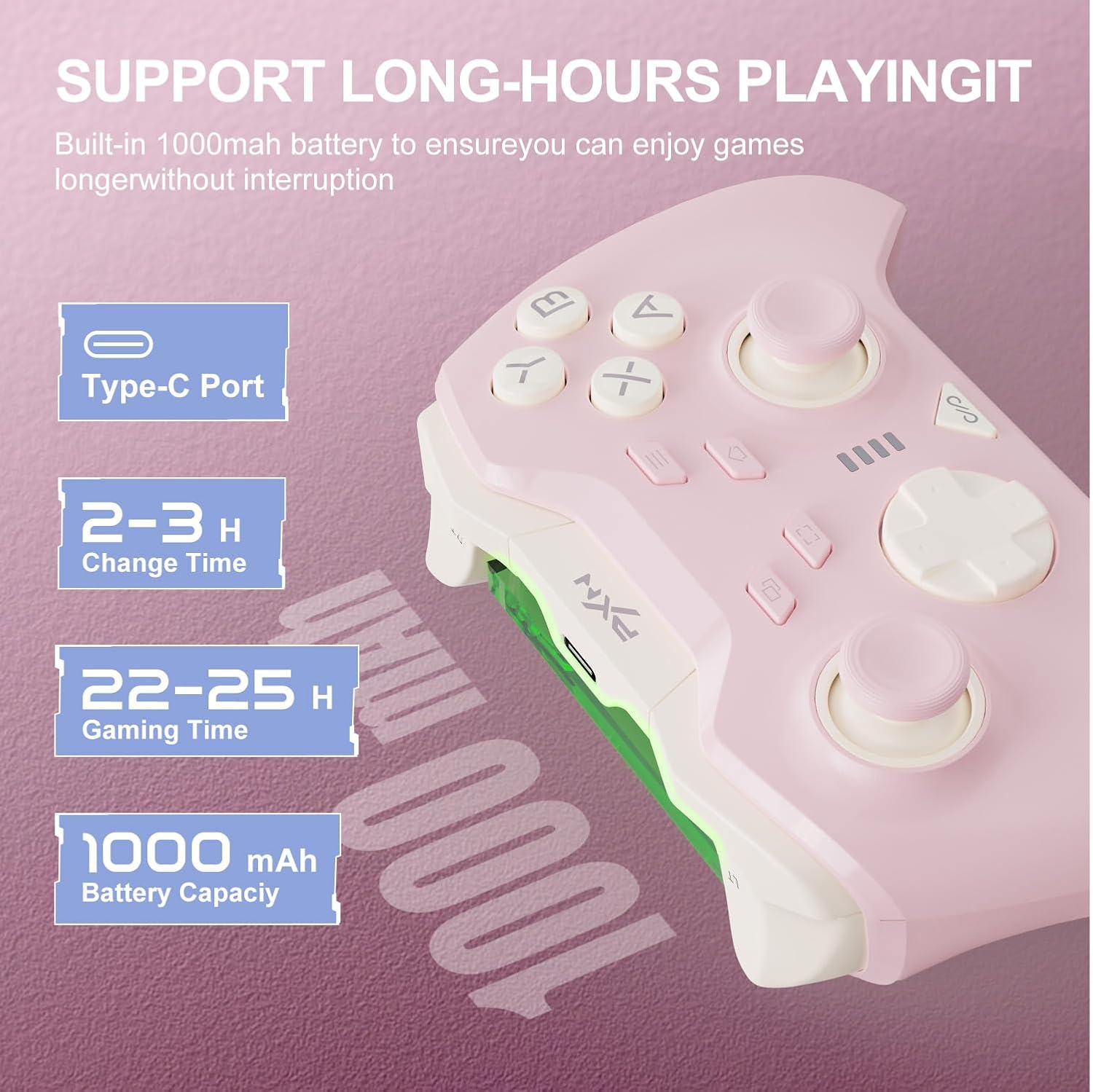
Mufananidzo: Information regarding the PXN P5 controller's 1000mAh built-in battery, showing Type-C port, 2-3 hours charging time, and 22-25 hours gaming time.
Setup uye Connection
The PXN P5 controller supports three primary connection modes: 2.4G Wireless, Bluetooth, and Wired. Ensure the controller is charged before initial use.
1. 2.4G Wireless Connection (for PC/Laptop, Android TV, Android TV Box)
- Insert the 2.4G USB receiver into an available USB port on your device.
- Turn on the controller. The controller will automatically attempt to connect to the receiver.
- Once connected, the indicator light on the controller will stabilize.
2. Bluetooth Connection (for MAC OS, Phone/Android/Tablet, Steam Deck, Tesla, Switch/Switch OLED/Switch Lite)
- Ita shuwa kuti Bluetooth yakabatidzwa pane chako kifaa.
- On the controller, switch to the Bluetooth mode (refer to the mode switch on the back of the controller).
- On your device, search for available Bluetooth devices and select "PXN P5" to pair.
- For Nintendo Switch, navigate to "Controllers" -> "Change Grip/Order" and then follow the pairing steps.
- Once paired, the indicator light on the controller will stabilize.
3. Wired Connection (for PC/Laptop, Android TV, Android TV Box)
- Connect the controller to your device using the provided USB-C cable.
- The controller will automatically be recognized by your device.
- This mode is plug-and-play and does not require additional pairing.

Mufananidzo: Visual representation of the three connection modes (2.4G, Bluetooth, Wired) and compatible devices for the PXN P5 controller.
Operating Instruction
Macro Programming Basa
The PXN P5 controller features four programmable back buttons (M1, M2, M3, M4) that can be customized with up to 32 macro combinations. This function can be configured directly on the controller or through the PXN Nexus App.
- On-Controller Programming: Refer to the detailed instructions in the included quick start guide for specific button combinations to record and assign macros.
- PXN Nexus App: For more advanced customization, download the PXN Nexus App. The app allows you to easily map buttons, create complex macro sequences, and adjust timing.

Mufananidzo: Illustration of the macro programming function, showing the location of the M1, M2, M3, M4 buttons and examples of programmable button combinations.
Adjustable Trigger Travel Settings
The controller offers two distinct trigger travel settings to optimize performance for different game genres:
- Mode 1 (Short Travel Quick Trigger Response): Ideal for rapid-fire actions in FPS games. This mode provides a shorter trigger press for faster input.
- Mode 2 (Long Travel with 256 Levels of Linear Precision): Suitable for racing games and other genres requiring fine-tuned acceleration or braking. This mode captures subtle finger pressure changes for precise control.
Use the physical switch located on the back of the controller to toggle between these two modes.

Mufananidzo: Visual explanation of the two adjustable trigger travel settings, showing the short travel mode for quick response and the long travel mode with 256 levels of linear precision.
PXN Nexus Application
The PXN Nexus App provides comprehensive customization options for your controller. It is available for download on Google Play and the App Store.
- Macro Settings: Create and manage complex macros for the back buttons.
- Button Testing: Verify button functionality and calibration.
- Vibration Settings: Adjust the intensity of the dual vibrators.
- Firmware Dzokorora: Chengetedza firmware yemutongi wako ichivandudzwa kuti ishande zvakanaka uye kuti iite zvinhu zvitsva.
- Tutorials: Access product tutorials and support.

Mufananidzo: Screenshots of the PXN Nexus App interface, demonstrating macro settings, device information, function settings, and vibration adjustments.
Official Product Video
Vhidhiyo Vhidhiyo yepamutemo yechigadzirwaasing the PXN P5 PC Gaming Controller's features, including Hall Effect joysticks, 2-stage trigger lock, adjustable dead zones, asymmetric dual motors, and triple mode connection. This video provides a dynamic overview of the controller's capabilities.
Maintenance
Proper maintenance ensures the longevity and optimal performance of your PXN P5 controller.
- Kuchenesa: Shandisa jira rakapfava, rakaoma kupukuta chinodzora. Kana wakaita tsvina yakaoma, pukuta zvishomaampen jira nemvura. Dzivisa kushandisa makemikari ane hasha kana abrasive zvinhu.
- Kuchengeta: Chengetedza controller munzvimbo inotonhorera, yakaoma kure nechiedza chezuva uye tembiricha yakanyanyisa.
- Kuchaja: Use the provided USB-C cable for charging. Avoid overcharging or completely draining the battery frequently to prolong its lifespan.
- Kubata: Avoid dropping the controller or exposing it to excessive force, which can damage internal components.
Kugadzirisa matambudziko
If you encounter issues with your PXN P5 controller, refer to the following common solutions:
| Dambudziko | Solution |
|---|---|
| Controller does not connect via 2.4G/Bluetooth. |
|
| Mabhatani kana majoystick haashande. |
|
| Chinodzora chinodzima nguva nenguva. |
|
| Vibration is too weak or too strong. | Adjust vibration intensity through the PXN Nexus App settings. |
Zvinotsanangurwa
- Muenzaniso: PXN-P5
- Kubatanidza Modes: 2.4G Wireless, Bluetooth, Wired (USB-C)
- Kuenderana: PC, Nintendo Switch, Android, iOS, MAC OS, Steam Deck, Tesla
- Joystick Type: Hall Effect
- Trigger Type: Hall Effect with 2-Stage Travel Control
- Mabhatani Anorongwa: 4 (M1, M2, M3, M4)
- Vibration: Dual Motors
- Battery Capacity: 1000mAh
- Nguva yekuchaja: Anenge maawa 2-3
- Gaming Time: Anenge maawa 22-25
- Chinhu Weight: 0.48 ounces (inenge 13.6 gramu)
Warranty uye Support
For warranty information and technical support, please refer to the warranty card included with your product or visit the official PXN website. You can also contact PXN customer service for assistance with any product-related inquiries.
Official PXN Websaiti: PXN Gaming Store


