1. Nhanganyaya
This manual provides essential information for the proper installation, operation, and maintenance of your GAMEON Pro Series 27-inch Fast IPS Gaming Monitor (Model: GOAE27QHD165IPS). Please read this manual thoroughly before using the product to ensure optimal performance and safety. Keep this manual for future reference.

Mufananidzo 1.1: Mberi view of the GAMEON Pro Series 27-inch Fast IPS Gaming Monitor, showcasing mabezel ayo matete uye anomira.
The GAMEON Pro Series 27-inch Fast IPS Gaming Monitor features a QHD 2K (2560x1440p) resolution, a 165Hz refresh rate, and a 0.5ms MPRT response time. It supports Adaptive-Sync and Variable Refresh Rate (VRR) technologies for smooth, tear-free gameplay. Connectivity options include dual HDMI 2.1 ports and dual DisplayPort 1.4 ports, along with an audio-out jack and integrated speakers. This monitor is compatible with various gaming consoles and PCs, including PS5.
2. Package Zviri mukati
Ndapota tarisa zviri mupakeji kana wabvisa zvinhu mubhokisi. Kana paine zvinhu zvisipo kana kuti zvakakuvara, taura nemutengesi wako.
- GAMEON Pro Series 27-inch Fast IPS Gaming Monitor
- Monitor Stand (Base and Neck)
- Adapta yeMagetsi neWaya yeMagetsi
- HDMI Cable
- RatidzaPort Cable
- User Manual
3. Setup
3.1 Tarisa Gungano
- Carefully remove the monitor from its packaging, keeping the screen protected.
- Batanidza mutsipa wechigadziko pabhodhi rekutarisa. Iva nechokwadi chekuti chakanyatsobatidzwa panzvimbo yacho kana kuti chakasungirirwa nescrews kana zviripo.
- Attach the stand base to the stand neck and tighten the screw at the bottom of the base.
- Isa iyo yakaungana monitor pane yakagadzikana, yakadzika pasi.
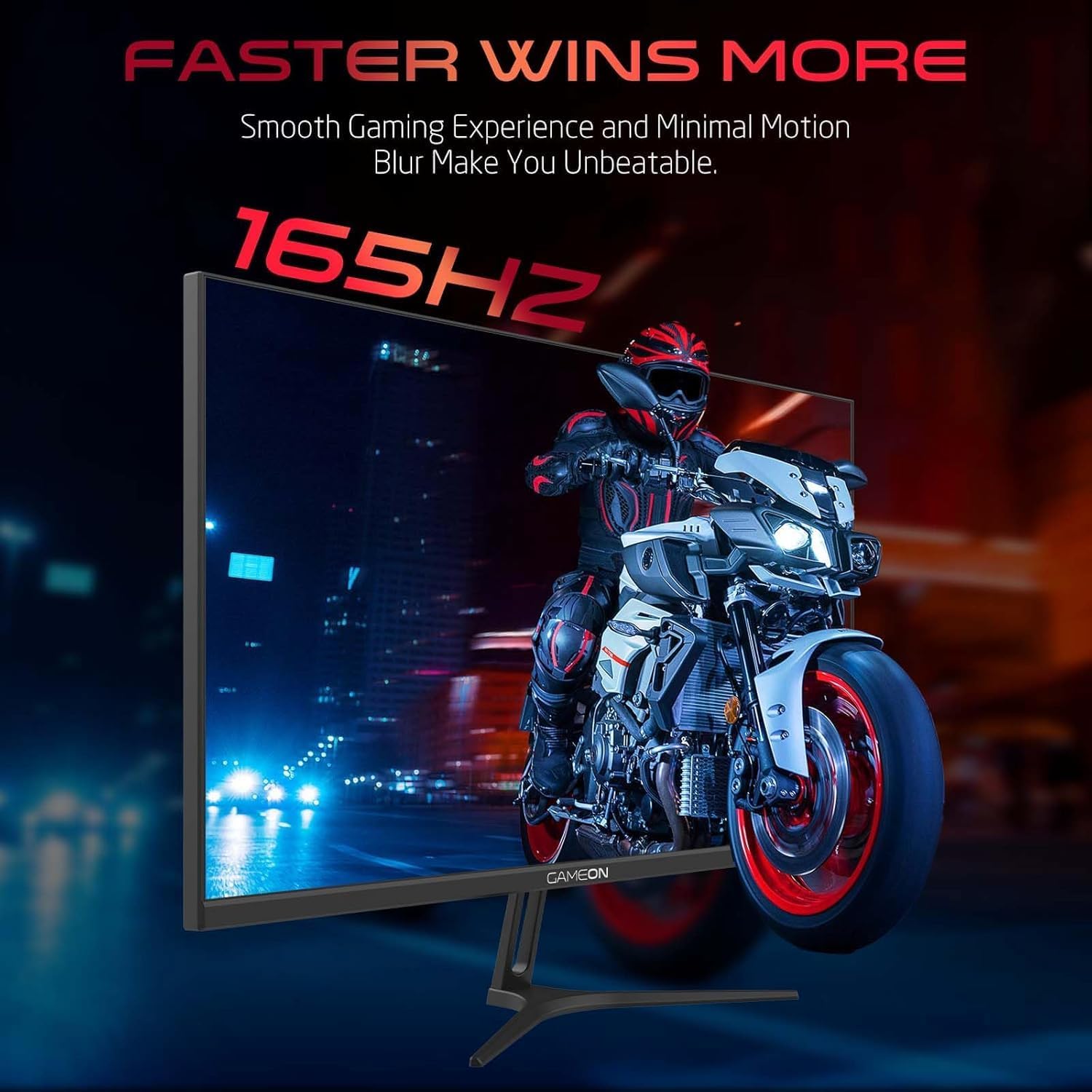
Image 3.1: Illustration of the monitor with its stand, ready for assembly.
3.2 Kubatanidza kune Zvishandiso
The monitor offers multiple input options. Choose the appropriate cable for your device (PC, gaming console, etc.).

Mufananidzo 3.2: Kumashure view of the monitor, highlighting the input ports and VESA mounting points.

Image 3.3: Detailed diagram illustrating the various input/output ports and their corresponding devices.
- HDMI Connection: Connect one end of the HDMI cable to the HDMI output port of your device (PC, PS5, Xbox, TV box) and the other end to one of the HDMI 2.1 ports on the monitor.
- DisplayPort Connection: Connect one end of the DisplayPort cable to the DisplayPort output of your PC and the other end to one of the DisplayPort 1.4 ports on the monitor.
- Audio Output: For external audio, connect headphones or external speakers to the 3.5mm audio-out jack on the monitor.
3.3 Simba Connection
- Connect the power adapter to the DC IN port on the monitor.
- Plug the power cable into the power adapter, then plug the other end of the power cable into a power outlet.
4. Operating Instructions
4.1 Simba On/Kudzima
Dzvanya bhatani rekubatidza riri pamonitor kuti uribatidze kana kudzima. Chiedza chekuratidza simba chichavheneka kana monitor yabatidzwa.
4.2 Pa-Screen Display (OSD) Menyu
The monitor features a menu button (often a joystick or a series of buttons) usually located on the back or bottom right of the monitor. Use this to navigate the OSD menu and adjust settings.
- Press the menu button to open the OSD menu.
- Use the navigation controls to move through menu options.
- Press the menu button again (or a designated 'Enter' button) to select an option.
- Use the navigation controls to adjust values or select sub-menus.
- Select 'Exit' or press the menu button repeatedly to close the OSD menu.
4.3 Common OSD Settings
- Mifananidzo Settings: Gadzirisa kupenya, kusiyana, kupinza, gamma, uye tembiricha yeruvara.
- Rudzi Settings: Fine-tune RGB values, hue, and saturation.
- Mabviro Manually select between HDMI 1, HDMI 2, DisplayPort 1, or DisplayPort 2.
- Audio: Gadzirisa vhoriyamu yemasipika akavakirwa mukati kana mahedhifoni akabatana.
- Mutambo Zvimiro: Enable/disable Adaptive-Sync/FreeSync, adjust overdrive settings, and activate crosshair overlays if available.
4.4 PS5 120Hz Setup Guide
To enable 120Hz output on your PlayStation 5 with this monitor, follow these steps:

Image 4.1: Visual guide for configuring 120Hz refresh rate on a PlayStation 5 console.
- Enable 120Hz from PS5 Settings:
- Enda ku Settings > Screen and Video > Video Output.
- Set Enable 120Hz Output ku Automatic.
- Set Resolution ku 1080p or Automatic. (Note: While the monitor supports 1440p, some PS5 games may require 1080p for 120Hz output.)
- Enable Performance Mode for Gamers:
- Enda ku Settings > Save Data and Game App Settings > Game Presets.
- Set Performance Mode seyekutanga.
- Check In-Game Settings:
- Go to the specific game's Game Settings > Vhidhiyo Settings uye sarudza 120fps or Performance Mode.
5. Kuchengeta
5.1 Kuchenesa Screen
- Dzima monitor wobvisa tambo yemagetsi.
- Shandisa jira rakapfava, risina jira zvinyoro dampyakaturikwa nemvura kana nespecialized screen cleaner.
- Wipe the screen gently. Do not press hard or use abrasive materials.
- Avoid using alcohol, ammonia, or benzene-based cleaners, as they may damage the screen surface.
5.2 Kuchenesa Casing
- Shandisa jira rakapfava, rakaoma kupukuta monitor casing.
- Pamavara akasindimara, zvishoma damppukuta jira nemvura nesipo isina kunyorova, wobva wapukuta.
6. Kugadzirisa matambudziko
Kana ukasangana nematambudziko ne monitor yako, tarisa gwara rinotevera rekugadzirisa matambudziko:
| Dambudziko | Zvinogona Kukonzera | Solution |
|---|---|---|
| Hapana mufananidzo pachiratidziri | No power; Incorrect input source; Loose video cable | Ensure power cable is securely connected and power outlet is active. Press power button. Check OSD menu to select correct input source (HDMI/DP). Reconnect video cable firmly. |
| Mufananidzo hauna kujeka kana kukanganiswa | Incorrect resolution; Video cable issue | Set display resolution to 2560x1440p in your device's display settings. Try a different video cable. |
| Hapana ruzha | Volume too low; Incorrect audio output selected; Loose audio cable | Adjust monitor volume via OSD. Ensure monitor is selected as the audio output device on your PC/console. Check external audio cable connection if using headphones/speakers. |
| Screen flickering | Refresh rate mismatch; Adaptive-Sync/VRR issue | Ensure your device's refresh rate is set to 165Hz. If flickering persists with Adaptive-Sync/VRR enabled, try disabling it in the OSD or your graphics card settings. |
| Monitor not detected by PC/console | Video cable issue; Driver issue | Try a different video cable or port. Update your graphics card drivers. Restart your PC/console. |
7. Zvinotsanangurwa
Below are the technical specifications for the GAMEON Pro Series 27-inch Fast IPS Gaming Monitor (GOAE27QHD165IPS):
| Feature | Tsanangudzo |
|---|---|
| Kukura Kwekuratidza | 27 inches |
| Panel Type | Fast IPS |
| Resolution | QHD 2K (2560x1440p) |
| Refresh Rate | 165Hz |
| Nguva Yekupindura | 0.5ms MPRT |
| Kusiyanisa Ratio | 1000:1 |
| Kupenya | 280 (±30) nits typical |
| Viewing Angles | Wide viewing angles (IPS technology) |
| Iyo Adaptive Sync Technology | Adaptive-Sync, FreeSync, VRR Compatible |
| Kubatana | 2x HDMI 2.1, 2x DisplayPort 1.4, 1x Audio Out (3.5mm) |
| Vadivelu Comedy Audio | Built-in 4Ω2W speakers |
| VESA Mount Compatibility | 100x100mm |
| Power Input | Yekunze DC 12V 4A adapta |
| Max Simba Kushandisa | 48W |
| Zviyero zvechigadzirwa (ne stand) | 16.2 x 61.4 x 45.3 cm |
| Product Weight | 5.84 kg |
| Model Number | GOAE27QHD165IPS |
8. Warranty uye Tsigiro
The GAMEON Pro Series 27-inch Fast IPS Gaming Monitor comes with a 2-makore waranti kubva pazuva rekutenga. Iyi waranti inovhara kukanganisa kwekugadzira pasi pekushandiswa kwakajairwa. Ndapota chengetedza humbowo hwako hwekutenga kwezvichemo zvewaranti.
For technical support, warranty inquiries, or service requests, please contact GAMEON customer service through their official website or the retailer where the product was purchased. Provide your monitor's model number (GOAE27QHD165IPS) and a detailed description of the issue to expedite assistance.