1. Nhanganyaya
This manual provides essential instructions for the setup, operation, and maintenance of your TMY Projector. Please read this manual thoroughly before using the product to ensure proper functionality and to maximize your viewing experience. Chengeta bhuku rino kuti ugozorishandisa mune ramangwana.
2. Chigadzirwa Pamusoroview
2.1 Package Zviri mukati
Tarisa uone kuti zvinhu zvese zviripo mupakeji:
- TMY Projector Unit
- Remote Control
- HDMI Cable
- Power Cord
- Warranty Card
2.2 Mamiriro Akakosha
- Netflix Officially Licensed: Access streaming services directly without external devices.
- 1080P Resolution: Inopa mifananidzo yakajeka uye yakadzama.
- Electric Focus & Auto Keystone: Automatic image adjustment for optimal clarity and shape.
- 270° Inotenderera Inomira: Flexible projection angles, including ceiling projection.
- Upgraded WiFi 6 Connectivity: Ensures stable and fast wireless streaming.
- Dual-Mode Bluetooth 5.2: Connects to external speakers or functions as a standalone Bluetooth speaker.
- Multiple Connectivity Options: HDMI, USB, Phone/PC mirroring.
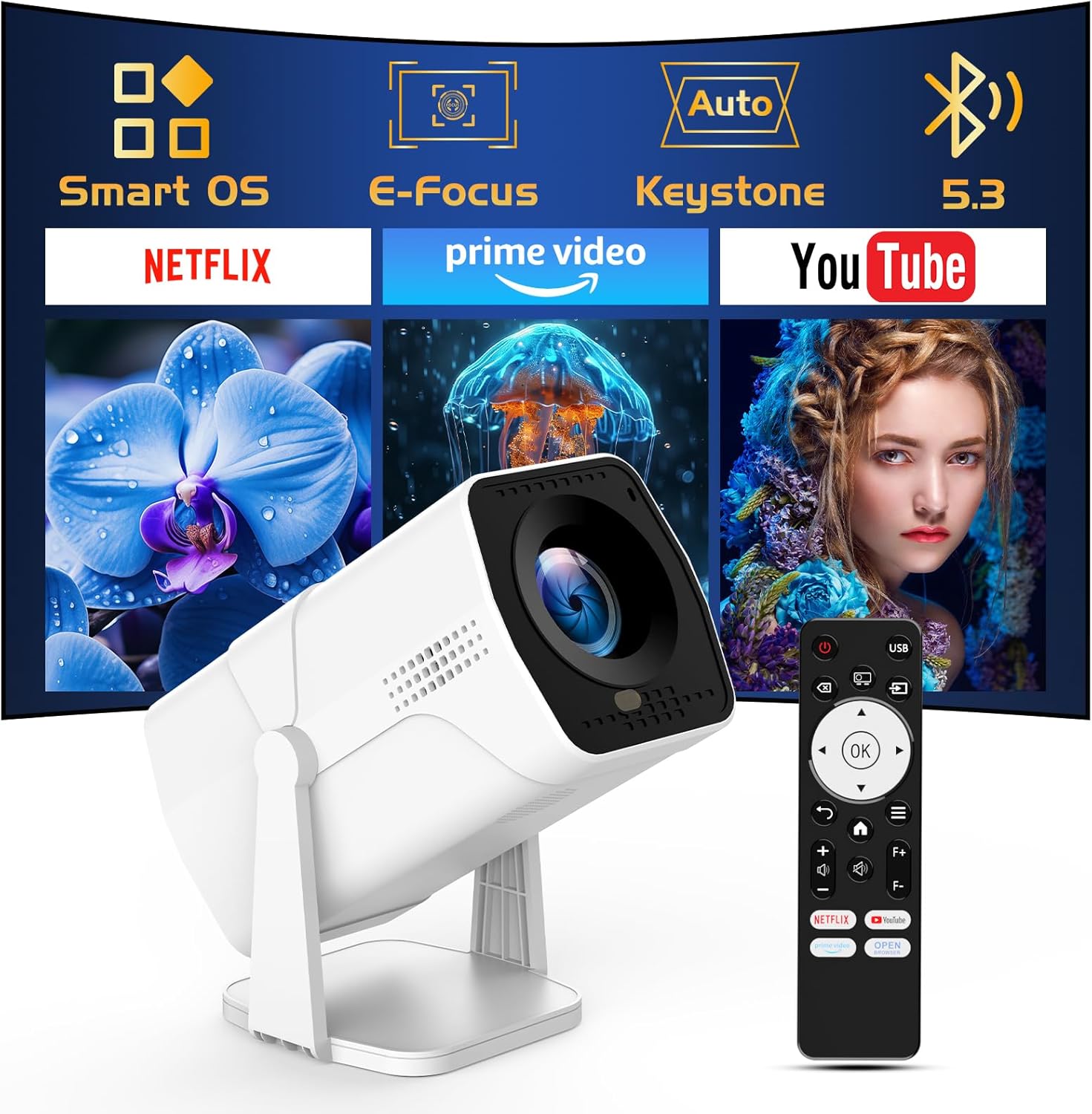
Image: The TMY Projector unit, its remote control, and a projected screen displaying logos for Smart OS, E-Focus, Auto Keystone, Bluetooth 5.3, Netflix, Prime Video, and YouTube.
3. Setup
3.1 Kuiswa
Position the projector on a stable, flat surface. The 270° rotatable stand allows for versatile placement, including projecting onto walls or ceilings. Ensure adequate ventilation around the projector.

Image: A TMY Projector positioned on a bedside table, projecting an image onto the ceiling, demonstrating its 270° rotatable stand for multi-angle viewing.
3.2 Simba Connection
- Batanidza tambo yemagetsi kuchiteshi chemagetsi chepurojekita.
- Batanidza rimwe divi retambo yemagetsi muchinoburitsa magetsi chakajairika.
3.3 Chekutanga Simba Pa uye Focus Adjustment
- Dzvanya bhatani remagetsi papurojekita kana remote control kuti ubatidze mudziyo.
- Iyo projector inoratidzira Magetsi Focus uye Auto Keystone correction. The image will automatically adjust for clarity and a rectangular shape within approximately 2 seconds.
- If further adjustment is needed, use the remote control to fine-tune the focus.

Image: A TMY Projector projecting a vibrant image onto a screen, with an overlay illustrating the 'FOCUS' function and icons for Auto Keystone and 50%-100% Zoom.
3.4 Network Connection (WiFi)
The projector supports WiFi 6 for a fast and stable internet connection.
- Navigate to the 'Settings' menu using the remote control.
- Select 'Network' or 'WiFi Settings'.
- Choose your desired WiFi network from the list and enter the password.
- Simbisa kubatana.

Image: A TMY Projector wirelessly connected to a tablet, smartphone, and laptop, illustrating its WiFi 6 connectivity for faster streaming with no lagging.
3.5 Bluetooth Connection
The projector features Dual-Mode Bluetooth 5.2 for audio connectivity.
- Projector Mode (Output): To connect to external Bluetooth speakers or soundbars: Navigate to 'Bluetooth Settings', enable Bluetooth, and pair with your audio device.
- Speaker Mode (Input): To use the projector's built-in speakers as a standalone Bluetooth speaker: Select 'Speaker Mode' in the Bluetooth settings. Your phone or other device can then connect to the projector to play audio.

Image: A TMY Projector illustrating its two-way Bluetooth 5.2 functionality, showing connections to a soundbar (Projector Mode) and a smartphone (Speaker Mode).
4. Kushanda
4.1 Navigating the Smart OS
The projector runs on a smart TV operating system. Use the provided remote control to navigate menus, select applications, and control playback.

Image: The TMY Projector unit with a projected screen showing a grid of built-in smart OS applications, including Netflix, YouTube, Prime Video, TikTok, and others.
4.2 Accessing Built-in Apps
The projector comes with pre-installed and officially licensed applications such as Netflix, Prime Video, and YouTube. Access these directly from the home screen or through the 'App Store' for additional content.

Image: A TMY Projector projecting a screen filled with content from officially licensed apps like Netflix, Prime Video, and YouTube, with the remote control in the foreground.
4.3 Kubatanidza Zvishandiso Zvekunze
Purojekita inopa madoko akawanda ekubatanidza zvishandiso zvekunze:
- HDMI: Connect TV sticks, TV boxes, PCs/Laptops, or gaming consoles (e.g., PS).
- USB: Tamba midhiya files directly from USB drives or connect other USB accessories.
- Phone/PC Mirroring: Wirelessly mirror content from your smartphone or PC (refer to the on-screen instructions for specific mirroring protocols).
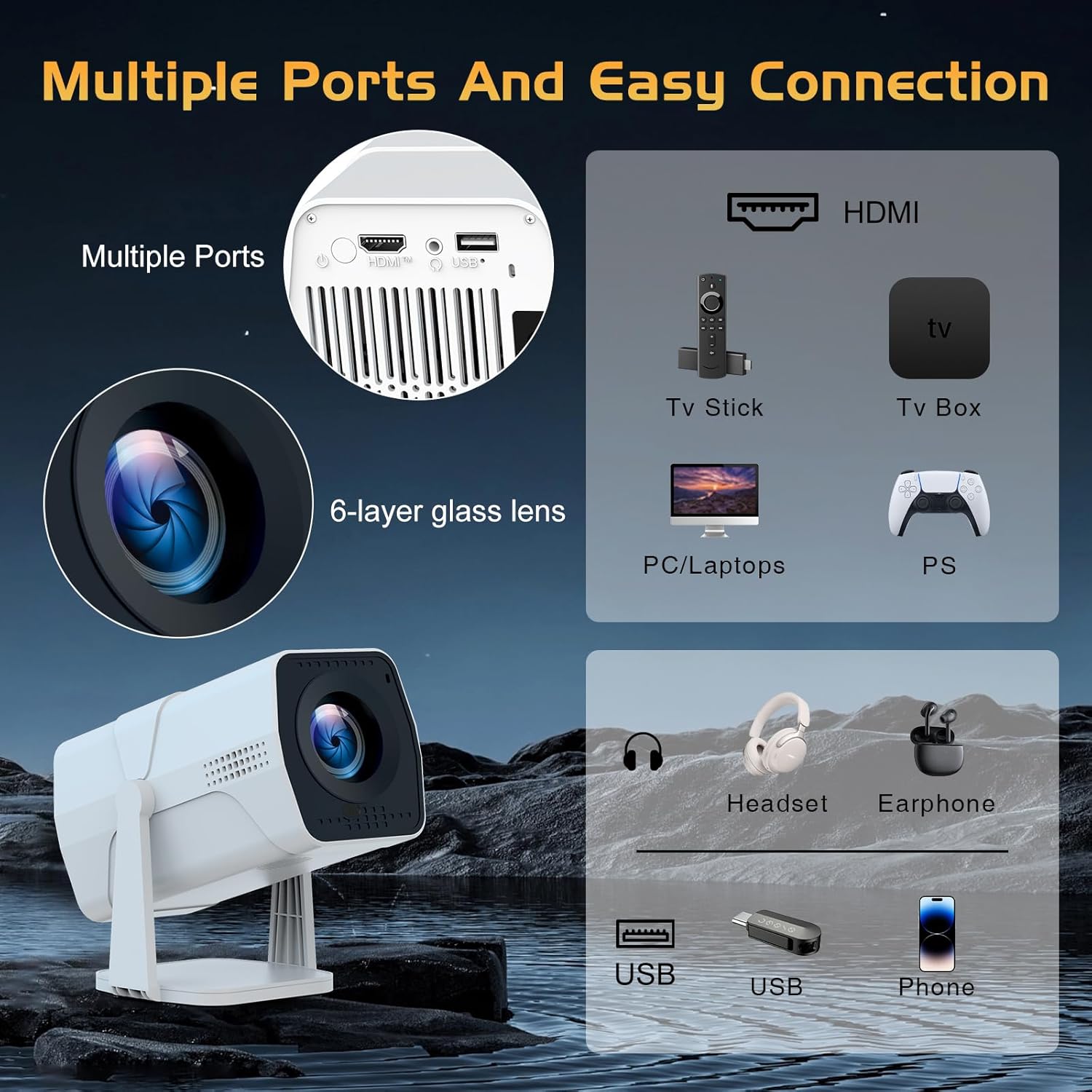
Image: A detailed diagram showing the multiple ports on the TMY Projector (HDMI, USB) and various connection possibilities, including TV sticks, PCs, gaming consoles, headsets, and phones.
4.4 Screen Zoom Function
The projector includes a 50%-100% zoom function, allowing you to adjust the screen size without moving the projector. This feature can be accessed via the remote control or settings menu.
5. Kuchengeta
To ensure the longevity and optimal performance of your TMY Projector, follow these maintenance guidelines:
- Kuchenesa Lens: Shandisa jira rakapfava, risina ruvara rwakagadzirirwa magirazi emaziso. Dzivisa zvinhu zvinokwesha kana makemikari akaomarara.
- Kuchenesa Kunze: Pukuta kunze kwepurojekita nejira rakapfava, rakaoma. Usashandise mishonga yekuchenesa mvura zvakananga pamudziyo.
- Kufefetedza Ita shuwa kuti mavhuriro ekufemesa haana kuvharwa kudzivirira kupisa.
- Kuchengeta: When not in use for extended periods, store the projector in a cool, dry place, away from direct sunlight and dust.
6. Kugadzirisa matambudziko
If you encounter issues with your TMY Projector, refer to the following common problems and solutions:
- Hapana Simba:
- Ensure the power cord is securely connected to both the projector and a working electrical outlet.
- Tarisa kana magetsi emagetsi ari kushanda.
- No Image / Blurry Image:
- Verify the projector is powered on and the lens cap is removed.
- Allow the automatic focus and keystone correction to complete. If still blurry, manually adjust focus using the remote.
- Ensure the projection surface is suitable and the projector is within the recommended distance.
- If using an external source (HDMI), ensure the correct input source is selected.
- Hapana Inzwi:
- Check the volume level on the projector and any connected external audio devices.
- If using Bluetooth speakers, ensure they are properly paired and connected.
- If using internal speakers, ensure external Bluetooth output is not selected.
- Remote Control Haisi Kupindura:
- Ensure the batteries are correctly inserted and not depleted.
- Ratidza remote zvakananga pa IR receiver yepurojekita.
- WiFi Connection Matambudziko:
- Iva nechokwadi chekuti network yako yeWiFi inoshanda uye iri pedyo.
- Tarisa zvakare password yeWiFi.
- Restart the projector and your WiFi router.
- If the connection times out, try moving the projector closer to the router or reducing interference.
7. Zvinotsanangurwa
| Feature | Tsanangudzo |
|---|---|
| Brand | TMY |
| Model | B0DRFF5KMF |
| Item Weight | 2.79 makirogiramu |
| Product Dimensions | 5.35 x 4.84 x 7.09 inches |
| Color | Chena |
| Special Features | Speakers, Electric Focus, Auto Keystone, 270° Rotatable Stand |
| Kubatana Technology | HDMI, USB, WiFi 6, Bluetooth 5.2 |
| Display Resolution | 1920 x 1080 (1080P Full HD) |
| Inokurudzirwa Zvishandiso | Indoor |

Image: A visual comparison showing the TMY Projector's 1080P Full HD image quality, emphasizing that it is recommended for use in dark environments for optimal viewing, contrasted with daytime or light-on conditions.
8. Warranty uye Tsigiro
TMY is committed to providing excellent customer service and product support.
- Warranty: Ichi chigadzirwa chinouya ne3-year warranty.
- Return Policy: Enjoy a 30-day return period.
- Tsigiro yehunyanzvi: Lifetime after-sale service and technical support are available.
- Nguva Yemhinduro: Expect a quick reply within 24 hours for support inquiries.
Kuti uwane rumwe rubatsiro, ndapota shanyira mukuru TMY Store on Amazon or contact customer support through the provided channels in your warranty card.


