1. Nhanganyaya
Thank you for choosing the Taiahiro Bk6301 Wireless Mechanical Gaming Keyboard and Mouse Combo. This manual provides detailed instructions for setting up, operating, and maintaining your new peripheral devices. This combo offers versatile connectivity options including 2.4G wireless, Bluetooth 5.0, and wired USB-C, ensuring compatibility with various devices.
2. Package Zviri mukati
Ndokumbira utarise kuti zvinhu zvese zvirimo mupasuru yako:
- Taiahiro Bk6301 Wireless Mechanical Gaming Keyboard
- Taiahiro Wireless Gaming Mouse
- USB 2.4G Receiver (stored in mouse battery compartment)
- USB-C kuenda ku USB-A Kuchaja/Data Cable
- User Manual
- 1 AA Battery (for mouse, may be pre-installed or included separately)

Image 2.1: Contents of the Taiahiro Bk6301 Keyboard and Mouse Combo package, including the keyboard, mouse, USB receiver, and USB-C cable.
3. Chigadzirwa Pamusoroview
3.1 Keyboard Zvimiro
- 98-Makiyi Magadzirirwo: Compact design with a full numeric keypad.
- Mechanical Blue Switches: Provide tactile and audible feedback for typing.
- RGB Backlighting: Mhedzisiro yemwenje inogadziriswa.
- Adjustable Keyboard Stand: Allows for ergonomic positioning.
- Kubatana kweMamodhi Akawanda: Supports 2.4G wireless, Bluetooth 5.0, and wired USB-C.
- Rechargeable Battery: Built-in 2000mAh battery for wireless operation.
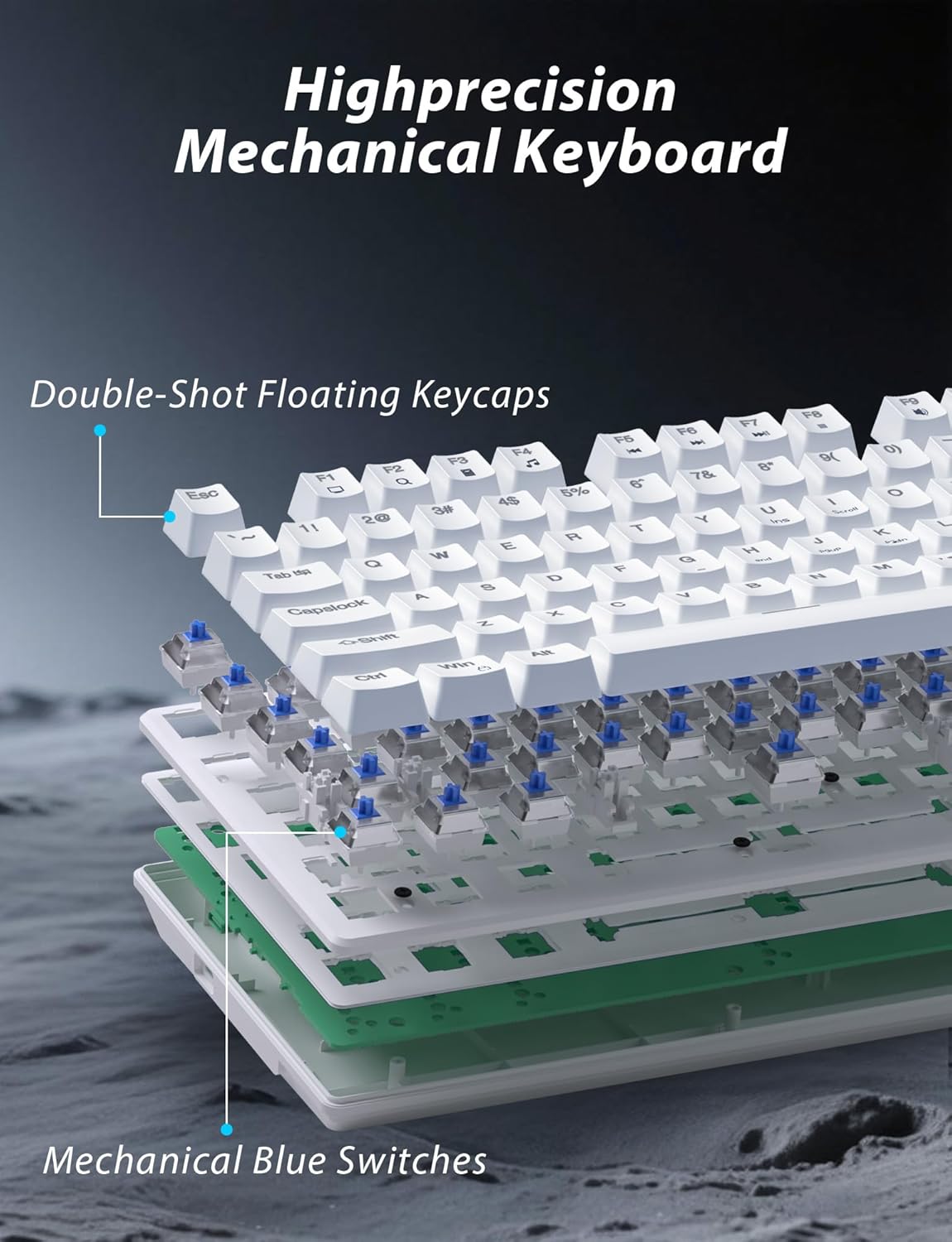
Mufananidzo 3.1: Yakaputika view illustrating the internal structure of the mechanical keyboard, highlighting the double-shot floating keycaps and mechanical blue switches.

Mufananidzo 3.2: Kurutivi view of the keyboard demonstrating its ergonomic design and adjustable stand for comfortable use.
3.2 Mouse Zvimiro
- Ergonomic Dhizaini: Shaped for comfortable grip.
- Adjustable DPI: Four levels (800/1600/2400/3200) for precision control.
- Pamberi/Kumashure Mabhatani: Convenient side buttons for navigation.
- Dual-Mode Connectivity: Supports 2.4G wireless and Bluetooth.
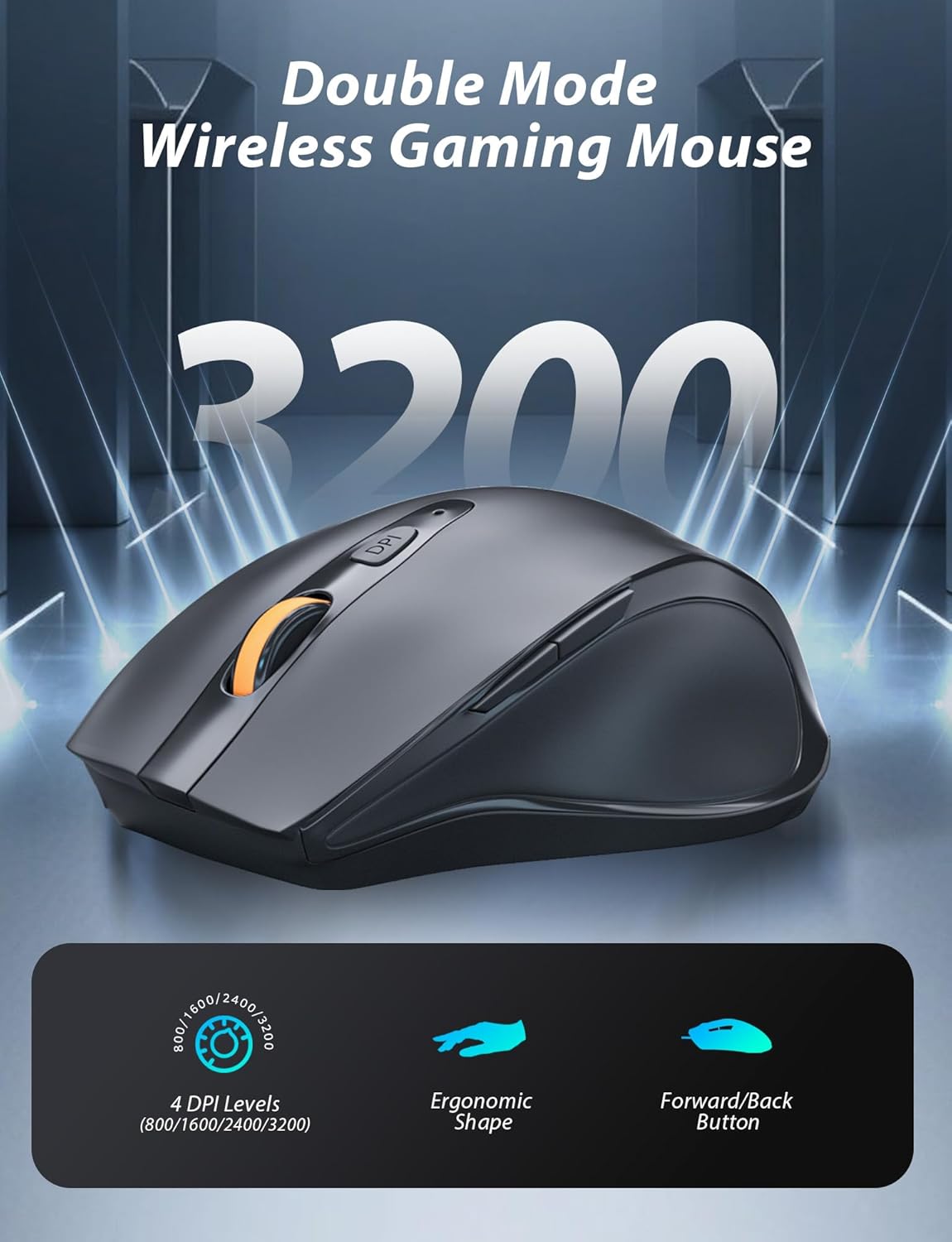
Image 3.3: The wireless gaming mouse, highlighting its ergonomic shape and four adjustable DPI levels.
4. Setup Instructions
4.1 Keyboard Connection
The keyboard supports three connection modes: 2.4G wireless, Bluetooth, and wired USB-C.

Image 4.1: The keyboard displaying its three connectivity options: Bluetooth, 2.4GHz wireless, and USB-C wired connection.
2.4G Wireless Mode:
- Locate the USB 2.4G receiver, typically stored in the mouse's battery compartment.
- Isa iyo USB inogamuchira mune inowanikwa USB port pakombuta yako.
- On the keyboard, slide the mode switch (usually located on the top edge or bottom) to the '2.4G' position.
- Kiibhodhi inofanira kubatana otomatiki.
Makaralı Mode:
- Slide the mode switch on the keyboard to the 'BT' (Bluetooth) position.
- The keyboard's indicator light will flash, indicating it is in pairing mode.
- On your device (computer, laptop, smartphone), open Bluetooth settings and search for new devices.
- Select "Taiahiro Bk6301" or a similar name from the list of available devices to pair.
- Once paired, the indicator light will become solid.
Wired USB-C Mode:
- Batanidza tambo yeUSB-C yakapihwa kune chiteshi cheUSB-C chekhibhodi.
- Batanidza rimwe divi (USB-A) kune USB port iripo pakombuta yako.
- The keyboard will function as a wired device and will charge simultaneously.
4.2 Mouse Connection
The mouse supports 2.4G wireless and Bluetooth connectivity.

Image 4.2: The underside of the mouse, illustrating the battery compartment for one AA battery and the storage slot for the tiny USB receiver.
Kuisa Battery:
- Open the battery compartment on the underside of the mouse.
- Insert one AA battery, ensuring correct polarity.
- Vhara nzvimbo yebhatiri.
2.4G Wireless Mode:
- Ensure the USB 2.4G receiver is plugged into your computer.
- Slide the mode switch on the underside of the mouse to the '2.4G' position.
- Mbeva inofanira kubatana yega.
Makaralı Mode:
- Slide the mode switch on the underside of the mouse to the 'BT' (Bluetooth) position.
- The mouse will enter pairing mode.
- On your device, open Bluetooth settings and search for new devices.
- Select "Taiahiro Mouse" or a similar name from the list to pair.
5. Operating Instructions
5.1 Keyboard Mabasa
Backlight Control:
The keyboard features customizable RGB backlighting.
- Chinja Backlight Mode: Press Fn + Kumba kutenderera kuburikidza nemhedzisiro gumi nembiri dzakasiyana dzemwenje.
- Gadzirisa Kupenya: Press Fn + ↑ (Museve Wekumusoro) or Fn + ↓ (Museve Wakadzika) to adjust between 5 brightness levels.
- Gadzirisa Kumhanya Press Fn + ← (Museve weKuruboshwe) or Fn + → (Museve Wekurudyi) to adjust between 5 lighting speed levels.

Image 5.1: Keyboard layout highlighting the function key combinations for controlling backlight modes, brightness, and speed.
Multimedia Mabasa:
Access multimedia controls by pressing the Fn key in combination with the designated F-keys (F1-F12).
- Fn+F1: Vadivelu Comedy Media Player
- Fn+F2: Volume Down
- Fn+F3: Volume Up
- Fn+F4: Mute
- Fn+F5: Mira
- Fn+F6: Previous Track
- Fn+F7: Tamba/Misa
- Fn+F8: Next Track
- Fn+F9: Email
- Fn+F10: Web Browser
- Fn+F11: Computer yangu
- Fn+F12: Calculator
5.2 Mouse Mabasa
DPI Kugadziriswa:
Press the DPI bhatani (located behind the scroll wheel) to cycle through the four DPI settings: 800, 1600, 2400, and 3200. Each press changes the sensitivity, allowing you to adjust cursor speed to your preference.
6. Kuchengeta
6.1 Kuchenesa
- Kiyibhodhi: Use a soft, dry cloth to wipe the surface. For deeper cleaning, use compressed air to remove debris from between keys. Avoid using harsh chemicals or abrasive materials.
- Mbeva: Pukuta pamusoro pembeva ne d yakapfava, zvishomaamp cloth. Ensure no liquid enters the internal components.
6.2 Battery Management
- Kiyibhodhi: The keyboard has a built-in rechargeable battery. Connect the USB-C cable to a power source (e.g., computer USB port, USB wall adapter) to charge. The indicator light will show charging status.
- Mbeva: The mouse uses one AA battery. Replace the battery when the mouse performance degrades or it stops responding. Ensure proper polarity when inserting a new battery.
7. Kugadzirisa matambudziko
If you encounter issues with your Taiahiro keyboard and mouse combo, please refer to the following solutions:
| Dambudziko | Possible Solution |
|---|---|
| Keyboard/Mouse not responding (2.4G) |
|
| Keyboard/Mouse not connecting (Bluetooth) |
|
| Keyboard backlight not working or stuck |
|
| Makiyi asingapindure kana kunyora kaviri |
|
8. Zvinotsanangurwa
| Feature | Detail |
|---|---|
| Model Number | Bk6301 |
| Kubatana | Bluetooth 5.0, 2.4G Wireless, USB-C Wired |
| Keyboard Type | Mechanical Gaming Khibhodi |
| Key Layout | 98 Keys (with Numeric Keypad) |
| Chinja Type | Mechanical Blue Swichi |
| Keyboard Backlight | RGB (18 modes, 5 brightness, 5 speed levels) |
| Keyboard Battery | 2000mAh Rechargeable |
| Mouse DPI Levels | 800/1600/2400/3200 |
| Mouse Battery | 1 x AA Bhatiri |
| Inowirirana Devices | Personal Computer, Laptop, Smartphone |
| Item Weight | 2.72 mapaundi (musanganiswa) |
| Package Dimensions | 15 x 5.59 x 3.11 inches |
9. Warranty uye Tsigiro
9.1 Ruzivo rweWaranti
Taiahiro products are covered by a limited warranty from the date of purchase. Please refer to the warranty card included in your package or visit the official Taiahiro website for detailed warranty terms and conditions. This warranty typically covers manufacturing defects and material faults under normal use.
9.2 Mutengi Tsigiro
For technical assistance, troubleshooting, or any questions regarding your Taiahiro Bk6301 combo, please contact our customer support team. You can find contact information on the Taiahiro official website or through your purchase platform. When contacting support, please have your product model number (Bk6301) and purchase details ready.


