1. Nhanganyaya
This manual provides detailed instructions for the setup, operation, maintenance, and troubleshooting of your Transformers TF-Crystal 85 Keys Mechanical Keyboard. Please read this manual thoroughly before using the product to ensure proper functionality and longevity.
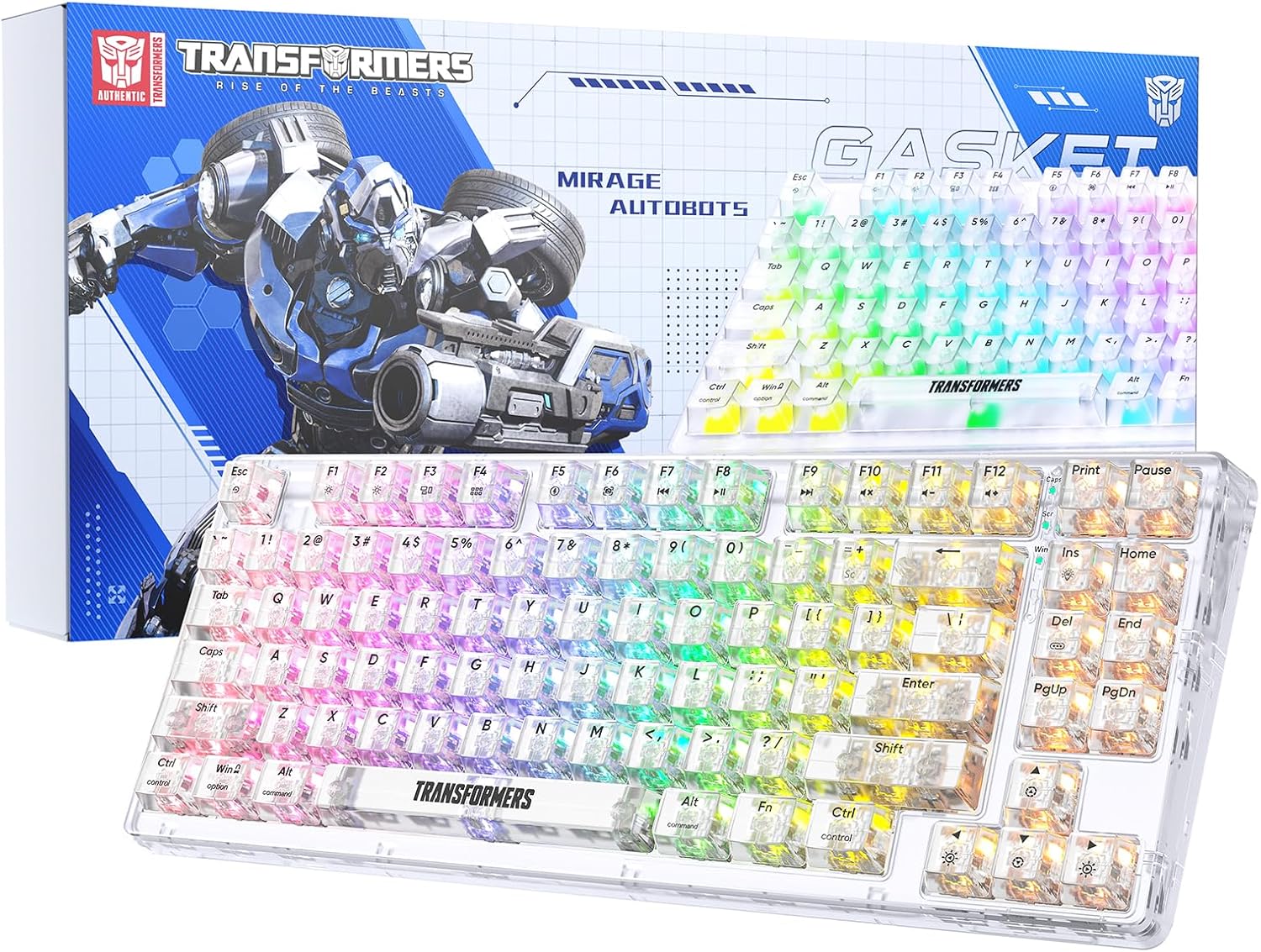
Image 1.1: Transformers TF-Crystal 85 Keys Mechanical Keyboard with its packaging, showcasing the transparent design and RGB lighting.
2. Chigadzirwa Pamusoroview
2.1 Mamiriro Akakosha
- 85-Makiyi Magadzirirwo: Compact 75% design retaining essential functions, arrow, and navigation keys.
- Tri-Mode Connectivity: Supports Bluetooth 5.0, 2.4GHz wireless, and USB-C wired connections.
- PCB Inopisa Inochinjika: Compatible with most 3-pin and 5-pin mechanical switches, allowing for easy customization and replacement.
- Linear Switches: Pre-lubricated switches with a 50 million keystroke lifespan for durability and smooth operation.
- Maumbirwo eGasket: Incorporates high-quality gasket materials and a silicone pad to absorb vibrations and reduce typing noise.
- Chiedza cheRGB chekare chinogadziriswa: Features 20 built-in backlight modes, 16.8 million color options, and dynamic music rhythm effects.
- Programmable Driver: Enables macro customization, key function remapping, and advanced lighting control.
- Hupenyu Hurefu Hwebhatiri: Equipped with a 4000mAh battery, providing up to 240 hours of continuous use in 2.4GHz mode without backlighting.
- Wide Compatibility: Supports Mac, Windows, iOS, Android, PC, Laptop, Smartphone, Tablet, Switch, Xbox, and PlayStation.
- Transparent Design: Features transparent keycaps and base for enhanced aesthetic appeal.
3. Setup
3.1 Kuchaja Kiyibhodhi
Before initial use, fully charge the keyboard. Connect the provided USB-C cable to the keyboard's USB-C port and the other end to a powered USB port (e.g., computer, wall adapter). The charging indicator will show the charging status.
3.2 Connecting via 2.4GHz Wireless Mode
- Tsvaga 2.4GHz USB receiver, inowanzo chengetwa muchikamu chiri pakhibhodi.
- Batanidza USB inogamuchira mune inowanikwa USB port pakombuta yako.
- Toggle the mode switch on the keyboard to the 2.4G chinzvimbo.
- The keyboard will automatically connect to your device.
3.3 Connecting via Bluetooth 5.0 Mode
- Toggle the mode switch on the keyboard to the BT chinzvimbo.
- Dzvanya uye ubate Fn +1 (kana Fn +2, Fn +3) kwemasekonzi 3-5 kusvika mwenje wechiratidzo wapenya nekukurumidza, zvichiratidza nzira yekuwiriranisa.
- Pamudziyo wako (kombuta, piritsi, smartphone), gonesa Bluetooth uye tsvaga zvishandiso zvitsva.
- Select "TF-Crystal 85" from the list of available devices to pair.
- Once paired, the indicator light will stop flashing and remain solid. You can pair up to three Bluetooth devices using Fn +1, Fn +2,uye Fn +3.
3.4 Connecting via USB-C Wired Mode
- Batanidza tambo yeUSB-C yakapihwa kune chiteshi cheUSB-C chekhibhodi.
- Batanidza imwe magumo e USB-C tambo kune inowanikwa USB port pakombuta yako.
- The keyboard will automatically switch to wired mode and function without battery power.

Image 3.1: Diagram illustrating the three connection modes: Bluetooth 5.0, 2.4GHz wireless, and USB-C wired, compatible with various devices.
4. Operating Instructions
4.1 Kuchinja pakati peModes
Use the physical switch located on the keyboard to select between BT (Bluetooth), 2.4G (2.4GHz wireless), and USB-C (wired) modes.
4.2 RGB Kudzora Mwenje weKumashure
The keyboard features customizable RGB backlighting. Use the following key combinations to adjust:
- Fn + Ins: Cycle through 20 different backlight effects.
- Fn + Del: Switch backlight colors within certain modes.
- Fn + ↑ / ↓: Adjust backlight brightness (5 levels).
- Fn + ← / →: Adjust backlight effect speed (5 levels).
- Fn + Esc (hold for 3s): Reset backlight settings to default.

Image 4.1: Visual guide for controlling RGB backlight effects, brightness, and speed using Fn key combinations.
4.3 Programmable Driver Usage
The keyboard includes a programmable driver for advanced customization. This driver allows you to:
- Macro Editing: Record and edit complex key sequences.
- Key Redefinition: Customize the function of individual keys.
- RGB Effect Customization: Fine-tune lighting modes, colors, and speeds, including music rhythm lighting effects.
Refer to the software's dedicated user interface for detailed instructions on using these features.

Image 4.2: Screenshot of the programmable driver interface, showing options for macro editing, RGB effects, and key redefinition.
4.4 Swichi dzekuchinjana dzinopisa
The TF-Crystal 85 keyboard features a hot-swappable PCB, allowing you to change mechanical switches without soldering. This supports most 3-pin and 5-pin mechanical switches.
- Dzima kiyibhodhi kana kuibvisa pamudziyo wako.
- Use the provided keycap puller to carefully remove the desired keycap.
- Use the provided switch puller to gently grip the switch from its top and bottom clips, then pull it straight up to remove it.
- Align the pins of the new switch with the holes on the PCB. Ensure the pins are straight.
- Gently press the new switch into place until it clicks securely. Do not force it.
- Tsiva keycap.

Image 4.3: Illustration of the hot-swappable feature, showing how to remove and insert 3-pin/5-pin switches and the linear switch specifications.
5. Kuchengeta
5.1 Kuchenesa kiyibhodhi
- Bvisa kiibhodhi kubva kune ese magetsi masosi usati wachenesa.
- Shandisa jira rakapfava, risina lint zvishoma dampyakavharwa nemvura kana yakapfava yekuchenesa mhinduro yekupukuta makiyi uye chassis.
- Kune guruva nemarara pakati pekiyi, shandisa mweya wakamanikidzwa kana bhurasho diki.
- Avoid using harsh chemicals or abrasive materials that could damage the keyboard's surface.
5.2 Kuchengeta Battery
- Dzivisa kuburitsa bhatiri zvakazara nguva zhinji.
- Chengetedza kiibhodhi munzvimbo inotonhorera, yakaoma kana isiri kushandiswa kwenguva yakareba.
- If the keyboard will not be used for a long time, charge it to about 50% before storage.
6. Kugadzirisa matambudziko
| Dambudziko | Zvinogona Kukonzera | Solution |
|---|---|---|
| Kiyibhodhi haisi kupindura kana isina waya. | Low battery, incorrect mode selected, receiver not connected, Bluetooth not paired. | Charge the keyboard. Ensure the mode switch is set correctly (2.4G or BT). Re-insert the 2.4G receiver. Re-pair Bluetooth. |
| Makiyi asiri kunyoresa kana kunyora kaviri. | Faulty switch, debris under keycap, software issue. | Clean under the keycap. Try hot-swapping the switch with a known working one. Restart your computer. |
| RGB backlight not working or incorrect. | Backlight turned off, incorrect settings, software conflict. | Gadzirisa kupenya uchishandisa Fn + ↑. Cycle modes with Fn + Ins. Reset backlight with Fn + Esc (hold 3s). Check programmable driver settings. |
| Keyboard not charging. | Faulty USB-C cable, power source issue, keyboard port damage. | Try a different USB-C cable. Use a different USB port or power adapter. Ensure the cable is fully inserted. |
7. Zvinotsanangurwa
| Feature | Detail |
|---|---|
| Model Number | TF-Crystal 85 |
| Key Layout | 85 Keys (75% Compact) |
| Kubatana | Bluetooth 5.0, 2.4GHz isina waya, USB-C ine waya |
| Chinja Type | Pre-lubricated Linear Mechanical Switches |
| Chinja Hupenyu | 50 Mamirioni Keystrokes |
| Kupisa-Kuchinjika | Hongu (3-pini/5-pini inowirirana) |
| Backlight | RGB (20 modes, 16.8 million colors) |
| Battery Capacity | 4000mAh |
| Battery Life (2.4G, no light) | Kusvikira kumaawa makumi maviri nemashanu |
| Hupenyu hwebhatiri (Backlit ON) | Anenge maawa maviri |
| Dimensions (L x W x H) | 34.7 masendimita x 14 masendimita x 4.5 masendimita |
| Kugarisana | Mac, Windows, iOS, Android, PC, Laptop, Smartphone, Tablet, Switch, Xbox, PlayStation |

Image 7.1: Visual representation of the keyboard's battery life: 240 hours with backlight off, 22 hours with backlight on, powered by a 4000mAh battery.
8. Warranty uye Tsigiro
Transformers is committed to providing exceptional customer service. If you encounter any problems with your TF-Crystal 85 Keys Mechanical Keyboard, our after-sales support team is available to assist you. This includes technical support, exchanges, or installation guidance.
Please contact our customer service for assistance. We guarantee a hassle-free service experience.


