1. Nhanganyaya
This manual provides detailed instructions for the installation, operation, and maintenance of your MT-VIKI 17-inch 16-Port Rack KVM Switch. This device is designed to manage up to 16 computers or servers from a single console, integrating a 17-inch LCD monitor, keyboard, and touchpad into a compact 1U rack-mountable drawer.

Image 1.1: The MT-VIKI 17-inch 16-Port Rack KVM Switch console, featuring an integrated LCD, keyboard, and touchpad.
2. Safety Information
Please read and follow these safety guidelines to ensure proper operation and prevent damage to the device or injury to yourself.
- Iva nechokwadi chekuti mudziyo wacho wakaiswa munzvimbo ine mhepo inofefetera zvakanaka kudzivirira kupisa zvakanyanya.
- Use only the provided power adapter. Using an incorrect adapter may cause damage.
- Usaisa mudziyo kumvura, unyoro, kana tembiricha yakanyanyisa.
- Dzivisa kuisa zvinhu zvinorema pamudziyo.
- Bvisa simba usati wachenesa kana kuita chero kugadzirisa.
3. Package Zviri mukati
Ona kuti zvinhu zvese zviripo mupasuru yako:
- 1x MT-VIKI 17-inch 16-Port Rack KVM Switch Console (Model: MT-1716UL)
- 16x VGA KVM Cables (various lengths)
- 1x Power Adapter
- 1x Chinyorwa cheMushandisi

Image 3.1: The KVM console and the assortment of included VGA KVM cables.
4. Chigadzirwa Pamusoroview
The MT-VIKI 17-inch 16-Port Rack KVM Switch integrates essential components for server management into a single unit.
4.1 Front Panel Zvikamu
- Chinotarisisa cheLCD che 17-inch: Displays video output from connected computers.
- Kiyibhodhi: Standard 98-key layout for input.
- Touchpad: Integrated pointing device.
- Panel Switch Buttons: For direct port selection.
- External USB Interface: Yekubatanidza mimwe midziyo yeUSB.
4.2 Rear Panel Ports
- KVM Control Interface: Connects to the KVM module.
- USB Software Debug Port: For firmware updates or diagnostics.
- Bhatani reKuchinja Kwesimba: Kubatidza/kudzima unit.
- VGA Output: For connecting an external monitor (if supported).
- External USB Interface: Kubatanidzwa kwe USB kwakawedzerwa.
- Power Input: For the DC12V power adapter.
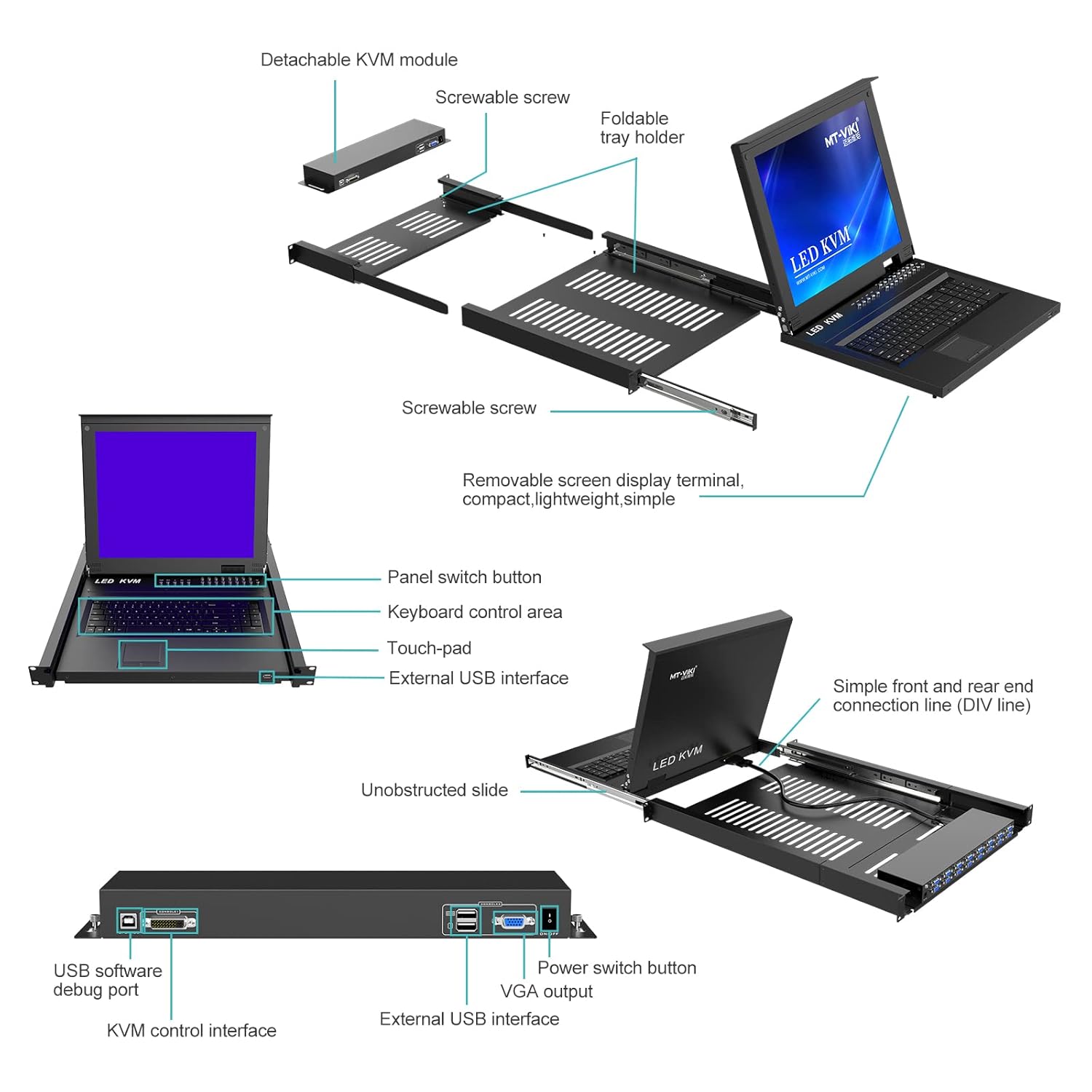
Image 4.1: Detailed diagram illustrating the detachable KVM module, screwable screws, foldable tray holder, panel switch button, keyboard control area, touchpad, external USB interface, unobstructed slide, simple front and rear end connection line, USB software debug port, KVM control interface, power switch button, VGA output, and external USB interface.

Mufananidzo 4.2: Kumashure view of the KVM module, highlighting the USB software debug port, KVM control interface, power switch button, VGA output, and external USB interface.
5. Setup
5.1 Kukwidza Rack
The KVM switch is designed for installation in a standard 1U 19-inch rack. The cabinet installation depth should be between 23.6 inches (60cm) and 31.8 inches (81cm).
- Extend the mounting rails from the KVM console.
- Secure the console into the 19-inch rack using appropriate rack screws.
- Ensure the console slides smoothly in and out of the rack.

Image 5.1: The KVM console mounted in a 1U server rack, illustrating the mounting depth range of 23.6 to 31.8 inches and the convenient front USB port.

Image 5.2: The KVM console integrated into a server room setup, demonstrating its application in managing multiple servers.
5.2 Connecting Computers
Use the provided VGA KVM cables to connect your computers to the KVM switch.
- Connect the VGA connector of a KVM cable to the VGA output of your computer.
- Connect the USB connector of the same KVM cable to a USB port on your computer.
- Connect the other end of the KVM cable to an available KVM port on the rear of the KVM switch.
- Repeat for all computers you wish to connect.
5.3 Kubatidza
- Connect the DC12V power adapter to the power input port on the KVM switch.
- Batanidza dhiraivha yemagetsi mune yakakodzera magetsi.
- Press the power switch button on the rear panel to turn on the KVM switch.
6. Kushanda neKVM Switch
The MT-VIKI KVM switch offers multiple methods for switching between connected computers.
6.1 Switching Methods
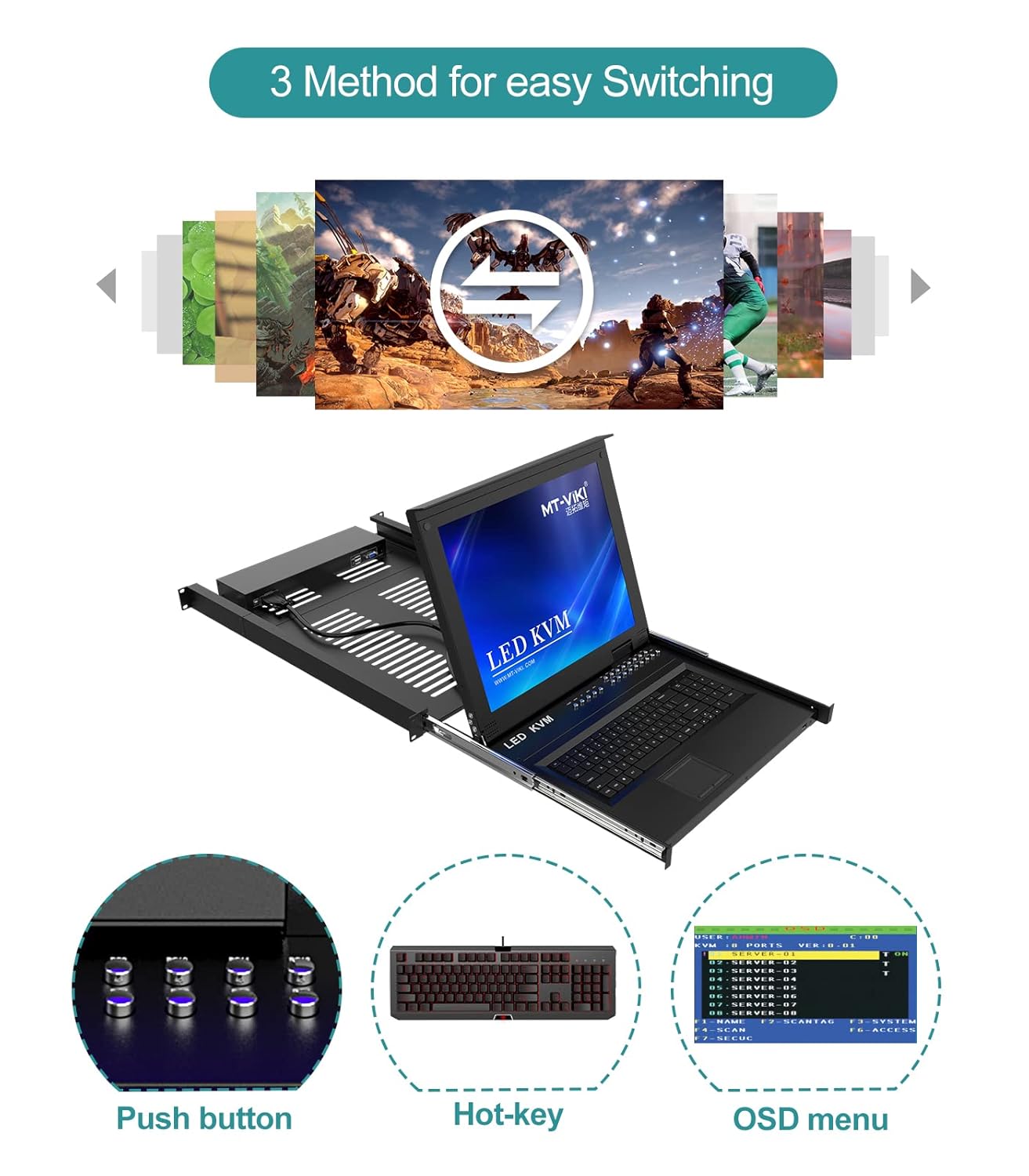
Image 6.1: Illustration of the three available methods for switching between connected computers: Push button, Hot-key commands, and the On-Screen Display (OSD) menu.
- Batanidza Batani: Use the physical buttons on the front panel of the KVM console to directly select a port.
- Hotkey: Utilize keyboard hotkey combinations to switch between ports. Refer to the OSD menu for specific hotkey sequences.
- OSD Menyu: Access the On-Screen Display menu to navigate and select ports, configure settings, and manage security.
6.2 OSD Menu Navigation
The OSD menu provides a graphical interface for managing the KVM switch. Typically, you can activate the OSD menu by pressing a specific hotkey combination (e.g., Scroll Lock + Scroll Lock, or Ctrl + Ctrl). Once activated, use the arrow keys and Enter key on the keyboard to navigate and make selections.
6.3 Zvimiro Zvekuchengetedza
The KVM switch supports 2-level password security, allowing for administrator and user accounts. Up to 8 authorized users and an administrator can view and control the connected computers. Refer to the OSD menu for setting up and managing user accounts and passwords.
6.4 Daisy-Chaining
This KVM switch supports daisy-chaining, allowing you to control up to 256 computers by connecting multiple KVM units. Consult the daisy-chaining diagram and instructions for proper setup.

Image 6.2: Diagram showing the daisy-chaining capability, allowing control of up to 256 computers by connecting multiple 16-port KVM switches.
7. Kuchengeta
7.1 Kuchenesa
- Before cleaning, ensure the KVM switch is powered off and disconnected from the power source.
- Shandisa jira rakapfava, rakaoma kupukuta kunze.
- For the LCD screen, use a screen-specific cleaning solution and a microfiber cloth. Do not spray liquid directly onto the screen.
- Dzivisa kushandisa abrasive cleaners kana solvents.
7.2 Mafungiro Ezvakatipoteredza
To ensure longevity and optimal performance, operate the KVM switch within the specified temperature and humidity ranges. Avoid dusty environments.
8. Kugadzirisa matambudziko
Kana iwe ukasangana nenyaya neKVM switch yako, tarisa kune anotevera akajairika matambudziko uye mhinduro:
| Dambudziko | Zvinogona Kukonzera | Solution |
|---|---|---|
| Hapana kuratidzwa paLCD | Power cable disconnected; KVM cable loose; Computer not powered on; Incorrect port selected. | Check power connections; Ensure KVM cables are securely connected; Verify computer is on; Select correct port via button/hotkey/OSD. |
| Kiyibhodhi/Mbeva haisi kudaira | USB cable loose; KVM cable faulty; Driver issue on computer. | Check USB connections; Try a different KVM cable; Restart the computer; Ensure KVM switch is powered on. |
| Cannot switch between computers | Hotkey conflict; OSD menu frozen; KVM switch malfunction. | Check hotkey settings in OSD; Power cycle the KVM switch; Ensure all KVM cables are properly connected. |
| Hunhu hwevhidhiyo husina kunaka | KVM cable too long or low quality; Resolution mismatch. | Use shorter or higher quality KVM cables; Adjust computer's display resolution to 1280x1024. |
9. Zvinotsanangurwa
| Feature | Detail |
|---|---|
| Model | MT-1716UL |
| LCD saizi | 17 inches TFT LED |
| Aspect ratio | 4:3 |
| Resolution | 1280x1024 |
| Ratidza Ruvara | 16.7 Mamiriyoni |
| Kupenya | 300 cd/m² |
| LCD Hupenyu | Kupfuura maawa gumi |
| Kushandisa Simba | Max. 24W |
| Keyboard | 98 keys, internal PS/2 port, external USB port |
| Touchpad Lifespan | 1,000,000 nguva |
| Power Input | DC12V |
| Housing Material | Aluminium + Metal |
| Zviyero zveChigadzirwa (W×D×H) | 600x400x45mm (23.6x15.7x1.78 inches) |
| Cabinet Installation Depth | 600-810mm (23.6-31.8 inches) |
| Operation Temperature | -45°C kusvika 60°C |
| Storage Temperature | -20°C kusvika 65°C |
| Circuit Type | 16-nzira |
10. Warranty uye Tsigiro
For warranty information, technical support, or service inquiries, please contact MT-VIKI customer support or visit the official MT-VIKI website. Chengeta risiti yako yekutenga yezvichemo zvewaranti.
Manufacturer: MT-VIKI


