1. Chii chiri muBhokisi
Tarisa kuti zvese zvirimo zviripo mupakeji:
- Wireless Mechiniki Khibhodi
- Wireless Mouse
- USB Receiver
- Mouse Pad
- USB-C Cable (for keyboard charging/wired mode)
- 1 AA Battery (for mouse)
2. Chigadzirwa Pamusoroview
The Taiahiro BK6301 set includes a 98-key mechanical keyboard and an ergonomic wireless mouse, designed for versatile use across gaming and professional tasks. The keyboard features blue mechanical switches for tactile and audible feedback, RGB backlighting, and triple-mode connectivity. The mouse offers adjustable DPI and dual-mode wireless connection.
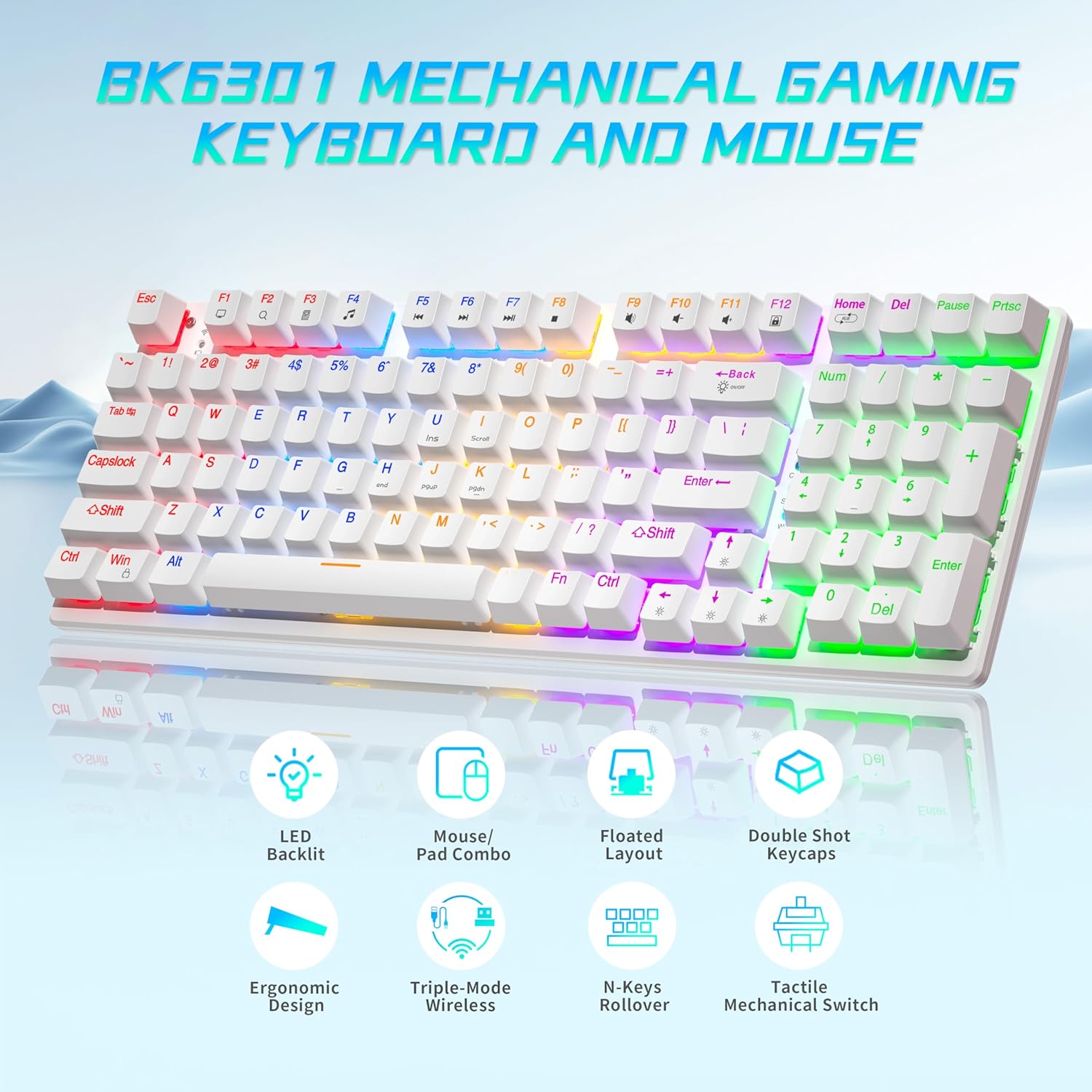
Image: The Taiahiro BK6301 keyboard and mouse combo, showcasing its LED backlit keys, mouse/pad combo, floated layout, double shot keycaps, ergonomic design, triple-mode wireless, N-keys rollover, and tactile mechanical switches.
2.1 Keyboard Zvimiro
- 98-Makiyi Magadzirirwo: Full-size keyboard including a numeric keypad.
- Blue Mechanical Swichi: Provides satisfying tactile and audible feedback for typing and gaming.
- Double Shot Injection Keycaps: Ensures key legends remain clear and legible over time.
- Triple-Mode Connectivity: Supports USB-C wired, 2.4G wireless, and Bluetooth 5.0 connections.
- RGB Backlighting: 8 different lighting modes with adjustable brightness and breathing speed.
- Anti-Ghosting: Ensures accurate registration of multiple simultaneous key presses.

Mufananidzo: Kuvhara view illustrating the internal structure of the blue mechanical switches, highlighting their 50,000,000 keystroke life, 60±15g key force, and 2.4±0.2mm stroke travel.
2.2 Mouse Zvimiro
- Dual-Mode Wireless: Connects via 2.4G wireless or Bluetooth.
- Adjustable DPI: Four DPI levels (800/1600/2400/3200) for precision control.
- Ergonomic Dhizaini: Contoured shape with textured grip for comfortable use.
- Anti-Skid Scroll Wheel: For improved control.

Image: The Taiahiro wireless gaming mouse, featuring its 4 adjustable DPI levels (800/1600/2400/3200) and convenient forward/back buttons.
3. Setup Instructions
3.1 Keyboard Setup
The keyboard supports three connection modes: USB-C wired, 2.4G wireless, and Bluetooth.
- Modhi yeWaya yeUSB-C:
Batanidza tambo yeUSB-C yawapihwa kubva pakhibhodi kuenda kune imwe USB port iripo pakombiyuta yako. Kiyibodi yacho ichaonekwa otomatiki uye yagadzirira kushandiswa. - 2.4G Wireless Mode:
Locate the USB receiver, typically stored in the mouse's battery compartment. Plug the USB receiver into an available USB port on your computer. The keyboard should connect automatically. - Makaralı Mode:
Ensure the keyboard is in Bluetooth pairing mode (refer to keyboard specific key combination, usually Fn + a Bluetooth key). On your device (PC, laptop, tablet, phone), go to Bluetooth settings and select the keyboard from the list of available devices to pair.

Image: The Taiahiro keyboard and mouse demonstrating its 3-mode wireless capabilities, connecting to a laptop via USB-C, a monitor via 2.4GHz, and a tablet via Bluetooth.
3.2 Mouse Setup
The mouse supports 2.4G wireless and Bluetooth connections.
- Isa Bhatiri: The mouse requires one AA battery. Open the battery compartment on the underside of the mouse and insert the included AA battery, ensuring correct polarity.
- Power On: Slide the power switch on the bottom of the mouse to the 'ON' position.
- 2.4G Wireless Mode:
The USB receiver for the 2.4G connection is stored in the mouse's battery compartment. Remove it and plug it into an available USB port on your computer. The mouse should connect automatically. - Makaralı Mode:
Ensure the mouse is in Bluetooth pairing mode (refer to mouse specific button, usually a button on the underside). On your device, go to Bluetooth settings and select the mouse from the list of available devices to pair.
Video: A brief demonstration of unboxing the keyboard and mouse, showing the initial setup and connection process.
4. Operating Instructions
4.1 Keyboard Backlighting Control
The keyboard features 8 RGB backlighting modes. Use the following key combinations to adjust:
- Chinja Lighting Mode: Press Fn + Kumba to cycle through different lighting effects.
- Gadzirisa Kupenya: Press Fn + ↑ (Museve Wekumusoro) kuwedzera kupenya, uye Fn + ↓ (Museve Wakadzika) kuderedza kupenya.
- Gadzirisa Kumhanya Press Fn + ← (Museve weKuruboshwe) to decrease effect speed, and Fn + → (Museve Wekurudyi) to increase effect speed.
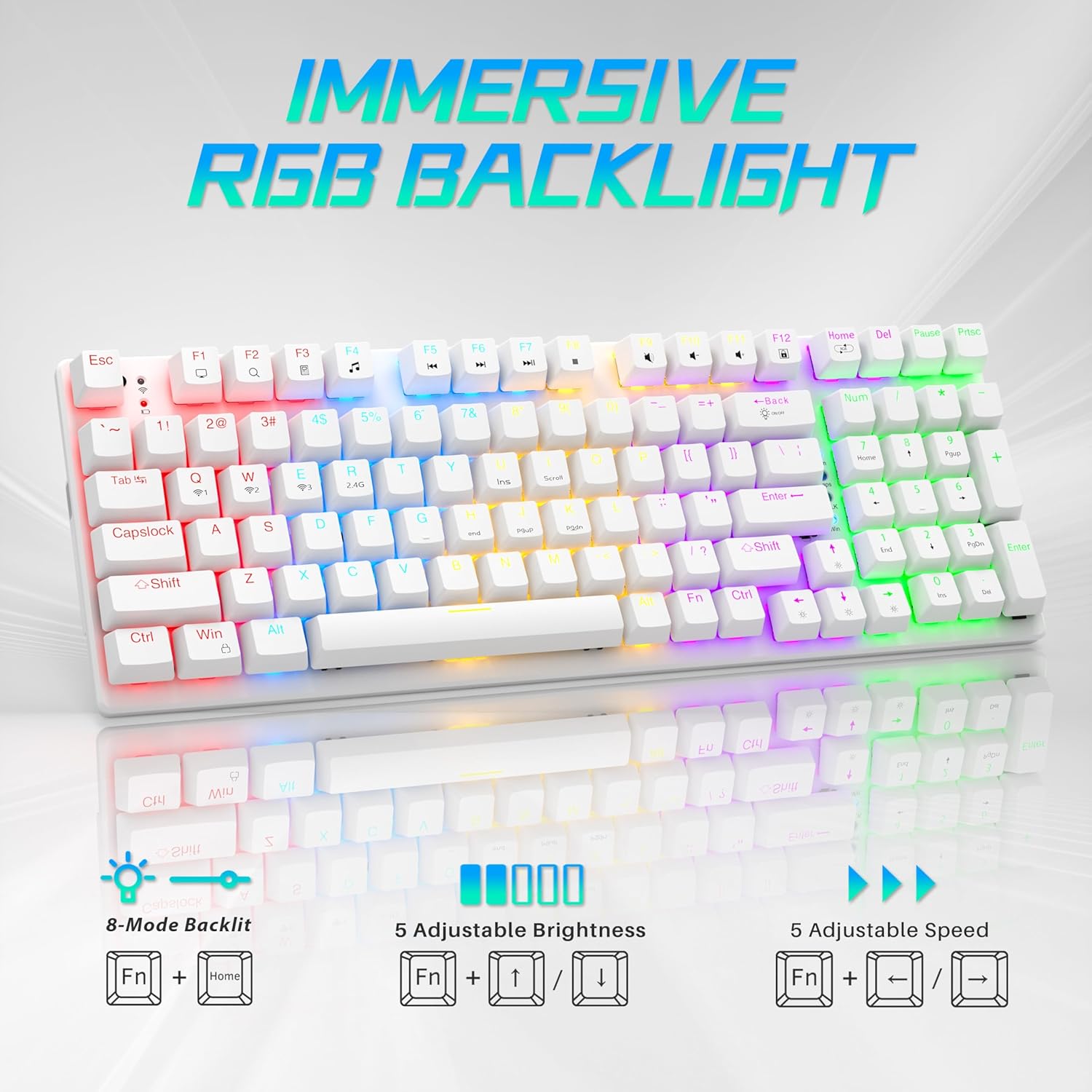
Image: Visual guide to controlling the keyboard's immersive RGB backlight, showing key combinations for 8-mode backlight, 5 adjustable brightness levels, and 5 adjustable speeds.
Video: A demonstration of the keyboard's RGB backlighting in action, highlighting the various lighting effects and colors.
4.2 Mouse DPI Kugadziriswa
The mouse features 4 adjustable DPI levels for varying cursor sensitivity.
- Change DPI: Press the DPI button located on the top of the mouse, below the scroll wheel, to cycle through the 800, 1600, 2400, and 3200 DPI settings.
5. Kuchengeta
- Kuchenesa: Use a soft, dry cloth to clean the surfaces of the keyboard and mouse. For deeper cleaning, a can of compressed air can remove dust and debris from between keycaps.
- Mouse Battery Replacement: When the mouse's performance degrades, replace the AA battery in the compartment on the underside.
- Keycap Removal: A keycap puller (often included with mechanical keyboards) can be used to carefully remove keycaps for cleaning or replacement.
Vhidhiyo: Yakadzama review demonstrating the mouse battery installation, USB receiver storage, and the use of a keycap puller for keyboard maintenance.
6. Kugadzirisa matambudziko
- Mudziyo Hausi Kubatana:
- Ensure the device is powered on and fully charged (keyboard) or has a fresh battery (mouse).
- For 2.4G wireless, ensure the USB receiver is securely plugged into a working USB port.
- For Bluetooth, ensure the device is in pairing mode and your computer's Bluetooth is enabled and searching. Try re-pairing the device.
- If using wired mode, ensure the USB-C cable is properly connected.
- Keyboard Backlighting Not Working:
- Ita shuwa kuti kiibhodhi yakabatidzwa.
- Try adjusting brightness using Fn + ↑.
- Tembedza mafambiro emwenje uchishandisa nzira dzemwenje Fn + Kumba.
- Mouse Cursor Jumps or is Unresponsive:
- Tsiva bhatiri rembeva.
- Ensure the mouse sensor is clean and free of debris.
- Try using the mouse on a different surface or the provided mouse pad.
- Re-pair the mouse with your computer.
7. Zvinotsanangurwa
| Feature | Detail |
|---|---|
| Model Number | BK6301 |
| Kubatana Technology | 2.4GHz Wireless, Bluetooth 5.0, USB-C Waya |
| Keyboard Type | Mechanical Gaming Khibhodi |
| Chinja Type | Blue Mechanical Switches |
| Hupenyu Hunokosha | Mamirioni makumi mashanu Ekudzvanya |
| Backlighting | RGB (8 Modes) |
| Mouse DPI Levels | 800/1600/2400/3200 |
| Mouse Battery | 1 AA bhatiri (inosanganisirwa) |
| Inowirirana Devices | Laptop, PC (Windows, macOS, Android) |
| Zviyero zvechigadzirwa (Kiyibhodhi) | Anenge 14.7" L x 5.2" W x 1.8" H |
| Item Weight | 2.68 makirogiramu |

Image: The Taiahiro BK6301 keyboard and mouse with key dimensions labeled for reference.
8. Warranty uye Tsigiro
For warranty information, technical support, or any product-related inquiries, please refer to the contact details provided in your product packaging or visit the official Taiahiro website. Chengeta risiti yako yekutenga yezvichemo zvewaranti.


