1. Nhanganyaya
The iFLYTEK AINOTE Air 2 is an 8.2-inch AI E Ink tablet designed for smart note-taking, document management, and enhanced productivity. It integrates advanced AI features such as real-time voice-to-text transcription, multi-language translation, and intelligent meeting summaries. The device offers a paper-like writing experience with its E Ink display and included stylus, making it suitable for various professional and academic applications.

Image 1.1: The AINOTE Air 2 tablet with its stylus, showcasing its AI-powered note-taking features.
2. Chii chiri muBhokisi
Iva nechokwadi chekuti zvikamu zvese zviripo mupakeji:
- AINOTE Air 2 Main Unit
- Stylus Pen
- Chaja Cable (Type-C)
- Mushandisi Chinyorwa (gwaro iri)

Image 2.1: Standard accessories included with the AINOTE Air 2.
3. Setup
3.1 Kutanga Kuchaja
Before first use, fully charge your AINOTE Air 2 tablet. Connect the provided USB Type-C cable to the tablet's charging port and a compatible USB power adapter (not included). The charging indicator will illuminate.
3.2 Simba On/Kudzima
- Kubatidza: Press and hold the power button located on the top edge of the tablet until the screen activates.
- Kudzima: Dzvanya wobata bhatani rekudzima, wobva wasarudza 'Kudzima' kubva pane zviri pa-screen.
3.3 Magadzirirwo ekutanga
Pamusoro pekutanga simba-pa, tevera pa-screen kukurudzira ku:
- Sarudza mutauro waunoda.
- Batanidza kune network yeWi-Fi.
- Set up your iFLYTEK account or log in.
- Complete any system updates.
4. Operating Instructions
4.1 Note-Taking and Writing
The AINOTE Air 2 provides a paper-like writing experience using the included stylus. Open the 'Notes' application to begin a new note or access existing ones.
- Kushandisa Stylus: The stylus is designed for precise input. It features a built-in eraser and offers 4096 levels of pressure sensitivity for a natural writing feel. No charging is required for the stylus.
- Kunyora-Kuita-Rugwaro: Convert handwritten notes to editable text in 83 languages. Select the conversion option within the notes interface.

Image 4.1: The AINOTE Air 2 demonstrating handwritten notes and their digital transcription.

Image 4.2: Close-up of the stylus in use on the AINOTE Air 2, illustrating the immersive writing experience.
4.2 AI Note-Taking and Transcription
The tablet offers real-time voice-to-text transcription and AI-powered meeting summaries.
- Voice Transcription: Record audio during meetings or lectures. The tablet transcribes spoken words into text in 15 languages, including English, Spanish, Chinese, French, and more.
- Pfupiso dzeMusangano: Utilize the AI to generate concise summaries of recorded and transcribed meetings, highlighting key points and action items.

Image 4.3: The AINOTE Air 2 displaying multi-language transcription capabilities.

Mufananidzo 4.4: Pamusoroview of the AINOTE Air 2's extensive language support for transcription, translation, and handwriting conversion.
4.3 Reading and Display
The 8.2-inch HD E Ink screen provides a comfortable reading experience, similar to physical paper.
- Ratidzo Inoenderana Nemaziso: The E Ink technology reduces eye strain, making it suitable for extended reading sessions.
- Adjustable Lighting: Features a dual-color temperature reading light with 24 adjustable brightness levels to customize warm/cool tones for various environments.
- High Resolution: A 1920x1440 resolution (293 PPI) ensures sharp text and image clarity.

Image 4.5: The AINOTE Air 2's adjustable dual-color temperature lighting for comfortable reading.
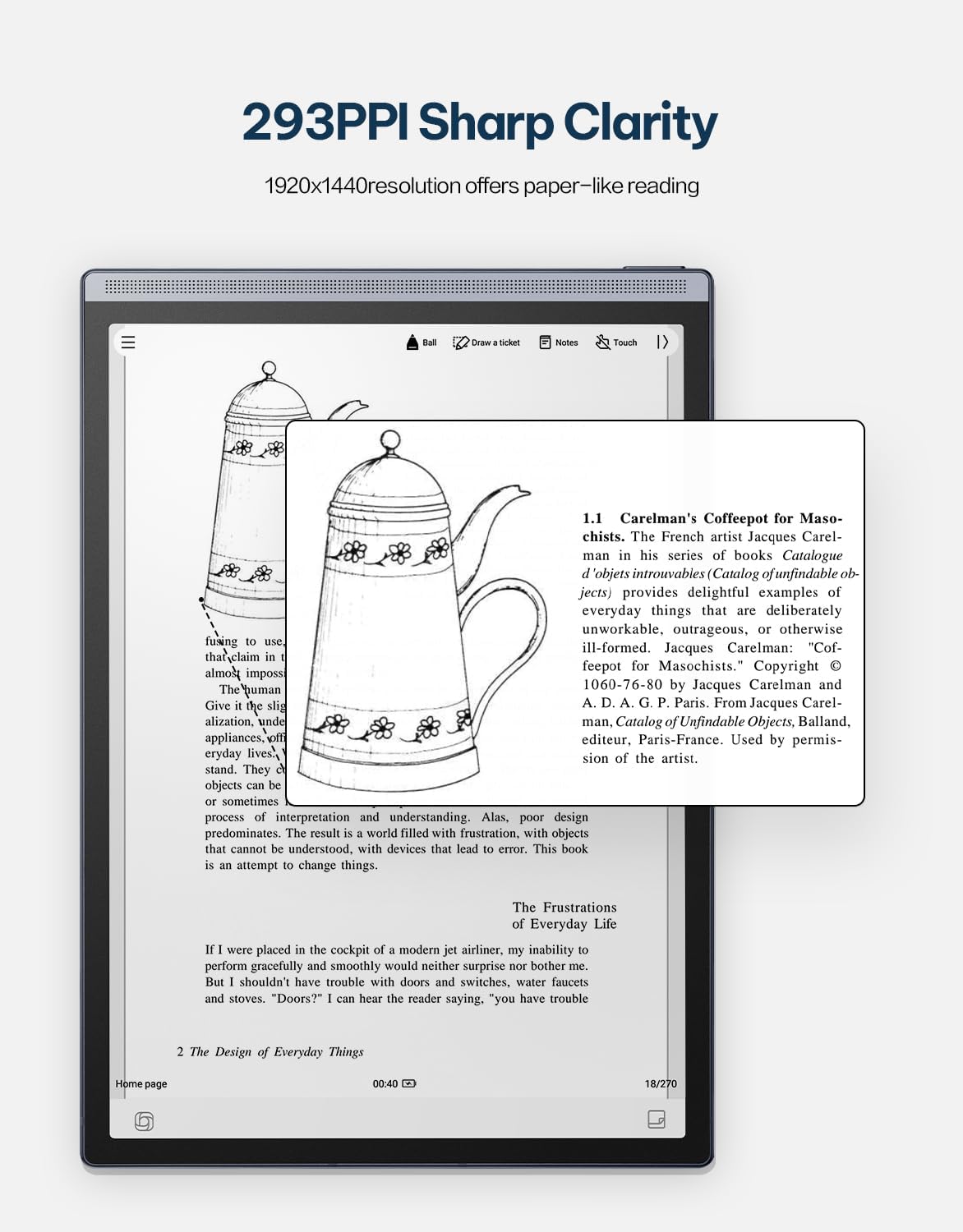
Image 4.6: The AINOTE Air 2's display quality, showing sharp text and images for reading.
4.4 Schedule Management and AI Features
The tablet integrates AI for efficient schedule management and enhanced productivity.
- Kuronga kwakangwara: Mark handwritten notes with special symbols (stars, triangles, circles) using the stylus to automatically create to-dos and highlight important items, syncing them with your schedule.
- ChatGPT Kubatanidzwa: Engage in intelligent dialogues with ChatGPT for information retrieval, brainstorming, and task assistance.
- Kutsvaga kweAI-Powered: Utilize semantic retrieval to quickly locate key points in meetings and documents, supporting text, voice, and handwriting search.

Image 4.7: Various productivity features of the AINOTE Air 2, including smart scheduling and cloud synchronization.

Image 4.8: The AINOTE Air 2's integration with ChatGPT for interactive assistance.
4.5 Cloud Sync and Storage
The AINOTE Air 2 supports secure cloud syncing for your notes and documents.
- OneDrive Integration: Sync your content with OneDrive for access across multiple devices and secure storage.
- Google Play: The tablet integrates with Google Play, allowing access to a wider range of applications.
5. Kuchengeta
5.1 Kuchenesa Chishandiso
- Use a soft, lint-free cloth to gently wipe the screen and body of the tablet.
- Do not use abrasive cleaners, alcohol, or chemical solvents, as these can damage the screen and finish.
- Ita shuwa kuti mudziyo wakadzimwa uye wabviswa kubva kune chero sosi yemagetsi usati wachenesa.
5.2 Kuchengeta Battery
- Avoid exposing the tablet to extreme temperatures (hot or cold) as this can affect battery life and performance.
- Kuti bhatiri rive nehupenyu hurefu, dzivisa kuburitsa bhatiri zvakazara nguva zhinji.
- If storing the device for an extended period, charge it to approximately 50% before storage.

Image 5.1: The AINOTE Air 2's USB-C port and battery capacity information.

Image 5.2: Visual representation of the AINOTE Air 2's 2600 mAh battery and its extended usage time.
6. Kugadzirisa matambudziko
6.1 Matambudziko Anowanikwa uye Magadzirirwo
| Nyaya | Zvinogona Kukonzera | Solution |
|---|---|---|
| Mudziyo haubatike | Bhatiri rakaderera; Kubonderana kwesystem | Chaja mudziyo kwemaminitsi angangoita makumi matatu. Ita zvekumanikidzwa kutangazve nekubata bhatani rekudzima kwemasekondi gumi kusvika gumi nemashanu. |
| Stylus haisi kupindura | Stylus tip worn; Software glitch | Check if the stylus tip needs replacement. Restart the tablet. Ensure the stylus is within operating range. |
| Wi-Fi nyaya dzekubatanidza | Incorrect password; Router issue; Software bug | Verify Wi-Fi password. Restart your router. Restart the tablet and try connecting again. |
| Slow performance/Lag | Mapurogiramu akawanda akavhurika; Nzvimbo yekuchengetera yakaderera; Software yekare | Close unnecessary applications. Free up storage space. Check for and install system updates. |
7. Zvinotsanangurwa
| Feature | Detail |
|---|---|
| Model Name | AINOTE Air 2 (XF-DX-B282E) |
| Screen Size | 8.2 inches |
| Display Type | E Ink, 1920x1440 resolution (293 PPI) |
| Operating System | Android |
| processor | RK3566 Quad-Core 1.8GHz |
| Memory | 4GB LPDDR4x |
| Storage | 32GB EMMC |
| Bhatiri | 2600 mAh (Up to 1 week daily use, 3 weeks standby) |
| Kubatana | USB 2.0 Rudzi-C |
| Dimensions | 7.5 x 0.2 x 5.3 inches (Ultra-slim 5mm) |
| Kurema | 1.06 makirogiramu (230g) |
| Stylus | 4096 pressure sensitivity, built-in eraser, no charging required |
| Lighting | Dual-color temperature reading light, 24 adjustable levels |

Image 7.1: Physical dimensions and weight of the portable AINOTE Air 2 tablet.

Image 7.2: Internal specifications of the AINOTE Air 2, including CPU, memory, and operating system.
8. Warranty uye Tsigiro
8.1 Chigadzirwa Chivimbiso
The iFLYTEK AINOTE Air 2 comes with a standard manufacturer's warranty. Please refer to the warranty card included in your product packaging or visit the official iFLYTEK websaiti kune yakadzama waranti mazwi uye mamiriro.
8.2 Mutengi Tsigiro
For technical assistance, troubleshooting, or general inquiries, please contact iFLYTEK customer support through their official websaiti kana ruzivo rwekusangana rwunopihwa mune yako chigadzirwa zvinyorwa.
9. Chigadzirwa Pamusoroview Vhidhiyo
Tarisa vhidhiyo iyi kuti uone pamusoroview of the AINOTE Air 2 tablet's features and functionality.
Video 9.1: An official product video demonstrating the key features and usage of the AINOTE Air 2 tablet.


