1. Nhanganyaya
Welcome to the user manual for your new UXD A5 Android 13 Tablet. This guide provides essential information on setting up, operating, maintaining, and troubleshooting your device to ensure optimal performance and user experience. Please read this manual thoroughly before using your tablet.
2. Package Zviri mukati
Tarisa kuti zvinhu zvese zvakanyorwa pazasi zvinosanganisirwa mupakeji yako:
- UXD A5 Android 13 Tablet
- Stylus
- Screen Protector
- OTG Dongle
- Keyboard
- Mouse
- Foldable Bag
- Chaja Cable
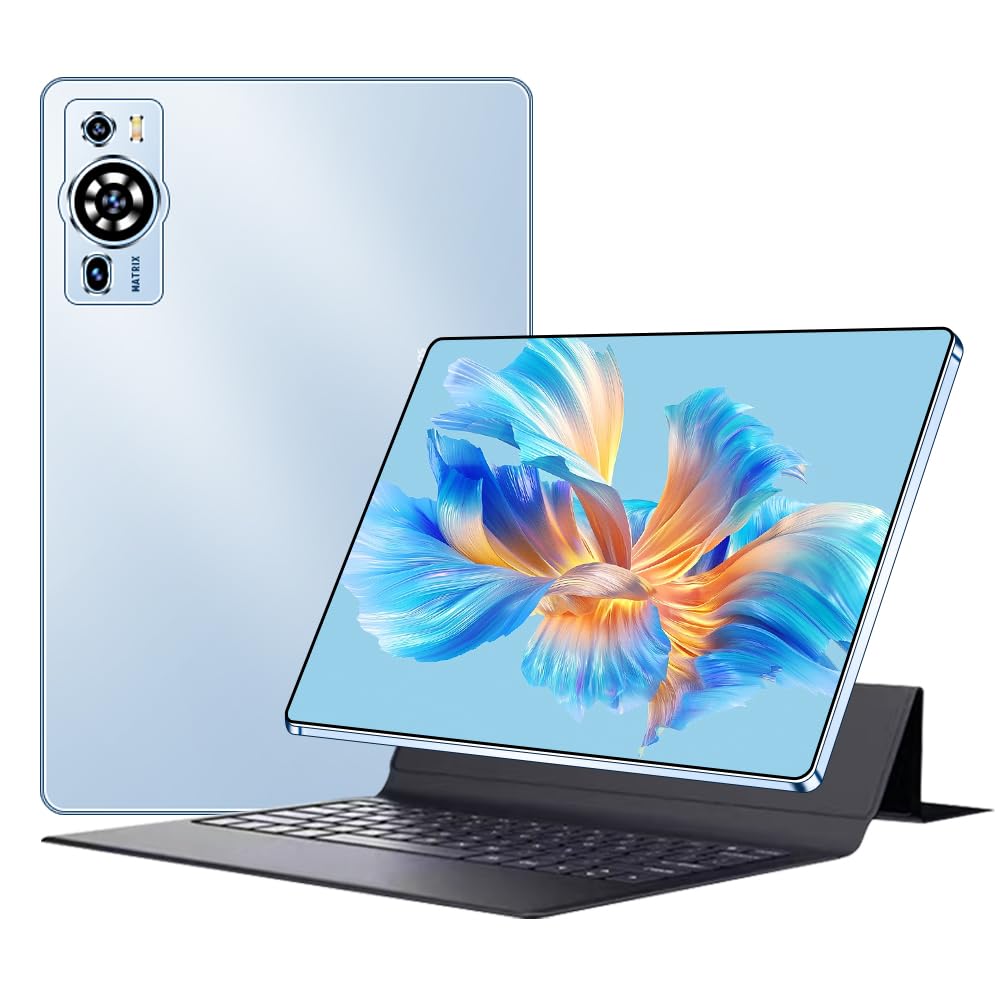
Image 2.1: UXD A5 Tablet with keyboard, mouse, stylus, and other accessories.
3. Chigadzirwa Pamusoroview
Ziva zvinhu zviri mupiritsi rako:

Image 3.1: Diagram illustrating the tablet's ports and buttons.
- Headphone Jack: Yekubatanidza mahedhifoni ane waya.
- Bhatani reSimba: Press and hold to power on/off or restart. Press briefly to wake/sleep the screen.
- Vhoriyamu Keys: Adjust the tablet's volume.
- Charging Port (Type C): Connect the provided USB-C cable for charging.
- Front Camera: Yemavhidhiyo mafoni uye selfies.
- SIM Card Slot: Insert a Nano-SIM card for 4G cellular connectivity and a microSD card for expandable storage.
- Vatauri: Stereo speakers for audio output.
4. Kutanga Setup
4.1. Kuchaja Tablet
Before first use, fully charge your tablet. Connect the provided USB-C charging cable to the tablet's charging port and plug the other end into a power adapter (not always included) or a computer's USB port. The battery indicator on the screen will show charging status.
4.2. Powering On / Off
- Kubatidza: Press and hold the Power Button until the UXD logo appears.
- Kudzima: Press and hold the Power Button until the power options menu appears, then select "Power off."
- Kuti utangezve: Press and hold the Power Button until the power options menu appears, then select "Restart."
4.3. Kuisa SIM uye MicroSD Kadhi
Locate the SIM card slot on the side of the tablet. Use the provided SIM ejector tool (if included) to open the tray. Carefully place your Nano-SIM card and/or microSD card into the designated slots on the tray, ensuring correct orientation. Insert the tray back into the tablet until it clicks into place.
4.4. Kubatanidza Zvishandiso
- Kiyibhodhi uye Mouse: These accessories typically connect via Bluetooth. Go to Settings > Yakabatana midziyo > Bluetooth on your tablet, turn on Bluetooth, and pair with the keyboard and mouse. Follow the specific pairing instructions for each accessory.
- Chinyorwa: The stylus can be used directly on the screen for drawing, writing, and navigation. No pairing is usually required for basic functionality.
- OTG Dongle: Connect the OTG dongle to the tablet's USB-C port to connect USB devices like flash drives or external hard drives.
5. Operating Instructions
5.1. Kufamba neAndroid 13
Your tablet runs on Android 13, offering an intuitive user interface. Swipe up from the bottom for the app drawer, swipe down from the top for quick settings and notifications. Use gestures or the navigation bar for Home, Back, and Recent Apps functions.
5.2. Kubatana
- Wi-Fi 6: Kuti ubatanidze kuWi-Fi, enda ku Settings > Network & internet > Internet, select your desired network, and enter the password.
- Makaralı 5.0: For connecting wireless headphones, speakers, or other Bluetooth devices, go to Settings > Yakabatana midziyo > Bluetooth.
- 4G Nharembozha: If you have inserted a SIM card, enable mobile data in Zvirongwa> Network & internet> Mobile network.
5.3. Ratidza Settings
The 10.1-inch HD IPS display offers vibrant visuals. Adjust brightness, dark theme, and font size in Settings > Ratidza. The tablet supports features like eye protection modes to reduce strain.

Image 5.1: Tablet display highlighting key features like connectivity and eye protection.
5.4. Kushandiswa kwekamera
Your tablet is equipped with dual cameras. Open the Camera app to take photos or record videos. Tap on the screen to focus and use the on-screen controls for various modes and settings.
5.5. Battery Management
The 8000 mAh battery provides extended usage. To optimize battery life, adjust screen brightness, close unused apps, and enable battery saver mode when needed. Avoid extreme temperatures.

Image 5.2: Battery performance overview kumabasa akasiyana-siyana.
5.6. Mashandisiro Ekushandisa
The UXD A5 tablet is versatile for various tasks:

Mufananidzo 5.3: Eksamples of tablet use for creative, entertainment, and productivity tasks.
- Painting & Drawing: Utilize the stylus for creative applications.
- Mutambo Enjoy a smooth gaming experience with the Octa-Core processor and 12GB RAM.
- Study & Work: Use the keyboard and mouse for productivity, and the stylus for note-taking.
- Media Consumption: Watch videos and listen to music on the HD display and stereo speakers.
6. Kuchengeta uye Kuchengetedza
- Kuchenesa: Shandisa jira rakapfava, risina lint kuchenesa skrini uye muviri. Dzivisa makemikari ane hasha.
- Kuchengeta: Chengetedza piritsi munzvimbo inotonhorera, yakaoma kure nechiedza chezuva uye tembiricha yakanyanyisa.
- Zvigadziriso zveSoftware: Gara uchitarisa uye kuisa masisitimu ekugadzirisa kuti uve nechokwadi chekushanda kwakakwana uye kuchengetedzeka. Enda ku Settings> System> System update.
- Kudzivirira Chinovhara: Apply the included screen protector to prevent scratches.
7. Troubleshooting Guide
Ichi chikamu chinotarisa zvinowanzoitika zvaungasangana nazvo:
- Tablet haizobatidzi: Ensure the tablet is charged. Connect it to a charger for at least 30 minutes, then try powering on again. If it still doesn't turn on, perform a forced restart by holding the power button for 10-15 seconds.
- Sikirini haisi kudavira: Tangazve tablet. Kana nyaya ikaramba iripo, ita shuwa kuti skrini yakachena uye haina tsvina.
- Wi-Fi nyaya dzekubatanidza: Tarisa kana Wi-Fi yakabatidzwa mumasetingi. Tangazve router yako netablet. Kanganwa network wobva wabatanidzazve.
- Kuita zvishoma nezvishoma: Close unused applications. Clear cache data from apps. Consider performing a factory reset (back up your data first).
- Zvishongedzo hazvibatanidzi: Ensure Bluetooth is enabled on the tablet and the accessory is in pairing mode. Check battery levels of wireless accessories.
8. Zvinyorwa zveUnyanzvi
| Brand | UXD |
| Model Number | A5 |
| Operating System | Android 13 |
| processor Brand | MediaTek Octa Core |
| RAM | 12 GB |
| Storage Capacity | 256 GB |
| Screen Size | 10.1 inches |
| Display Resolution | 1920 x 1200 pixels (HD IPS) |
| Battery Capacity | 8000 mAh |
| Hupenyu hwebhatiri | Kusvikira kumaawa makumi maviri nemashanu |
| Wireless Kubatana | Wi-Fi 6 (802.11ax, 802.11b), Bluetooth 5.0, 4G Cellular |
| Interfaces | USB Type-C, Bluetooth |
| Dimensions (L x W x H) | 24 x 16 x 0.9 cm |
| Product Weight | 1 kilogram |
| Special Features | Detachable Keyboard, Stereo Speakers, USB OTG Support, Stylus Support |

Image 8.1: Tablet showcasing its ultra-slim design and weight.
9. Warranty uye Tsigiro
Information regarding specific warranty terms and availability of spare parts is not provided in the product details. For warranty claims, technical support, or inquiries about spare parts, please refer to the manufacturer's official website or contact their customer service directly. Please retain your proof of purchase for any warranty-related requests.


