Nhanganyaya
The RSH Android Smart Tag is a compact and efficient device designed to help you locate your valuable items using the Google Find My Device app. This manual provides comprehensive instructions to ensure you get the most out of your Smart Tag.

Image: Four RSH Android Smart Tags, kuratidzaasing their design and quantity in the pack.
Gadzirira
1. Powering On uye Off
The RSH Android Smart Tag features a function button for basic operations. Refer to the diagram below for the button's location.
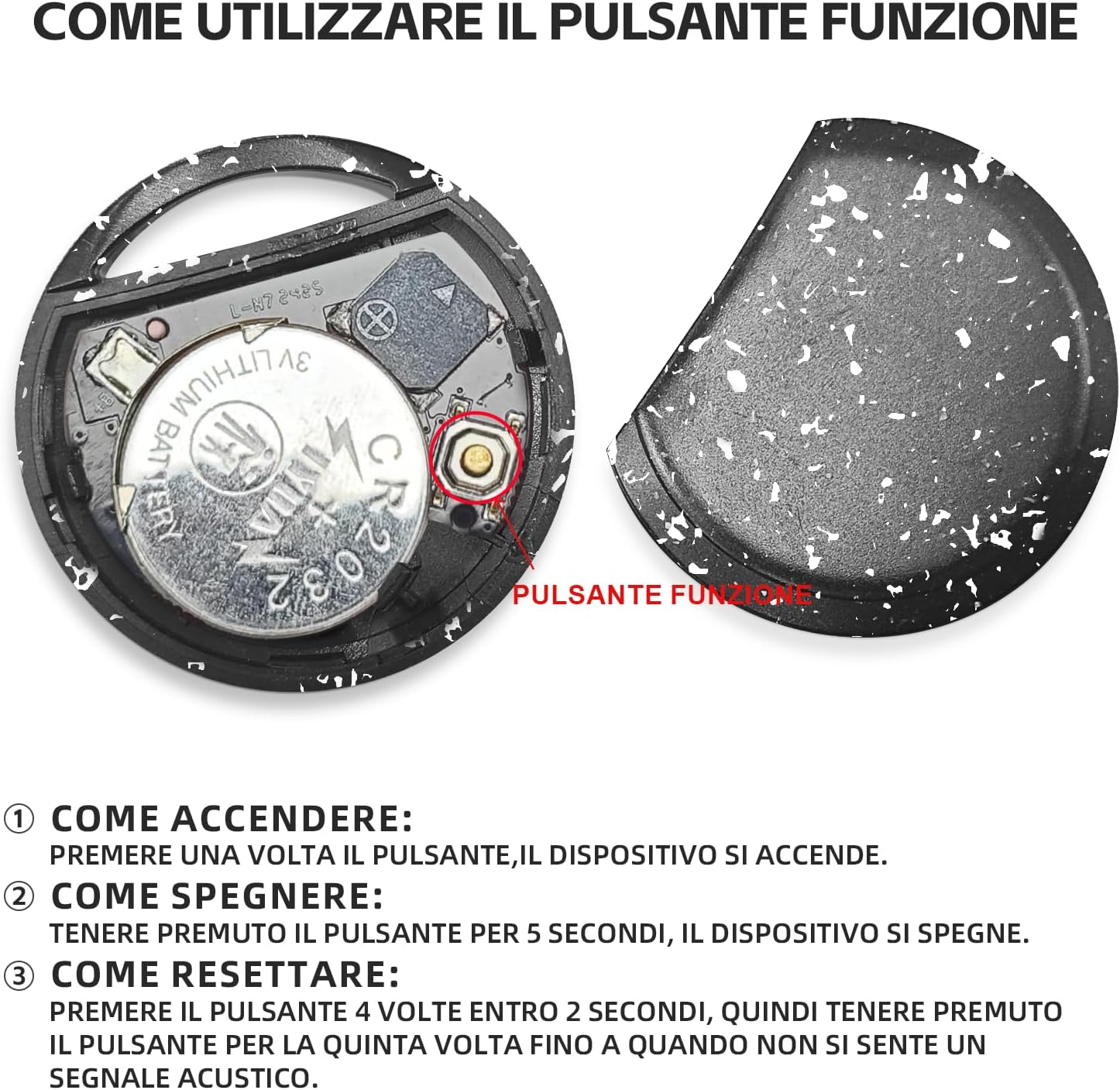
Mufananidzo: Mukati view yeSmart Tag, illustrating the battery and function button.
- Ungabatidza sei Press the function button once. The device will turn on.
- Nzira yeKudzima: Press and hold the function button for 5 seconds. The device will turn off.
2. Fast Pairing with Android Devices
Vakangwara Tag is designed for quick and seamless pairing with your Android smartphone.
- Ensure your Android phone's Bluetooth is enabled.
- Bring the RSH Android Smart Tag pedyo nefoni yako.
- A connection invitation will automatically appear on your phone's screen. Follow the on-screen prompts to complete the pairing process.

Image: Visual representation of the Smart Tag's compatibility with a wide range of Android devices.
Operating Instruction
1. Tracking and Item Search
Utilize the Google Find My Device app to locate your RSH Android Smart Tag.
- Mukati meBluetooth Range: Open the Google Find My Device app. If the tag is within Bluetooth range, you can activate its built-in speaker to emit an audible signal, helping you pinpoint its exact location.
- Out of Bluetooth Range: Kana iyo tag is outside Bluetooth range, the app will display its last known location on a map, leveraging the Google Find My Device network.

Image: Demonstration of the 'Play sound' feature within the Google Find My Device app.

Image: The Smart Tag attached to a backpack, illustrating its use for tracking items.

Image: The Smart Tag attached to luggage, emphasizing its utility for travel.
2. Loss Mode
Activate Loss Mode in the Google Find My Device app if your item is missing. This feature leverages the vast network of billions of Android devices to help locate your lost item.
3. Sharing Items
You can share access to your Smart Tag with others through the Google Find My Device app. This allows multiple users to view the item's location on the map.

Image: Various use cases for the Smart Tag, demonstrating its versatility for tracking different items.
Maintenance
1. Kutsiviwa kwebhatiri
The RSH Android Smart Tag uses a replaceable CR2032 battery, which typically lasts up to 1 year. To replace the battery:
- Carefully open the Smart Tag casing.
- Bvisa bhatiri rekare reCR2032.
- Isa bhatiri idzva reCR2032, kuve nechokwadi che polarity chaiyo.
- Vhara iyo casing zvakachengeteka.
2. Kuramba Mvura
The MiTag tracker is IP67 certified, meaning it is protected from dust and can withstand immersion in 1 meter of water for up to 30 minutes. While it is water-resistant, it is not recommended for prolonged submersion or use during swimming.
Kugadzirisa matambudziko
Resetting Chishandiso
If you experience connectivity issues or unusual behavior, you may need to reset your RSH Android Smart Tag:
- Press the function button 4 times within 2 seconds.
- Immediately after the fourth press, press and hold the function button for the fifth time until you hear an audible signal. This indicates the device has been reset.
Zvinotsanangurwa
| Feature | Detail |
|---|---|
| Brand | RSH |
| Material | Plastiki |
| Product Dimensions | 36L x 36W x 8Th millimetres |
| Item Weight | 7.6 magiramu |
| Inowirirana Devices | Smartphone (Android Only) |
| Kudzora Nzira | App (Google Find My Device) |
| Bhatiri Type | 1 CR2032 (included, replaceable) |
| Kuramba Mvura | IP67 Certified |
Warranty uye Support
Information regarding product warranty and customer support is not provided in the available data. Please refer to the product packaging or the seller's webwebhusaiti kuti uwane rumwe ruzivo nezve garandi uye kuti ungabata sei rutsigiro rwevatengi.


