1. Nhanganyaya
This manual provides detailed instructions for the installation, configuration, and operation of the Intelbras iNVD 5232 32-Channel IP Digital Video Recorder. Please read this manual thoroughly before using the device to ensure proper functionality and to prevent damage.
The Intelbras iNVD 5232 is designed for professional surveillance applications, offering advanced features for recording, monitoring, and managing IP camera feeds.
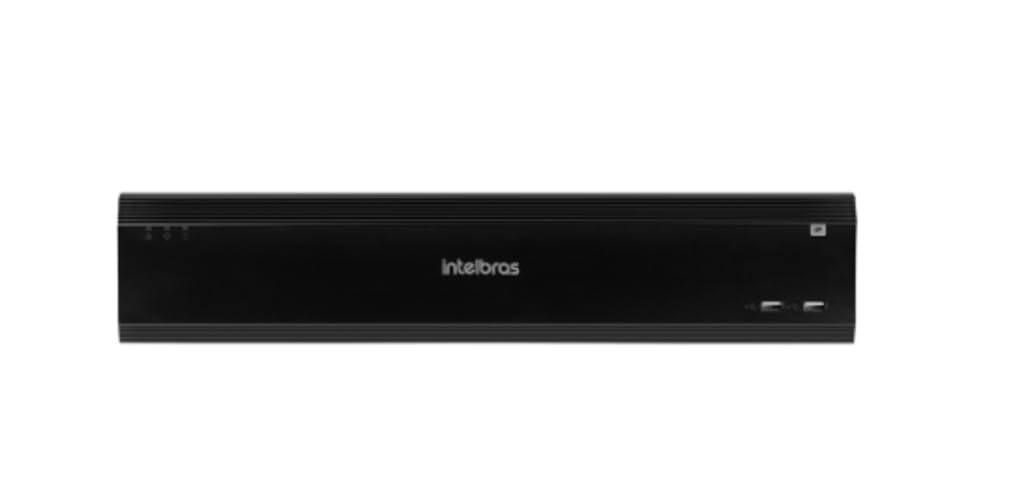
Figure 1: Intelbras iNVD 5232 Digital Video Recorder. This image shows the front panel of the iNVD 5232 unit, featuring a sleek black design with the Intelbras logo and USB ports.
2. Safety Information
Tevedzera matanho ekuchengetedza anotevera kudzivirira kukuvara nekukuvadzwa kwemudziyo:
- Ita shuwa kuti magetsi emagetsi awandatage inofanana nezvinodiwa nemudziyo.
- Usaise mudziyo pahunyoro, mvura, kana tembiricha yakanyanya.
- Dzivisa kuisa mudziyo muzuva rakananga kana pedyo nekupisa.
- Usavhura mudziyo casing. Tumira masevhisi ese kuvashandi vanokwanisa.
- Shandisa zvishongedzo chete zvakatsanangurwa nemugadziri.
- Properly ground the device to prevent electrical shock.
3. Package Zviri mukati
Tarisa uone kuti zvinhu zvese zviripo mupakeji:
- Intelbras iNVD 5232 Digital Video Recorder Unit
- Power Adapter
- USB Mouse
- Screws for HDD Installation
- Quick Start Guide
- CD-ROM (containing software and full manual)
4. Chigadzirwa Pamusoroview
4.1 Pamberi Panel
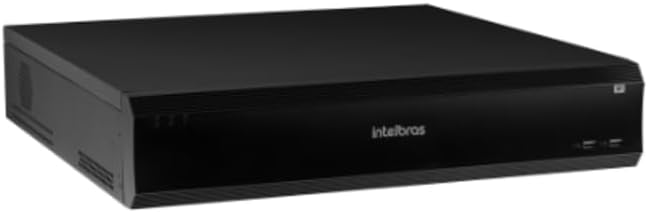
Figure 2: Front Panel of the iNVD 5232. This image displays the front of the DVR, showing LED indicators for power and status, along with two USB ports for peripheral connections.
- Simba re LED: Inoratidza simba chinzvimbo.
- Mamiriro akatungamira: Inoratidza mamiriro ekushanda kwesystem.
- USB Ports: For connecting a mouse, USB drive, or other peripherals.
4.2 Rear Panel

Figure 3: Rear Panel of the iNVD 5232. This image details the rear connections, including power input, network ports, video outputs (HDMI, VGA), audio inputs/outputs, and alarm terminals.
- Power Input: Batanidza iyo yakapihwa magetsi adapta.
- HDMI Output: Connect to an HDMI-compatible monitor.
- VGA Output: Connect to a VGA-compatible monitor.
- LAN Ports: Connect to your network for IP camera communication and remote access.
- Audio In/Out: Yekubatanidza ekunze ekuteerera midziyo.
- Alarm In/Out: For connecting external alarm sensors and actuators.
- USB Ports: Mamwe ma USB ports ekushandisa zvinhu zvekunze.
5. Setup
5.1 Hardware Installation
- Install Hard Drive (if not pre-installed): Open the DVR casing, mount the hard drive using the provided screws, and connect the SATA power and data cables.
- Batanidza Monitor: Batanidza monitor kune HDMI kana VGA output port.
- Batanidza Mouse: Plug the USB mouse into one of the USB ports.
- Batanidza Network: Connect an Ethernet cable from the LAN port to your network router or switch.
- Batanidza Simba: Plug the power adapter into the DVR's power input and then into a power outlet. The device will power on automatically.
5.2 Magadzirirwo ekutanga
Upon first boot, the system will guide you through an initial setup wizard:
- Sarudzo yeMutauro: Sarudza mutauro waunofarira.
- Password Setup: Create a strong administrator password.
- Network Settings: Configure IP address, subnet mask, gateway, and DNS. DHCP is usually enabled by default.
- Zuva uye Nguva: Isa zuva, nguva, uye nzvimbo yenguva chaiyo.
- Kutanga kweHDD: Format the installed hard drive for recording.
- IP Camera Search and Add: The system will scan for available IP cameras on the network. Select and add your cameras.
6. Kushanda
6.1 Rarama View
After initial setup, the system will display the live view yemakamera akabatana. Unogona kuchinja pakati pekamera imwe chete view, multi-camera grids, and sequence views using the on-screen controls or mouse.
6.2 Kurekodha Management
- Kurekodha Chirongwa: Rongedza inoenderera, inofamba-yekuona, kana alarm-inokonzeresa kurekodha mashedhi ekhamera yega yega.
- Manual Recording: Initiate recording manually from the live view interface.
- Kutamba Svika yakanyorwa footage by date, time, and event type. Use the playback controls to navigate through recordings.
- Negadziriro yeparutivi: Export recorded video clips to a USB drive or network storage.
6.3 Remote Access
The iNVD 5232 supports remote access via a web browser or dedicated mobile application. Ensure your network is configured for remote access (e.g., port forwarding or P2P cloud service activation).
- Web Browser Enter the DVR's IP address into a web browser pane komputa yakabatana kune imwecheteyo network.
- Mobile App: Download the official Intelbras surveillance app from your device's app store. Scan the QR code on the DVR (if available) or manually enter the device ID for connection.
7. Kuchengeta
7.1 Kuchenesa
Regularly clean the exterior of the DVR with a soft, dry cloth. Do not use liquid cleaners or aerosols. Ensure ventilation openings are free from dust and obstructions.
7.2 Firmware Updates
Periodically check the Intelbras website for firmware updates. Firmware updates can provide new features, performance improvements, and security enhancements. Follow the instructions provided with the firmware update package carefully.
7.3 Kutarisira Hard Drive
Monitor the health of your hard drives through the system's HDD management menu. Replace failing drives promptly to avoid data loss. Configure automatic overwriting of old footage kuti tive nechokwadi chekuramba chichirekodhwa.
8. Kugadzirisa matambudziko
| Dambudziko | Zvinogona Kukonzera | Solution |
|---|---|---|
| Hapana simba | Power cable disconnected; faulty power adapter; power outlet issue. | Check power connections; test power adapter; try a different outlet. |
| Hapana vhidhiyo inobuda | Monitor off/disconnected; incorrect video output settings; faulty cable. | Ensure monitor is on and connected; check video cable; try a different output port or cable. |
| Cannot connect IP cameras | Network issue; incorrect camera IP address/credentials; camera not powered. | Verify network connectivity; ensure cameras are powered and configured correctly; check camera credentials. |
| Hapana kurekodha | HDD not initialized/full; recording schedule not set; camera disconnected. | Initialize HDD; check recording schedule; verify camera connection and status. |
9. Zvinotsanangurwa
| Feature | Tsanangudzo |
|---|---|
| Model | iNVD 5232 |
| Vhidhiyo Input | 32 IP Zviteshi |
| Video Output | 1 HDMI, 1 VGA |
| Audio Input/Output | Specific ports (e.g., RCA) |
| Kurekodha Resolution | Up to 8MP (depending on camera) |
| Playback Capability | Multi-channel synchronous playback |
| Storage | Multiple SATA HDD bays (HDDs not included) |
| Network inowanikwa | Gigabit Ethernet zviteshi |
| USB Interface | USB 2.0/3.0 zviteshi |
| Magetsi | DC 12V (adapter included) |
| Operating Temperature | 0°C kusvika 50°C (32°F kusvika 122°F) |
10. Warranty uye Tsigiro
For warranty information, please refer to the warranty card included with your product or visit the official Intelbras website. Technical support is available through Intelbras authorized service centers and online resources.
Intelbras Yepamutemo Websaiti: www.intelbras.com.br
Ndapota ivai nemodheru yechigadzirwa chenyu nenhamba yeserial yakagadzirira kana muchibata rutsigiro.


