1. Nhanganyaya
Ndatenda nekutengaasing the iFFALCON 40S55T 40-inch Full HD Google TV. This manual provides essential information for the safe and efficient use of your television. Please read it thoroughly before operating the device and retain it for future reference.
The iFFALCON 40S55T is a tunerless smart TV designed for streaming content, offering a Full HD display, Google TV operating system, Chromecast built-in, and Dolby Audio for an immersive entertainment experience.
2. Safety Information
Gara uchitevera chenjedzo dzekuchengetedza paunenge uchishandisa iyi terevhizheni kuderedza njodzi yemoto, kuvhunduka kwemagetsi, uye kukuvara.
- Usafumure TV kunaya kana kunyorova.
- Usavhura TV casing; endesa masevhisi ese kuvashandi vanokwanisa.
- Iva nechokwadi chekufefetera kwakaringana paTV.
- Chengetedza TV kure nechiedza chezuva chakananga, kunobva kupisa, uye simba remagineti.
- Use only the power cord and accessories supplied by the manufacturer.
- Bvisa TV panguva yemadutu emheni kana kuti isina kushandiswa kwenguva refu.
3. Package Zviri mukati
Tarisa kuti zvinhu zvese zviripo mubhokisi:
- iFFALCON 40S55T 40-inch Full HD Google TV
- Remote Control
- TV Stand (2 zvidimbu)
- Zvikuruu zveChigadziko cheTV
- Power Cable
- Warranty Card
- Chinyorwa Chirairo (gwaro iri)
4. Setup
4.1 Kubatanidza iyo TV Stand
- Isa TV zvakanaka-naka panzvimbo yakapfava, yakati sandara kudzivirira kukuvara kwechiso.
- Gadzirisa chidimbu chimwe nechimwe chechigadziko nemiganhu inoenderana nacho pasi peTV.
- Chengetedza zvigadziko uchishandisa screws dzakapihwa. Iva nechokwadi chokuti dzakasimbiswa zvakasimba.
4.2 Kubatanidza Simba
Connect the power cable to the TV's power input and then plug it into a wall outlet. The TV will enter standby mode.
4.3 Initial Setup (Google TV & Network)
Kana watanga kuibatidza kekutanga, TV ichakutungamirira munzira yekutanga yekuisa Google TV. Izvi zvinosanganisira:
- Kusarudzwa kwemutauro.
- Kubatanidza kune network yeWi-Fi.
- Signing in with your Google account to access personalized content and apps.
- Kubvuma mitemo nemamiriro.
4.4 Kubatana
The iFFALCON 40S55T offers various connection options for external devices.

Mufananidzo: Pamusoroview of the TV's connectivity options, including HDMI, USB, Bluetooth, and Wi-Fi.
- HDMI Ports: Connect external devices like gaming consoles, Blu-ray players, or set-top boxes.
- USB Port: Yekubatanidza midziyo yekuchengetera USB kutamba midhiya files.
- Wi-Fi: For wireless internet connection to access streaming services and online features.
- Bluetooth: For connecting wireless headphones, speakers, or other Bluetooth-enabled accessories.
4.5 Tunerless Operation
This TV is designed as a tunerless model, meaning it does not have a built-in tuner for terrestrial (over-the-air) broadcasts. To watch terrestrial, BS, or CS broadcasts, an external tuner is required and must be purchased separately.

Image: The iFFALCON 40S55T TV showcasing its smart features, highlighting its tunerless design and ability to enjoy internet video content without an antenna connection.
5. Kushandisa TV
5.1 Remote Kudzora Pamusoroview
The remote control provides access to all TV functions, including power, volume, channel navigation, and smart TV features. It also supports voice search via 'Hey Google'.

Image: The TV remote control, featuring quick access buttons for popular streaming services and a dedicated microphone button for voice commands.
- Bhatani reSimba: Batidza kana kudzima TV.
- Navigation Mabhatani: Shandisa iyo inotungamira padhi uye OK bhatani kufamba nemamenyu.
- Mabhatani eVolume/Channel: Adjust volume and change channels (if an external tuner is connected).
- App Shortcut Mabhatani: Direct access to popular streaming services like Netflix, YouTube, etc.
- Bhatani reMaikorofoni: Press and hold to activate 'Hey Google' voice search.
5.2 Google TV Zvimiro
Your iFFALCON TV runs on Google TV, providing a personalized and integrated entertainment experience.
- Kuunganidzwa kweZviri Mukati: Google TV organizes movies, shows, and live TV from all your apps and subscriptions into one place.
- Zvinokurudzirwa iwe pachako: Kubva pane yako viewing history and preferences, Google AI suggests content you might enjoy.
- Kutsvaga Nezwi Use the 'Hey Google' feature on your remote to quickly find content, get information, or control smart home devices.
- Chromecast Yakavakwa-mukati: Easily cast content from your smartphone, tablet, or computer directly to your TV screen.

Image: A smartphone screen mirroring content to the iFFALCON TV, demonstrating the Chromecast built-in feature for enjoying mobile content on a larger display.
5.3 Zvirongwa zveMifananidzo
The TV incorporates advanced image processing technologies to deliver a superior viewing experience.
- AI PQ Processor: TCL's proprietary AiPQ Processor intelligently adjusts image quality at the pixel level, enhancing clarity, color, and contrast for a vivid and realistic picture.
- Full HD (FHD): Experience sharp and detailed images with Full High Definition resolution, offering 200% more detail than standard HD screens.

Image: A visual comparison illustrating the enhanced detail and clarity provided by Full HD resolution compared to standard HD.
- HDR10/HLG Support: Enjoy a wider range of colors and contrast with HDR10 and HLG compatibility, revealing stunning detail in both bright and dark scenes.

Image: The TV screen showcasing the vibrant and detailed picture quality achieved with HDR10/HLG technology.
- Micro Dimming: This technology analyzes the image in hundreds of separate zones to adjust brightness and darkness independently, enhancing contrast and picture quality.

Image: A visual representation of Micro Dimming technology, illustrating how it enhances contrast and picture depth by adjusting brightness in specific areas of the screen.
5.4 Sound Settings (Dolby Audio)
The TV features Dolby Audio for clear, rich, and immersive sound.
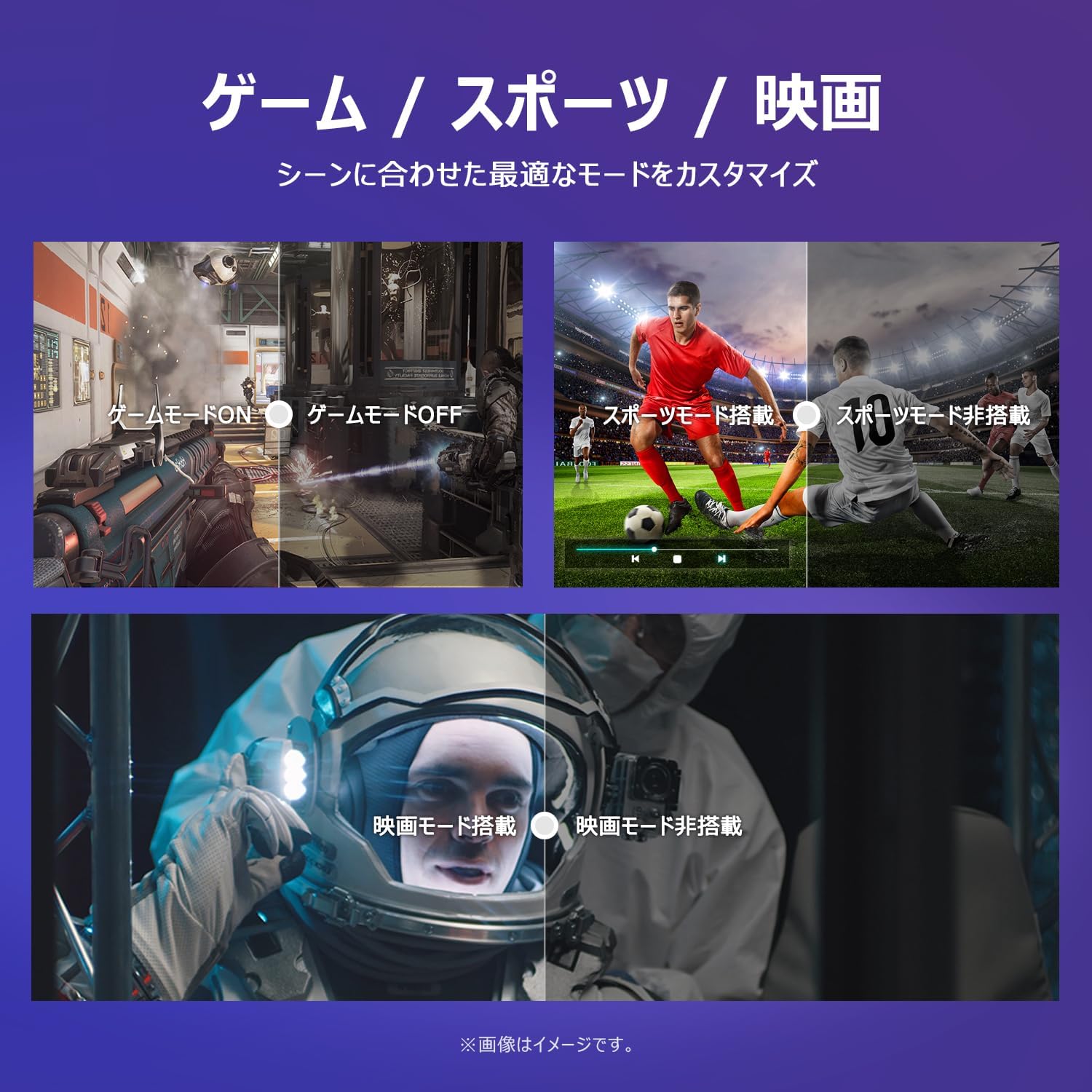
Image: The TV screen with a visual representation of sound, highlighting the immersive audio experience provided by Dolby Audio.
Access the sound settings menu to adjust modes like Standard, Music, Movie, or Custom to suit your preferences.
5.5 Game Mode
Activate Game Mode for an optimized gaming experience with reduced input lag.
Image: Visual comparisons demonstrating the optimized settings for Game Mode, Sports Mode, and Movie Mode, adapting the TV's performance to different content types.
The TV also offers dedicated Sports Mode and Movie Mode to enhance viewing for specific content types.
5.6 System Settings
The quick settings menu allows you to customize frequently used system settings and rearrange their order for intuitive and convenient access.

Mufananidzo: A view of the TV's quick system settings interface, illustrating how users can easily access and customize various functions like brightness, picture mode, and network settings.
6. Kuchengeta
Kutarisirwa kwakakodzera uye kugadzirisa kuchawedzera hupenyu hweterevhizheni yako.
- Kuchenesa Screen: Pukuta sikirini zvinyoro nyoro nejira rakapfava, risina ruvara. Kana paine mavanga akaomarara, shandisa muchina wekuchenesa sikirini wakagadzirirwa maTV, unoiswa pajira, kwete zvakananga pa sikirini.
- Kuchenesa iyo Casing: Shandisa jira rakapfava, rakaoma kupukuta TVasing. Usashandise zvinochenesa zvinogumbura kana zvinonyungudutsa.
- Kufefetedza Ita shuwa kuti mazaru emhepo ari kuseri kweTV haana kuvharika kudzivirira kupisa.
- Power Cord: Gara uchitarisa tambo yemagetsi kuti uone kana paine kukuvara. Kana yakakuvara, taura nerutsigiro rwevatengi kuti vakutsive.
7. Kugadzirisa matambudziko
If you encounter issues with your TV, refer to the following common problems and solutions. If the problem persists, contact customer support.
| Dambudziko | Zvinogona Kukonzera | Solution |
|---|---|---|
| Hapana simba | Power cable isina kubatana; Simba remagetsi harisi kushanda | Ensure power cable is securely plugged in; Test outlet with another device |
| Hapana mufananidzo, asi inzwi riripo | Kwakabva zvinhu zvisiri izvo; Dambudziko remudziyo wekunze | Press the 'Input' button on the remote to select the correct source; Check external device connections |
| Hapana ruzha, asi mufananidzo uripo | Volume muted or too low; External audio system issue | Unmute or increase volume; Check audio cable connections to external sound system |
| Remote control haisi kushanda | Mabhatiri akapera; Kuvharisa pakati peremote neTV | Replace batteries; Remove any obstructions; Ensure remote is pointed at the TV's IR sensor |
| Haikwanisi kubatana neWi-Fi | password isiriyo; Router nyaya; TV iri kure zvakanyanya kubva router | Verify Wi-Fi password; Restart router; Move TV closer to router or use a Wi-Fi extender |
8. Zvinotsanangurwa
Detailed technical specifications for the iFFALCON 40S55T TV:

Image: Dimensional drawing of the iFFALCON 40S55T TV, indicating its physical measurements.
| Feature | Tsanangudzo |
|---|---|
| Screen Size | 40 inches |
| Display Type | VA Liquid Crystal |
| Resolution | Full HD (1920 x 1080) |
| Refresh Rate | 60 Hz |
| Aspect ratio | 16:9 |
| Kusiyanisa Ratio | 1000:1 |
| Operating System | Google TV |
| Audio Output | 20 Watts (2.1 channels) |
| HDMI Ports | 2 |
| USB Ports | 1 |
| Wireless Kubatana | Wi-Fi, Bluetooth |
| Chigadzirwa Zviyero (W x H x D) | 89.2 x 55.8 x 18.4 masendimita (pamwe nechigadziko) |
| Product Weight | 4.63 kg |
| Inoenderana neWall Mount | Ehe |
| Included Accessories | Stand, Remote Control, Warranty Card, Power Cable |
9. Warranty uye Tsigiro
Your iFFALCON 40S55T TV comes with a manufacturer's warranty. Please refer to the included warranty card for specific terms, conditions, and duration of coverage.
For technical support, troubleshooting assistance beyond this manual, or warranty claims, please contact iFFALCON customer service. Contact information can typically be found on the warranty card or the official iFFALCON website.
Please have your model number (40S55T) and purchase date ready when contacting support.


