Nhanganyaya
Ndatenda nekutengaasing the PMW Wireless Controller with Charging Stand. This controller is designed for an enhanced gaming experience across multiple platforms, including PC, Nintendo Switch, Android, and iOS devices. Its compact design and advanced features aim to provide comfortable and precise control.
Product Features
- Cute Cat Ear Design with Charging Stand: Features an adorable cat ear design for LB/RB buttons and a cat tail-shaped wireless adapter that doubles as a charging stand. The controller emits a cute cat sound when placed on or removed from the charging stand.
- Multi-Platform Kuenderana: Supports wireless or wired connection to Nintendo Switch, PC, Android, and iOS devices. The cat tail wireless adapter can be detached for use.
- Macro and Turbo Functions: Equipped with two customizable back extension buttons. These buttons can be assigned various functions, including macro commands. The controller also supports continuous fire (turbo) and turbo hold functions, allowing for flexible gameplay.
- 6-Axis Gyro Sensor & Adjustable Vibration: Integrated 6-axis gyro sensor provides precise control for in-game characters and vehicles, enhancing the gaming experience. Built-in vibration motors offer four adjustable levels: None, Weak, Standard, and Strong, for immersive feedback.
- Compact uye Ergonomic Dhizaini: Measuring 132*96mm, this controller is smaller than standard controllers, making it comfortable for users with smaller hands, including children and women.
- 3.5mm Headphone Jack: Includes a headphone jack for audio output. Note: The headphone function is only available when the controller is connected in wired mode.
- Hall Effect Joystick uye Zvinokonzera: High-sensitivity Hall effect joysticks and triggers are incorporated to prevent drift and ensure precise, responsive control.
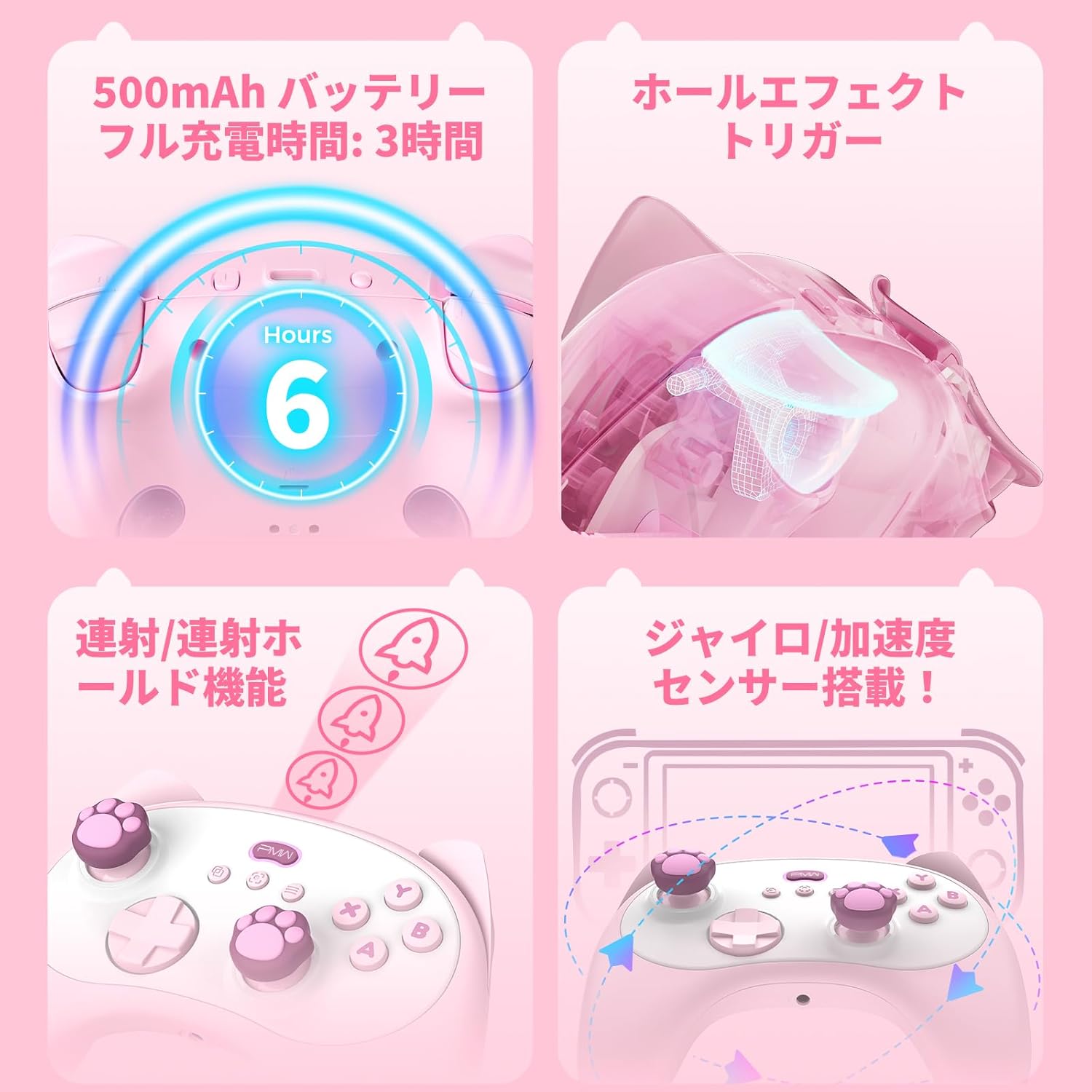
Mufananidzo: Pamusoroview of key features including battery, Hall effect components, turbo, and gyro sensor.
Package Zviri mukati
Ndokumbira utarise kuti zvinhu zvese zviripo mupakeji:
- PMW Wireless Controller
- Charging Stand (with integrated wireless adapter)
- USB Kuchaja Cable
- User Manual
Gadzirira
Kuchaja Controller
Before first use, fully charge the controller. Connect the USB charging cable to the charging stand and a power source. Place the controller on the charging stand. The charging indicator will show the charging status. A full charge takes approximately 3 hours.
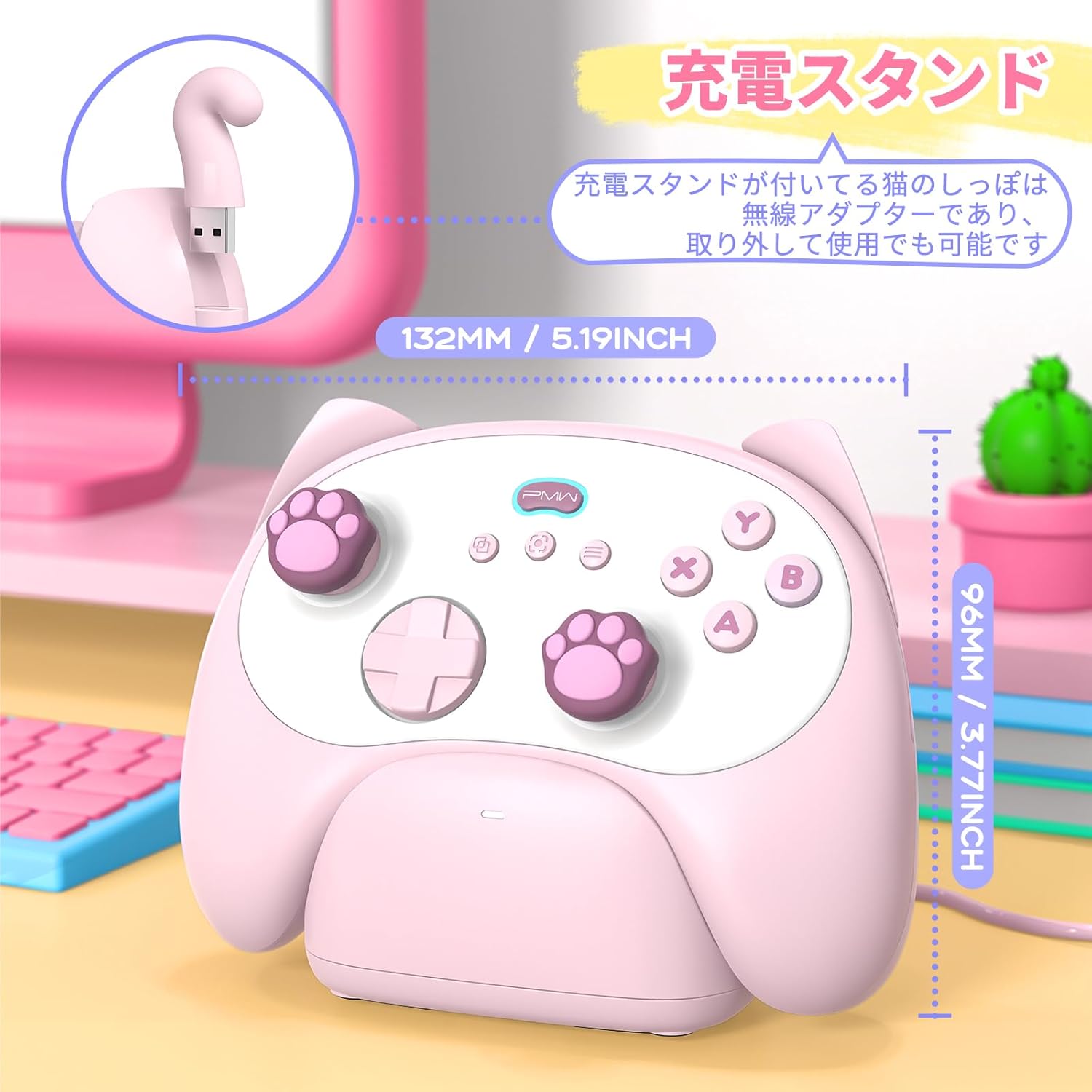
Image: Controller on its charging stand, highlighting its compact size (132mm x 96mm) and the cat tail wireless adapter.
Kubatanidza kune Zvishandiso
The controller supports both wireless and wired connections.
Wireless Connection (via Cat Tail Adapter)
- Remove the cat tail-shaped wireless adapter from the charging stand.
- Plug the wireless adapter into a USB port on your PC, Switch dock, or compatible Android/iOS device (an OTG adapter may be required for some mobile devices).
- Turn on the controller by pressing the Home button. The controller will automatically pair with the adapter.
Wiring Yakabatana
- Connect the controller directly to your PC, Switch dock, or compatible device using the USB charging cable.
- The controller will be recognized automatically.
Operating Instruction
Bhatani Mabasa
The controller features standard gaming buttons, including A, B, X, Y, D-pad, joysticks, and shoulder buttons (LB, RB, LT, RT). The LB and RB buttons are integrated into the cat ear design.
Video: Demonstration of button presses and joystick movement on the PMW Wireless Controller.
Cat Sound Feature
When the controller is placed on or removed from its charging stand, it will emit a cute cat meow sound. This feature can be toggled ON/OFF by pressing the D-pad Up + Minus + X buttons simultaneously.

Image: Illustration of the cat sound feature, indicating how to activate/deactivate it.
Macro Basa
The controller includes two programmable back extension buttons. These buttons can be assigned to perform complex sequences of actions (macros).
- To program a macro, refer to the detailed instructions in the full user manual or the dedicated application (if available).
- The application allows for comprehensive adjustment of macro functions, turbo settings, and vibration levels.
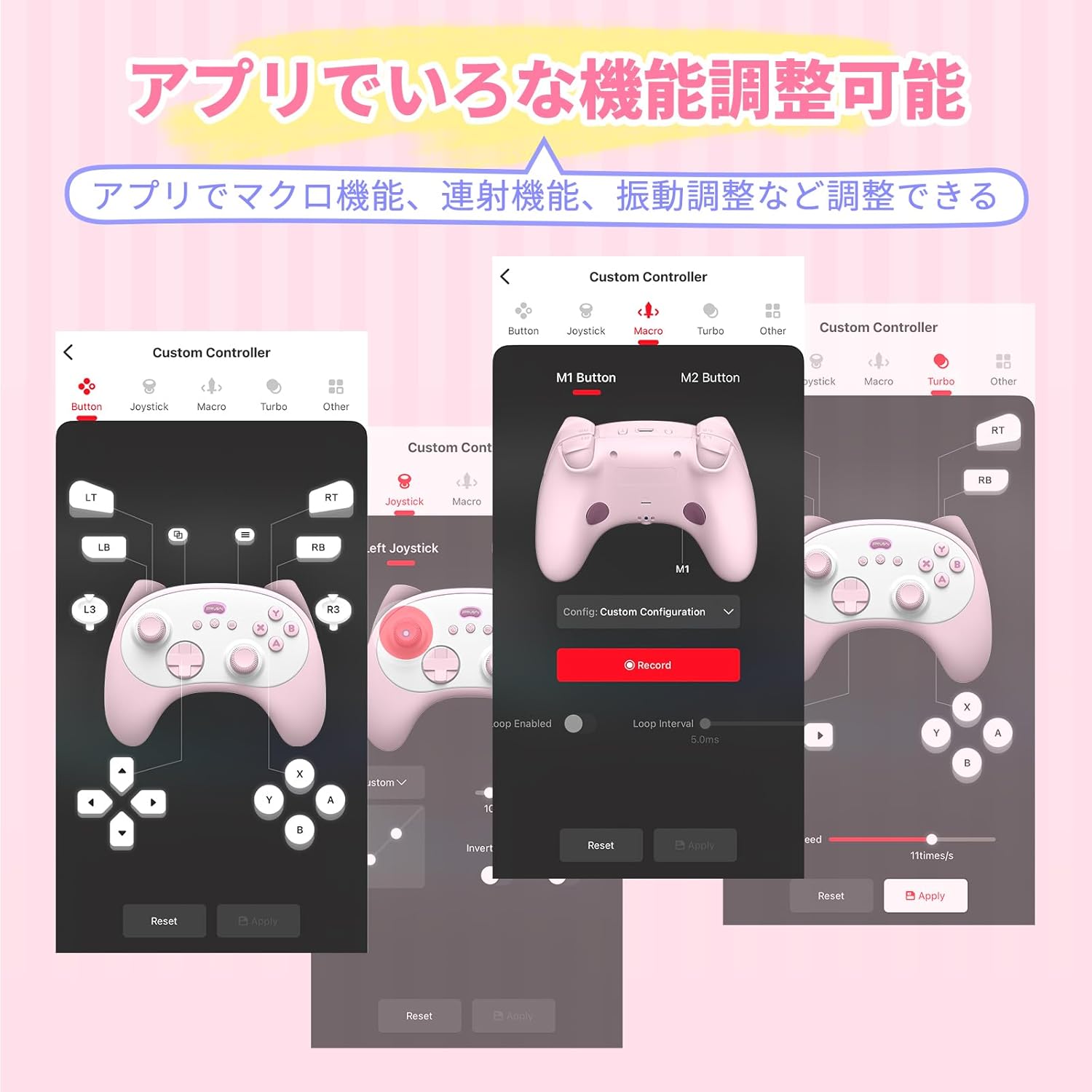
Image: Screenshots demonstrating the controller's companion application for macro, turbo, and other function adjustments.
Turbo (Continuous Fire) Function
The turbo function allows for rapid, continuous input of a button press. The turbo hold function maintains continuous input without needing to hold the button down.
- To activate/deactivate turbo for a button, press the Turbo button and the desired action button simultaneously.
- To activate/deactivate turbo hold, press the Turbo button twice with the desired action button.
Vibration Adjustment
The controller's vibration intensity can be adjusted to four levels: None, Weak, Standard, and Strong. Refer to the full user manual for specific button combinations to cycle through these settings.
Battery Level Check
You can check the controller's battery level using the LED indicators. Press and hold the Turbo button, then press the D-pad Up button to display the current battery status via the LED lights.

Image: Visual guide for checking battery level using LED indicators on the controller.
Headphone Jack Usage
The 3.5mm headphone jack allows you to connect wired headphones for audio. Please note: This feature is only functional when the controller is connected to your device via a wired USB connection.
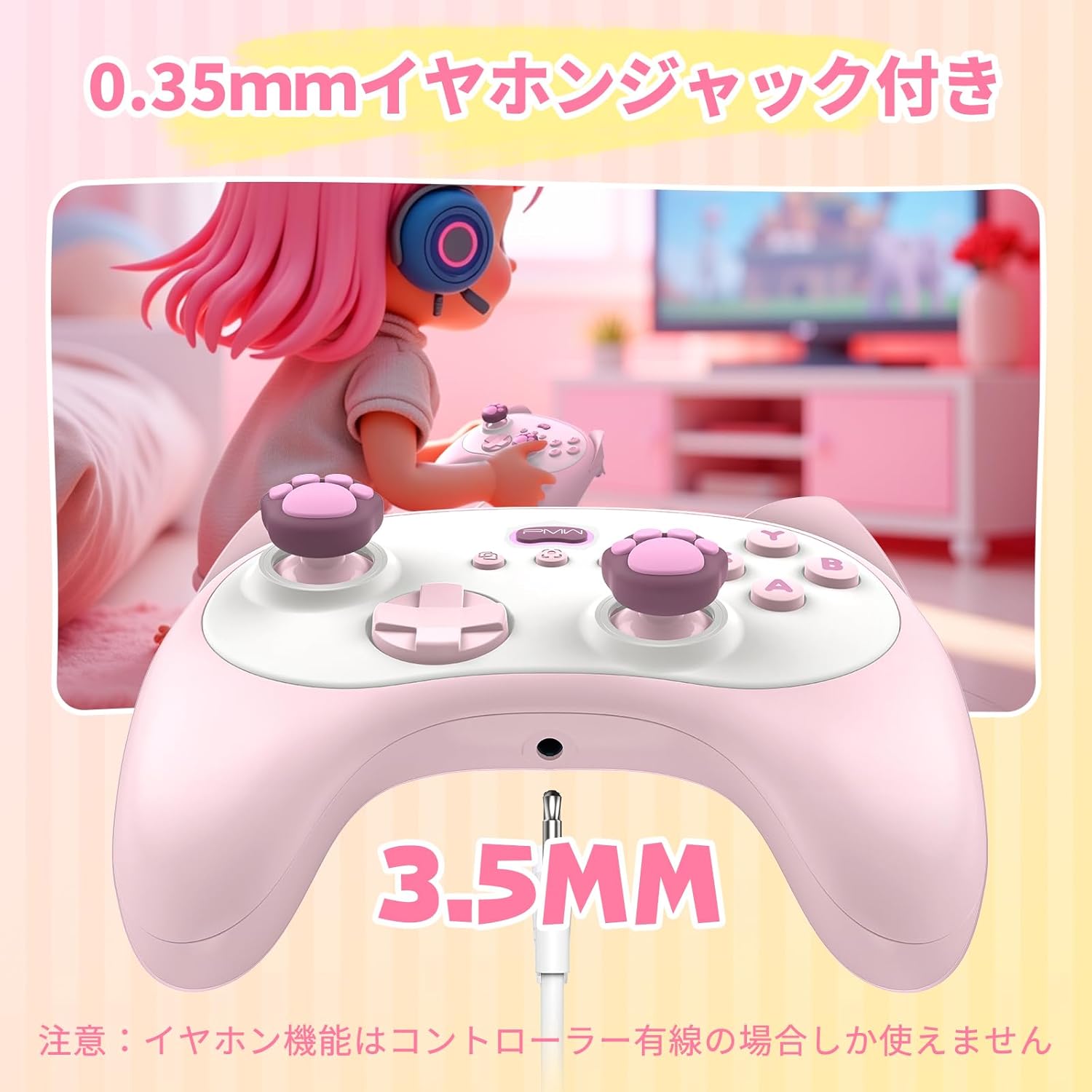
Image: Close-up of the controller's 3.5mm headphone jack.
Maintenance
- Keep the controller and charging stand clean by wiping with a soft, dry cloth.
- Rega kuisa mudziyo kune tembiricha yakanyanyisa, zuva rakananga, kana unyoro.
- Do not attempt to disassemble or repair the controller yourself, as this may void any potential warranty and cause damage.
- Store the controller in a safe place when not in use to prevent accidental damage.
Kugadzirisa matambudziko
Mutongi Haasi Kubatanidza
- Ensure the wireless adapter is securely plugged into the device's USB port.
- Verify the controller is powered on and has sufficient battery charge.
- Edza kutangazve chinodzora nemudziyo wakabatana.
- For Switch, ensure "Pro Controller Wired Communication" is enabled in the console settings if using a wired connection.
Buttons Not Responding / Incorrect Input
- Check if the controller is properly connected to your device.
- Some games or platforms may have different button layouts. For example, the A/B and X/Y buttons might be reversed compared to standard Switch controllers. Adjust in-game settings if possible.
- Iva nechokwadi chekuti hapana marara akaiswa pasi pemabhatani.
Nyaya dzekuchaja
- Ensure the USB cable is firmly connected to both the charging stand and the power source.
- Edza kushandisa imwe USB port kana adapta yemagetsi yakasiyana.
- Verify the controller is correctly seated on the charging stand.
Kutyaira KweJoystick
The controller uses Hall effect joysticks designed to minimize drift. If you experience drift, try recalibrating the joysticks through your device's settings or any available companion application.
Zvinotsanangurwa
| Model Number | L1116 |
| Dimensions | 132 x 96 mm (5.19 x 3.77 inches) |
| Kurema | Zvinenge 440 g |
| Bhatiri | 500mAh (1 AAA battery included) |
| Full Charge Time | Approx. 3 maawa |
| Kubatana | Wireless (2.4GHz via adapter), Wired (USB) |
| Kugarisana | PC, Nintendo Switch, Android, iOS |
| Origin | China |
Warranty uye Support
For warranty information and customer support, please refer to the documentation included with your purchase or contact the seller directly. As this product is manufactured in China, specific warranty terms may vary. Please retain your proof of purchase for any support inquiries.


