Nhanganyaya
Welcome to the user manual for your new VAIO SX-R Laptop. This document provides essential information to help you set up, operate, maintain, and troubleshoot your device. Please read this manual thoroughly to ensure optimal performance and longevity of your laptop.
Product Overview
The VAIO SX-R is a high-performance laptop designed for productivity and creative tasks. It features an Intel Core Ultra 7 processor, a vibrant 14-inch WQXGA Touch Display, ample memory, and fast storage.
Key Features
- processor: Intel Core Ultra 7 (16-Core, AI-Boosted) for enhanced speed and responsiveness.
- Ratidza: 14-inch WQXGA Touch Display (2560x1600) offering high resolution and wide color gamut.
- Memory: 32GB LPDDR5 RAM for superior multitasking.
- Kuchengeta: 1TB PCIe NVMe SSD for fast data access and ample storage.
- Operating System: Windows 11 Pro with enterprise-grade security and productivity features.
- Chengetedzo: Integrated IR Camera and Fingerprint Reader for secure login.
- Chassis: Durable Carbon Fiber construction.
Laptop Components and Ports

Figure 1: VAIO SX-R Laptop, illustrating the overall design.
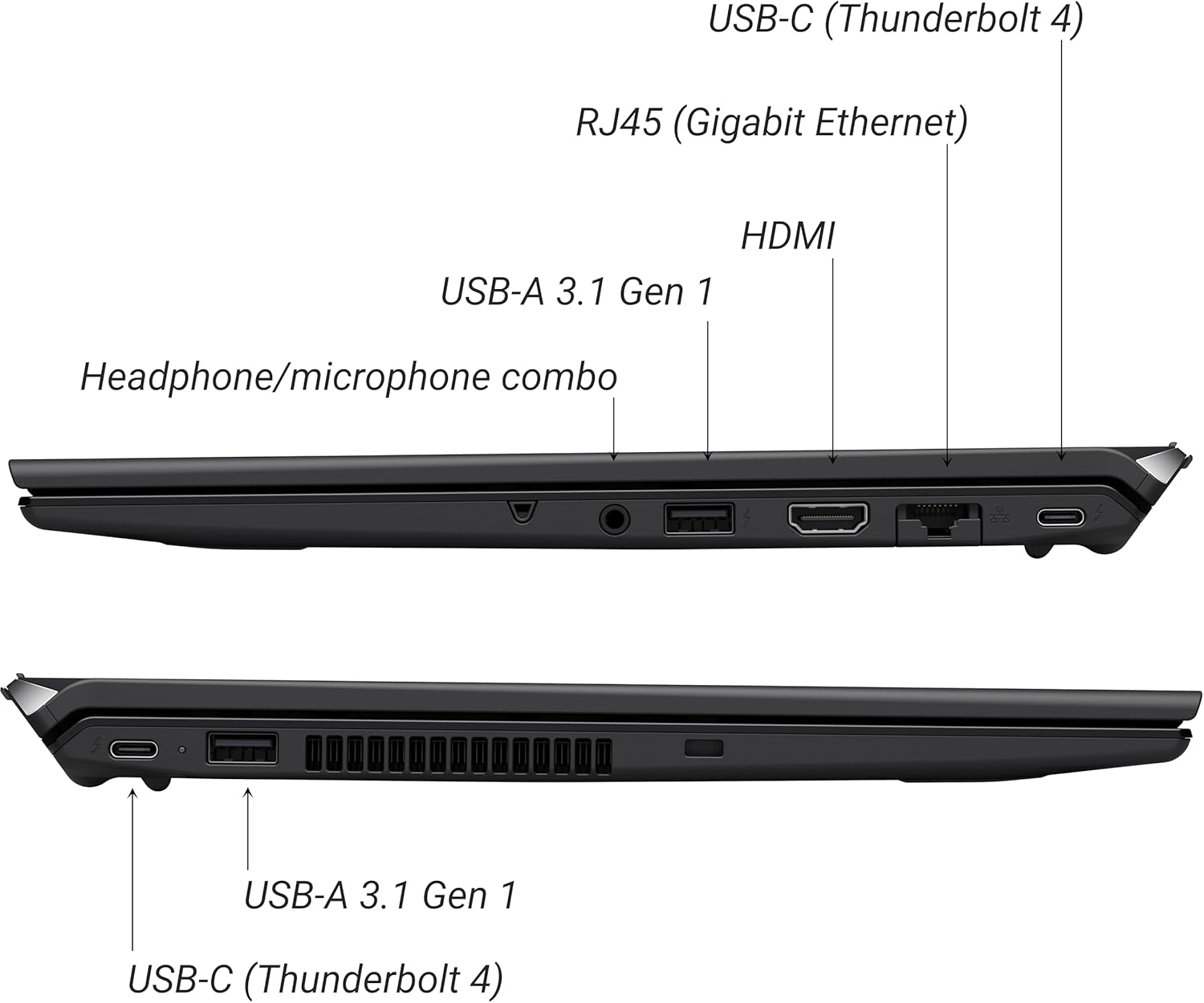
Figure 2: Port layout of the VAIO SX-R Laptop. The left side includes a headphone/microphone combo jack, USB-A 3.1 Gen 1, HDMI, RJ45 (Gigabit Ethernet), and USB-C (Thunderbolt 4). The right side features another USB-C (Thunderbolt 4) and USB-A 3.1 Gen 1 port.
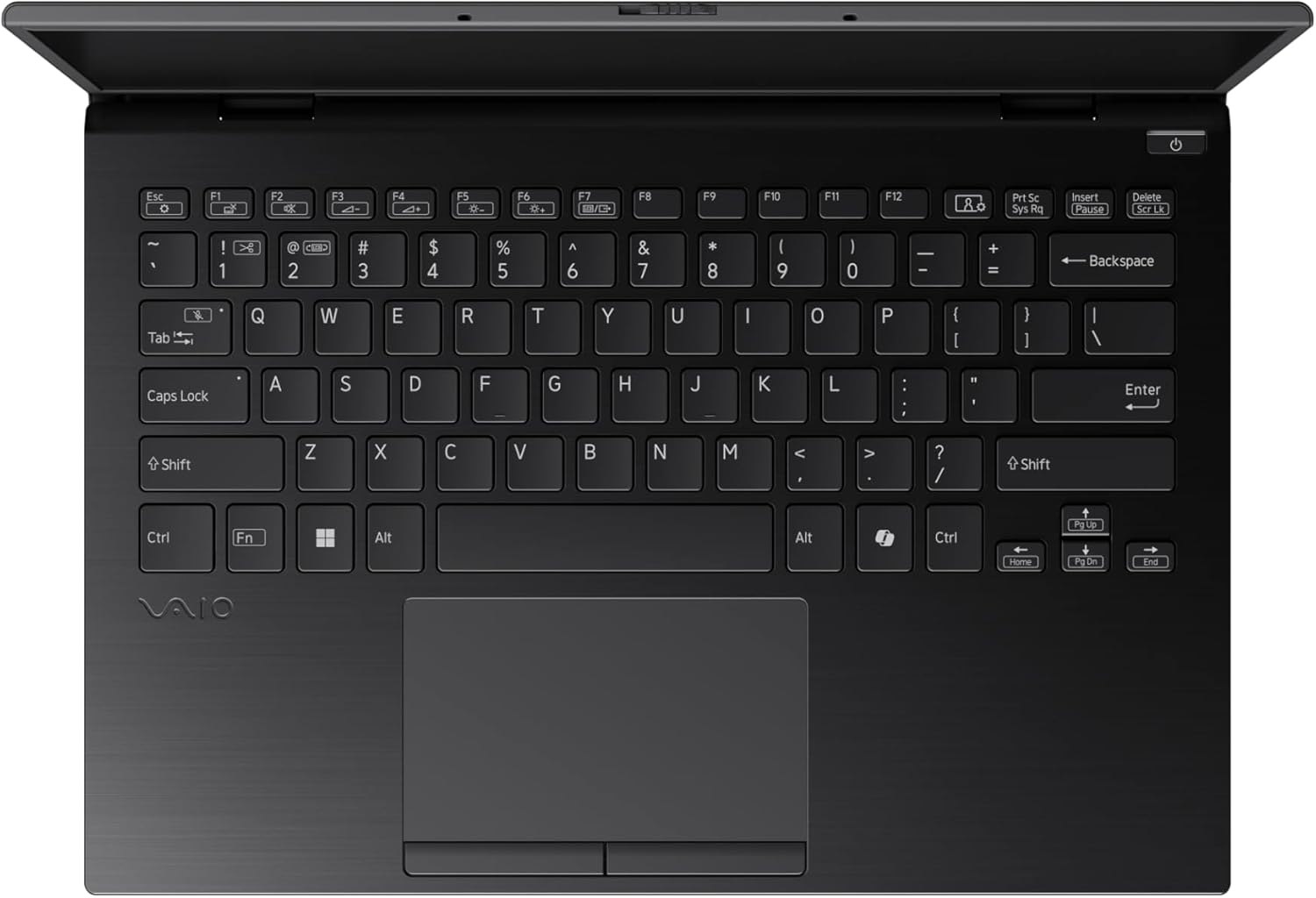
Figure 3: The VAIO SX-R Laptop keyboard and touchpad, featuring a backlit keyboard and integrated fingerprint sensor.
Gadzirira
1. Chekutanga Power On
- Batanidza Simba: Batanidza AC adapta mulaptop's power port uye wozopinda mumadziro ekubuda.
- Vhura Laptop: Vhura chivharo chelaptop nokungwarira.
- Power On: Press the power button, typically located on the top right of the keyboard deck. The power indicator light will illuminate.
2. Kugadzika kweWindows 11 Pro
Follow the on-screen instructions to complete the initial Windows 11 Pro setup. This includes:
- Kusarudza dunhu rako uye keyboard marongerwo.
- Kubatanidza kune network yeWi-Fi.
- Kugamuchira chibvumirano cherezinesi.
- Creating or logging in with a Microsoft account.
- Setting up your PIN, fingerprint, or facial recognition (IR Camera).
3. Kubatanidza Peripherals
You can connect external devices such as mice, keyboards, external monitors, and USB drives to the available ports as shown in Figure 2.
Kushanda
1. Basic Kushandisa
- Kiyibhodhi: Use the integrated backlit keyboard for typing. Function keys (F1-F12) often have secondary functions accessible via the 'Fn' key.
- Touchpad: The precision touchpad supports multi-touch gestures for navigation.
- Touchscreen: Interact directly with the 14-inch WQXGA display using touch gestures.
2. Security Features
- Fingerprint Reader: Enroll your fingerprints through Windows Settings > Accounts > Sign-in options for quick and secure login.
- IR Kamera: Utilize Windows Hello facial recognition for convenient and secure access. Set this up in Windows Settings > Accounts > Sign-in options.
3. Power Management
- Nzira yekurara: Close the lid or press the power button briefly to put the laptop to sleep.
- Vhara: Go to Start > Power > Shut down to turn off the laptop completely.
- Tangazve: Go to Start > Power > Restart to reboot the system.
Maintenance
1. Kuchenesa
- Sikirini Shandisa jira rakapfava, risina lint zvishoma dampyakavharwa nemvura kana screen cleaner. Dzivisa makemikari ane hasha.
- Kiyibhodhi uye Chassis: Shandisa jira rakapfava. Patsvina yakasindimara, zvishoma damp jira rine sipo yakapfava rinogona kushandiswa, kuve nechokwadi kuti hapana mvura inopinda mumaburi.
- Zviteshi: Shandisa mweya wakadzvanywa kuti ubvise huruva kubva kumadoko zvinyoronyoro.

Figure 4: The VAIO SX-R features a water-resistant keyboard, designed to withstand minor spills.
2. Software Updates
Regularly update your Windows operating system and device drivers to ensure optimal performance, security, and compatibility. Access updates via Windows Settings > Windows Update.
3. Battery Care
- Dzivisa kupisa kwakanyanya.
- Usabudise bhatiri zvakazara nguva zhinji.
- Kuti uchengetedze kwenguva refu, chaja bhatiri kusvika pa50-60%.
Kugadzirisa matambudziko
Ichi chikamu chinotarisa zvinowanzoitika zvaungasangana nazvo.
1. Laptop Haibatiki
- Ita shuwa kuti AC adapta yakabatana zvakachengetedzeka kune ese ari maviri laptop uye inoshanda simba rekubuda.
- Tarisa kana magetsi emagetsi ari kushanda nekuisa imwe mudziyo.
- Kana bhatiri rapera simba, rega richajiswe kwemaminitsi makumi matatu usati waedza kuribatidza.
2. Ratidza Nyaya
- Hapana Chiratidziro: Batanidza chekunze chekutarisa kuchiteshi cheHDMI kuti utarise kana nyaya yacho iri mukati meiyo laptop yekuratidzira.
- Inopenya/yakamonyaniswa Kuratidzwa: Update your graphics drivers. Adjust display resolution and refresh rate in Windows Settings > System > Display.
3. Matambudziko eWi-Fi yekubatanidza
- Ensure Wi-Fi is enabled in Windows Settings > Network & internet > Wi-Fi.
- Tangazve router yako uye modem.
- Mhanya iyo Windows Network Troubleshooter.
4. Slow Performance
- Vhara zvisina basa zvikumbiro zvinomhanya kumashure.
- Tarisa Task Manager (Ctrl+Shift+Esc) kuti uone kuti pane nzira dzinoshandisa zviwanikwa zvakawanda.
- Ensure your system is up to date and free from malware.
Zvinotsanangurwa
Below are the detailed specifications for the VAIO SX-R Laptop (Model: VJS4R1X0511B).
| Feature | Tsanangudzo |
|---|---|
| Brand | VAIO |
| Model Name | VAIO SX-R |
| Item Model Number | VJS4R1X0511B |
| Operating System | Windows 11 Pro |
| processor | Intel Core Ultra 7 (1.4 GHz) |
| RAM Memory | 32 GB LPDDR5 |
| Hard Drive | 1 TB PCIe NVMe SSD |
| Screen Size | 14 inches |
| Screen Resolution | 2560 x 1600 mapikiseti (WQXGA) |
| Graphics Card | Yakabatanidzwa Intel Graphics |
| Wireless Type | 802.11bgn |
| USB 3.0 Ports | 3 |
| Avhareji Hupenyu hweBhatiri | 10 Maawa |
| Item Weight | 3.1 makirogiramu |
| Product Dimensions | 14.2 x 15 x 3.3 inches |
| Special Features | Backlit Keyboard, Fingerprint Reader, HD Audio, Memory Card Slot, Webcam |
Warranty uye Support
1. Ruzivo rweWaranti
Your VAIO SX-R Laptop is covered by a manufacturer's warranty. Please refer to the warranty card included with your product packaging for specific terms, conditions, and duration. Keep your proof of purchase for warranty claims.
2. Technical Support
For technical assistance, troubleshooting beyond this manual, or service inquiries, please contact VAIO customer support. You can typically find contact information on the official VAIO website or in the documentation provided with your laptop.
- Rutsigiro rwepamhepo: Visit the official VAIO support website for FAQs, driver downloads, and contact options.
- Rutsigiro rwerunhare: Refer to your product documentation for regional support phone numbers.


