1. Nhanganyaya
This manual provides essential information for the installation, operation, and maintenance of your ZOTAC Gaming GeForce RTX 5060 Twin Edge OC graphics card. Designed for high-performance gaming, this card features the NVIDIA Blackwell architecture, DLSS 4, 8GB GDDR7 memory, and PCIE 5.0 support, all within a compact, SFF-ready design. Please read this manual thoroughly before installation and use to ensure optimal performance and longevity of your product.
2. Chii chiri muBhokisi
Tarisa uone kuti zvinhu zvese zviripo mupakeji:
- ZOTAC GAMING GeForce RTX 5060 Twin Edge OC graphics card
- Mushandisi Chinyorwa (gwaro iri)
- Quick Start Guide
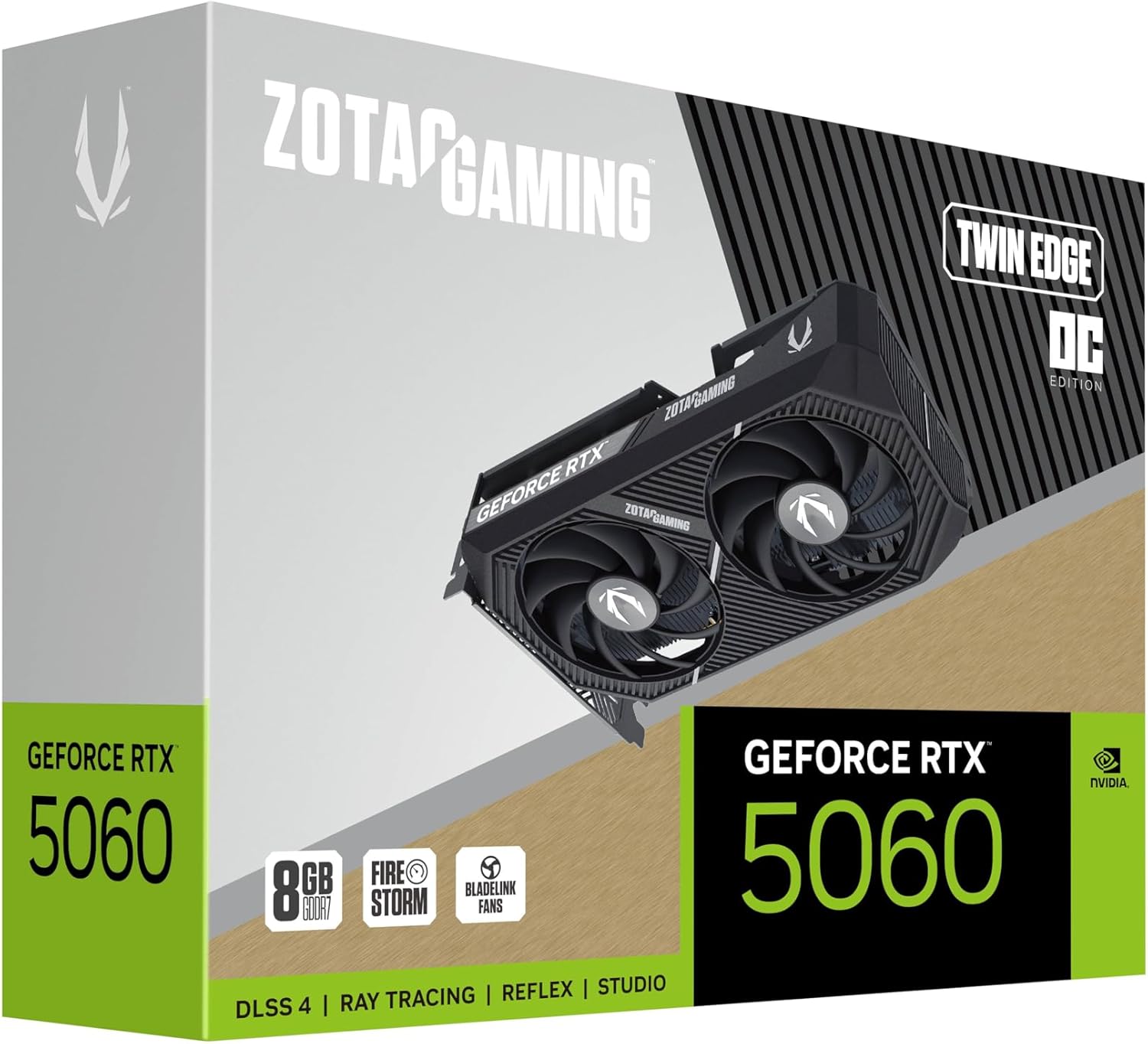
Image: The retail packaging for the ZOTAC Gaming GeForce RTX 5060 Twin Edge OC graphics card.
3. Chigadzirwa Pamusoroview
Familiarize yourself with the physical components of your graphics card.

Mufananidzo: Mberi view yekadhi yemifananidzo, showcasing the dual 90mm BladeLink fans and ZOTAC GAMING branding.

Mufananidzo: Rear view of the graphics card, showing the 3 DisplayPort 2.1b and 1 HDMI 2.1b output ports.

Mufananidzo: Side view of the graphics card, highlighting its compact two-slot design.
4. Zvinotsanangurwa
Key technical specifications of the ZOTAC Gaming GeForce RTX 5060 Twin Edge OC graphics card:
| Feature | Tsanangudzo |
|---|---|
| Graphics Coprocessor | GeForce RTX 5060 |
| Chipset Brand | NVIDIA |
| Vhidhiyo Memory | 8GB GDDR7 |
| Memory Interface | 128-bit |
| Memory Speed | 28 Gbps |
| PCIe Interface | PCIE5.0 |
| Display Outputs | 3 x DisplayPort 2.1b, 1 x HDMI 2.1b |
| Max Kugadziriswa | 7680x4320 (8K Ready) |
| Rutsigiro rweZviratidzo Zvakawanda | 4 Zviratidzi |
| Kutonhodza System | Dual 90mm BladeLink fans, Composite Heatpipes, Pass-thru Airflow Design |
| Power Connector | 8-pini PCIe |
| Dimensions (LxWxH) | 8.7 x 1.6 x 0.1 inches (220.5 x 41.6 x 120.25 mm) |
| Kurema | 1.57 makirogiramu |
5. Setup uye Kuiswa
5.1 Pre-Kuisa Rondedzero
- Ita shuwa kuti yako magetsi emagetsi unit (PSU) inosangana neyakakurudzirwa wattage for your system, including the new graphics card.
- Dzima komputa yako wobvisa waya yemagetsi kubva pamadziro.
- Ground yourself to discharge any static electricity before handling components.
5.2 Hardware Installation
- Vhura komputa yako.
- Tsvaga inowanikwa PCI Express 5.0 x16 slot pane yako mamaboard.
- Remove any expansion slot covers that correspond to the graphics card's two-slot width.
- Nyatsobatanidza kadhi remifananidzo nePCIe slot wodzvanya pasi zvakasimba kusvika ragara zvakanaka. Iva nechokwadi chekuti retention clip iri paPCIe slot yakavharwa panzvimbo yayo.
- Chengetedza kadhi remifananidzo kune kesi ine screws.
- Connect the 8-pin PCIe power connector from your PSU to the graphics card. Ensure a firm connection.
- Vhura komputa yako kesi.
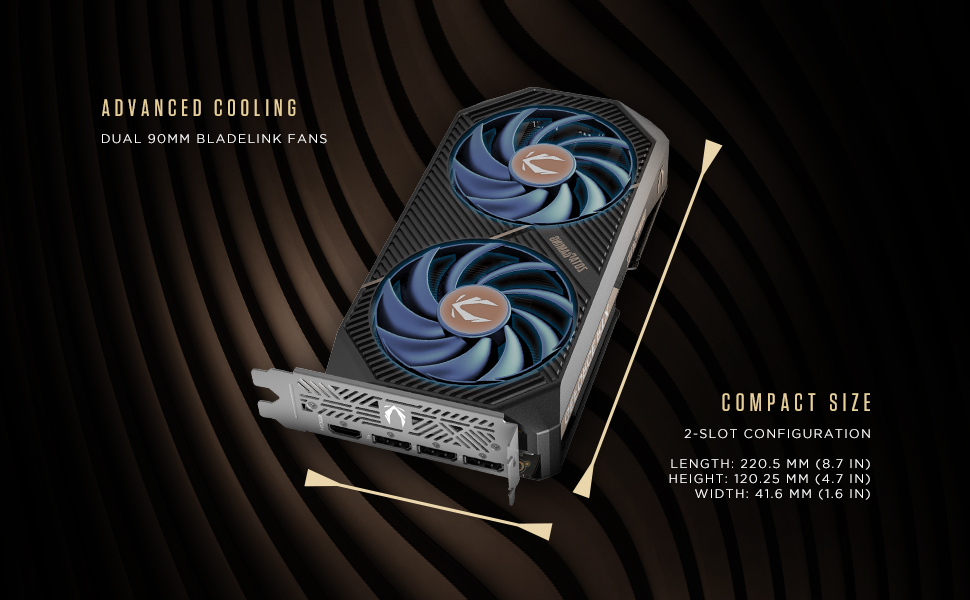
Image: Illustration of the graphics card's compact dimensions and dual fan cooling system, aiding in installation planning.
5.3 Kuiswa kwemutyairi
- Batanidza zvakare tambo yemagetsi wobva wavhura komputa yako.
- Connect your display cable (HDMI or DisplayPort) from the graphics card to your monitor.
- Once the operating system loads, download the latest NVIDIA drivers for your GeForce RTX 5060 from the official NVIDIA websaiti (www.nvidia.com/drivers).
- Tevera mirairo yepa-screen kuti upedze kuisa mutyairi. A system restart inogona kudikanwa.
6. Kushandisa Graphics Card Yako
6.1 Zvigadziriso zvemutyairi
Regularly update your graphics drivers to ensure optimal performance, stability, and access to the latest features and game optimizations. NVIDIA releases new drivers frequently, which can be downloaded from their official website or through the GeForce Experience application.
6.2 ZOTAC GAMING Utilities
ZOTAC provides utility software, such as FireStorm, which allows you to monitor your graphics card's performance, adjust fan speeds, and customize lighting (if applicable). Refer to the ZOTAC websaiti kuti uwane rumwe ruzivo uye kurodha.
6.3 Chiratidziro Chimiro
Utilize the NVIDIA Control Panel to configure display settings, including resolution, refresh rate, and multi-monitor setups. This software is installed with the graphics drivers.
7. Kuchengeta
7.1 Kuchenesa
- Periodically clean the fans and heatsink of your graphics card to prevent dust buildup, which can impede cooling performance.
- Use compressed air to gently blow dust out of the heatsink fins and fan blades. Hold the fan blades in place to prevent them from spinning excessively during cleaning.
- Ensure your computer is powered off and unplugged before performing any cleaning.
7.2 Kuyerera kwemhepo
Maintain good airflow within your PC case. Ensure that case fans are properly configured to draw cool air in and expel hot air out. Avoid obstructing the graphics card's fans or exhaust vents.

Image: Visual representation of the card's pass-through airflow design for faster heat release and the metal backplate for enhanced rigidity.
8. Kugadzirisa matambudziko
Chikamu chino chinotarisa matambudziko akajairika aungasangana nawo nekadhi rako remifananidzo.
| Dambudziko | Zvinogona Kukonzera | Solution |
|---|---|---|
| Hapana chinobuda | Incorrect cable connection, unseated card, no power, driver issue | Ensure display cables are securely connected. Reseat the graphics card. Verify the 8-pin PCIe power connector is fully inserted. Install or update drivers. |
| System instability or crashes | Outdated drivers, overheating, insufficient PSU power | Update graphics drivers. Monitor temperatures using ZOTAC FireStorm or other tools. Ensure PSU meets requirements. |
| Fans not spinning or excessive noise | Dust buildup, fan control settings, faulty fan | Clean fans and heatsink. Check fan speed settings in ZOTAC FireStorm. Contact support if a fan is faulty. |
| Low performance in games | Outdated drivers, incorrect game settings, CPU bottleneck | Ensure latest drivers are installed. Adjust in-game graphics settings. Verify other system components are not limiting performance. |
9. Warranty uye Tsigiro
ZOTAC provides dedicated customer support and warranty coverage for its products.
9.1 Warranty Coverage
Your ZOTAC Gaming GeForce RTX 5060 Twin Edge OC graphics card typically comes with a 3-year coverage. Please register your product on the official ZOTAC website to activate and verify your warranty terms and conditions, as they may vary by region.
9.2 Mutengi Tsigiro
For technical assistance, troubleshooting, or warranty claims, please utilize ZOTAC's support resources:
- Pamhepo Chat: Access 24/7 online chat support via the ZOTAC website.
- Chirongwa cheRMA: For hardware issues requiring repair or replacement, refer to the Return Merchandise Authorization (RMA) program details on the ZOTAC support page.
- Nharaunda dzepaIndaneti: Engage with other users and find solutions on ZOTAC's official forums and social media channels.
Shanyira iyo ZOTAC yepamutemo websaiti yeruzivo rwechizvino-zvino rwerutsigiro: www.zotac.com/support

Mufananidzo: Pamusoroview of ZOTAC's online communities and dedicated customer support services, including warranty coverage and RMA program.