Nhanganyaya
Thank you for choosing the Rapoo 9390M Wireless Multi-Mode Keyboard and Mouse Combo. This ultra-slim set offers versatile connectivity options, including 2.4 GHz wireless and Bluetooth 4.0/5.0, allowing seamless switching between multiple devices. Designed for efficiency and comfort, this combo features a full-size QWERTZ keyboard with multimedia keys and an ambidextrous optical mouse.
This manual provides essential information for setting up, operating, and maintaining your new Rapoo 9390M combo. Please read it carefully before use.
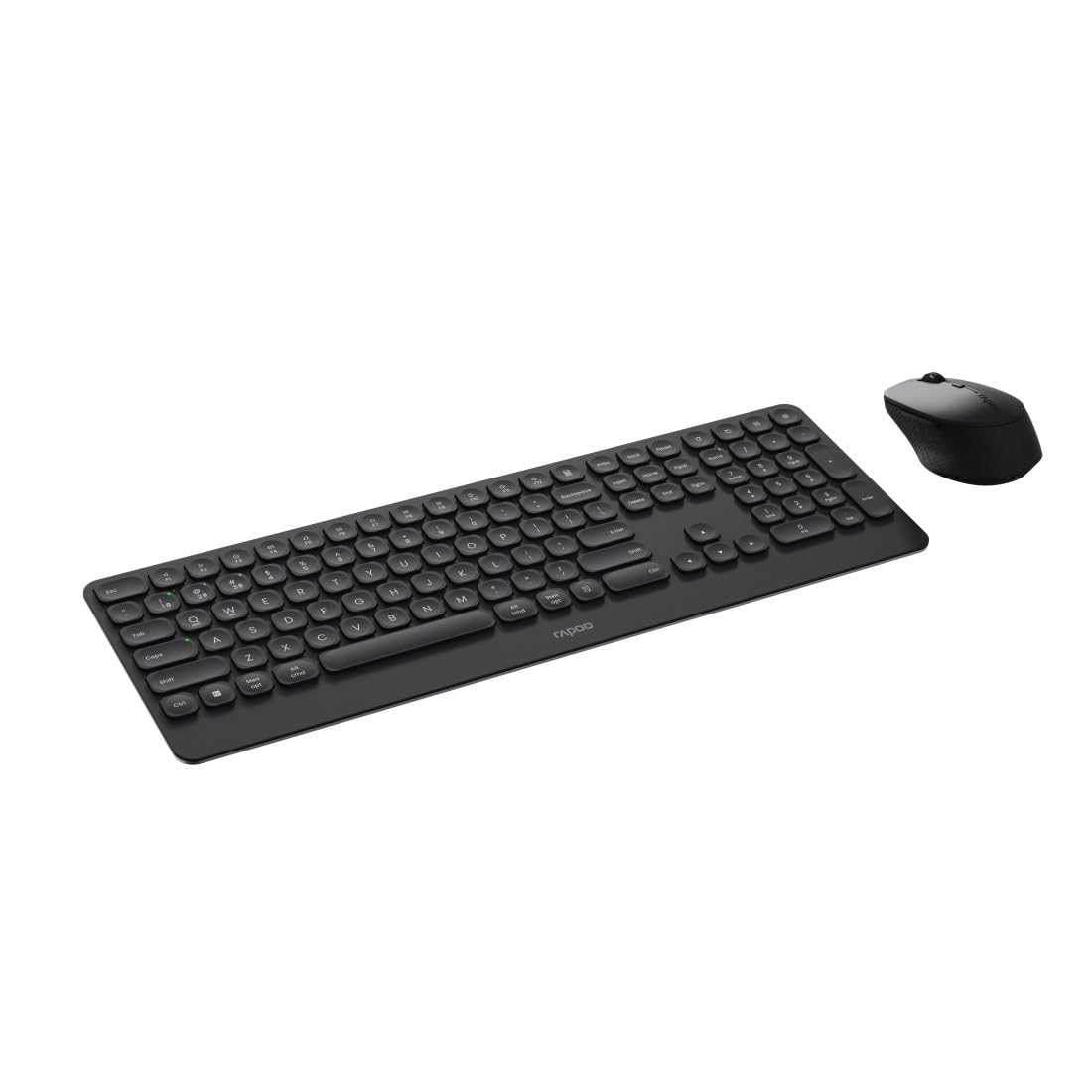
Image: The Rapoo 9390M wireless keyboard and mouse combo, showcasing its sleek design and full QWERTZ layout.
Gadzirira
1. Kuiswa kwebhatiri
The Rapoo 9390M combo requires batteries for operation. Ensure correct polarity when inserting.
- Kiyibhodhi: Requires 2 x AAA alkaline batteries.
- Mbeva: Requires 1 x AA alkaline battery.
Batteries are included in the package.

Mufananidzo: Side profile of the Rapoo 9390M keyboard and mouse, illustrating their ultra-slim design. Battery compartments are typically located on the underside of each device.
2. Kubatanidza Zvishandiso
The Rapoo 9390M supports multi-mode connectivity: 2.4 GHz wireless via USB receiver and Bluetooth 4.0/5.0.
2.1. 2.4 GHz Wireless Connection
- Insert the USB receiver into an available USB Type-A port on your computer or device.
- Batidza kiibhodhi uye mbeva uchishandisa iwo akasiyana magetsi switch.
- Midziyo yacho inofanira kubatana otomatiki pakombuta yako.
2.2. Kubatana kweBluetooth
The keyboard can pair with up to 3 Bluetooth devices, and the mouse with up to 2.
Kubatanidza Bluetooth nekhibhodi:
- Batidza kiibhodhi.
- Dzvanya uye ubate Fn +1, Fn +2, kana Fn +3 for 3 seconds to select a Bluetooth channel. The indicator light will flash slowly.
- Open Bluetooth settings on your device (PC, laptop, tablet, TV).
- Tsvaga "Rapoo BT3.0 Keyboard" or "Rapoo BT5.0 Keyboard" and select to pair.
- Kana yabatanidzwa, rambi rechiratidzo rinomira kupenya.
Kubatanidza Bluetooth neMouse:
- Batidza mbeva.
- Press the Bluetooth pairing button on the underside of the mouse. The indicator light will flash slowly.
- Vhura zvigadziriso zveBluetooth pane chako kifaa.
- Tsvaga "Rapoo BT3.0 Mouse" or "Rapoo BT5.0 Mouse" and select to pair.
- Kana yabatanidzwa, rambi rechiratidzo rinomira kupenya.
Operating Instruction
1. Kuchinja pakati peMidziyo Yakabatanidzwa
The Rapoo 9390M allows you to switch between multiple connected devices (up to 4 for keyboard, 3 for mouse, including 2.4 GHz).
- Kiyibhodhi: Press Fn +1, Fn +2, Fn +3 (for Bluetooth devices) or Fn +4 (for 2.4 GHz USB receiver) to switch between paired devices.
- Mbeva: Press the mode switch button on the underside of the mouse to cycle between Bluetooth 1, Bluetooth 2, and 2.4 GHz modes.
2. Keyboard Mabasa
The keyboard features a full QWERTZ layout with 110 keys, including a numeric keypad and dedicated function keys.
- Multimedia Keys: Shandisa makiyi ebasa (F1-F12) pamwe chete ne Fn key to access multimedia controls (e.g., volume, play/pause, browser).
- Browser Buttons: Dedicated keys for browser functions may be present.

Mufananidzo: Pamusoro-pasi view of the Rapoo 9390M keyboard and mouse, highlighting the QWERTZ key layout and mouse button configuration.
3. Mabasa eMouse
The optical mouse features 5 buttons, including a scroll wheel, and adjustable DPI.
- DPI Kugadziriswa: The mouse supports a DPI range of up to 2400. A dedicated DPI button (often located near the scroll wheel) allows you to cycle through different sensitivity levels.
- Ambidextrous Dhizaini: The mouse is designed for comfortable use by both right-handed and left-handed users.
Maintenance
1. Kuchenesa
To ensure optimal performance and longevity, keep your keyboard and mouse clean.
- Shandisa jira rakapfava, risina lint zvishoma dampyakavharwa nemvura kana munyoro wekuchenesa.
- Avoid harsh chemicals, abrasive cleaners, or excessive moisture.
- Pakhibhodi, shandisa mhepo yakamanikidzwa kubvisa guruva nemarara pakati pemakiyi.
2. Kutsiviwa kwebhatiri
When the battery indicator light flashes or performance degrades, it's time to replace the batteries.
- Open the battery compartment on the underside of the keyboard (2x AAA) and mouse (1x AA).
- Remove the old batteries and dispose of them responsibly according to local regulations.
- Insert new alkaline batteries, ensuring correct polarity.
- Vhara bhatiri kamuri zvakachengeteka.
Kugadzirisa matambudziko
Nyaya dzekubatanidza
- No connection (2.4 GHz): Ensure the USB receiver is securely plugged into a working USB port. Try a different USB port. Ensure the keyboard and mouse are powered on.
- No connection (Bluetooth): Ensure Bluetooth is enabled on your device. Re-initiate the pairing process as described in the Setup section. Ensure the keyboard/mouse is in Bluetooth mode and not 2.4 GHz mode.
- Kubatana kwepakati: Move the devices closer to the receiver/device. Avoid placing the devices near other wireless interference sources (e.g., Wi-Fi routers, other wireless peripherals).
Input Not Registering / Lag
- Check batteries: Low batteries can cause performance issues. Replace them if necessary.
- Chinja mamodhi: Ensure the keyboard and mouse are set to the correct connection mode (2.4 GHz or Bluetooth) for the device you are using.
- Tangazve zvishandiso: Turn off and on the keyboard, mouse, and your computer/device.
Zvinotsanangurwa
| Feature | Tsanangudzo |
|---|---|
| Model | 9390M |
| Kubatana | 2.4 GHz RF (USB Type-A receiver), Bluetooth 4.0, Bluetooth 5.0 |
| Keyboard Layout | QWERTZ (German) |
| Keyboard Keys | 110 keys, Scissor mechanism, Laser engraved keycaps |
| Keyboard Features | Multimedia keys, Browser buttons, Ultra-slim design, Aluminum base |
| Mouse Sensor | Optical |
| Mouse DPI | Kusvika ku2400 DPI |
| Mouse Buttons | 5 buttons (including scroll wheel) |
| Mouse Design | Ambidextrous, High-quality plastic |
| Operating Range | Kusvika 10 metres |
| OS Kugarisana | Windows XP / Vista / 7 / 8 / 10 / 11 |
| Simba Source | Battery powered (Alkaline) |
| Mabhatiri Akabatanidzwa | Yes (2x AAA for keyboard, 1x AA for mouse) |
| Keyboard Dimensions (W x D x H) | 42.6 x 14.3 x 2 cm |
| Keyboard Weight | 409 g |
| Mouse Dimensions (W x D x H) | 6.6 x 10.4 x 3.7 cm |
| Mouse Weight | 60 g |
Warranty uye Support
For warranty information and technical support, please refer to the warranty card included in your product packaging or visit the official Rapoo website. Chengetedza humbowo hwako hwekutenga kune warranty claim.