1. Chigadzirwa Pamusoroview
This CAMECHO Android 15 Car Stereo is designed for Ford Fusion models from 2013 to 2016 (low-end version). It features an 8-Core CPU, 6GB RAM, 128GB ROM, and a 9-inch IPS touchscreen display. The unit integrates various functionalities including wireless Apple CarPlay, Android Auto, GPS navigation, DSP sound processing, Bluetooth 5.0, FM/RDS radio, and support for an AHD backup camera.
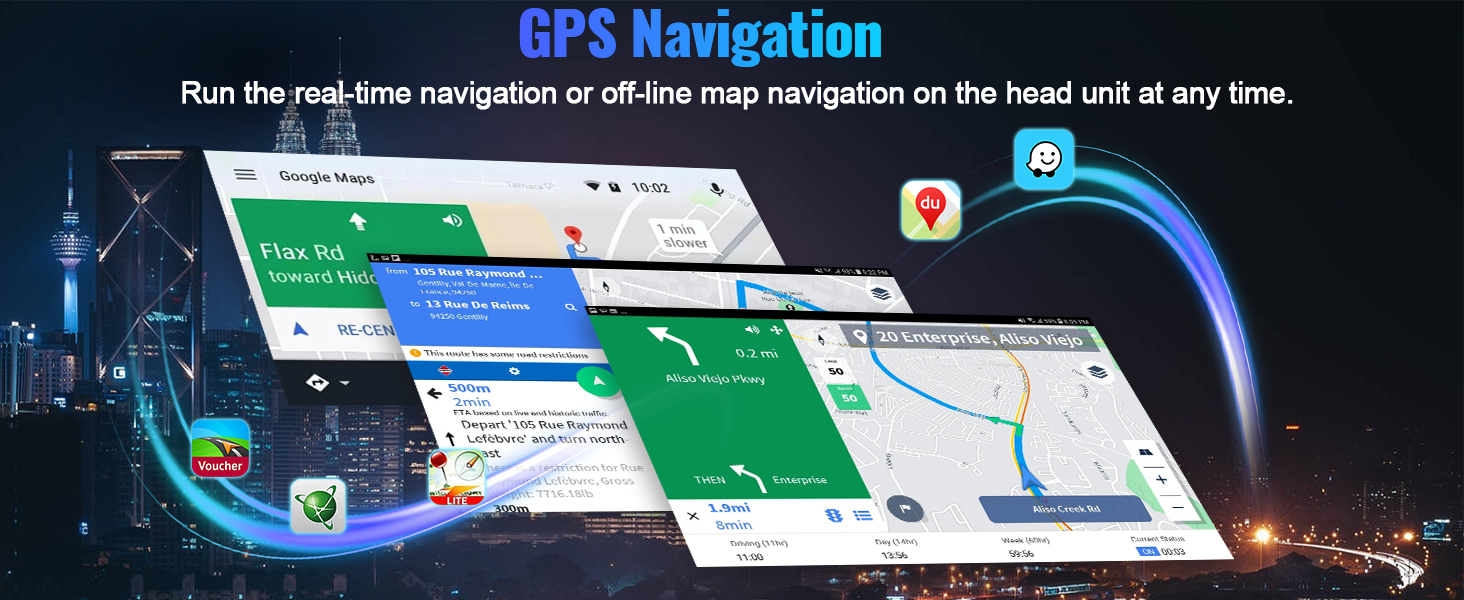
Image: CAMECHO Android 15 Car Stereo main interface with key features highlighted.
2. Kugarisana
This head unit is specifically designed for Ford Fusion models manufactured between 2013 and 2016. It is intended for vehicles with the low-end radio version. Please verify your vehicle's dashboard configuration before installation.

Image: Visual guide for Ford Fusion model compatibility (2013-2016 low-end version).

Image: Comparison of compatible and incompatible Ford Fusion dashboards.
3. Package Zviri mukati
Tarisa kuti zvinhu zvese zvakanyorwa pazasi zvinosanganisirwa mupakeji yako:
- 1 x Android Head Unit
- Kamera yekuchengetedza ye1 x AHD
- 1 x Microphone yekunze
- 1 x Protocol Box (CANBUS)
- 1 x GPS Antenna
- 1 x Antena yeredhiyo
- 1 x Power Cable
- 1 x RCA Cable
- 1 x Cable Yekumashure Yekamera Yekupinda
- 2 x USB Cable
- 1 x Original USB Cable
- 1 x Parts (Mounting Brackets, Screws)
- 1 x Kuisa Turu
- 1 x Bhuku reMirayiridzo

Mufananidzo: Zviri mukati mepakeji yechigadzirwa.

Image: Head unit dimensions and package list overview.
4. Setup uye Kuiswa
4.1 Kubatana kweCANBUS
Ensure the CANBUS box is connected to the 8-pin connector on the head unit. This connection is crucial for steering wheel controls to function correctly.

Image: CANBUS connection diagram.
4.2 Kudzosera Kamera Kuisa
The reversing input must be plugged in even if the reversing camera is not used. Follow these steps for wiring:
- Connect the red wire (1) to the positive pole of the car's reversing light power supply.
- Connect the black wire (2) to the negative pole of the car's reversing light power supply.
- The reversing trigger (3) is controlled by the stereo and does not require a separate connection.
- Connect the yellow RCA video cable (4) from the camera to the 'Rear Camera Input' on the head unit.

Image: Reversing camera wiring diagram.
5. Operating Instructions
5.1 Apple CarPlay isina waya uye Android Auto
The head unit supports wireless Apple CarPlay and Android Auto for seamless smartphone integration.
Connecting Wireless Apple CarPlay:
- Connect your car radio's Bluetooth to your iPhone. The Bluetooth name is typically "Car BT0" and the PIN is "1234". Ensure "phone audio, music audio" shows as connected.
- Dzvanya "SpeedPlay" pamusoro peyuniti.
- Bvumira "Contacts and Favorites Sync" uye "Shandisa CarPlay neSpeedPlay" pa iPhone yako.
- Wait for the connection to establish. The first connection may take longer.
Kubatanidza Wireless Android Auto:
- Dzvanya "SpeedPlay" pamusoro peyuniti.
- Connect your Android phone to the head unit's rear 4-pin USB port using your original data cable.
- Bvumira "kugadzirisa USB" pafoni yako yeAndroid.
- Wait for the connection to establish. The first connection may take longer.

Image: Wireless Apple CarPlay and Android Auto in operation.

Image: Wireless Apple CarPlay interface.

Image: Wireless Android Auto interface.

Image: Detailed connection steps for Wireless Apple CarPlay and Android Auto.
5.2 GPS Navigation
The unit includes a built-in GPS receiver and supports offline maps. You can also download other navigation applications like Waze, Navfree, or Yandex Map from the Play Store using Wi-Fi or a mobile hotspot.
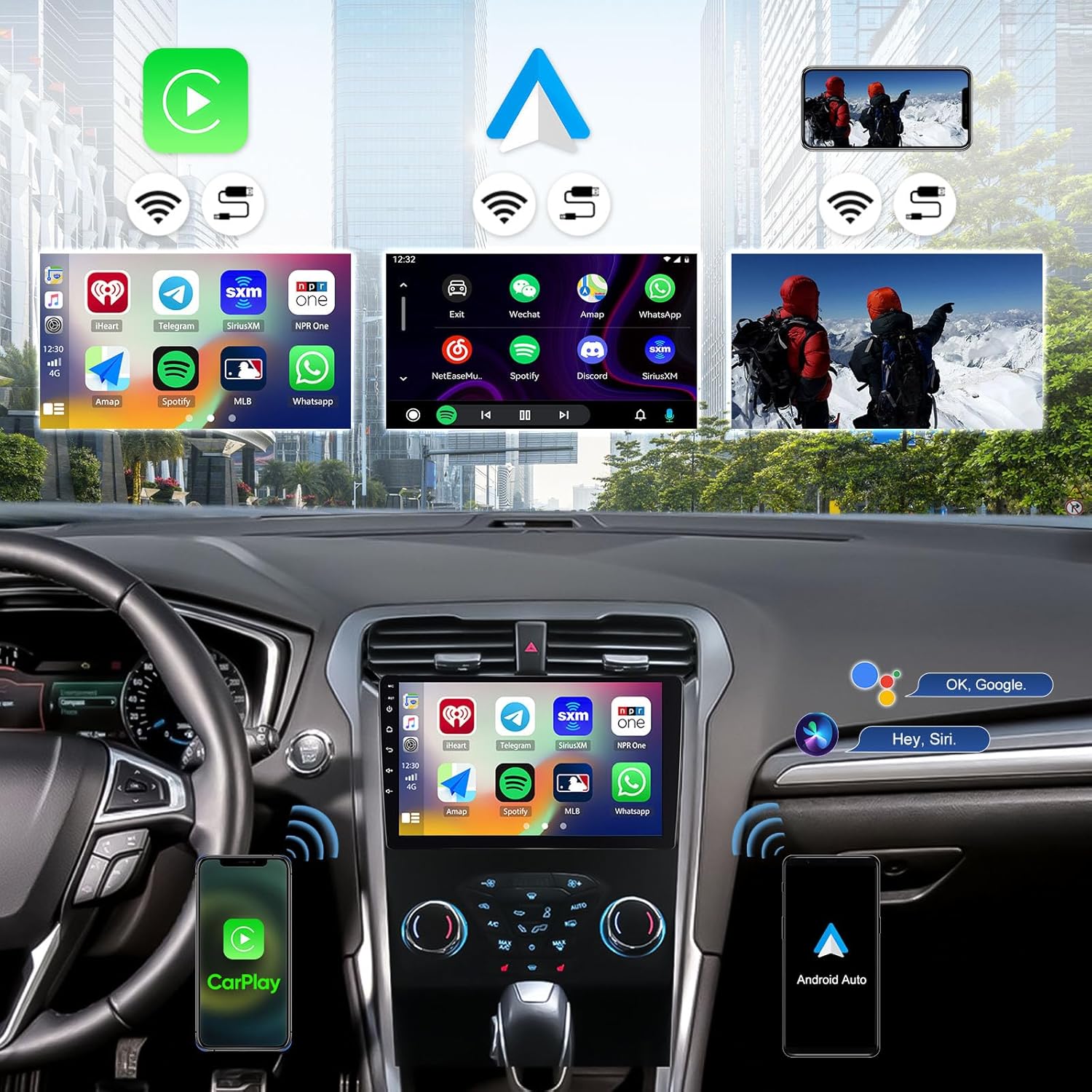
Image: GPS Navigation and Wi-Fi connection features.

Image: Real-time GPS navigation display.
5.3 Wi-Fi Connection
Connect to Wi-Fi or use your phone's hotspot to browse the internet, download apps, stream media, and watch videos directly on the head unit.

Image: Wi-Fi connectivity for streaming and app usage.
5.4 Makaralı 5.0
Bluetooth 5.0 enables wireless audio streaming and hands-free calling. Pair your smartphone to make and receive calls safely while driving.

Image: Bluetooth 5.0 hands-free calling and FM/RDS radio interface.

Image: Bluetooth 5.0 for hands-free calls and music streaming.
5.5 FM/RDS Redhiyo
The unit supports FM/RDS radio with 18 station presets. Stay updated with news, traffic, and music.

Mufananidzo: Chishandiso cheRadio cheFM/RDS.
5.6 DSP & 32-Band EQ
Enhance your audio experience with the built-in Digital Sound Processor (DSP) and 32-band equalizer. Adjust sound settings to your preference.

Image: DSP and 32-Band EQ interface for audio customization.

Image: DSP sound adjustment interface.
5.7 Kudzora Wheel Kudzora
The unit supports original steering wheel buttons, allowing you to control music, answer calls, and navigate without distraction.

Image: Steering wheel control learning interface.

Image: Steering wheel control for safe operation.
5.8 Chinongedzo chegirazi
Cast your smartphone's screen to the car radio touchscreen for viewing content.

Image: Mirror Link functionality.
5.9 UI Themes
Customize the appearance of your head unit with 59 multiple UI themes. Long press on the home page to switch between different app layouts and themes.

Image: 9-inch IPS touchscreen and various UI desktop themes.

Image: Customized Home App and UI theme selection.
6. Kuchengeta
To ensure optimal performance and longevity of your CAMECHO car stereo, follow these general maintenance guidelines:
- Kuchenesa Screen: Shandisa jira rakapfava, risina lint kupukuta zvinyoro nyoro touchscreen. Pakuoma musoro, zvishoma dampsn jira rine mvura kana chidzitiro-chisina njodzi chekuchenesa. Dzivisa makemikari ane hasha kana abrasive zvinhu.
- Zvigadziriso zveSoftware: Periodically check for available software updates to ensure you have the latest features and bug fixes. Updates can typically be found in the system settings or through the manufacturer's website.
- Dzivisa Kunyanya Kupisa: Usaise mudziyo wacho pakupisa kwakanyanya kana kutonhora kwenguva yakareba, sezvo izvi zvinogona kukanganisa zvikamu zvemagetsi uye display.
- Cable Connections: Ensure all cables are securely connected. Loose connections can lead to intermittent functionality.
7. Kugadzirisa matambudziko
If you encounter issues with your car stereo, refer to the following troubleshooting tips:
- Hapana Simba: Check all power cable connections. Ensure the car's fuse for the stereo is not blown.
- Kudzora Mavhiri Ekutyaira Hakusi Kushanda: Confirm that the CANBUS box is correctly connected to the 8-pin connector on the head unit. Navigate to Settings > Factory Setup (Password: 1234) > CAN Settings and select the correct protocol for your car: Raise - Ford - Mondeo - 2013-2018 - Low Configuration.
- Backup Camera Image Not Clear/Working: Ensure the rear camera input cable is securely connected. If the image is unclear, adjust the backup camera resolution through Magadzirirwo > Magadzirirwo eFactory > Password: 1234 > Manyuko eVhidhiyo.
- No Bluetooth/Wi-Fi Signal: Ensure the white plug for the antenna is connected to the main device.
- GPS Signal Matambudziko: Ita shuwa kuti GPS antenna yakaiswa zvakanaka uye ine yakajeka view yedenga.
- Kukanganiswa kwenzwi: Check speaker connections. Adjust DSP and EQ settings.
- Chikwata Chinomisa/Kusapindura: Perform a soft reset by pressing the reset button (if available) or by turning off the car ignition and restarting.
8. Zvinotsanangurwa
| Feature | Detail |
|---|---|
| Operating System | Android 15 |
| CPU | 8-Core |
| RAM | 6GB |
| ROM | 128GB |
| Screen Size | 9 inches |
| Display Type | IPS Touchscreen |
| Resolution | 1280*720 |
| Wireless CarPlay | Inotsigirwa |
| Wireless Android Auto | Inotsigirwa |
| GPS Navigation | Built-in receiver, offline maps support |
| Wi-Fi Kubatana | Inotsigirwa |
| Bluetooth Version | 5.0 |
| Radio | FM/RDS (18 presets) |
| DSP | Built-in 32-band EQ |
| Backup Kamera | AHD (IP68 waterproof, night vision) |
| Kudzora Wheel | Inotsigirwa |
| Mirror Link | Inotsigirwa |
| UI Themes | 59 Multiple UI themes |
| Item Weight | 3.3 makirogiramu |
| Product Dimensions | 10 x 1.8 x 10.1 inches |
9. Warranty
Ichi chigadzirwa chinouya ne 1-Yegore Warranty from the date of purchase. Please retain your proof of purchase for warranty claims. The warranty covers manufacturing defects and malfunctions under normal use. It does not cover damage caused by improper installation, misuse, accidents, or unauthorized modifications.
10. Tsigiro
For technical assistance, troubleshooting, or any questions regarding your CAMECHO Android 15 Car Stereo, please contact our customer support team.
Email: CAMECHOVIP@126.com

Image: Customer support contact information.


