1. Nhanganyaya
Thank you for choosing the EWEADN G3 Wired Gaming Mouse. This optical mouse is designed for both office tasks and intense gaming, offering precision, comfort, and customizable features. This manual provides essential information for setting up, operating, and maintaining your new mouse.
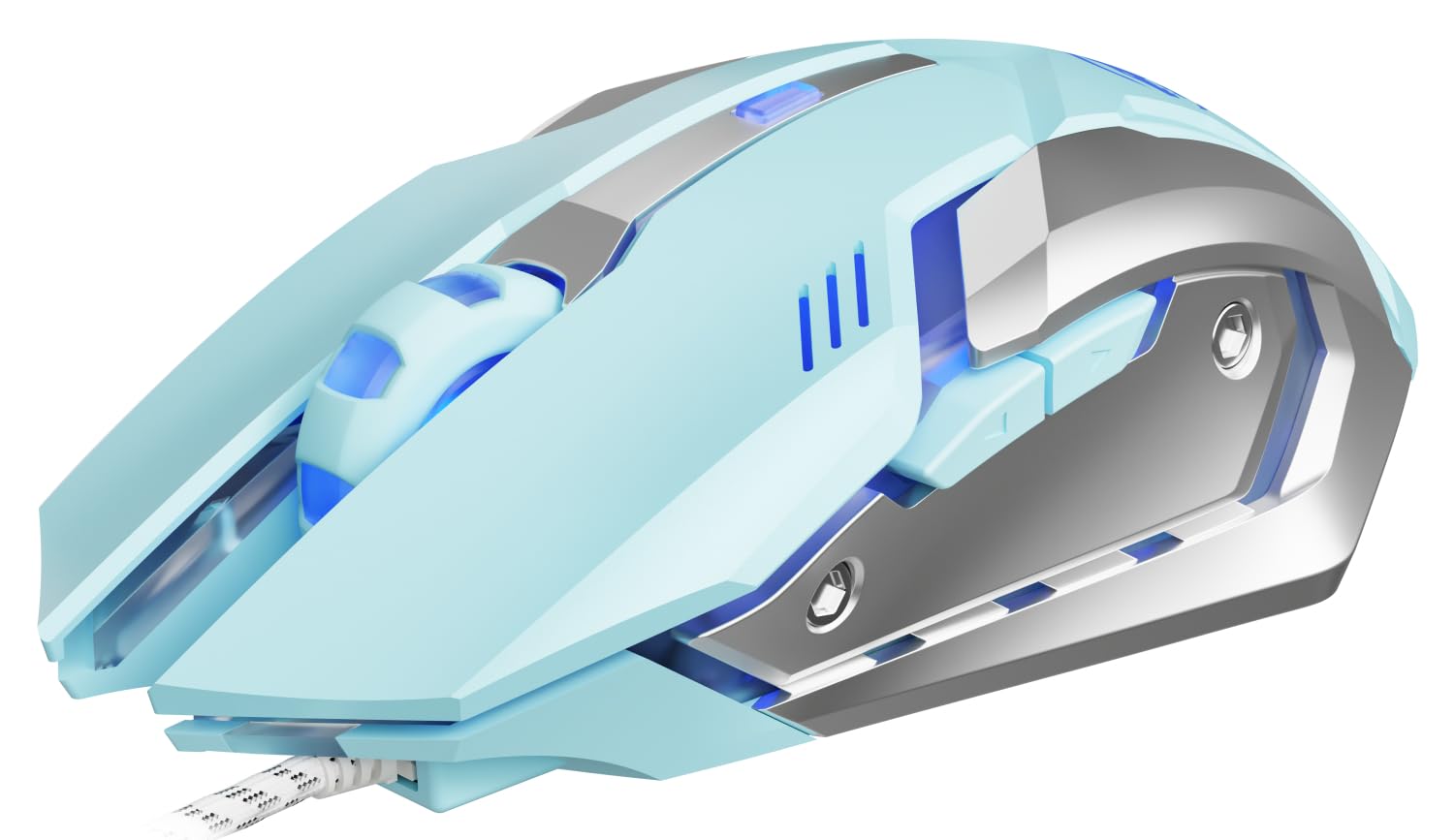
Image 1: EWEADN G3 Wired Gaming Mouse, showcasing its ergonomic design and wired connection.
2. Key Features
- Kubatana kwePlag nePlay: Instant connection via USB-A port with no drivers required. Features a tangle-resistant braided cable (1.8m/6ft).
- Four-Speed DPI Adjustment: Easily switch between 800/1200/1600/2400 DPI for dynamic tracking speed adjustments.
- 6 Mabhatani Anorongwa: Customize macros, shortcuts, or game combos for enhanced control.
- Instant-A704E Optical Sensor: Provides precise tracking with 30 IPS speed, 6000 FPS frame rate, and 15G acceleration.
- Dynamic 4-Color Breathing Light: Features an automatic cycle of blue, pink, red, and purple lighting, with an option to turn off the lights.
- Durable Design: Engineered for 3 million clicks durability with a metal base.
- Ergonomic Comfort: Yakagadzirirwa kubata zvakanaka panguva yekushandiswa kwenguva refu.
3. Setup Instructions
3.1 Kubatanidza Mbeva Yako
- Locate an available USB-A port on your computer (PC or Laptop).
- Plug the USB connector of the EWEADN G3 mouse into the USB-A port.
- The mouse is designed for plug-and-play functionality and should be recognized automatically by your operating system (Windows, Mac OS, Chrome OS, Linux). No additional drivers are typically required for basic functionality.
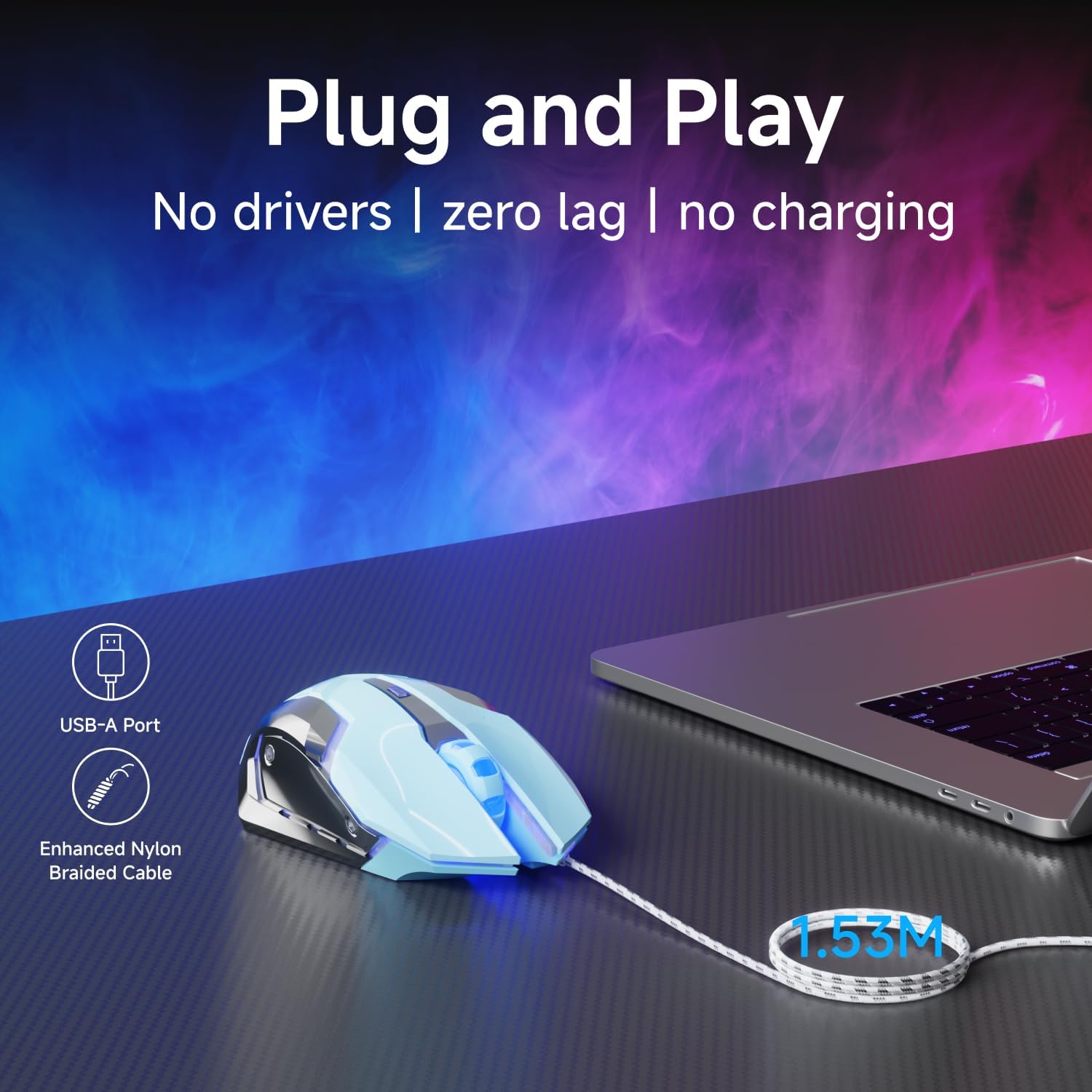
Image 2: The mouse connected via its USB-A port, illustrating the plug-and-play setup.

Image 3: The EWEADN G3 mouse is compatible with various operating systems including Windows, Mac OS, Chrome OS, and Linux.
3.2 Driver Installation (Optional for Advanced Customization)
For advanced customization of programmable buttons and DPI settings beyond the default, you may need to download specific software. Please refer to the manufacturer's website for the latest driver and software downloads.
Video 1: This video demonstrates the process of downloading and installing the mouse driver for advanced customization. (Source: Yiershi Store)
4. Operating Instructions
4.1 DPI Kugadziriswa
The EWEADN G3 mouse features a dedicated DPI button to quickly adjust tracking sensitivity. Press the DPI button (located near the scroll wheel) to cycle through four preset DPI levels: 800, 1200, 1600, and 2400. This allows you to adapt the mouse speed to different tasks, from precise editing to fast-paced gaming.

Image 4: Illustration of the DPI button and the four adjustable DPI levels (800, 1200, 1600, 2400).
4.2 Mabhatani Anorongwa
Your mouse is equipped with 6 buttons: Left Click, Right Click, Scroll Wheel (clickable), DPI Button, Forward Button, and Backward Button. The Forward and Backward buttons are typically located on the side of the mouse. These buttons can be programmed using the optional software to execute macros, shortcuts, or specific game commands, providing a personalized control experience.
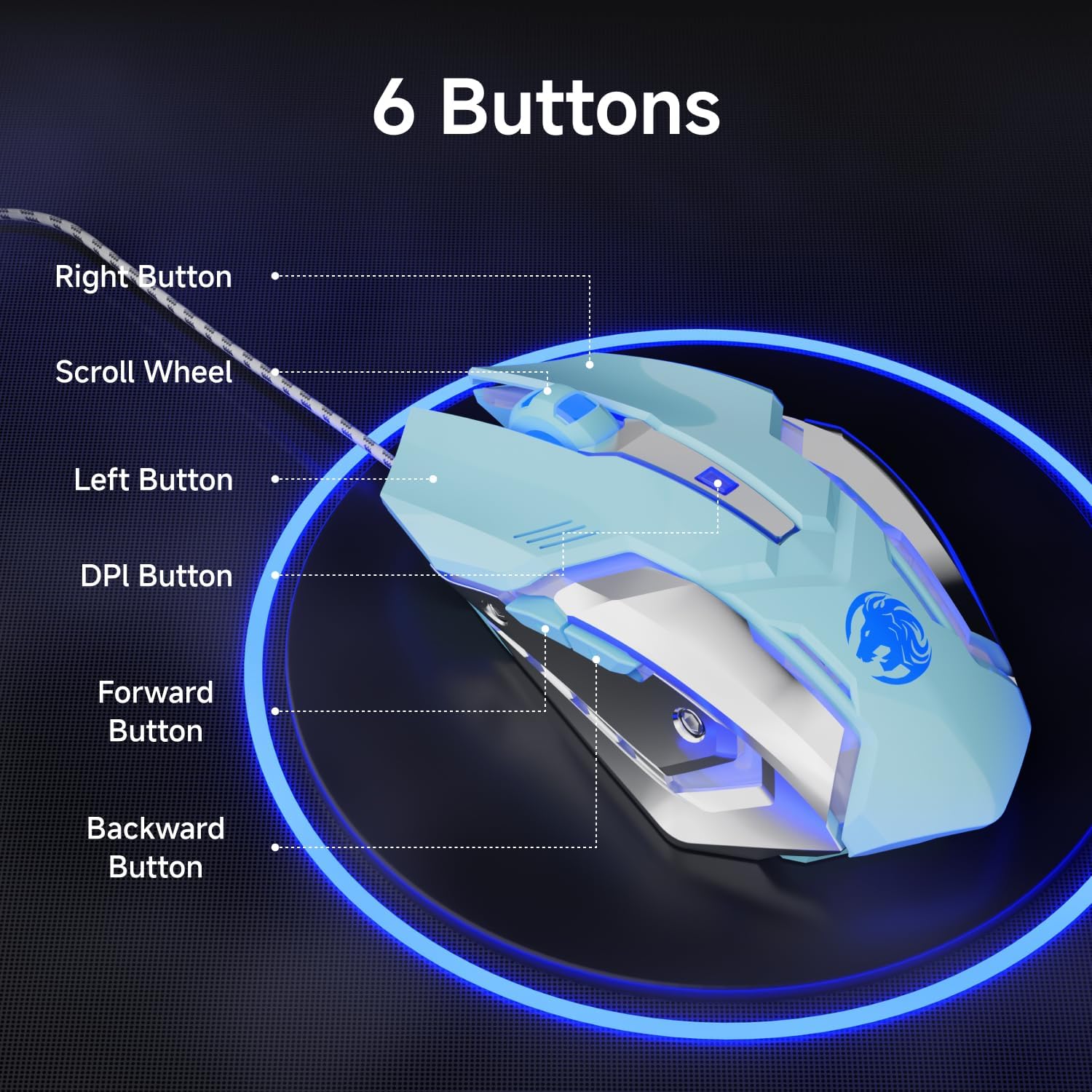
Image 5: Diagram showing the location of the 6 buttons on the EWEADN G3 mouse.
4.3 Mwenje weDynamic RGB
The EWEADN G3 mouse features a dynamic four-color breathing light effect, cycling through blue, pink, red, and purple. The lighting automatically breathes and switches. To turn off the lighting, refer to the optional software or specific button combinations if available (not specified in basic features).

Image 6: The mouse displaying its dynamic four-color breathing light in blue, pink, red, and purple.
4.4 Ergonomic Dhizaini
The mouse is designed with an ergonomic shape to provide a comfortable grip, reducing strain during prolonged use. Its form factor is suitable for various hand sizes, ensuring a natural and relaxed posture.

Image 7: A hand comfortably gripping the EWEADN G3 mouse, highlighting its ergonomic design.
4.5 Silent Click Feature
The EWEADN G3 mouse incorporates an upgraded mute button design, offering a quieter clicking experience compared to standard mice. This feature is beneficial in environments where noise reduction is desired.

Image 8: The mouse is shown with a visual representation of its silent click feature, indicating reduced noise.
5. Kuchengeta
5.1 Kuchenesa
- Bvisa mbeva kubva pakombuta yako usati wachenesa.
- Shandisa jira rakapfava, risina jira zvinyoro dampyakanyoroveswa nemvura kana mushonga wekuchenesa wakapfava wekupukuta pamusoro pembeva.
- Dzivisa kushandisa makemikari ane hasha, abrasive cleaners, kana hunyoro hwakanyanya, sezvo izvi zvinogona kukanganisa mbeva.
- For the optical sensor, use a cotton swab to gently clean any dust or debris.
5.2 Kuchengeta
When not in use, store the mouse in a clean, dry environment away from direct sunlight and extreme temperatures. Avoid coiling the cable too tightly to prevent damage.
6. Kugadzirisa matambudziko
- Mbeva isingapindure: Ensure the USB connector is securely plugged into a working USB-A port. Try plugging the mouse into a different USB port or another computer to rule out port or computer issues.
- Kufamba kwemuchina wekunyorera (cursor) kunochinja-chinja kana kuti kunononoka: Clean the optical sensor on the bottom of the mouse. Ensure you are using the mouse on a suitable surface (e.g., a mouse pad) and not on reflective or uneven surfaces. Adjust the DPI settings using the DPI button.
- Mabhatani haasi kushanda: Check if the buttons are physically obstructed. If using custom software, ensure the button assignments are correct.
- RGB mwenje haisi kushanda: Verify the mouse is properly connected. If using custom software, check the lighting settings.
7. Zvinotsanangurwa
| Feature | Detail |
|---|---|
| Model Number | G3 |
| Kubatana Technology | Wired (USB-A) |
| DPI Zvirongwa | 800/1200/1600/2400 |
| Nhamba yeMabhatani | 6 (Inorongwa) |
| Kufambisa Kwekufamba | Optical (Instant-A704E sensor) |
| Cable Length | 1.8m / 6ft (Braided) |
| RGB Lighting | Dynamic 4-Color Breathing (Blue, Pink, Red, Purple) |
| Kugara kwenguva refu | Mamirioni makumi mashanu Ekudzvanya |
| Tracking Speed | 30IPS |
| Frame Rate | 6000 FPS |
| Acceleration | 15G |
| Polling Rate | 125Hz (8 milliseconds) |
| Product Dimensions | 3.66 x 2.52 x 0.04 inches |
| Item Weight | 6.4 ounces |
| Mugadziri | EWEADN |
8. Warranty uye Tsigiro
For warranty information, technical support, or to download the latest drivers and software for your EWEADN G3 Wired Gaming Mouse, please visit the official EWEADN or SEUNKWANG product support website. Contact information for customer service can typically be found on the product packaging or the brand's official online channels.


