Nhanganyaya
Thank you for choosing the Maxfree Dual Portable Monitor M4. This manual provides essential information for setting up, operating, and maintaining your new dual monitor system. Please read this manual thoroughly before use to ensure optimal performance and longevity of your device.
Product Overview
The Maxfree Dual Portable Monitor M4 is designed to expand your workspace with two 15.6-inch 1080P FHD IPS displays. Its folding design enhances portability, making it ideal for travel and various work environments.

Image: The Maxfree Dual Portable Monitor M4, featuring two 15.6-inch screens in an open, stacked configuration, ready for use.
Zvinokosha:
- Dual 15.6-inch 1080P FHD IPS Displays
- Plug & Play USB-C Connectivity
- Folding Design for Portability
- Matte Screen with Anti-glare, No Flicker, and Eye Care Functions
- 100% sRGB Ruvara Gamut
- Multiple Display Modes and 330° Rotation
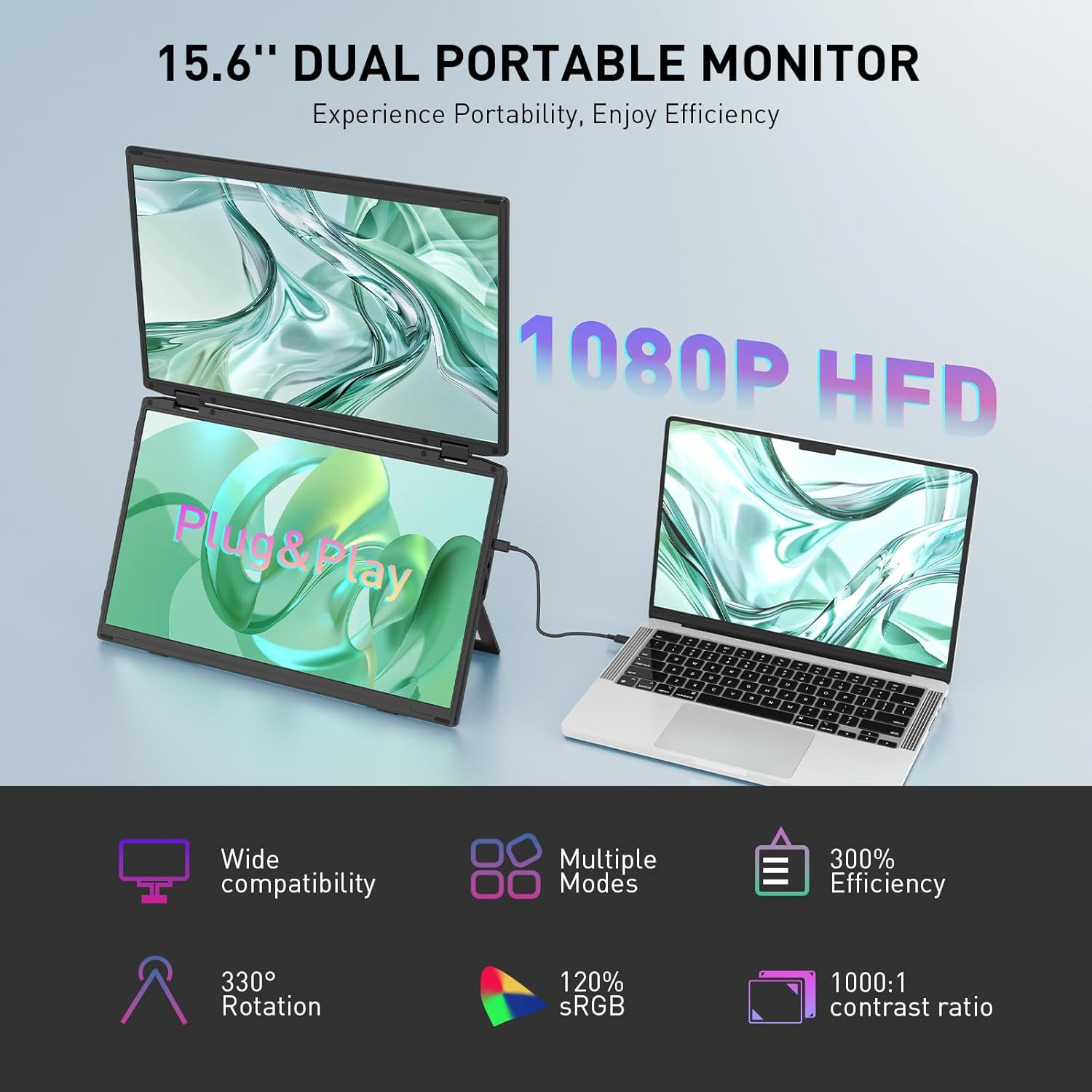
Image: The Maxfree Dual Portable Monitor M4 connected to a laptop, illustrating its plug-and-play functionality and various display modes.
Setup Instructions
- Unpack the Monitor: Nyatsobvisa cheki uye zvese zvishandiso kubva pakurongedza.
- Isa Monitor: Isa chekutarisa panzvimbo yakagadzikana, yakati sandara. Rongedza kumira kwakabatanidzwa kune chaunoda vieweng angle
- Connect to Power (Recommended): For optimal performance, connect the monitor to a power source using the provided USB-C power adapter (if included) or a compatible USB-C port on your device that supports power delivery.
- Batanidza kuChishandiso:
- Kubatanidza USB-C: Connect one end of the provided USB-C cable to the monitor's USB-C port and the other end to a full-featured USB-C port on your laptop or PC. This single cable can transmit video, audio, and power.
- HDMI + USB-A Connection (if applicable): If your device does not have a full-featured USB-C port, you may need to use an HDMI cable for video and a USB-A to USB-C cable for power and touch functionality (if supported by your model). Refer to your device's manual for specific port requirements.
- Power On: Press the power button on the monitor. Your device should automatically detect and extend the display.
- Gadzirisa Zvirongwa zvekuratidza: On your computer, navigate to Display Settings to configure the dual monitors (e.g., extend, duplicate, arrange displays).
Operating Instruction
Ratidza Modes:
The Maxfree Dual Portable Monitor supports various display modes to enhance productivity:
- Yakawedzerwa Nzira: Expands your desktop across both screens, providing a larger workspace. This is ideal for multitasking.
- Duplicate Mode: Mirrors your primary display onto the portable monitors. Useful for presentations or sharing content.
- Vertical Layout: The unique vertical stacking design minimizes scrolling and page switching, reducing eye and neck fatigue, especially for document review or coding.
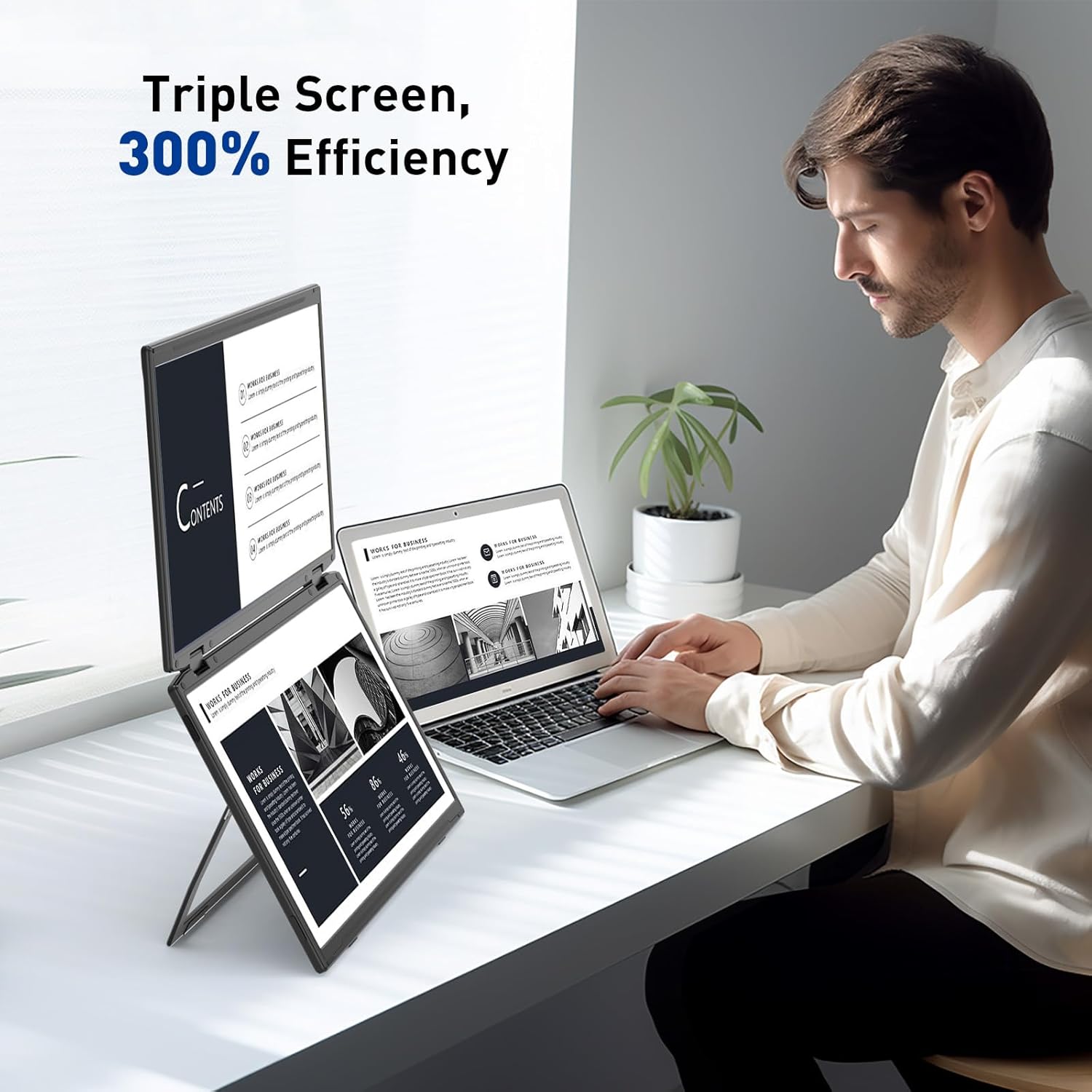
Image: A user demonstrating the Maxfree Dual Portable Monitor M4 in a vertical stacked setup, illustrating how it creates an efficient triple-screen workspace.
Pa-Screen Display (OSD) Menyu:
Use the buttons on the side of the monitor to access and navigate the OSD menu. This menu allows you to adjust settings such as:
- Kupenya uye Kusiyana
- Color Settings (e.g., sRGB, color temperature)
- Input Source Sarudzo
- Aspect ratio
- Volume (if applicable)
Refer to the on-screen prompts for specific button functions (e.g., Menu, Up, Down, Exit).
Zvinotsanangurwa
| Feature | Detail |
|---|---|
| Screen Size | MaInches maviri 15.6 |
| Resolution | 1920 x 1080 (FHD 1080p) |
| Panel Type | IPS |
| Aspect ratio | 16:9 |
| Screen Surface | Matt |
| Mufananidzo Kupenya | 300 Candela |
| Color Gamut | 100% sRGB |
| Kubatana | USB-C (Full-featured), HDMI (if applicable) |
| Total USB Ports | 1 (USB-C for main connection) |
| Voltage | 5 Volts |
| Product Dimensions | 0.5 x 14 x 9 inches |
| Item Weight | 3.5 makirogiramu |
| Model Number | M4 |
Kugadzirisa matambudziko
- Hapana Chiratidziro:
- Ensure the USB-C cable is securely connected to both the monitor and your device.
- Verify that your device's USB-C port supports video output (DisplayPort Alternate Mode).
- Connect the monitor to an external power source if your device cannot provide sufficient power.
- Check your computer's display settings to ensure the external monitor is detected and enabled.
- Flickering Screen:
- Ensure the cable connections are secure.
- Edza tambo ye USB-C yakasiyana.
- Reduce the display resolution or refresh rate on your computer.
- Matambudziko Emhando Yemufananidzo (Mavara Asina Kujeka, Asina Kururama):
- Adjust the brightness, contrast, and color settings via the OSD menu.
- Ensure your computer's display resolution matches the monitor's native resolution (1920x1080).
- Monitor Isina Kubatidzwa:
- Confirm the power cable is properly connected and the power outlet is functional.
- Dzvanya bhatani remagetsi zvakasimba.
Maintenance
- Kuchenesa Screen: pukuta skrini zvinyoro nyoro nemucheka wakapfava, usina lint. Pazvibodzwa zvakasindimara, zvishoma dampsn jira nemvura kana mushonga wekuchenesa skrini. Dzivisa makemikari ane hasha kana abrasive zvinhu.
- Kuchenesa iyo Casing: Shandisa jira rakapfava, rakaoma kupukuta chidzitiro chemuchinaasing.
- Kuchengeta: When not in use, fold the monitor and store it in a cool, dry place, preferably in its original packaging or a protective case to prevent damage.
- Dzivisa Zvakanyanya Mamiriro ezvinhu: Usaise monitor pakupisa kwakanyanya, hunyoro, kana zuva rakananga.
Warranty uye Support
For warranty information, technical support, or service inquiries, please refer to the warranty card included with your product or visit the official Maxfree website.
Mugadziri: Shenzhen Baijiayoupu Technology CO., Ltd.


