1. Nhanganyaya
This manual provides essential instructions for setting up, operating, and maintaining your LG 43QNED80TUC QNED 4K Smart TV. Please read this manual thoroughly before using your television to ensure safe and optimal performance. Keep this manual for future reference.
2. Chii chiri muBhokisi
Iva nechokwadi chekuti zvese zvirimo usati watanga kugadzirisa.
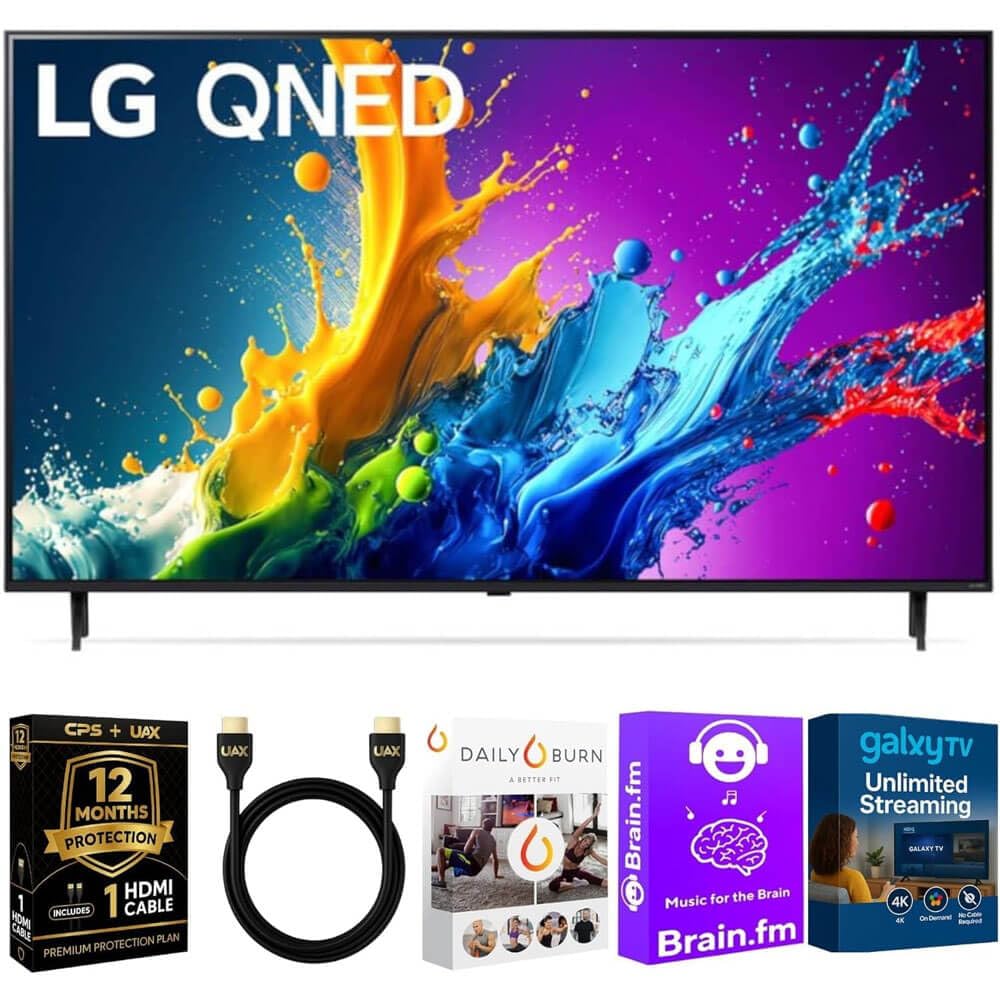
Mufananidzo: The LG 43QNED80TUC QNED 4K Smart TV, displaying its dimensions and a list of included accessories such as the Magic Remote, remote control batteries, stand, and quick start guide.
- LG 43QNED80TUC QNED 4K Smart TV
- Mashiripiti Remote
- Remote Control Batteries
- TV Stand Components
- Power Cable
- Quick Start Guide
- UAX HDMI 2.0 Cable (6ft)
- 12-Month CPS Protection Plan documentation
- Streaming Bundle activation details (Brain.fm, Daily Burn, Galaxy TV)
3. Setup
3.1 Kuunganidza Chigadziko
Carefully place the TV screen-down on a soft, flat surface. Attach the stand components to the designated slots on the bottom of the TV using the provided screws. Ensure the stand is securely fastened before placing the TV upright.

Mufananidzo: Side view of the LG QNED TV, illustrating its slim design and the attached stand, which provides stable support.
3.2 Kubatanidza Peripherals
Connect your external devices such as cable boxes, gaming consoles, or Blu-ray players to the TV's input ports. Use the provided UAX HDMI 2.0 cable for optimal performance with compatible devices.

Mufananidzo: Rear view of the LG QNED TV, highlighting the various input and output ports including HDMI, USB, Ethernet, RF In, and Optical Digital Audio Out, for connecting external devices.
Ports Aripo:
- 4 HDMI Inputs
- 2 USB Ports
- 1 Ethernet (LAN) Port
- RF In (Kanyanga / Cable)
- Optical Digital Audio Out
3.3 Yekutanga Simba-Kubatidza uye Basic Settings
Plug the power cable into the TV and a wall outlet. Press the power button on the Magic Remote or on the TV. Follow the on-screen prompts to complete the initial setup, including language selection, network connection, and channel scanning.
4. Kushandisa TV Yako
4.1 Kushandisa Mashiripiti Kure
The Magic Remote allows intuitive control of your TV. Point and click, use the scroll wheel, or utilize voice commands for navigation and content selection. Ensure batteries are correctly inserted.
4.2 webOS Smart TV Features
TV yako yeLG QNED inoshanda webOS, providing access to a wide range of streaming services and LG Channels. Navigate the home screen to find apps like Netflix, Prime Video, Disney+, and more.
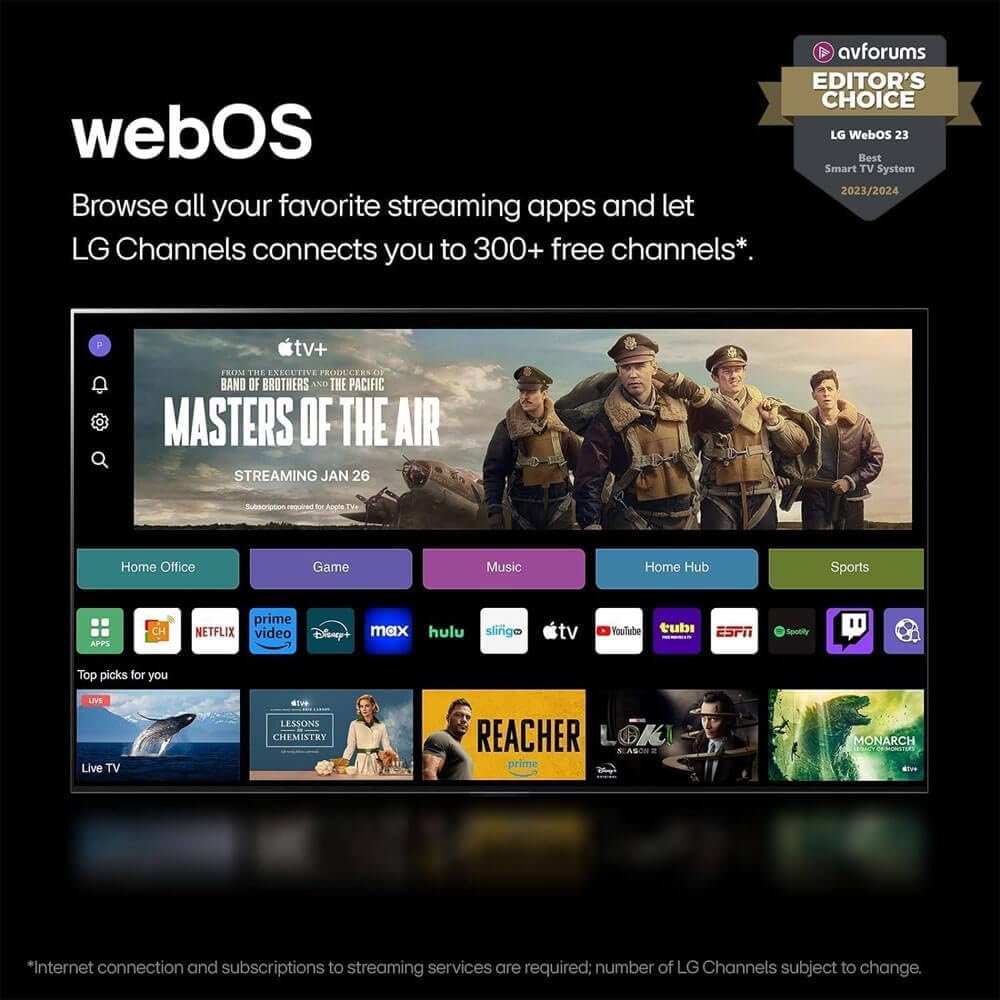
Mufananidzo: Iyo LG webOS 23 interface, displaying a selection of popular streaming applications and content categories, indicating easy access to entertainment.
Voice Control: The TV features Alexa Built-in. Press the microphone button on your Magic Remote and speak your commands to search for content, control smart home devices, or get information.
4.3 Picture and Sound Enhancement (a5 AI Processor Gen7)
The a5 AI Processor Gen7 automatically optimizes picture and sound quality in real-time. This processor enhances brightness, refines detail, and improves audio clarity for an immersive viewing experience.

Mufananidzo: A visual representation of the LG a5 AI Processor Gen7 chip, illustrating its role in enhancing brightness, sound, and picture detail for an improved viewing experience.
HDR and Audio Technologies: The TV supports HDR10 and Dolby Vision for enhanced contrast and color, and Dolby Atmos for immersive audio. These technologies are automatically engaged when compatible content is played.
4.4 Gaming Features (Game Optimizer)
Access the Game Optimizer menu to quickly adjust settings for an optimal gaming experience. Features include Auto Low Latency Mode (ALLM) for reduced input lag and HGiG compatibility for accurate HDR gaming.

Mufananidzo: A screenshot of the LG Game Optimizer interface displayed during a racing game, showing options for customizing gaming settings like ALLM, eARC, and HGiG.
5. Kuchengeta
5.1 Kuchenesa TV yako
Gently wipe the screen and cabinet with a soft, dry cloth. For stubborn marks, lightly dampen the cloth with water. Avoid using harsh chemicals or abrasive cleaners, as these can damage the screen and finish.
5.2 Zvigadziriso zveSoftware (webOS Re: Chirongwa Chitsva)
Your TV will receive software updates through the webOS Re:New Program for up to 5 years. These updates provide new features and performance improvements. Ensure your TV is connected to the internet for automatic updates. You will receive a notification if an update requires manual acceptance.

Mufananidzo: Iyo LG webOS Re:Chiratidzo Chitsva chePurogiramu, zvichiratidza kuzvipira kupa zvigadziriso zvesoftware uye maficha anozorodza kwemakore mashanu.
6. Kugadzirisa matambudziko
Kana mukasangana nematambudziko neTV yenyu, tarisai matambudziko anotevera akajairika nemhinduro musati mabata sevhisi.
| Dambudziko | Zvinogona Kukonzera | Solution |
|---|---|---|
| Hapana Simba | Tambo yemagetsi yabviswa; dambudziko rekubuda kwemagetsi. | Ita shuwa kuti tambo yemagetsi yakabatana zvakachengeteka. Edza chinobuda neimwe mudziyo. |
| Hapana Mufananidzo, Ruzha Chete | Kwakabva zvinhu zvisiri izvo; dambudziko remudziyo wekunze. | Tarisa kwakabva zvinhu. Iva nechokwadi chekuti zvishandiso zvekunze zvakabatidzwa uye zvakabatana nemazvo. |
| Hapana Ruzha, Mufananidzo Chete | Volume muted; audio settings incorrect. | Unmute the TV. Check audio output settings in the TV menu. |
| Remote Control Haisi Kushanda | Mabhatiri akafa; kuvharika; remote haina kusanganiswa. | Replace batteries. Remove obstructions. Re-pair the Magic Remote if necessary (refer to Quick Start Guide). |
| Haikwanisi Kubatanidza kuWi-Fi | password isiriyo; router nyaya; TV iri kure zvakanyanya kubva router. | Verify Wi-Fi password. Restart your router. Move TV closer or use a wired Ethernet connection. |
7. Zvinotsanangurwa
- Muenzaniso: 43QNED80TUC
- Ratidza Rudzi: QNED 4K UHD
- Kukura Kwesikirini: 43 inches (43.1 inches diagonal)
- processor: a5 AI processor Gen7
- Operating System: webOS Smart TV
- HDR Tsigiro: HDR10, Dolby Vision
- Rutsigiro rwekuteerera: Dolby Atmos
- Kubatana: Wi-Fi, Bluetooth
- Zviteshi: 4 HDMI, 2 USB, 1 Ethernet (LAN), RF In, Optical Digital Audio Out
- Zviyero zveChigadzirwa (W x H x D):
- Without Stand: 38.1 x 22.2 x 1.2 inches
- With Stand: 38.1 x 25 x 10.1 inches
- Chinhu Weight: 27 makirogiramu
- Mugadziri: LG
8. Warranty uye Tsigiro
Your LG 43QNED80TUC QNED 4K Smart TV includes a standard manufacturer's warranty. Additionally, this bundle includes a 12-Month CPS Protection Plan for extended coverage and peace of mind. Refer to the documentation provided with your purchase for specific terms and conditions of both the manufacturer's warranty and the CPS Protection Plan.
For technical assistance, troubleshooting, or warranty claims, please contact LG Customer Support or refer to the official LG websaiti kune yakadzama rutsigiro zviwanikwa.
LG Support Websaiti: https://www.lg.com/us/support
9. Product Videos
LG webOS Smart TV Overview
Vhidhiyo An overview zve LG webOS Smart TV platform, demonstrating its user interface, app navigation, and smart features for an enhanced entertainment experience.
LG a5 AI Processor Gen7 Explained
Vhidhiyo This video explains the capabilities of the LG a5 AI Processor Gen7, detailing how it optimizes picture and sound quality through artificial intelligence for a superior viewing experience.
LG Game Optimizer Features
Vhidhiyo A demonstration of the LG Game Optimizer, showcasing its various settings and how it enhances gaming performance with features like ALLM and HGiG for a smoother, more responsive gaming experience.