1. Nhanganyaya
This user manual provides detailed instructions for the Bemi Cognita Tab 6+ E-Reader. Please read this manual carefully before using your device to ensure proper operation and to maximize your reading experience. Keep this manual for future reference.
1.1 Package Zviri mukati
- Bemi Cognita Tab 6+ E-Reader
- USB Kuchaja Cable
Ensure all items are present and in good condition upon unboxing.
2. Mudziyo Pamusoroview
Familiarize yourself with the physical components of your Bemi Cognita Tab 6+ E-Reader.

Mufananidzo 2.1: Mberi view of the Bemi Cognita Tab 6+ E-Reader. The device features a 6-inch E-Ink display with the Bemi logo and model name visible. The screen is designed to mimic paper for a comfortable reading experience.

Mufananidzo 2.2: Mberi neshure view of the Bemi Cognita Tab 6+ E-Reader. This image highlights the device's thin design and the textured back cover, which provides a secure grip.

Mufananidzo 2.3: Side view of the Bemi Cognita Tab 6+ E-Reader, illustrating the location of the power button and a small LED indicator. This button is used for turning the device on/off and waking it from sleep.
2.1 Key Components:
- 6-inch E-Ink Touchscreen: Glare-free display for comfortable reading.
- Bhatani reSimba: Located on the side for turning the device on/off and sleep/wake.
- USB-C Chiteshi: Yekuchaja uye kutumira data.
- MicroSD Kadhi Slot: Expandable storage up to 256GB.
- Mabhatani Ekudzora Padivi: For page turning and navigation.
- SMARTlight: Adjustable front light for reading in various conditions.
3. Setup
3.1 Kutanga Kuchaja
Before first use, fully charge your Bemi Cognita Tab 6+ E-Reader. Connect the provided USB cable to the device's USB-C port and the other end to a compatible USB power adapter (not included) or a computer's USB port.
- Kuchaja kwakazara kunowanzo kunotora maawa angangoita 2-3.
- Chiedza chechiratidzo chekuchaja chicharatidza mamiriro ekuchaja.
3.2 Kubatidza/Kudzima
- Kubatidza: Press and hold the Power button (refer to Figure 2.3) for a few seconds until the screen activates.
- Kudzima: Press and hold the Power button until a power-off menu appears, then select "Power Off".
- Kurara/Kumuka: Briefly press the Power button to put the device into sleep mode or wake it up.
3.3 Wi-Fi Connection
Connecting to Wi-Fi allows you to download books, transfer files, and access online services.
- From the home screen, tap the Settings icon.
- Sarudza Wi-Fi.
- Chinja switch yeWi-Fi kuti ive On.
- The device will scan for available networks. Select your desired network from the list.
- Isa password kana wakurudzirwa, wobva wadzvanya Connect.
3.4 Magadzirirwo ekutanga
Upon first power-on, you may be guided through initial setup steps, including language selection and time zone settings. Follow the on-screen prompts.
4. Operating Instructions
4.1 Kufambisa iyo Interface
The Bemi Cognita Tab 6+ features a touch-sensitive E-Ink screen and physical side buttons for navigation.
- Bata Gestures: Tap to select, swipe to scroll, pinch to zoom (where supported).
- Side Buttons: Use the physical buttons on the side to turn pages forward or backward during reading.
- G-Sensor: The device automatically rotates the screen orientation based on how you hold it, accommodating both right and left-handed users.
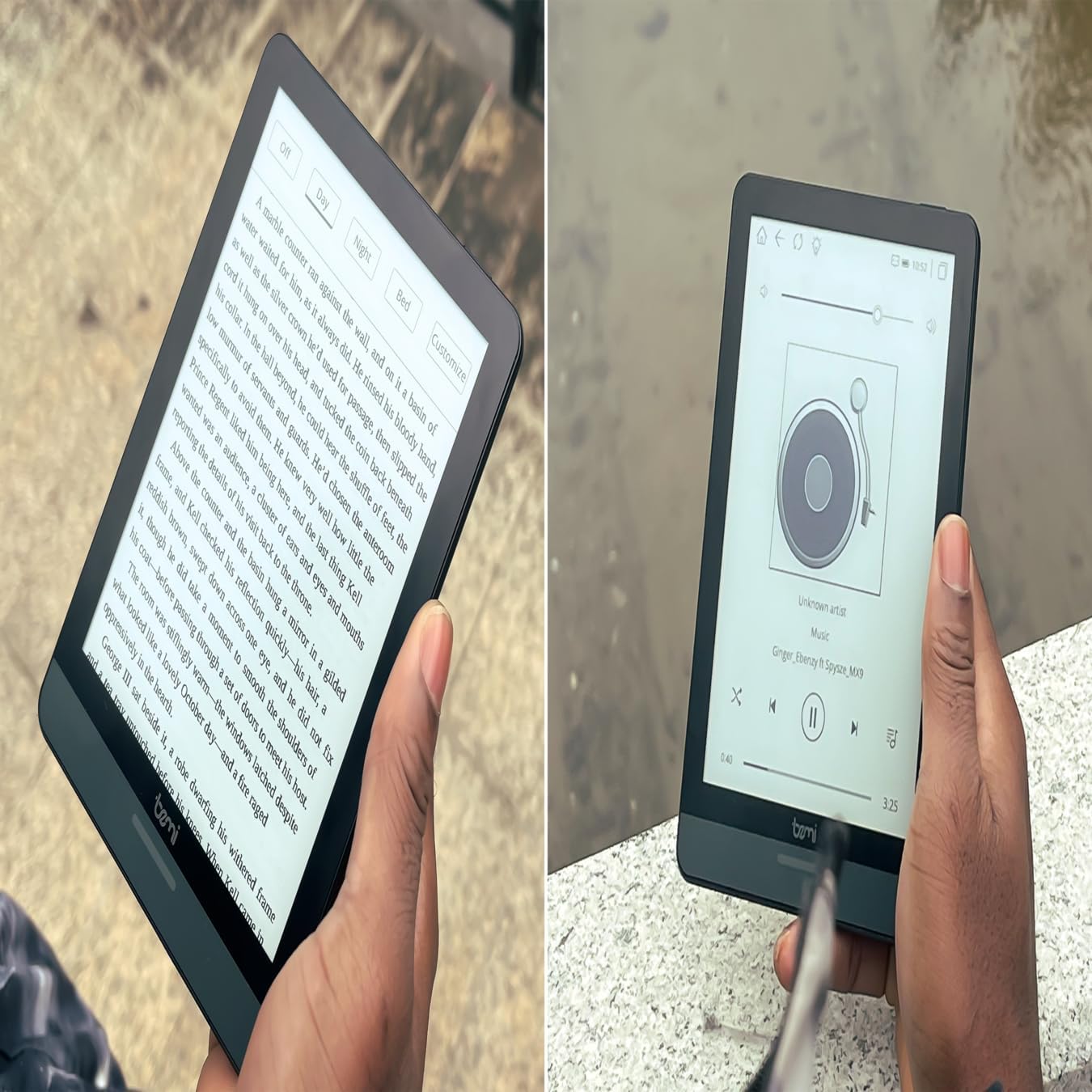
Mufananidzo 4.1: User holding the Bemi Cognita Tab 6+ E-Reader while reading. The image shows the clear text display on the E-Ink screen, highlighting the device's readability.
4.2 Mabhuku Ekuverenga
To open and read a book:
- From the home screen, tap on the Library or Mabhuku icon.
- Browse your collection or use the search function to find a book.
- Tap on the book cover to open it.
- Use the touch screen or side buttons to turn pages.
4.3 Adjusting SMARTlight
The SMARTlight feature allows you to adjust both the brightness and color temperature of the screen's front light.
- During reading, tap the center of the screen to bring up the reading menu.
- Tarisa uone Chiedza or SMARTlight icon.
- Adjust the sliders for brightness (intensity) and color temperature (warm to cool) to your preference.
4.4 Kuendesa Files
You can transfer e-books and other supported files to your device via Wi-Fi or USB cable.
- Kuburikidza neWi-Fi: If your device supports cloud services or direct Wi-Fi transfer, follow the specific application instructions.
- Kuburikidza ne USB Cable:
- Connect your E-Reader to a computer using the provided USB cable.
- The device will appear as a removable storage drive on your computer.
- Drag and drop your desired files (e.g., EPUB, PDF, MOBI) into the appropriate folders on the E-Reader (e.g., "Books" folder).
- Bvisa mudziyo wacho zvakachengeteka kubva pakombuta yako usati wabvisa waya yacho.
4.5 Using MicroSD Card
To expand storage, insert a microSD card (up to 256GB) into the designated slot.
- Gently insert the microSD card with the gold contacts facing down until it clicks into place.
- Kuti ubvise, isa zvinyoro nyoro kadhi mukati kusvikira yabuda.
- Files on the microSD card will be accessible through the device's file manager or library.
5. Kuchengeta
5.1 Kuchenesa Chishandiso
- Shandisa jira rakapfava, risina ruvara kuti upukute zvinyoro nyoro sikirini nemuviri wechishandiso.
- Pakuoma musoro, zvishoma dampsn jira rine mvura kana chekuchenesa skrini rakagadzirirwa zvemagetsi.
- Dzivisa kushandisa makemikari ane hasha, abrasive zvinhu, kana kunyanyisa mwando.
5.2 Kuchengeta Battery
- Kurebesa bhatiri, dzivisa kuburitsa bhatiri zvakazara nguva zhinji.
- Chengetedza mudziyo munzvimbo inotonhorera, yakaoma kana isiri kushandiswa kwenguva yakareba.
- Charge the device regularly, even if not used, to prevent deep discharge.
5.3 Kuchengeta
When not in use, store your E-Reader in a protective case to prevent scratches and damage to the screen.
6. Kugadzirisa matambudziko
If you encounter issues with your Bemi Cognita Tab 6+, refer to the following common solutions:
| Dambudziko | Solution |
|---|---|
| Chigadzirwa hachishandi. | Ensure the battery is charged. Connect the device to a power source for at least 30 minutes. If it still doesn't turn on, try a hard reset by holding the power button for 10-15 seconds. |
| Sikirini yakaomeswa kana kusadaira. | Perform a soft reset by holding the power button for 5-7 seconds until the device restarts. If the issue persists, try a hard reset. |
| Haikwanisi kubatana neWi-Fi. | Check if Wi-Fi is enabled in settings. Verify the Wi-Fi password. Restart your E-Reader and your Wi-Fi router. Ensure you are within range of the Wi-Fi signal. |
| Books are not appearing in the library. | Iva nechokwadi chekuti files are in a supported format (e.g., EPUB, PDF). If transferred via USB, ensure they are in the correct folder. Try refreshing the library or restarting the device. |
| Bhatiri rinopera nekukurumidza. | Reduce screen brightness. Turn off Wi-Fi and Bluetooth when not in use. Close background applications. Ensure the device is not constantly searching for networks. |
7. Zvinotsanangurwa
| Feature | Detail |
|---|---|
| Model Name | Bemi Cognita Tab 6+ |
| Screen Size | 6 Inches (E-Ink Carta, 1024x758, 212 ppi) |
| Internal Memory | 32 GB |
| Expandable Storage | MicroSD kadhi slot, kusvika ku256 GB |
| Kubatana | Wi-Fi, Bluetooth |
| Operating System | Android 8.1 |
| Human Interface Input | Touchscreen, Side Control Buttons |
| Special Features | Adjustable SMARTlight, G-Sensor for auto-rotation, Glare-Free & Eye-Friendly E-Ink Display |
| Dimensions (Approx.) | 7 mm ukobvu |
| Inosanganisirwa Zvikamu | USB Cable |
8. Warranty uye Tsigiro
8.1 Ruzivo rweWaranti
Your Bemi Cognita Tab 6+ E-Reader comes with a standard manufacturer's warranty. Please refer to the warranty card included in your product packaging or visit the official Bemi websaiti kune akadzama mazwi uye mamiriro ane chekuita newaranti yekuvhara uye nguva.
Optional dziviriro zvirongwa zvinogona kuwanikwa kune yakawedzera kufukidzwa. Ndokumbira utarise nemutengesi wako kuti uwane ruzivo.
8.2 Mutengi Tsigiro
For technical assistance, troubleshooting beyond this manual, or warranty claims, please contact Bemi customer support:
- Websaiti: www.bemi-electronics.com
- Email: Refer to the Bemi websaiti yeemail yekutaurirana.
- Runhare: Refer to the Bemi website for contact phone numbers.
When contacting support, please have your device model (Cognita Tab 6+) and purchase information ready.


