1. Nhanganyaya
This manual provides comprehensive instructions for the Nokia G310 5G TA-1573 smartphone. It covers essential information for setup, operation, maintenance, and troubleshooting to ensure optimal use of your device. The Nokia G310 5G TA-1573 features a 6.6-inch HD+ 90 Hz IPS LCD display, a Snapdragon 480+ octa-core processor, 4 GB of RAM, and 5G connectivity, running on Android 13.
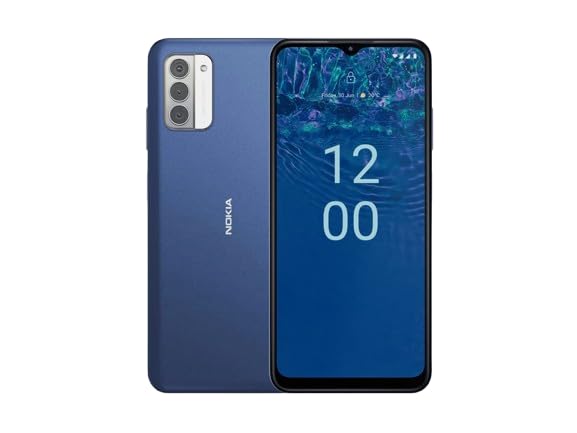
Mufananidzo 1.1: Nokia G310 5G TA-1573 Smartphone. This image displays the front view of the Nokia G310 5G smartphone, highlighting its display and general form factor.
2. Chii chiri muBhokisi
Upon unboxing your Nokia G310 5G TA-1573, please verify that all the following items are included:
- Nokia G310 5G TA-1573 Smartphone
- USB-C Cable
- SIM Ejector Tool
3. Setup
3.1. Kuchaja Chishandiso
Before initial use, fully charge your Nokia G310 5G. Connect the provided USB-C cable to the phone's USB-C port and the other end to a compatible power adapter (sold separately) or a computer's USB port. The battery indicator on the screen will show charging progress.
3.2. Kuisa SIM Card
- Tsvaga SIM card tray padivi pefoni yako.
- Isa chishandiso cheSIM ejector muburi diki riri patireyi kuti uvhure.
- Isa Nano-SIM kadhi yako mutireyi ine macontacts egoridhe akatarisa pasi, uchiita kuti ikwane zvakachengeteka.
- Nyatsosundidzira tireyi mufoni kusvika yadzvanya panzvimbo.
3.3. Powering On uye Initial Setup
- Press and hold the Power button (usually on the right side) until the Nokia logo appears.
- Tevedzera zviri pa-skrini kuti usarudze mutauro wako, batanidza kunetiweki yeWi-Fi, uye gadzira yako Google account.
- Zadzisa iyo wizard yekuseta kuti ugadzirise zvigadziriso zvechishandiso chako.
4. Kushandisa mudziyo wako
4.1. Basic Navigation
- Touchscreen Gestures: Tinya kuti usarudze, swipe kupuruzira, tsikirira kuti uwedzere.
- Sikirini Yemba: Svika mapurogiramu, majeti, uye zviziviso.
- Navigation Bar: Shandisa mabhatani eKudzokera, Kumba, uye Mapurogiramu Ekupedzisira ari pasi pechidzitiro.
4.2. Kuita Kufona uye Kutumira Mharidzo
- Vhura iyo Phone app kufonera manhamba kana kusarudza vanobatika.
- Vhura iyo Mharidzo app yekunyora uye kutumira mameseji.
4.3. Kubatanidza kune Networks
- Wi-Fi: Enda ku Settings > Network & internet > Internet kubatanidza kune anowanikwa Wi-Fi network.
- Bluetooth: Enda ku Zvirongwa> Zvishandiso zvakabatanidzwa> Zvido zvekubatanidza> Bluetooth kubatanidza nemidziyo yeBluetooth.
- Nharembozha Ita shuwa kuti nharembozha yakabatidzwa Settings > Network & internet > SIMs kuti uwane internet kuburikidza nenharembozha yako.
4.4. Kushandisa Kamera
Vhura iyo Kamera app to capture photos and videos. Tap the shutter button to take a picture or hold it to record a video. Explore different modes and settings within the app.
5. Kuchengeta
5.1. Kuchenesa Mudziyo Wako
Use a soft, lint-free cloth to clean the screen and body of your phone. Avoid using harsh chemicals or abrasive materials, which can damage the device's finish or screen coating.
5.2. Battery Care
- Dzivisa kuisa foni kune tembiricha yakanyanyisa.
- Usarega bhatiri richidonha zvachose nguva dzose.
- Shandisa machaja akatenderwa chete netambo.
5.3. Software Updates
Gara uchitarisa uye kuisa zvigadziriso zvesoftware kuti uone kuti mudziyo wako une zvichangobva kuitika, zvigamba zvekuchengetedza, uye kuvandudzwa kwekuita. Enda ku Settings> System> System update.
5.4. Kuchengetedza Kuchengetedza
Kuti uwedzere kuita, gara uchijekesa zvisina basa files, bvisa mapurogiramu asina kushandiswa, uye fambisa midhiya yakakura files to cloud storage or an external device. Check storage usage in Zvirongwa > Kuchengeta.
6. Kugadzirisa matambudziko
6.1. Chishandiso Chisingabatike
Ensure the battery is charged. Connect the phone to a charger and wait a few minutes before attempting to power it on again. If it still doesn't turn on, try holding the Power button for 10-15 seconds.
6.2. Network Connectivity Matambudziko
- Hapana Chiratidzo: Check if your SIM card is properly inserted. Try restarting the phone.
- Wi-Fi Haisi Kubatana: Ensure the Wi-Fi password is correct. Restart your router and phone.
- Bluetooth Pairing Nyaya: Ensure both devices are in pairing mode and within range.
6.3. Mapurogiramu Anoputsika kana Kutonhora
Try force-closing the app (Settings > Apps > See all apps > [App Name] > Force stop). Clear the app's cache and data (Settings > Apps > See all apps > [App Name] > Storage & cache > Clear cache / Clear storageKana dambudziko rikaramba riripo, bvisa woisazve app yacho.
6.4. Factory Reset
As a last resort, if software issues persist, you may perform a factory reset. Warning: This will erase all data on your phone. Chengetedza data yakakosha usati waenderera. Enda ku Settings> System> Reset sarudzo> Bvisa data rese (factory reset).
7. Zvinotsanangurwa
| Feature | Detail |
|---|---|
| Model Name | Nokia G310 5G TA-1573 |
| Operating System | Android 13.0 |
| Kukura Kwekuratidza | 6.6 inches |
| Resolution | 720 x 1560 pixels |
| Refresh Rate | 90 Hz |
| CPU Model | Qualcomm Snapdragon MSM8260A (Snapdragon 480+ equivalent) |
| CPU Speed | 2 GHz |
| RAM Memory Yakaiswa Saizi | 4 GB |
| Memory Storage Capacity | 128 GB (Yemukati) |
| Connectivity Technologies | 5G |
| Battery Power Rating | 3600 mamiriyoniamp Maawa (Lithium Ion) |
| Sravana Sameeralu Serial 4th Audio Jack | USB-C |
| Item Weight | 6.9 ounces |
| Color | Bhuruu |
8. Warranty uye Tsigiro
8.1. Ruzivo rweWaranti
For specific warranty details regarding your Nokia G310 5G TA-1573, please refer to the documentation provided by the seller at the time of purchase. As this is a renewed product, warranty terms may differ from new devices. It is recommended to contact the seller directly for precise warranty coverage and duration.
8.2. Technical Support
If you encounter issues that cannot be resolved using the troubleshooting steps in this manual, please contact:
- The seller from whom you purchased the device.
- Nokia's official support channels for general product inquiries.
Please have your device model number (TA-1573) and proof of purchase ready when contacting support.


