1. Nhanganyaya
This manual provides essential information for the safe and effective operation of your ZENTALITY Mini Projector A10 PLUS. Please read this manual thoroughly before using the product and retain it for future reference.
Product Overview
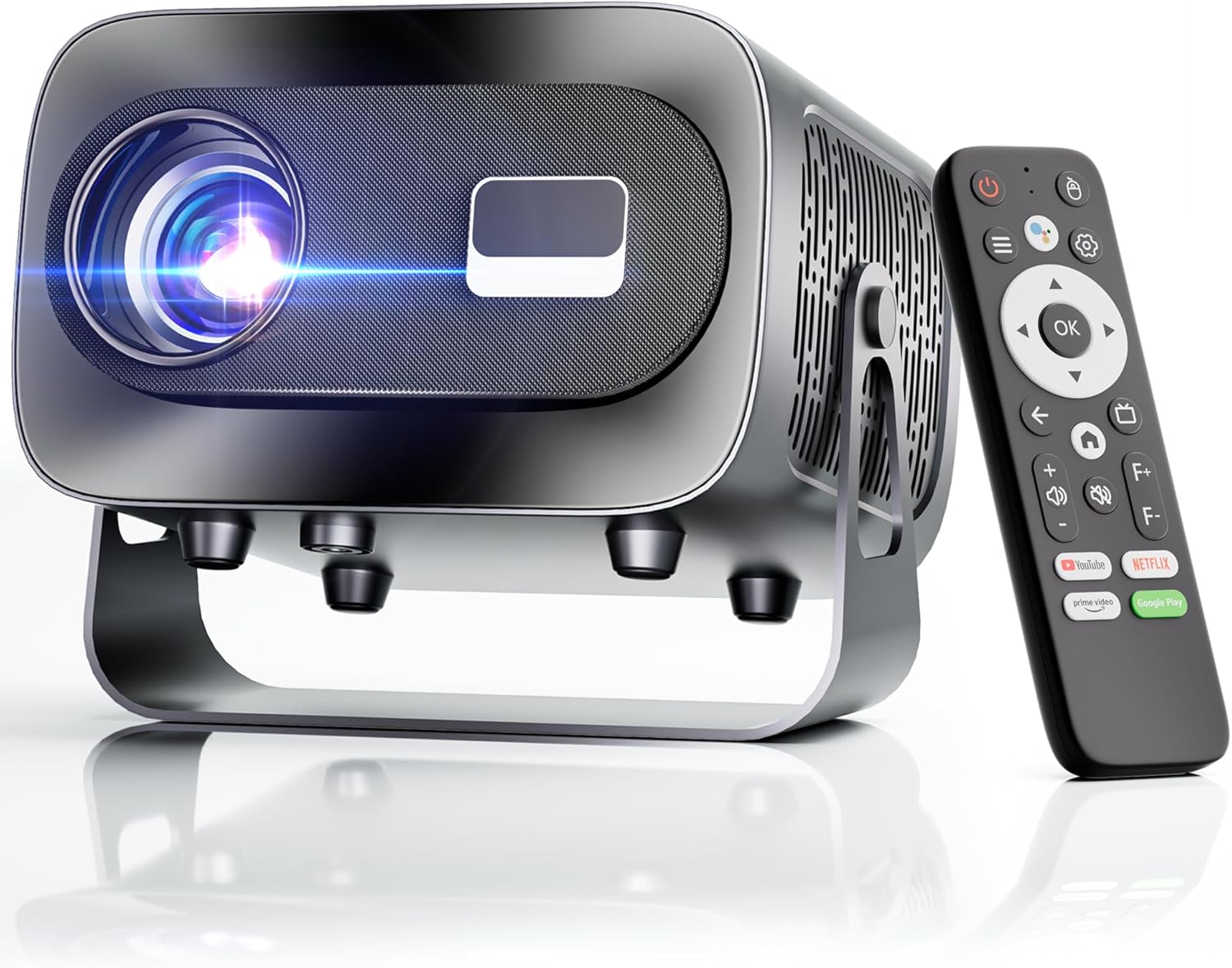
The ZENTALITY Mini Projector A10 PLUS is a smart projector featuring Android 13, designed for versatile home and outdoor entertainment. It supports 4K and 1080P HD content, offers electric focus, auto vertical keystone correction, and includes dual-band WiFi 6 and Bluetooth 5.1 connectivity. Its compact design and multiple input options make it suitable for various applications.
Chii chiri muBhokisi
- ZENTALITY Mini Projector A10 PLUS
- HDMI Cable
- Power Adapter
- Remote Control
- Mushandisi Chinyorwa (gwaro iri)
2. Safety Information
Please observe the following safety precautions to prevent damage to the projector and ensure user safety:
- Usavhare mazaru emhepo. Iva nechokwadi chekuti mweya wakakwana wakatenderedza purojekita kudzivirira kupisa.
- Avoid direct exposure to the projector lens light. The bright light can cause eye strain or damage.
- Use only the provided power adapter. Using an incompatible adapter may cause fire, electric shock, or damage.
- Chengeta purojekita kure nemvura kana zvimwe zvinwiwa. Usashandise mukati memwedziamp nharaunda.
- Usaedza kubvisa kana kugadzirisa purojekita iwe pachako. Tumira masevhisi ese kuvashandi vanokwanisa.
- Isa purojekita panzvimbo yakagadzikana, yakadzikama kuti isadonha.
- Chengetedza pasingasvikirwi nevana.
3. Zvikamu zveChigadzirwa uye Machiteshi
Familiarize yourself with the projector's physical features and connectivity options.

Ports Aripo:
- USB (x2): For connecting USB drives, external storage, or other USB-compatible devices.
- HDMI: For connecting devices such as laptops, gaming consoles, or TV sticks.
- Kubuda kweOdhiyo (Jack ye3.5mm): Yekubatanidza vatauri vekunze kana mahedhifoni.
- Power Input: Yekubatanidza iyo adapta yemagetsi.
4. Kutanga Setup
4.1 Simba Connection
- Batanidza adapta yemagetsi kune chiteshi chemagetsi cheprojekita.
- Batanidza adapta yemagetsi mudura repamadziro.
- Dzvanya bhatani remagetsi papurojekita kana remote control kuti ubatidze.
4.2 Remote Kudzora Kubatanidza
Important: The remote control must be paired via Bluetooth before it can operate smoothly within 1-3 meters.
- Ita shuwa kuti purojekita yakabatidzwa.
- Navigate to the projector's Bluetooth settings (usually found in the 'Settings' menu).
- Select 'Pair new device' or similar option.
- On the remote control, press and hold the designated pairing button (refer to the remote's specific instructions if available, often a combination of 'OK' and 'Volume Down' or a dedicated Bluetooth button).
- Once the remote appears in the projector's Bluetooth device list, select it to complete pairing.

4.3 Kuiswa uye Kugadziriswa kweScreen
The projector offers automatic and electric adjustments for optimal image clarity and alignment.
- Electric Focus: The projector features electric focus for instant clarity. Use the 'F+' and 'F-' buttons on the remote control to fine-tune the image sharpness.
- Auto Vertical Keystone Kururamisa: The projector automatically corrects vertical image distortion up to ±15°. This ensures a rectangular image even if the projector is not perfectly perpendicular to the screen.
- Zoom Basa: Adjust the image size from 50% to 100% without moving the projector. This is useful for fitting the projection to your screen size.


5. Operating Instructions
5.1 Android 13 Interface and App Access
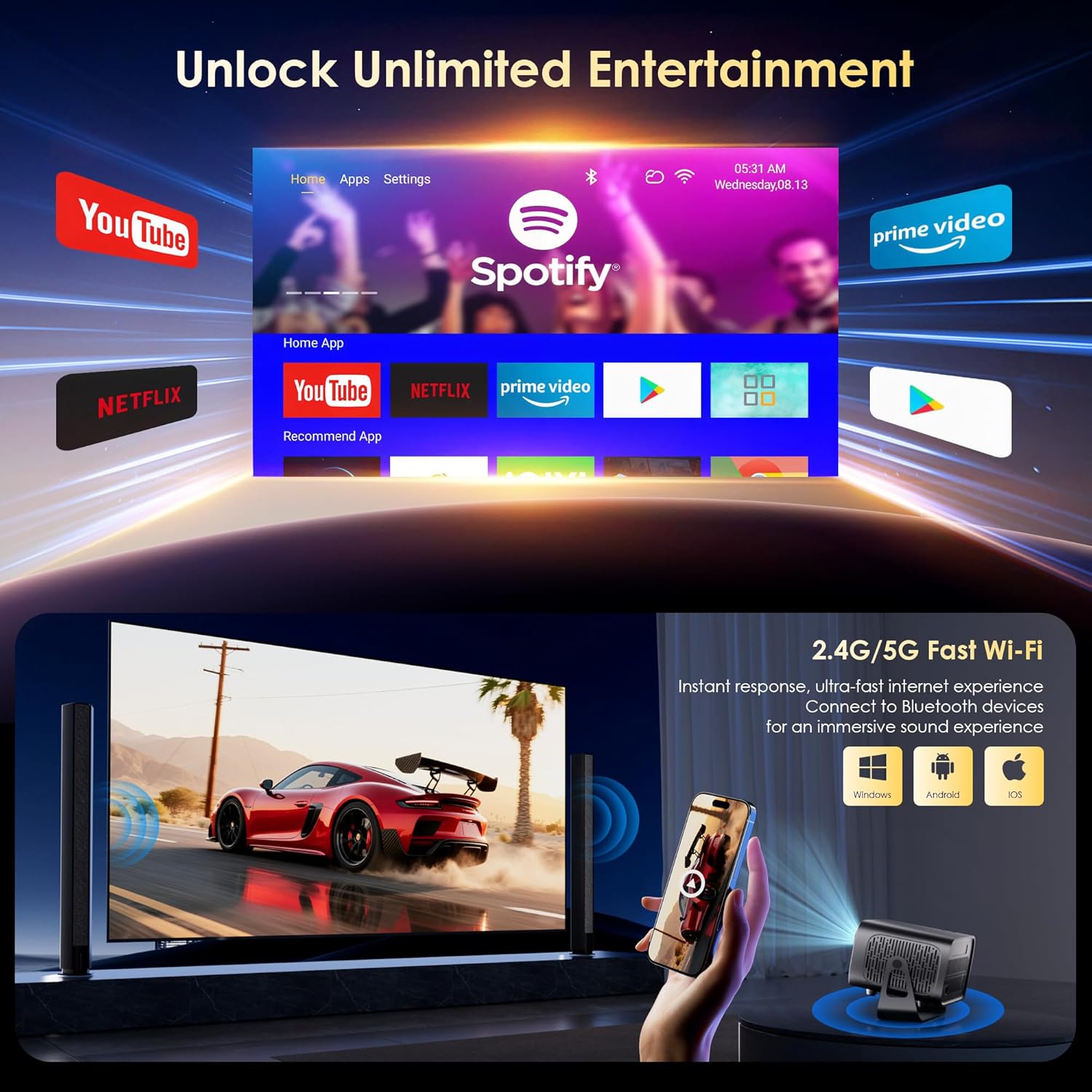
The projector runs on Android 13, providing access to a wide range of streaming applications.
- Upon startup, the home screen will display pre-installed applications like Netflix, Prime Video, and YouTube.
- Navigate using the remote control's directional pad and 'OK' button.
- Access the built-in app store (e.g., Google Play Store) to download additional applications.
- Use the voice assistant feature on the remote control for quick app launching or content search.

5.2 Kubatana kweWiFi
The projector supports dual-band 5G/2.4G WiFi 6 for stable internet access and screen mirroring.
- Go to 'Settings' on the home screen.
- Sarudza 'Network & Internet'.
- Batidza Wi-Fi uye sarudza yako yaunoda network kubva pane iyo rondedzero.
- Isa password kana ukakurudzirwa uye ubatanidze.
Note: WiFi is required for the first setup or online apps. If you prefer not to connect to WiFi, you can use the projector offline by connecting external devices via the included HDMI cable or the USB port.

5.3 Kubatana kweBluetooth
The projector features Bluetooth 5.1 for audio streaming.
- Go to 'Settings' on the home screen.
- Select 'Connected Devices' or 'Bluetooth'.
- Batidza Bluetooth uye tsvaga midziyo iripo.
- Select your Bluetooth speaker, headphones, or soundbar from the list to pair.
Note: Bluetooth supports audio output only, not video transmission.
5.4 Kubatanidza Zvishandiso Zvekunze
The projector supports various external devices via its HDMI and USB ports.
- HDMI: Connect your laptop, gaming console, or TV stick using an HDMI cable. The projector will automatically detect the input or you may need to select the HDMI source from the input menu.
- USB: Isa USB drive kuti utambe midhiya files directly. The projector's media player will typically launch automatically or can be accessed from the home screen.
5.5 Projection Modes
The projector can be used in various orientations:
- Desktop Projection: Place the projector on a flat surface in front of the screen.
- Ceiling Projection: Mount the projector upside down on the ceiling. Adjust the projection settings in the menu to flip the image.
- Tripod Mounting: Use the 1/4'' screw hole at the bottom to mount the projector on a tripod for flexible positioning.

6. Kuchengeta
6.1 Kuchenesa
- Lenzi: Shandisa jira rakapfava, risina ruvara rwakagadzirirwa magirazi emaziso. Usashandise machira ekuchenesa kana anokwenya.
- Kunze: Wipe the projector's exterior with a soft, dry cloth. For stubborn dirt, a slightly damp jira rinogona kushandiswa, rozoteverwa nejira rakaoma.
- Ventilation Openings: Periodically check and gently clean the ventilation openings to ensure they are free from dust and debris. Use a soft brush or compressed air.
6.2 Kutonhodza System
The projector features an advanced dual-fan cooling system designed for low noise and efficient heat dissipation. To ensure its longevity and stable performance:
- Always ensure the projector has adequate space around its ventilation openings.
- Avoid placing the projector on soft surfaces (e.g., blankets, carpets) that might block airflow.
- Operating the projector in extremely hot or humid environments may affect its performance and lifespan.
7. Kugadzirisa matambudziko
Kana ukasangana nematambudziko nepurojekita yako, tarisa kune anotevera akajairika matambudziko uye mhinduro:
| Dambudziko | Zvinogona Kukonzera | Solution |
|---|---|---|
| No power/Projector won't turn on | Waya yemagetsi haina kubatana; Soketi yemagetsi ine dambudziko | Tarisa kubatana kwetambo yemagetsi; Edza imwe nzira yekubuditsa |
| No image/Blank screen | Incorrect input source; Device not connected properly | Select correct input source (HDMI, USB); Reconnect external device |
| Image blurry/Out of focus | Kutarisa hakuna kugadziriswa | Use the 'F+' and 'F-' buttons on the remote for electric focus adjustment |
| Image distorted/Trapezoid shape | Keystone not corrected | The projector has auto vertical keystone correction. Ensure it's on or manually adjust if needed. |
| Remote control haisi kushanda | Not paired via Bluetooth; Low battery | Pair the remote control via Bluetooth (Section 4.2); Replace remote batteries |
| Hapana ruzha | Volume too low; Incorrect audio output; Bluetooth not connected | Increase volume; Check audio output settings; Ensure Bluetooth speaker is paired |
| Matambudziko ekubatanidza WiFi | Password isiriyo; Matambudziko erouter; Hapana nzvimbo yekushandisa | Verify WiFi password; Restart router; Move projector closer to router |
8. Zvinotsanangurwa
Detailed technical specifications for the ZENTALITY Mini Projector A10 PLUS:
- Brand: ZENTALITY
- Model Number: A10 PLUS
- Chinhu Weight: 3.1 makirogiramu
- Zviyero zvechigadzirwa: 7.4 x 6.22 x 4.8 inches
- Operating System: Android 13
- Ratidza Resolution: 1920 x 1080 (Native 1080P Full HD)
- 4K Tsigiro: Ehe
- Kupenya: 350 ANSI MaLumens
- Contrast Ration: 10,000:1
- Kubatana Technology: 3.5mm Jack, Bluetooth 5.1, HDMI, USB (x2), Wi-Fi 6 (2.4G/5G)
- Special Features: Built-In Media Player, Built-In Speaker, Electric Focus, Portable, Wi-Fi Ready, Auto Vertical Keystone Correction
- Zvinokurudzirwa Zvishandiso: Bhizinesi, Dzidzo, Mitambo, Mafirimu Epamba
- Lamp Hupenyu: Kusvikira kumaawa makumi maviri nemashanu

9. Warranty uye Tsigiro
ZENTALITY is committed to providing quality products and customer satisfaction.
- Quality Guarantee: vimbiso yemhando yepamusoro yemazuva zana nemakumi masere.
- Inodzoka: Kudzoserwa Kwemahara Kwemazuva makumi matatu.
- Tsigiro yehunyanzvi: Hupenyu Hwese technical Rutsigiro.
- Mabatiro evatengi: 24/7 Fast Customer Service.
For support inquiries, please refer to the contact information provided on the ZENTALITY official websaiti kana chikuva chako chekutenga.


