1. Nhanganyaya
This manual provides detailed instructions for the installation, operation, and maintenance of your Thermalright TL-H12-X28-S CPU Fan. This 120mm ARGB performance fan is designed for efficient computer case cooling, offering high airflow and quiet operation for CPU cooling and chassis ventilation.

Image 1.1: Thermalright TL-H12-X28-S 120mm ARGB Performance Fan. This fan features a 28mm thickness, 3-phase 6-pole motor, durable S-FDB V2 bearing, and PWM/ARGB sharing connectors.
2. Zvigadzirwa zveChigadzirwa
- High Speed & Airflow: Operates at 2150 RPM with an airflow of 80.45 CFM (MAX) for effective heat dissipation.
- Quiet Operation: Features 7 noise-reducing fan blades and a noise level of ≤29.4 dBA.
- Durable Bearing: Equipped with S-FDB V2 bearing for long-term, stable, and trouble-free operation.
- Enhanced Thickness: 28mm fan thickness provides stability and optimizes performance with large fan blades.
- ARGB Lighting: Integrated 5V 3PIN ARGB lighting interface for customizable illumination.
- PWM Kudzora: 4-pin PWM power connector for precise fan speed control.
- Kuisa Nyore: 120mm size compatible with most cases, includes self-tapping screws for mounting.

Mufananidzo 2.1: Pedyo-up view of the fan highlighting dual-side soft-touch rubber pads for vibration absorption and the S-FDB (Stably-FDB) Bearing V2 with magnetic design for stable fan blade motion.

Mufananidzo 2.2: Zvemukati view of the fan's 3-phase 6-pole motor, designed for smoother operation and reduced power consumption.
3. Zvinotsanangurwa
| Feature | Tsanangudzo |
|---|---|
| Model Number | TL-H12-X28-S |
| Dimensions | 120mm (L) x 120mm (W) x 28mm (H) |
| Kutenderera Speed | 2150 RPM ±10% (MAX) |
| Noise Level | ≤29.4 dBA |
| Kuyerera Kwemhepo Kugona | 80.45 CFM (MAX) |
| Air Pressure | 2.65 mm H2O (MAX) |
| Power Connector | 4-Pini PWM |
| Lighting Interface | 5V 3PIN ARGB |
| Current | 0.25A |
| Voltage | 12 Volts (DC) |
| Bearing Type | S-FDB V2 |
| Material | Plastiki |
| Inowirirana Devices | Desktop (PC Cases, Air Coolers, Water Cooling Radiators) |

Image 3.1: Diagram showing the fan dimensions: 120mm length, 120mm width, and 28mm thickness. Note that this fan supports 5V 3PIN ARGB, not 12V 4PIN RGB.
4. Package Zviri mukati
Iyo package inosanganisira zvinotevera zvinhu:
- 1x Thermalright TL-H12-X28-S CPU Fan
- 4x Self-tapping screws for installation
- PWM sharing connector cable
- ARGB sharing connector cable
5. Setup & Installation
Follow these steps to properly install your Thermalright TL-H12-X28-S fan:
5.1. Fan Connection (PWM)
- Locate the 4-pin PWM fan power connector on your fan.
- Connect this 4-pin PWM connector to an available 4-pin fan header on your motherboard (e.g., CHA_FAN1, CHA_FAN2).
- If installing multiple fans and wishing to sync their speeds, use the provided PWM sharing connector. Connect the additional fan's PWM cable to the sharing connector, then connect the sharing connector to the motherboard fan header.
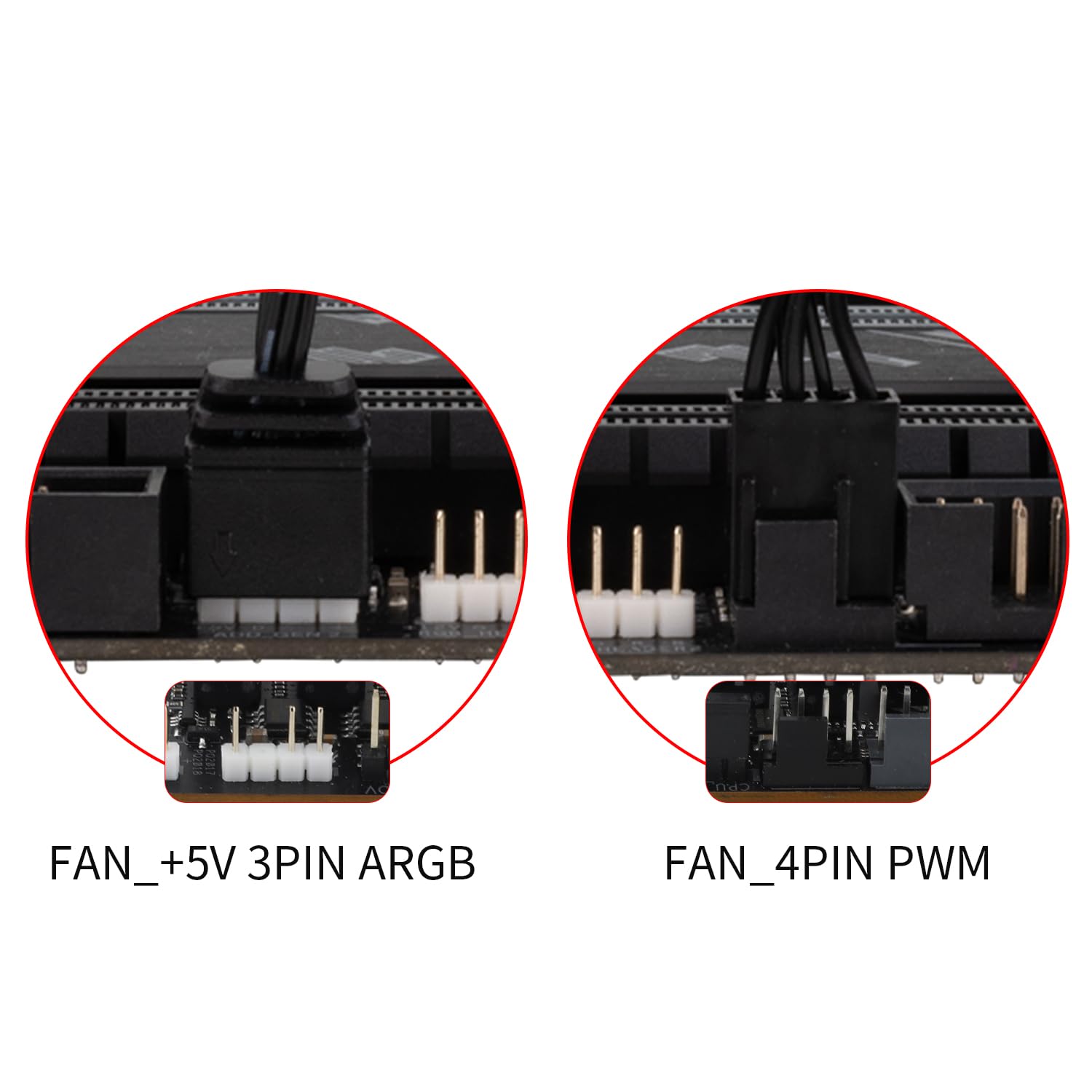
Image 5.1: Illustration of the FAN_+5V 3PIN ARGB and FAN_4PIN PWM connectors for motherboard connection.
5.2. ARGB Lighting Connection
- Identify the 3-pin 5V addressable RGB (ARGB) connector on your fan.
- Connect this ARGB connector to a compatible +5V ARGB header on your motherboard (do not connect to a 12V RGB header).
- To synchronize ARGB lighting effects across multiple fans, use the provided ARGB sharing connector. Connect additional fan ARGB cables to the sharing connector, then connect the sharing connector to the motherboard ARGB header.
5.3. Airflow Direction
Proper airflow is crucial for effective cooling. For normal airflow design fans, the blade side typically intakes air, and the frame side exhausts air. Install the fan according to your case's desired airflow direction.

Image 5.2: The fan's blade side acts as the intake, and the frame side acts as the exhaust. A diagram of the PWM fan speed sync connector is also shown.
5.4. Kuiswa Kwenyama
- Position the fan in the desired mounting location within your PC case, air cooler, or water cooling radiator.
- Align the fan's screw holes with the mounting points.
- Use the included self-tapping screws to secure the fan. Tighten screws firmly but do not overtighten.

Mufananidzo 5.3: Eksample of the fan installed as a case fan, demonstrating proper mounting.

Image 5.4: The fan can be used for case airflow, air coolers, and water cooling radiators.
5.5. Installation Video Tutorial
For a visual guide on fan installation and connection interfaces, please refer to the official tutorial video below:
Video 5.1: Official tutorial demonstrating the installation and connection of Thermalright case fans, including PWM and ARGB setup.
6. Operating Instructions
Once installed and connected, the Thermalright TL-H12-X28-S fan operates automatically based on your motherboard's fan control settings.
- Fan Speed Control (PWM): The 4-pin PWM connector allows your motherboard to dynamically adjust the fan speed based on CPU temperature or other system parameters. You can typically configure fan curves in your motherboard's BIOS/UEFI settings or through manufacturer-provided software.
- Kudzora Mwenje weARGB: The 5V 3PIN ARGB lighting can be controlled via your motherboard's ARGB software (e.g., ASUS Aura Sync, MSI Mystic Light Sync, Gigabyte RGB Fusion, ASRock Polychrome Sync) or a dedicated ARGB controller (not included). Ensure your motherboard's ARGB header is enabled and configured correctly in its software.
7. Kuchengeta
Kugara kugadziridza kunovimbisa kuita kwakaringana uye hupenyu hurefu hwefani yako.
- Kuchenesa: Periodically clean the fan blades and frame to remove dust buildup. Use a soft brush or compressed air. Ensure the fan is powered off before cleaning.
- Kuongorora: Check for any obstructions around the fan blades or unusual noises during operation.
- Bearing: The S-FDB V2 bearing is designed for long-lasting, maintenance-free operation. Do not attempt to disassemble the fan for lubrication.
8. Kugadzirisa matambudziko
If you encounter issues with your fan, refer to the following common troubleshooting steps:
| Dambudziko | Zvinogoneka Chikonzero / Mhinduro |
|---|---|
| Fani haisi kutenderera |
|
| Mwenje weARGB hausi kushanda |
|
| Fan ine ruzha rwakanyanya |
|
| Kusaita zvakanaka kwekutonhodza |
|
9. Warranty & Tsigiro
Thermalright products are manufactured to high-quality standards. For warranty information, technical support, or service inquiries, please contact Thermalright customer support directly or visit their official website. Chengetedza humbowo hwako hwekutenga kune warranty claim.
Manufacturer: Thermalright
Model Number: TL-H12-X28-S


